How to Graph three variables in Excel
Last Updated :
09 Jan, 2025
Creating graphs in Excel is essential for visualizing relationships between variables. When working with three variables, a graph can provide powerful insights into how they interact. While Excel doesn’t directly offer a built-in chart specifically for three variables, you can use its customization options to create effective visualizations like scatter plots, bubble charts, or 3D charts.
In this article, we will guide you through the process of graphing three variables in Excel, step by step, using practical examples and tips.
 How to Graph three variables in Excel
Why Graphing Three Variables is Useful
Graphs with three variables allow you to:
- Visualize relationships between three sets of data.
- Identify correlations or trends across multiple dimensions.
- Present complex datasets in an understandable format.
Some common use cases include financial data analysis, scientific research, and sales performance comparisons.
How to Make a Three-Variable Line Graph
A line graph is an excellent choice for showing trends over time. It connects data points with straight lines and is ideal for analyzing relationships between variables.
Step 1: Enter Your Data
- Open an Excel sheet and input the values for three variables in separate columns (e.g., Months, Expenses, and Savings).
- Label each column for clarity.
 Creating Database
Step 2:Select the Data
Highlight the entire dataset, including headers.
 Selecting Databse
Step 3: Insert the Line Graph
Go to the Insert tab and choose a line graph from the Charts section.
 Selecting Line Graph
Step 4:Customize the Graph
- Assign unique colors to each line for easy identification.
- Add axis titles and labels to clarify the data.
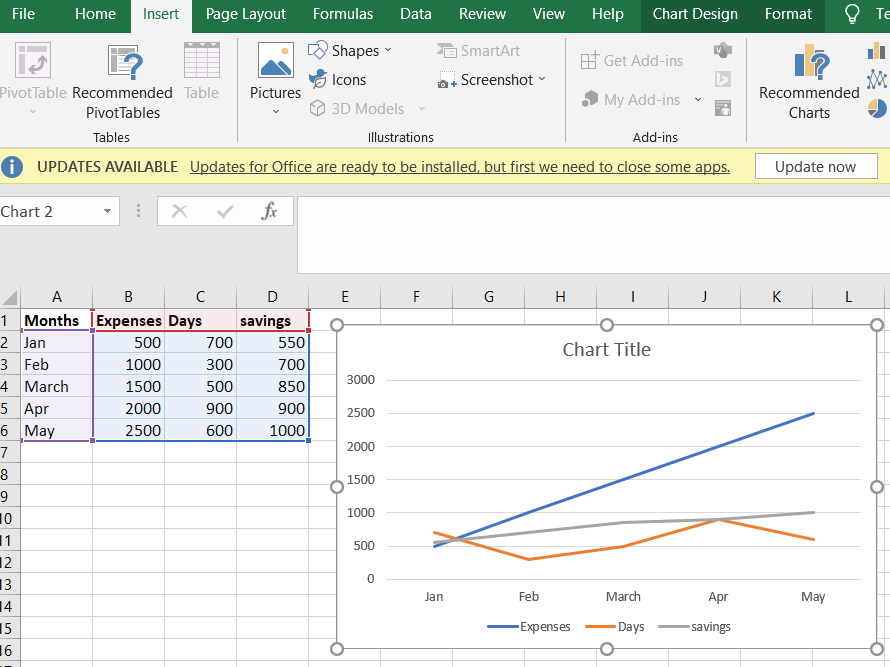 Creating Line Chart
 Styling Line Chart
For the below example, a line graph was made in excel using three different variables. The three variables are month, expenses, and days and savings. In the graph, you can see the variations in each expense and day according to the month variable. from January to May there keep on the increase in terms of expenses as shown in the example.
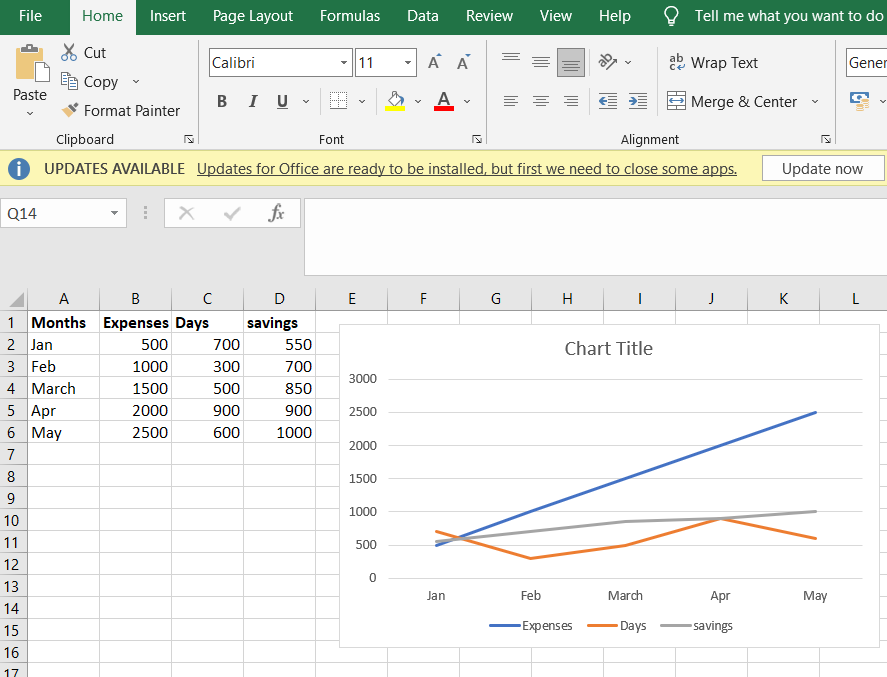 Line Graph for Three Variables
How to Make a Three-Variable Bar Graph
A bar graph visually represents data using rectangular bars, making it easy to compare values between different categories. It’s suitable for displaying relationships across groups.
Properties of bar Graphs
- The distance between each bar should be equal.
- The height and length of bars should correspond to the value of the data.
- The width of the bars also should be the same.
- There should be a common base for all bars.
Enter values for three variables (e.g., Months, Expenses, and Days) in columns and label them.
Creating DatabaseStep 2: Select the Data
Highlight the data, including headers.
Navigating MenuStep 3:Insert the Bar Graph
Go to the Insert tab, navigate to the Charts section, and select a bar graph.
 Selecting Bar Graphs
Step 4: Customize the Graph
- Use distinct colors for each bar series.
- Add labels and gridlines for better clarity.
 Styling Bar Graphs
Types of Bar Graphs
When working with three variables in Excel, bar graphs can help you visualize data effectively. Here are the types of bar graphs you can use:
1. Horizontal Bar Graph:
- Displays data horizontally along the X-axis, where bar length indicates value.
- Example: A horizontal bar graph showing monthly expenses and days. The graph reveals an increase in expenses from January to May.
 Horizontal Bar Graph
2. Vertical Bar Graph
- Displays data vertically along the Y-axis, where bar height represents value.
- Example: A vertical bar graph showing the same data emphasizes expenses through bar heights, making comparisons easier.
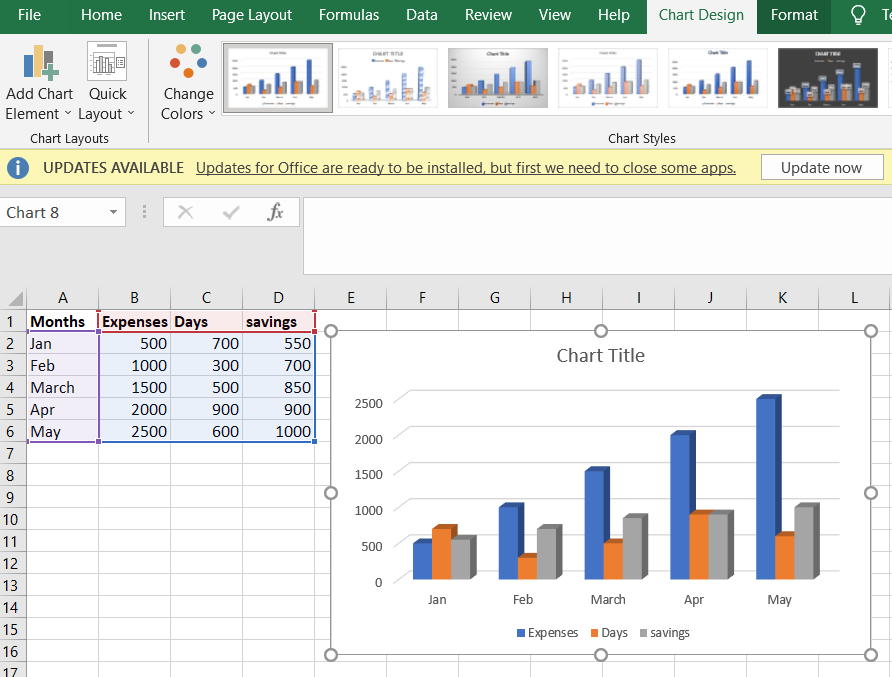 Vertical Bar Graph
Tips for Graphing Three Variables in Excel
- Label your data clearly: Use descriptive titles for the axes and chart to ensure the graph is easy to understand.
- Choose the right graph: The best chart depends on your dataset and the insights you want to convey.
- Use formatting tools: Highlight important trends by customizing colors, labels, and gridlines.
- Validate your data: Ensure the data is accurate and free from inconsistencies before creating the graph.
Common Use Cases for Graphing Three Variables
- Business Analysis: Comparing sales revenue (X), marketing spend (Y), and customer growth (bubble size).
- Scientific Research: Plotting temperature (X), pressure (Y), and time (Z-axis).
- Finance: Tracking stock price (X), trading volume (Y), and market capitalization (bubble size).
Conclusion
In conclusion, learning how to graph three variables in Excel is crucial for effectively visualizing complex data relationships. We can design various graphs using Excel as it provides a lot of options like 3-D bar graphs and 2-D bar graphs, and also we have pie charts and histograms for comparing different sets of values. Excel offers us a wide range of options to help in computing and calculations. The process of graphing three variables in Excel is explained step by step in this article.
Explore
Excel Fundamental
Excel Formatting
Excel Formula & Function
Excel Data Analysis & Visualization
Advanced Excel
Excel Data Visualization
Excel VBA & Macros
Power BI & Advance Features in Excel