JavaScript is a lightweight, cross-platform programming language used to create dynamic and interactive web content. It is single-threaded and interpreted, meaning the code is executed line by line for greater flexibility. JavaScript plays a key role in modern web development by enhancing user interaction and responsiveness.
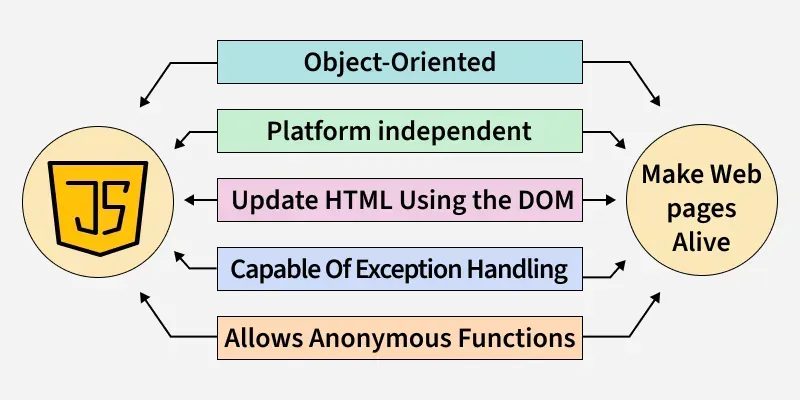
- JavaScript can be added to a web page using the <script> tag, which the browser recognizes and executes.
- JavaScript can also be linked using an external file with <script src="filename.js"> </script>.
- JavaScript comments help explain and improve code readability.
- Single-line comments in js starts with "//".
- Multi-line comments are wrapped between /* and*/.
Variables
Variables in JavaScript are containers used to store data. JavaScript allows variables to be declared in three ways:
- var: The var keyword is used to declare a variable that can be redeclared and reassigned. It is function-scoped.
- let: The let keyword is similar to var, but it is block-scoped and cannot be redeclared within the same block.
- const: The const keyword is used to declare a variable whose value cannot be reassigned. It is also block-scoped.
Node
// Using var keyword
console.log("Using var Keyword");
var x = 1;
if (x === 1) {
    var x = 2;
    console.log(x);
}
console.log(x);

// Using let keyword
console.log("Using let Keyword");
let x1 = 1;
if (x1 === 1) {
    let x1 = 2;
    console.log(x1);
}
console.log(x1);

// Using const keyword
console.log("Using const Keyword");
const number = 48;

// Changing const value will display TypeError
try {
    const number = 42;
} catch (err) {
    console.log(err);
}
console.log(number);
OutputUsing var Keyword
2
2
Using let Keyword
2
1
Using const Keyword
48
- Use
let for variables whose values will change. - Use
const for variables with constant values. - Avoid using
var in modern JavaScript due to potential scoping issues.
Datatypes
In JavaScript, data types determine the kind of value a variable can store. Understanding these types is essential for evaluating expressions correctly and performing appropriate operations on variables.
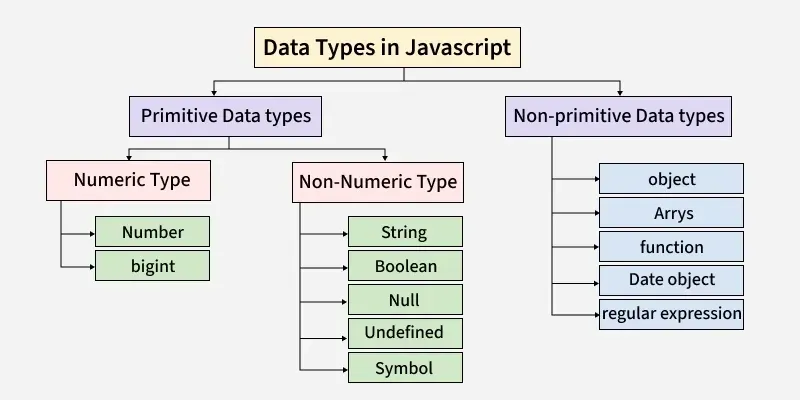
JavaScript supports both primitive and non-primitive data types:
- Number: The Number data type represents numeric values, including integers and real numbers.
- String: A String is a sequence of characters written inside quotes.
- Boolean: The Boolean type has only two values: true or false.
- Null: Null is a special value that indicates that a variable is intentionally empty.
- Undefined: The Undefined type represents a variable that is declared but not assigned any value.
- Object: An Object is a complex data type used to store collections of data in key–value pairs.
- Array: An Array is a structure that stores multiple values of the same type in a single variable.
- Function: A Function is an object that can be called to execute a block of code.
JavaScript
// Number
const n = 10;
console.log(n);

// string
let s = "hello geeks";
console.log(s);

// Boolean
const x = "true";
console.log(x);

// Undefined
let name;
console.log(name);

// Null
const num = null;
console.log(num);

//array
var arr = [1,3,4,6];
console.log(arr);

// object
const obj = {
    firstName: "geek",
    lastName: null,
    batch: 2,
};
console.log(obj);

// Symbol
const val1 = Symbol("hello");
const val2 = Symbol("hello");
// Here both values are different as they are symbol type which is immutable object
console.log(val1);
console.log(val2);
Output10
hello geeks
true
undefined
null
[ 1, 3, 4, 6 ]
{ firstName: 'geek', lastName: null, batch: 2 }
Symbol(hello)
Symbol(hello)
- Primitive types (like Number, String, Boolean, Null, and Undefined) store single values.
- Non-primitive types (like Object, Array, and Function) can store collections of data or executable code.
Operators
JavaScript operators are symbols used to perform various operations on variables (operands). Following are the different types of operators:
1. Arithmetic: Basic arithmetic operations on variables are performed using Arithmetic operators.
2. Comparison: Two operands are compared or evaluated using a Comparison operator.
3. Bitwise: Bitwise operators are used to perform operations at the bit level.
4. Logical: Logical operations are carried out using Logical operators.JavaScript provides three logical operators:
- Logical AND (&&): Returns true when all the operands are true.
- Logical OR (||): Returns true when one or more operands are true.
- Logical NOT (!): The NOT operator inverts a value, converting true to false and false to true.
5. Assignment: Assignment operators are used to assign values to JavaScript variables.
JavaScript
let x = 5;
let y = 3;

// Addition
console.log("x + y = ", x); // 8

// Subtraction
console.log("x - y = ", x - y); // 2

// Multiplication
console.log("x * y = ", x * y); // 15

// Division
console.log("x / y = ", x / y);

// Remainder
console.log("x % y = ", (x % y)); // 2

// Increment
console.log("++x = ", ++x); // x is now 6
console.log("x++ = ", x++);
console.log("x = ", x); // 7

// Decrement
console.log("--x = ", --x); // x is now 6
console.log("x-- = ", x--);
console.log("x = ", x); // 5

// Exponentiation
console.log("x ** y =", x ** y);

// Comparison
console.log(x > y); // true

// Equal operator
console.log((2 == 2)); // true

// Not equal operator
console.log((3 != 2)); // true

// Strict equal operator
console.log((2 === 2)); // true

// Strict not equal operator
console.log((2 !== 2)); // false

// Logical Operator

// Logical AND
console.log((x < 6 && y < 5)); // true

// Logical OR
console.log((x < 6 || y > 6)); // true

// Logical NOT
console.log(!(x < 6)); // false
Outputx + y = 5
x - y = 2
x * y = 15
x / y = 1.6666666666666667
x % y = 2
++x = 6
x++ = 6
x = 7
--x = 6
x-- = 6
x = 5
x ** y = 125
true
true
true
true
false
true
true
false
JS scope and scope chain
Scope determines where a variable is accessible in your program. It defines the context in which variables can be referenced or modified. JavaScript has three main types of scope:
- Function Scope: Variables declared inside a function are only accessible within that function.
- Global Scope: Variables declared outside any function are accessible throughout the program.
- Block Scope: Variables declared with
let or const inside a block (e.g., loops or conditionals) are only accessible within that block.
Scope Chain:
The scope chain helps the JavaScript engine resolve variable references by searching through the current scope and its outer scopes (from local to global).
- If a variable isn't found in the current scope, the engine looks in outer scopes until it either finds the variable or reaches the global scope.
- If it cannot find the variable, it either declares it in the global scope (non-strict mode) or throws an error (strict mode).
JavaScript
let a = 10;

function example() {

    // Exists in function scope
    let b = 20;

    if (true) {

        // Exists in function scope (due to 'var')
        var c = 30;

        // Exists in block scope
        const d = 40;
    }

    // Accessible from global scope
    console.log(a);

    // Accessible from function scope
    console.log(b);

    // Accessible from function scope (due to 'var')
    console.log(c);

    // Error: 'd' is not accessible outside block scope
    console.log(d);
}

example();
Functions
A JavaScript function is a block of code designed to perform a particular task. It is executed when invoked or called. Instead of writing the same piece of code again and again you can put it in a function and invoke the function when required.
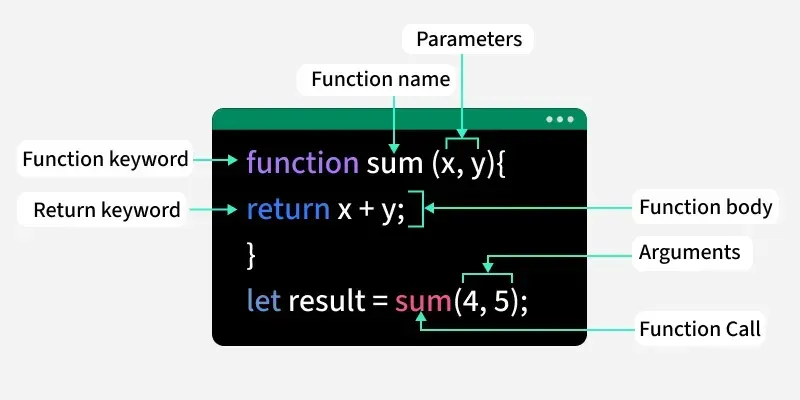
JavaScript function can be created using the functions keyword. Some of the functions in JavaScript are:
- parseInt(): The parseInt() function parses a given argument and returns an integer.
- parseFloat(): The parseFloat() function parses the argument and returns a floating-point number.
- isNaN(): The isNaN() function checks whether a value is Not a Number.
- Number(): The Number() function converts the given argument into a number.
- eval(): The eval() function evaluates JavaScript code provided as a string.
- prompt(): The prompt() function displays a dialog box to take input from the user.
- encodeURI(): The encodeURI() function encodes a URI using the UTF-8 scheme.
- match(): The match() function searches a string for a match using a regular expression.
JavaScript
// JS parseInt function:
const num1 = parseInt("100.45");
console.log('Using parseInt("100.45") = ' + num1);

// JS parseFloat function:
const num2 = parseFloat("123.45abc");
console.log('parseFloat("123.45abc") = ' + num2);

// JS isNaN function:
console.log(isNaN("hello"));

// JS Number() function:
const num3 = Number("123");
console.log("Value of '123': " + num3);

// JS eval() function:
function evalExample() {
    const expression = "2 + 3 * 4"; // Example expression to evaluate
    const result = eval(expression); // Evaluates '2 + 3 * 4' and returns 14
    console.log(result);
}
evalExample();

// JS encodeURI function:
const url = "https://example.com/hello world?query=javascript";
const encodedURL = encodeURI(url); // Encodes spaces as '%20' and ensures valid URL.
console.log(encodedURL);
OutputUsing parseInt("100.45") = 100
parseFloat("123.45abc") = 123.45
true
Value of '123': 123
14
https://example.com/hello%20world?query=javascript
Arrays
In JavaScript, array is a single variable that is used to store different elements. It is often used when we want to store list of elements and access them by a single variable. Arrays use numbers as index to access its "elements".
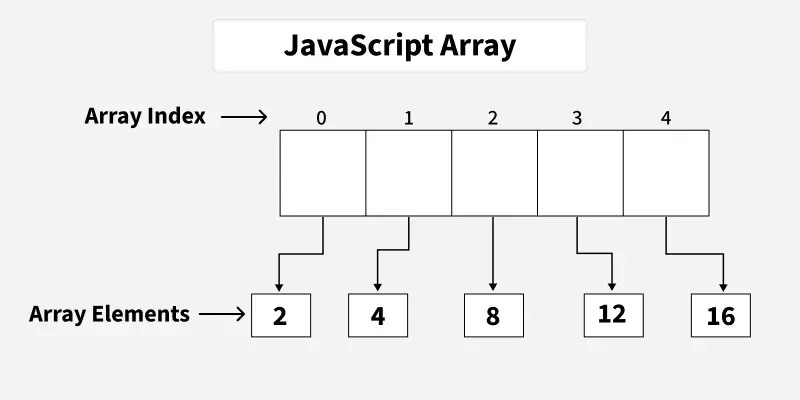
Declaration of an Array: There are basically two ways to declare an array.
Example:
var House = [ ]; // Method 1
var House = new Array(); // Method 2
There are various operations that can be performed on arrays using JavaScript methods. Some of these methods are:
- push(): The push() method adds a new element to the end of an array.
- pop(): The pop() method removes the last element of an array.
- concat(): The concat() method joins multiple arrays into a single array.
- shift(): The shift() method removes the first element of an array.
- unshift(): The unshift() method adds new elements at the beginning of an array.
- reverse(): The reverse() method reverses the order of array elements.
- slice(): The slice() method copies a portion of an array into a new array.
- splice(): The splice() method adds or removes elements at a specific position.
- toString(): The toString() method converts array elements into a string.
- valueOf(): The valueOf() method returns the array’s primitive value.
- indexOf(): The indexOf() method returns the first index at which a given element appears.
- lastIndexOf(): The lastIndexOf() method returns the final index at which an element appears.
- join(): The join() method combines array elements into a single string and returns it.
- sort(): The sort() method sorts array elements based on a condition.
JavaScript
// Declaring and initializing arrays

// Num Array
let arr = [10, 20, 30, 40, 50];
let arr1 = [110, 120, 130, 140];

// String array
let string_arr = ["Alex", "peter", "chloe"];

// push: Adding elements at the end of the array
arr.push(60);
console.log("After push op " + arr);

// unshift() Adding elements at the start of the array
arr.unshift(0, 10);
console.log("After unshift op " + arr );

// pop: removing elements from the end of the array
arr.pop();
console.log("After pop op" + arr);

// shift(): Removing elements from the start of the array
arr.shift();
console.log("After shift op " + arr);

// splice(x,y): removes x number of elements
// starting from index y
arr.splice(2, 1);
console.log("After splice op" + arr);

// reverse(): reverses the order of elements in array
arr.reverse();
console.log("After reverse op" + arr);

// concat(): merges two or more array
console.log("After concat op" + arr.concat(arr1));
OutputAfter push op 10,20,30,40,50,60
After unshift op 0,10,10,20,30,40,50,60
After pop op0,10,10,20,30,40,50
After shift op 10,10,20,30,40,50
After splice op10,10,30,40,50
After reverse op50,40,30,10,10
Af...
Loops
Loops are a useful feature in most programming languages. With loops you can evaluate a set of instructions/functions repeatedly until certain condition is reached. They let you run code blocks as many times as you like with different values while some condition is true.
Loops can be created in the following ways in JavaScript:
- for: The for loop iterates over a block of code with conditions specified at the beginning.
- while: The while loop is an entry-control loop that executes only after checking the condition.
- do-while: The do-while loop is an exit-control loop that executes once before checking the condition.
- for-in: The for-in loop provides a simpler way to iterate over the properties of an object.
JavaScript
// Illustration of for loop
let x;

for (x = 2; x <= 4; x++) {
    console.log("Value of x:" + x);
}

// creating an Object
let languages = {
    first: "C",
    second: "Java",
    third: "Python",
    fourth: "PHP",
    fifth: "JavaScript",
};

// Iterate through every property of the object
for (itr in languages) {
    console.log(languages[itr]);
}

// Illustration of while loop
let y = 1;

// Exit when x becomes greater than 4
while (y <= 4) {
    console.log("Value of y:" + y);
    y++;
}

// Illustration of do-while loop
let z = 21;

do {

    console.log("Value of z:" + z);

    z++;
} while (z < 20);
OutputValue of x:2
Value of x:3
Value of x:4
C
Java
Python
PHP
JavaScript
Value of y:1
Value of y:2
Value of y:3
Value of y:4
Value of z:21
If-else
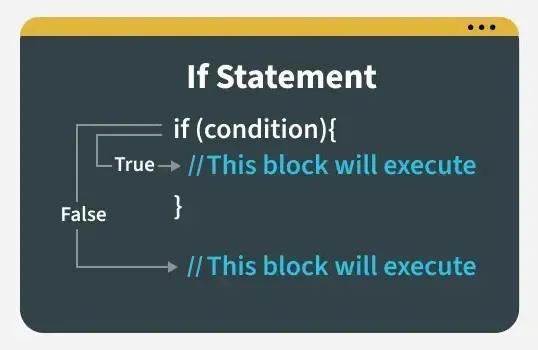
The if-else statement in JavaScript is used to execute code conditionally. It allows a program to run different code blocks based on whether a condition is true or false.
- Executes the if block when a condition is satisfied; otherwise, the else block runs.
- Supports nested if statements, allowing one if condition inside another.
 JavaScript
// JavaScript program to illustrate if-else statement
const i = 10;

if (i < 15)
    console.log("Value of i is less than 15");
else
    console.log("Value of i is greater than 15");
OutputValue of i is less than 15
Strings
Strings in JavaScript are primitive and immutable data types used for storing and manipulating text data which can be zero or more characters consisting of letters, numbers or symbols. JavaScript provides a lot of methods to manipulate strings.
Some most used ones are:
- concat(): The concat() method is used to merge multiple strings into one string.
- match(): The match() method is used to find matches of a string against a given pattern.
- replace(): The replace() method finds and replaces a specified part of a string.
- substr(): The substr() method extracts a specific number of characters from a string.
- slice(): The slice() method extracts a portion of a string and returns it.
- lastIndexOf(): The lastIndexOf() method returns the position of the last occurrence of a specified value.
- charAt(): The charAt() method returns the character at a given index of the string.
- valueOf(): The valueOf() method returns the primitive value of a string object.
- split(): The split() method splits a string into an array of substrings.
- toUpperCase(): The toUpperCase() method converts a string to uppercase.
- toLowerCase(): The toLowerCase() method converts a string to lowercase.
JavaScript
let gfg = 'GFG ';
let geeks = 'stands-for-GeeksforGeeks';

// Print the string as it is
console.log(gfg);
console.log(geeks);

// concat() method
console.log(gfg.concat(geeks));

// match() method
console.log(geeks.match(/eek/));

// charAt() method
console.log(geeks.charAt(5));

// valueOf() method
console.log(geeks.valueOf());

// lastIndexOf() method
console.log(geeks.lastIndexOf('for'));

// substr() method
console.log(geeks.substr(6));

// indexOf() method
console.log(gfg.indexOf('G'));

// replace() method
console.log(gfg.replace('FG', 'fg'));

// slice() method
console.log(geeks.slice(2, 8));

// split() method
console.log(geeks.split('-'));

// toUpperCase method
console.log(geeks.toUpperCase(geeks));

// toLowerCase method
console.log(geeks.toLowerCase(geeks));
OutputGFG
stands-for-GeeksforGeeks
GFG stands-for-GeeksforGeeks
[
'eek',
index: 12,
input: 'stands-for-GeeksforGeeks',
groups: undefined
]
s
stands-for-GeeksforGeeks
16
-for-GeeksforGeeks
0
Gfg
an...
Regular Expressions
A regular expression is a sequence of characters that forms a search pattern.
- The search pattern can be used for text search and text to replace operations.
- A regular expression can be a single character or a more complicated pattern.
Regular Expression Modifiers:
Modifiers can be used to perform multiline searches. Some of the pattern modifiers that are allowed in JavaScript:
- [abc]: The [abc] pattern matches any one of the characters inside the brackets.
- [0-9]: The [0-9] pattern matches any digit between 0 and 9.
- (x|y): The (x|y) pattern matches either x or y as alternatives.
Regular Expression Patterns:
Metacharacters are characters with a special meaning. Some of the metacharacters that are allowed in JavaScript:
- . : The . metacharacter matches any single character except a newline or line terminator.
- \d: The \d metacharacter is used to match any digit.
- \s: The \s metacharacter is used to match any whitespace character.
- \uXXXX: The \uXXXX pattern is used to match a Unicode character specified by its hexadecimal code.
Quantifiers
They provide the minimum number of instances of a character, group, or character class in the input required to find a match.
Some of the quantifiers allowed in JavaScript are:
- n+: The n+ quantifier matches any string containing at least one n.
- n*: The n* quantifier matches any string containing zero or more occurrences of n.
- n?: The n? quantifier matches any string containing zero or one occurrence of n.
- n{x}: The n{x} quantifier matches strings that contain exactly x occurrences of n.
- ^n: The ^n pattern matches strings that start with n.
Here is an example to help you understand regular expression better.
JavaScript
// Program to validate the email address
function validateEmail(email) {

    // Regex pattern for email
    const re = /\S+@\S+\.\S+/g;

    // Check if the email is valid
    let result = re.test(email);

    if (result) {
        console.log("The email is valid.");
    } else {
        console.log("The email is not valid.");
    }
}

// Input Email Id
let email = "[email protected]"
validateEmail(email);

email = "abc#$#@45com"
validateEmail(email);
OutputThe email is valid.
The email is not valid.
Data transformation is converts data from one format to another. It can be done with the usage of higher-order functions which can accept one or more functions as inputs and return a function as the result.
All higher-order functions that take a function as input are:
- map(): The map() method iterates over an array and calls a function on every element.
- filter(): The filter() method creates a new array by keeping elements that meet a given condition.
- reduce(): The reduce() method reduces an array to a single value using a function.
JavaScript
const num = [16, 25];

/* Using JS map() Method */
console.log(num.map(Math.sqrt));

const ages = [19, 37, 16, 42];

/* Using JS filter() Method */
console.log(ages.filter(checkAdult));

function checkAdult(age) {
    return age >= 18;
}

/* Using JS reduce() Method */
const numbers = [165, 84, 35];
console.log(numbers.reduce(myFunc));

function myFunc(total, num) {
    return total - num;
}
Output[ 4, 5 ]
[ 19, 37, 42 ]
46
Date objects
The Date object is an inbuilt datatype of JavaScript language. It is used to deal with and change dates and times. There are four different way to declare a date, the basic things is that the date objects are created by the new Date() operator.
Syntax:
new Date()
new Date(milliseconds)
new Date(dataString)
new Date(year, month, date, hour, minute, second, millisecond)
There are various methods in JavaScript used to get date and time values or create custom date objects. Some of these methods are:
- getDate(): The getDate() method returns the day of the month (1-31).
- getTime(): The getTime() method returns the milliseconds elapsed since January 1, 1970.
- getMinutes(): The getMinutes() method returns the current minute (0-59).
- getFullYear(): The getFullYear() method returns the full year as a four-digit number (yyyy).
- getDay(): The getDay() method returns the weekday as a number (0-6).
- parse(): The parse() method returns the number of milliseconds since January 1, 1970, after parsing a date string.
- setDate(): The setDate() method sets the day of the month (1-31).
- setTime(): The setTime() method sets the time in milliseconds since January 1, 1970.
JavaScript
// Here a date has been assigned by creating a date obj
let DateObj = new Date("October 13, 1996 05:35:32");

// getDate()
let A = DateObj.getDate();

// Printing date of the month
console.log(A);

// getTime()
let B = DateObj.getTime();

// Printing time in milliseconds.
console.log(B);

// getMinutes()
let minutes = DateObj.getMinutes();

// Printing minute.
console.log(minutes);

// getFullYear()
let C = DateObj.getFullYear();

// Printing year
console.log(C);

// getDay()
let Day = DateObj.getDay();

// Printing day of the week
console.log("Number of Day: " + Day);

// setDate
DateObj.setDate(15);

let D = DateObj.getDate();

// Printing new date of the month
console.log(D);

// parse(), taking wrong date string as input.
let date = "February 48, 2018 12:30 PM";

// calling parse function.
let msec = Date.parse(date);
console.log(msec);
Output13
845184932000
35
1996
Number of Day: 0
15
NaN
DOM
DOM stands for Document Object Model. It defines the logical structure of documents and the way a document is accessed and manipulated. JavaScript can not understand the tags in HTML document but can understand objects in DOM.
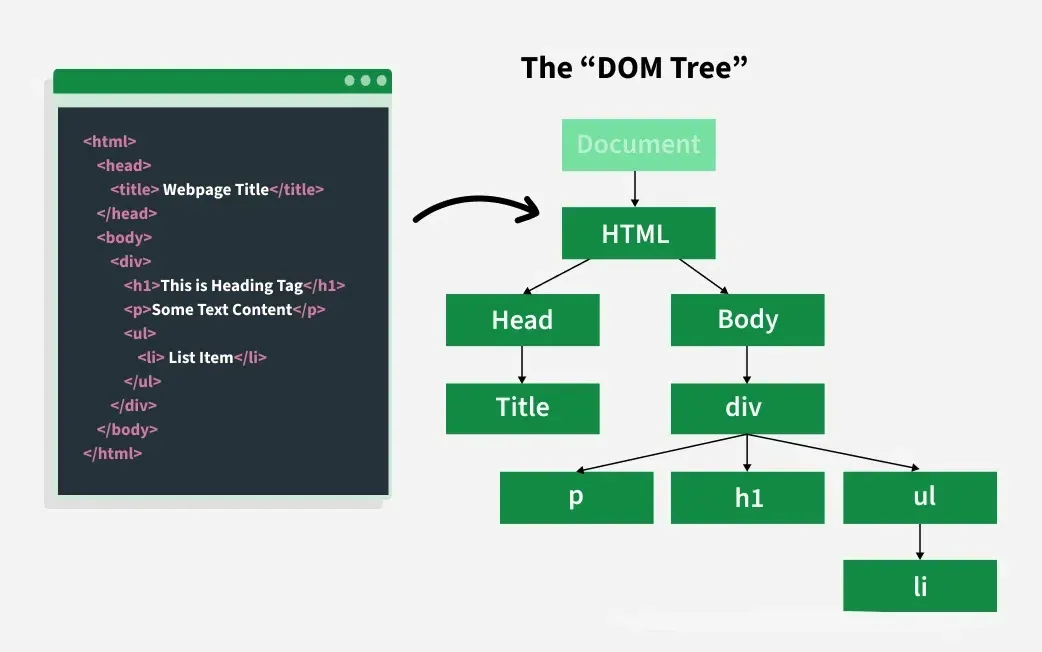
Below are some of the methods provided by JavaScript to manipulate these nodes and their attributes in the DOM:
- appendChild(): The appendChild() method adds a new child node as the last child of an element.
- cloneNode(): The cloneNode() method duplicates an HTML element.
- hasAttributes(): The hasAttributes() method returns true if an element has attributes; otherwise, it returns false.
- removeChild(): The removeChild() method removes a child node from an element.
- getAttribute(): The getAttribute() method returns the value of a specified attribute from an element.
- getElementsByTagName(): The getElementsByTagName() method returns a list of all child elements with a given tag name.
- isEqualNode(): The isEqualNode() method checks whether two elements are the same.
HTML
<!DOCTYPE html>
<html lang="en">
<head>
    <meta charset="UTF-8">
    <title>DOM Methods Demo</title>
    <link rel="stylesheet" href="styles.css">
</head>

<body>
    <h1>GeeksforGeeks</h1>
    <h2>DOM appendChild() Method</h2>

    <div id="sudo">
        The Good Website is learning for Computer Science is-
    </div>
    <button onclick="geeks()">Submit</button>
    <br />

    <div class="box">
        <h1>GeeksforGeeks</h1>
        <h2>A computer science portal for geeks</h2>
    </div>

    <h2>DOM cloneNode() Method</h2>
    <button onclick="nClone()">Click here to clone the above elements.</button>
    <br />

    <h2>DOM hasAttributes() Method</h2>
    <p id="gfg">
        Click on the button to check if that body element has any attributes
    </p>
    <button onclick="hasAttr()">Submit</button>
    <br />

    <h2>DOM removeChild() Method</h2>
    <p>Sorting Algorithm</p>
    <ul id="listitem">
        <li>Insertion sort</li>
        <li>Merge sort</li>
        <li>Quick sort</li>
    </ul>
    <button onclick="Geeks()">Click Here!</button>
    <br />

    <h2>DOM getAttribute() Method</h2>
    <button id="button" onclick="getAttr()">Submit</button>
    <p id="gfg1"></p>
    <br />

    <h2>DOM getElementsByTagName()</h2>
    <p>A computer science portal for geeks.</p>
    <button onclick="getElement()">Try it</button>

    <h3>DOM isEqualNode() method</h3>
    <div>GeeksforGeeks</div>
    <div>GfG</div>
    <div>GeeksforGeeks</div>
    <button onclick="isequal()">Check</button>
    <p id="result"></p>

    <script src="script.js"></script>
</body>
</html>
#sudo {
    border: 1px solid green;
    background-color: green;
    margin-bottom: 10px;
    color: white;
    font-weight: bold;
    padding: 5px;
}

h1,
h2 {
    text-align: center;
    color: green;
    font-weight: bold;
}

.box {
    border: 3px solid green;
    margin-top: 10px;
    padding: 10px;
}
function geeks() {
    var node = document.createElement("p");
    var t = document.createTextNode("GeeksforGeeks");
    node.appendChild(t);
    document.getElementById("sudo").appendChild(node);
}

function nClone() {
    var geek = document.getElementsByTagName("div")[0];
    var clone = geek.cloneNode(true);
    document.body.appendChild(clone);
}

function hasAttr() {
    var s = document.body.hasAttributes();
    document.getElementById("gfg").innerHTML = s;
}

function Geeks() {
    var doc = document.getElementById("listitem");
    doc.removeChild(doc.childNodes[0]);
}

function getAttr() {
    var rk = document.getElementById("button").getAttribute("onclick");
    document.getElementById("gfg1").innerHTML = rk;
}

function getElement() {
    var doc = document.getElementsByTagName("p");
    doc[0].style.background = "green";
    doc[0].style.color = "white";
}

function isequal() {
    var out = document.getElementById("result");
    var divele = document.getElementsByTagName("div");

    out.innerHTML =
        "element 1 equals element 1: " + divele[0].isEqualNode(divele[0]) + "<br/>" +
        "element 1 equals element 2: " + divele[0].isEqualNode(divele[1]) + "<br/>" +
        "element 1 equals element 3: " + divele[0].isEqualNode(divele[2]);
}
Numbers and Math
JavaScript provides various properties and methods to deal with Numbers and Math. Number Properties include MAX value, MIN value, NAN(not a number), negative infinity , positive infinity etc.
Some of the methods in JavaScript to deal with numbers are:
- valueOf(): The valueOf() method returns a number in its original (primitive) form.
- toString(): The toString() method converts a number to its string representation.
- toFixed(): The toFixed() method returns a number as a string with a specified number of decimal places.
- toPrecision(): The toPrecision() method converts a number to a string with a specified total length (precision).
- toExponential(): The toExponential() method returns a number written in exponential (scientific) notation.
JavaScript
var num = 213;
var num1 = 213.3456711;

// JS valueof() Method
console.log("Output : " + num.valueOf());

// JS tostring() Method
console.log("Output : " + num.toString(2));

// JS tofixed() Method
console.log("Output : " + num1.toString(2));

// JS topricision() Method
console.log("Output : " + num1.toPrecision(3));

// JS toexponential() Method
console.log("Output : " + num1.toExponential(4));
OutputOutput : 213
Output : 11010101
Output : 11010101.0101100001111101111001101011010110101100001
Output : 213
Output : 2.1335e+2
- Javascript provides math object which is used to perform mathematical operations on numbers.
- There are many math object properties which include euler's number, PI, square root, logarithm.
Some of the methods in JavaScript to deal with math properties are:
- max(x, y, z…n): The max() method returns the highest-valued number from the given inputs.
- min(x, y, z…n): The min() method returns the lowest-valued number from the given inputs.
- exp(x): The exp() method returns the exponential value of x.
- log(x): The log() method returns the natural logarithm (base e) of x.
- sqrt(x): The sqrt() method returns the square root of x.
- pow(x, y): The pow() method returns the value of x raised to the power of y.
- round(x): The round() method rounds x to the nearest integer.
- sin(x): The sin() method returns the sine of x (in radians).
- tan(x): The tan() method returns the tangent of angle x.
HTML
<!DOCTYPE html>
<html>
<head>
    <title>Math Methods Demo</title>
</head>
<body>

<p id="GFG"></p>

<script>
    document.getElementById("GFG").innerHTML =
        "Math.LN10: " + Math.LN10 + "<br>" +
        "Math.LOG2E: " + Math.LOG2E + "<br>" +
        "Math.LOG10E: " + Math.LOG10E + "<br>" +
        "Math.SQRT2: " + Math.SQRT2 + "<br>" +
        "Math.SQRT1_2: " + Math.SQRT1_2 + "<br>" +
        "Math.LN2: " + Math.LN2 + "<br>" +
        "Math.E: " + Math.E + "<br>" +
        "Math.round(5.8): " + Math.round(5.8) + "<br>" +
        "Math.PI: " + Math.PI + "<br><br>" +

        "<p><b>Math.sin(90 * Math.PI / 180):</b> " +
        Math.sin(90 * Math.PI / 180) + "</p>" +

        "<p><b>Math.tan(90 * Math.PI / 180):</b> " +
        Math.tan(90 * Math.PI / 180) + "</p>" +

        "<p><b>Math.max(0, 150, 30, 20, -8, -200):</b> " +
        Math.max(0, 150, 30, 20, -8, -200) + "</p>" +

        "<p><b>Math.min(0, 150, 30, 20, -8, -200):</b> " +
        Math.min(0, 150, 30, 20, -8, -200) + "</p>" +

        "<p><b>Math.pow(3, 4):</b> " +
        Math.pow(3, 4) + "</p>";
</script>

</body>
</html>
<!DOCTYPE html>
<html>
<head>
    <title>Math Methods Demo</title>
</head>
<body>

<p id="GFG"></p>

<script>
    document.getElementById("GFG").innerHTML =
        "Math.LN10: " + Math.LN10 + "<br>" +
        "Math.LOG2E: " + Math.LOG2E + "<br>" +
        "Math.LOG10E: " + Math.LOG10E + "<br>" +
        "Math.SQRT2: " + Math.SQRT2 + "<br>" +
        "Math.SQRT1_2: " + Math.SQRT1_2 + "<br>" +
        "Math.LN2: " + Math.LN2 + "<br>" +
        "Math.E: " + Math.E + "<br>" +
        "Math.round(5.8): " + Math.round(5.8) + "<br>" +
        "Math.PI: " + Math.PI + "<br><br>" +

        "<p><b>Math.sin(90 * Math.PI / 180):</b> " +
        Math.sin(90 * Math.PI / 180) + "</p>" +

        "<p><b>Math.tan(90 * Math.PI / 180):</b> " +
        Math.tan(90 * Math.PI / 180) + "</p>" +

        "<p><b>Math.max(0, 150, 30, 20, -8, -200):</b> " +
        Math.max(0, 150, 30, 20, -8, -200) + "</p>" +

        "<p><b>Math.min(0, 150, 30, 20, -8, -200):</b> " +
        Math.min(0, 150, 30, 20, -8, -200) + "</p>" +

        "<p><b>Math.pow(3, 4):</b> " +
        Math.pow(3, 4) + "</p>";
</script>

</body>
</html>
Events
JavaScript has events to provide a dynamic interface to a webpage. When a user or browser manipulates the page events occur. These events are hooked to elements in the Document Object Model(DOM).
Some of the events supported by JavaScript:
- onclick(): The onclick() event is triggered when an element is clicked.
- onkeyup(): The onkeyup() event executes when a key is released.
- onmouseover(): The onmouseover() event triggers when the mouse pointer hovers over an element.
- onmouseout(): The onmouseout() event triggers when the mouse pointer moves away from an element.
- onchange(): The onchange() event detects a change in the value of an element.
- onload(): The onload() event fires when an element is fully loaded.
- onfocus(): The onfocus() event triggers when an element gains focus.
- onblur(): The onblur() event fires when an element loses focus.
- onsubmit(): The onsubmit() event triggers when a form is submitted.
- ondrag(): The ondrag() event triggers when an element is being dragged.
- oninput(): The oninput() event triggers when an input field receives a value.
HTML
<!DOCTYPE html>
<html lang="en">
<head>
    <meta charset="UTF-8">
    <title>JavaScript Events Demo</title>
    <link rel="stylesheet" href="style.css">
</head>

<body>
    <!-- onload event -->
    <img
        src="https://media.geeksforgeeks.org/wp-content/cdn-uploads/GeeksforGeeksLogoHeader.png"
        alt="GFG Logo"
        onload="imageLoaded()"
    />

    <!-- onclick event -->
    <h2>onclick event</h2>
    <button type="button" onclick="hiThere()">Click me</button>

    <!-- onfocus event -->
    <h2>onfocus event</h2>
    <p>Take the focus into the input box below:</p>
    <input id="inp" onfocus="focused()" />

    <!-- onblur event -->
    <h2>onblur event</h2>
    <p>
        Write something in the input box and
        then click elsewhere in the document body.
    </p>
    <input onblur="alert(this.value)" />

    <!-- onmouseover and onmouseout event -->
    <h2 id="hID">onmouseover event</h2>

    <!-- onchange event -->
    <h2>onchange event</h2>
    <p>Choose Subject:</p>
    <select id="GFG" onchange="Geeks()">
        <option value="Data Structure">Data Structure</option>
        <option value="Algorithm">Algorithm</option>
        <option value="Computer Network">Computer Network</option>
        <option value="Operating System">Operating System</option>
        <option value="HTML">HTML</option>
    </select>

    <p id="sudo"></p>

    <!-- onsubmit event -->
    <h2>onsubmit event</h2>
    <form onsubmit="return Geek()">
        First Name: <input type="text" /><br />
        Last Name: <input type="text" /><br />
        <input type="submit" value="Submit" />
    </form>

    <!-- ondrag event -->
    <h2>ondrag event</h2>
    <div id="geeks" draggable="true">
        GeeksforGeeks: A computer science portal for geeks
    </div>

    <script src="script.js"></script>
</body>
</html>
#geeks {
    border: 1px solid black;
    padding: 15px;
    width: 60%;
    cursor: grab;
}

h1,
h2 {
    color: green;
}
function imageLoaded() {
    alert("Image completely loaded");
}

function hiThere() {
    alert("Hi there!");
}

function focused() {
    var e = document.getElementById("inp");
    if (confirm("Got it?")) {
        e.blur();
    }
}

/* Mouseover & Mouseout */
document.addEventListener("DOMContentLoaded", function () {
    var heading = document.getElementById("hID");

    heading.addEventListener("mouseover", function () {
        heading.style.color = "green";
    });

    heading.addEventListener("mouseout", function () {
        heading.style.color = "black";
    });

    document.getElementById("geeks").addEventListener("drag", function () {
        this.style.fontSize = "30px";
        this.style.color = "green";
    });
});

/* onchange event */
function Geeks() {
    var x = document.getElementById("GFG").value;
    document.getElementById("sudo").innerHTML =
        "Selected Subject: " + x;
}

/* onsubmit event */
function Geek() {
    alert("Form submitted successfully.");
    return false; // prevents page refresh
}
Error
When executing JavaScript code, errors will most definitely occur when the JavaScript engine encounters a syntactically invalid code. These errors can occur due to the fault from the programmer’s side or the input is wrong or even if there is a problem with the logic of the program.
JavaScript has a few statements to deal with these errors:
- try: The try statement tests a block of code to check for errors.
- catch: The catch statement handles the error if one occurs.
- throw: The throw statement allows you to create and throw custom errors.
- finally: The finally statement executes code after the try and catch blocks, regardless of the result.
HTML
<html>
<body>
    <h2>
        JavaScript throw try catch finally keywords
    </h2>
    <p>Please enter a number:</p>
    <input id="demo" type="text" />
    <button type="button" onclick="myFunction()">
        Test Input
    </button>
    <p id="p01"></p>
    <script>
        function myFunction() {
            const message = document.getElementById("p01");
            message.innerHTML = "";
            let x = document.getElementById("demo").value;

            /* Using try.. catch.. with conditions*/
            try {
                if (x == "") throw "is empty";
                if (isNaN(x)) throw "is not a number";
                x = Number(x);
                if (x > 20) throw "is too high";
                if (x <= 20) throw "is too low";
            } catch (err) {
                message.innerHTML = "Input " + err;
            } finally {
                document.getElementById("demo").value = "";
            }
        }
    </script>
</body>
</html>
Window Properties
The window object is the topmost object of DOM hierarchy. Whenever a window appears on the screen to display the contents of document, the window object is created. To access the properties of the window object, you will specify object name followed by a period symbol (.) and the property name.
Syntax:
window.property_name
The properties and methods of Window object that are commonly used are:
- window: The window property returns the current browser window or frame.
- screen: The screen property returns the window’s Screen object.
- toolbar: The toolbar property represents the browser toolbar, whose visibility can be toggled.
- navigator: The navigator property returns the window’s Navigator object.
- frames[]: The frames[] property returns all <iframe> elements in the current window.
- document: The document property returns a reference to the Document object.
- closed: The closed property returns a boolean value indicating whether the window is closed.
- length: The length property represents the number of frames in the current window.
- history: The history property provides access to the window’s History object.
HTML
<html>
<body>
    <h1>The Window properties</h1>
    <h2>The origin Property</h2>
    <p id="demo"></p>
    <br />
    <button type="button" onclick="getResolution();">
        Get Resolution
    </button>
    <br />
    <button type="button" onclick="checkConnectionStatus();">
        Check Connection Status
    </button>
    <br />
    <button type="button" onclick="getViews();">
        Get Views Count</button>
    <br />
    <p>
        <button onclick="closeWin()">
            Close "myWindow"
        </button>
    </p>

    <script>
        // JS location property
        let origin = window.location.origin;
        document.getElementById("demo").innerHTML = origin;

        // JS screen property
        function getResolution() {
            alert("Your screen is: " + screen.width + "x" + screen.height);
        }

        // JS toolbar property
        var visible = window.toolbar.visible;

        // JS navigator property
        function checkConnectionStatus() {
            if (navigator.onLine) {
                alert("Application is online.");
            } else {
                alert("Application is offline.");
            }
        }
        // JS history property
        function getViews() {
            alert(
                "You've accessed " + history.length + " web pages in this session."
            );
        }
        // JS close property
        let myWindow;
        function closeWin() {
            if (myWindow) {
                myWindow.close();
            }
        }
    </script>
</body>
</html>
- alert(): The alert() method displays a message with an OK button in an alert box.
- print(): The print() method prints the current window content.
- blur(): The blur() method removes focus from the current window.
- setTimeout(): The setTimeout() method executes an expression after a specified delay.
- clearTimeout(): The clearTimeout() method clears a timer set by setTimeout().
- setInterval(): The setInterval() method executes an expression repeatedly at defined intervals.
- prompt(): The prompt() method displays a dialog box asking for user input.
- close(): The close() method closes the currently open window.
- focus(): The focus() method sets focus on the current window.
- resizeTo(): The resizeTo() method resizes the window to the specified width and height.
HTML
<html>
<head>
    <title>JavaScript Window Methods</title>
    <style>
        .gfg {
            font-size: 36px;
        }

        form {
            float: right;
            margin-left: 20px;
        }
    </style>
</head>

<body>
    <div class="gfg">JavaScript Window Methods</div>
    <br />
    <button onclick="windowOpen()">
        JavaScript window Open
    </button>
    <button onclick="resizeWin()">
        JavaScript window resizeTo
    </button>
    <button onclick="windowBlur()">
        JavaScript window Blur
    </button>
    <button onclick="windowFocus()">
        JavaScript window Focus
    </button>
    <button onclick="windowClose()">
        JavaScript window Close
    </button>
    <br />
    <br />
    <p id="g"></p>
    <form>
        <button onclick="setTimeout(wlcm, 2000);">
            Alert after 2 Second
        </button>
        <button onclick="geek()">Click me!</button>
        <input type="button" value="Print" onclick="window.print()" />
    </form>
    <br /><br />
    <button id="btn" onclick="fun()" style="color: green">
        JavaScript Used setTimeOut
    </button>
    <button id="btn" onclick="stop()">
        JavaScript clearTimeout
    </button>
    <script>
        var gfgWindow;

        // Function that open the new Window
        function windowOpen() {
            gfgWindow = window.open(
                "https://www.geeksforgeeks.org/",
                "_blank",
                "width=200, height=200"
            );
        }

        // Function that Resize the open Window
        function resizeWin() {
            gfgWindow.resizeTo(400, 400);
            gfgWindow.focus();
        }

        // Function that Closes the open Window
        function windowClose() {
            gfgWindow.close();
        }

        // Function that blur the open Window
        function windowBlur() {
            gfgWindow.blur();
        }

        // Function that focus on open Window
        function windowFocus() {
            gfgWindow.focus();
        }

        // Alert function
        function wlcm() {
            alert("Welcome to GeeksforGeeks");
        }

        // Prompt function
        function geek() {
            var doc = prompt("Please enter some text", "GeeksforGeeks");
            if (doc != null) {
                document.getElementById("g").innerHTML = "Welcome to " + doc;
            }
        }

        // Function setTimeout and clearTimeout
        var t;
        function color() {
            if (document.getElementById("btn").style.color == "blue") {
                document.getElementById("btn").style.color = "green";
            } else {
                document.getElementById("btn").style.color = "blue";
            }
        }
        function fun() {
            t = setTimeout(color, 3000);
        }
        function stop() {
            clearTimeout(t);
        }
    </script>
</body>
</html>
Benefits of Using JavaScript Cheat Sheet
Here are some key benefits of a JavaScript Cheat Sheet:
- Event Handling: The cheat sheet covers methods for handling user interactions and browser events, enabling more responsive and interactive web content.
- Efficient Web Development: Enables faster coding by providing quick access to JavaScript syntax and functions.
- Comprehensive Function Reference: Covers JavaScript variables, operators, methods, objects, and events in one place.
- Dynamic Content Creation: Helps developers build interactive and engaging web pages using JavaScript features.
- Interoperability: Supports smooth integration of JavaScript with HTML, CSS, and web frameworks.
- Optimized for Performance: Assists in writing efficient JavaScript code that improves application performance.
- Event Handling: Simplifies managing user interactions and browser events for responsive web content.
Recommended Links:
Arrays in JavaScript
Working of Arrays in JavaScript
Explore
JavaScript Basics
Array & String
Function & Object
OOP
Asynchronous JavaScript
Exception Handling
DOM
Advanced Topics