How to Read and Edit Systemd Logs using Journalctl in linux
Last Updated :
23 Jul, 2025
In the realm of Linux system administration, managing logs is an indispensable task. System logs are crucial for understanding the health, performance, and troubleshooting of a system. Systemd, the init system widely adopted by modern Linux distributions, introduced a centralized logging system called the Journal. `journalctl` is the primary tool provided by Systemd for accessing and managing these logs. In this article, we will delve into the intricacies of `journalctl`, learning how to read, filter, and edit Systemd logs effectively.
Understanding the Journalctl
Before diving into `journalctl`, it's essential to grasp the basics of the Journal. Systemd's Journal collects log data from various sources, including the kernel, system services, and user programs. Unlike traditional text-based log files scattered across the filesystem, the Journal stores logs in a binary format within a centralized location.
Key Features of the Journalctl:
- Indexed Data: The Journal indexes log data, enabling fast and efficient queries.
- Structured Information: Log entries in the Journal contain structured metadata, such as timestamps, severity levels, and originating processes.
- Preservation: Systemd retains logs across reboots, providing a persistent log history.
- Access Control: Access to the Journal is managed by Systemd, ensuring only authorized users can view logs.
Reading logs:
`journalctl` is a powerful command-line utility for querying and analyzing the Systemd Journal. Let's explore some common tasks performed with `journalctl`:
1. Basic usage:
By default, journalctl displays all log entries from the current boot, starting with the oldest.
Example:
journalctl
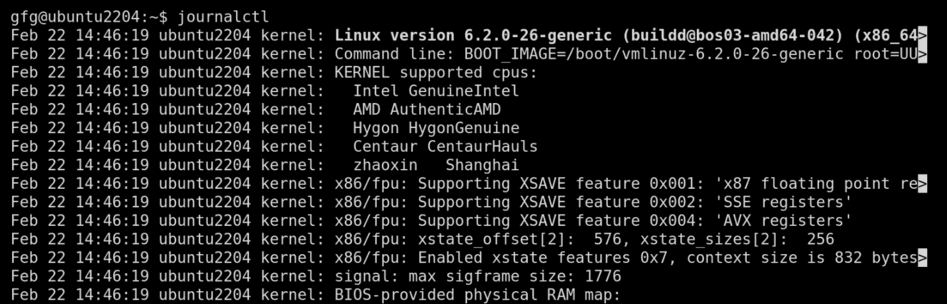 Viewing logs using journalctl
2. Filter by priority:
The -p flag in journalctl instructs it to filter log messages by their priority level. Systemd associates a priority level with each log message, indicating its severity We use -p option to display messages of a specific priority.
Option
| Used for
|
|---|
err
| Errors
|
|---|
warn
| Warnings
|
|---|
info
| Informational messages
|
|---|
notice
| Normal operational messages
|
|---|
debug
| Debugging messages
|
|---|
Syntax: journalctl -p <option>
Example:
journalctl -p err
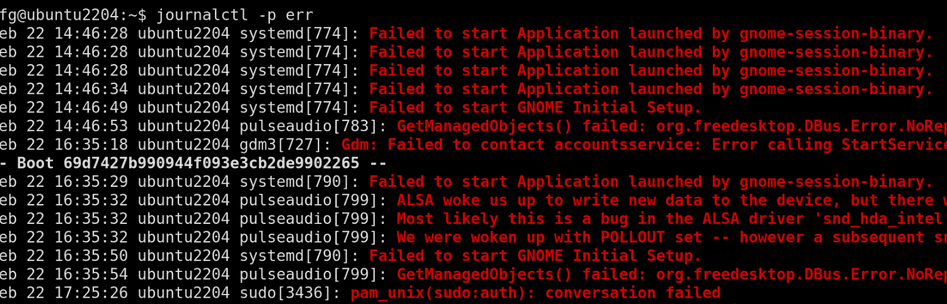 Displaying logs using error as a priority
3. Filter by unit:
The -u option in journalctl instructs it to filter the logs and display only the entries related to a specific systemd service also called a "unit".
We use -u followed by a specific systemd unit (service, process, etc.) to view its logs.
Syntax: journalctl -u service_name
Example:
journalctl -u gdm.service
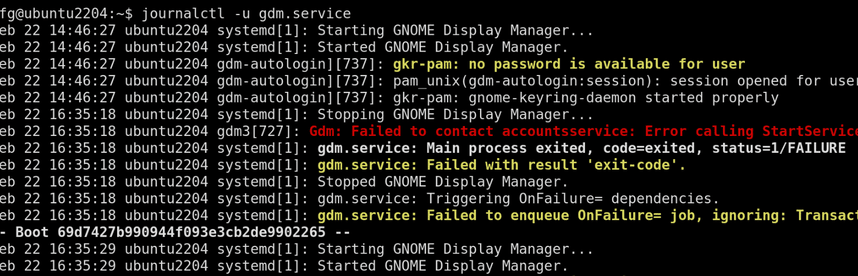 displaying logs for gnome display manager using -u
4. View latest entries:
We use -f to show the journal in it's real-time. Here new logs are added at the end in real time.
Essentially, journalctl -f opens a live feed to system's logs. This is incredibly useful for:
- Debugging: See errors or warnings as they occur, which helps rapidly troubleshoot issues.
- Live Monitoring: Keep an eye on system processes, services, or applications in real-time to ensure smooth operation.
- Server Administration: Track activity and potential problems on a server for proactive maintenance.
Example:
journalctl -f
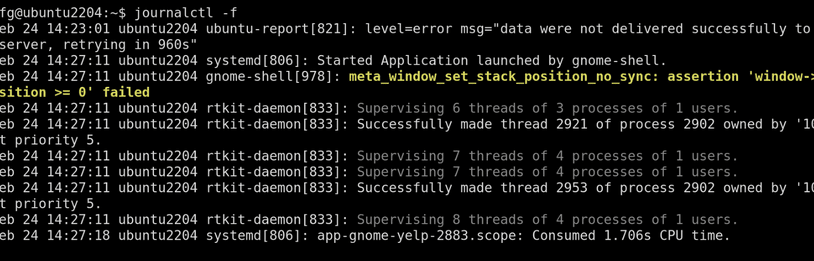 Viewing latest entries using -f
 5. Specific boot:
We use -b to view logs from specific boot
Option
| Used for
|
|---|
-b 0
| current boot
|
|---|
-b -1
| previous boot
|
|---|
Example:
journalctl -b -1
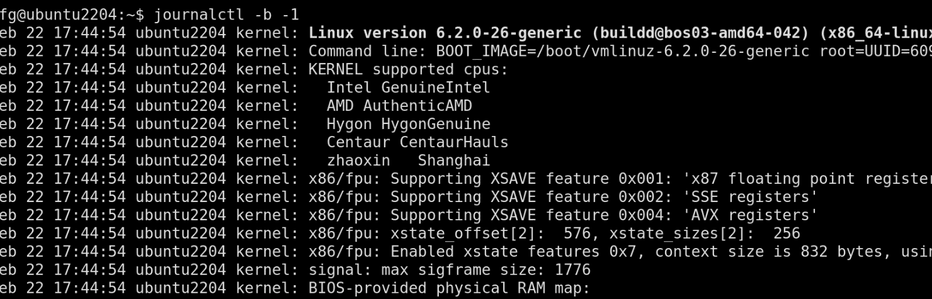 Viewing logs entries from previous boot
6. Show specific number of entries:
The -n flag tells journalctl to display a specified number of log entries starting from the most recent ones.
We use -n to display a limited number of entries.
Syntax: journalctl -n <number of entries>
Example:
Here we only show 10 entries.
journalctl -n 10
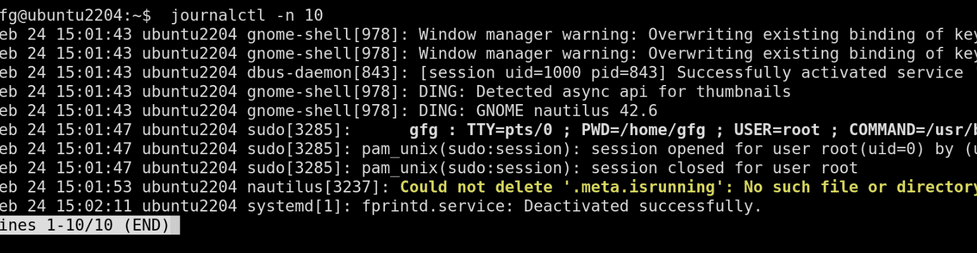 limiting output to 10 lines.
 7. Show entries within a time range:
We use --since and --until to specify a time range to show entries.
- --since: Shows log entries newer than the specified time or date.
- --until: Shows log entries older than the specified time or date.
We can pass following types of time formats,
- Relative:
- "yesterday"
- "1 hour ago"
- "5 days ago"
- Absolute:
- "2024-02-28 14:35:00" (YYYY-MM-DD HH:MM:SS)
- "2024-02-28" (Will display logs from the start of that day)
Example:
journalctl --since "yesterday" --until "now"
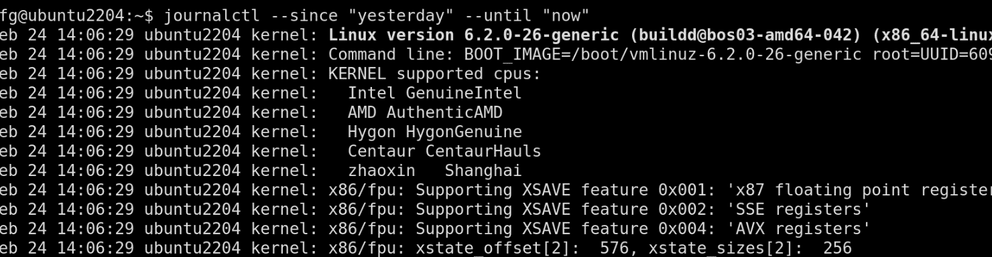 showing entries within a time range
 Editing logs:
Journalctl is a powerful tool for viewing and filtering systemd logs in Linux, it cannot directly edit the log entries themselves. Systemd logs are stored in a compressed binary format for efficiency and consistency. Modifying them directly could corrupt the log data and hinder troubleshooting efforts. However, filtering the logs can be an alternate approach to address potential issues identified within the logs
We can do following things to achieve it.
1. Clear logs:
We use --vacuum-size=SIZE to to remove old log entries exceeding the specified size.
Example:
In this example we remove logs exceeding 100 MB.
command: sudo journalctl --vacuum-size=100M
 removing logs exceeding 100 MB
2. Setting output format:
We use various options as follows to customize the output format as needed.
Option
| Used for
|
|---|
-o short
| default format, similar to traditional syslog output (timestamp, priority, unit, message).
|
|---|
-o short-iso
| similar to short but uses ISO 8601 timestamps
|
|---|
-o short-monotonic
| similar to short but shows timestamps with monotonic seconds.
|
|---|
-o short-precise
| similar to short but displays timestamps with microsecond precision
|
|---|
-o cat
| displays only the message field
|
|---|
-o json
| outputs entries in JSON format (one entry per line).
|
|---|
-o json-pretty
| similar to json but formatted for better readability with indentation
|
|---|
-o json-sse
| JSON output wrapped for server-sent event compatibility
|
|---|
-o export
| binary format suitable for backups or transferring logs
|
|---|
-o verbose
| shows very detailed information for each log entry, including all available fields
|
|---|
Example:
journalctl -o json
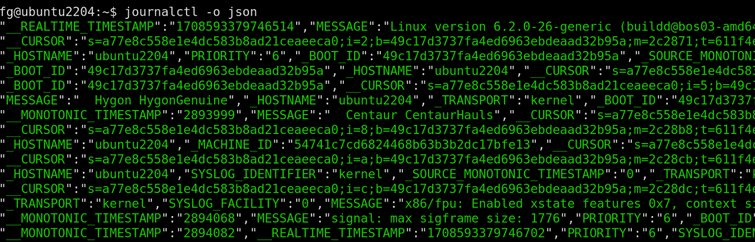 JSON formatting using -o json
3. Archive logs:
We use --rotate to create a compressed archive of older logs.
sudo journalctl --rotate
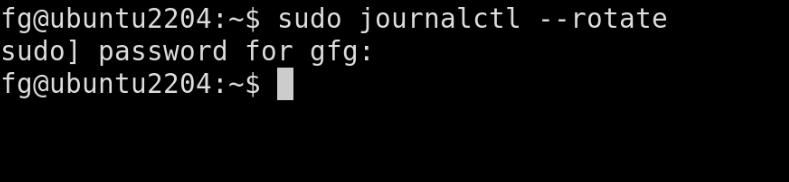 Archiving older logs
4. Exporting logs:
We use --export followed by file name to export specific logs into a binary file for backup or transfer.
Example:
Here we exported logs from yesterday in past_logs.jnl file.
journalctl -u mysql --since yesterday > past_logs.jnl
 exporting logs
 Conclusion
Journalctl is a powerful tool for viewing and managing system logs in systems using systemd. By understanding its basic functionalities and filtering options, we can effectively troubleshoot issues, analyze system behavior, and maintain system health. Journalctl offers a centralized, powerful, and versatile approach to managing system logs in Linux, making it an essential tool for system administrators.
Explore
Getting Started with Linux
Installation with Linux
Linux Commands
Linux File System
Linux Kernel
Linux Networking Tools
Linux Process
Linux Firewall
Shell Scripting & Bash Scripting
Linux Administrator System