How to make calculator using kivy | Python
Last Updated :
12 Jul, 2025
Kivy is a platform-independent GUI tool in Python. As it can be run on Android, IOS, linux and Windows etc. It is basically used to develop the Android application, but it does not mean that it can not be used on Desktops applications.
???????? Kivy Tutorial - Learn Kivy with Examples.
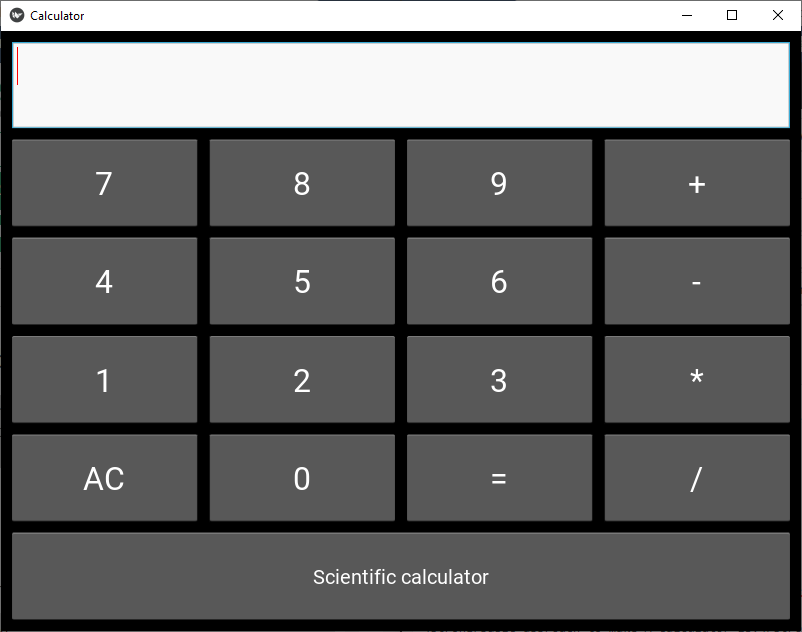
In this article, we will learn how to make a simple calculator using Kivy.
Prerequisites:
1) Basic knowledge of Mathematics
2) Python
3) Kivy
4) Widgets and code understanding of kivy
Basic approach to make A calculator:

1) import kivy
2) import kivyApp
3) import Gridlayout
4) import config(to configure/adjust the window size)
5) Set minimum version(optional)
6) Create Layout class :
      define Calculator function in it
         : In this i am using try-catch because if any arithmetic
            exception occur it will through the error

7) create App class
8) create .kv file (name same as the app class):
        1) create buttons
        2) Add the style to the buttons
        3) Add functionalities of the button
9) return Layout/widget/Class(according to requirement)
10) Run an instance of the class
Implementation of the Approach:
main.py
Python3
# Program to create a calculator

# Program to Show how to create a switch
# import kivy module
import kivy

# base Class of your App inherits from the App class.
# app:always refers to the instance of your application
from kivy.app import App

# this restrict the kivy version i.e
# below this kivy version you cannot
# use the app or software
kivy.require('1.9.0')

# for making multiple buttons to arranging
# them we are using this
from kivy.uix.gridlayout import GridLayout

# for the size of window
from kivy.config import Config

# Setting size to resizable
Config.set('graphics', 'resizable', 1)
## Config.set('graphics', 'width', '400')
## Config.set('graphics', 'height', '400')


# Creating Layout class
class CalcGridLayout(GridLayout):

    # Function called when equals is pressed
    def calculate(self, calculation):
        if calculation:
            try:
                # Solve formula and display it in entry
                # which is pointed at by display
                self.display.text = str(eval(calculation))
            except Exception:
                self.display.text = "Error"

 # Creating App class
class CalculatorApp(App):

    def build(self):
        return CalcGridLayout()

# creating object and running it
calcApp = CalculatorApp()
calcApp.run()
calculator.kv
Python3
# Custom button
<CustButton@Button>:
    font_size: 32

# Define id so I can refer to the CalcGridLayout
# class functions
# Display points to the entry widget
<CalcGridLayout>:
    id: calculator
    display: entry
    rows: 6
    padding: 10
    spacing: 10


    # Where input is displayed
    BoxLayout:
        TextInput:
            id: entry
            font_size: 32
            multiline: False

    # When buttons are pressed update the entry
    BoxLayout:
        spacing: 10
        CustButton:
            text: "7"
            on_press: entry.text += self.text
        CustButton:
            text: "8"
            on_press: entry.text += self.text
        CustButton:
            text: "9"
            on_press: entry.text += self.text
        CustButton:
            text: "+"
            on_press: entry.text += self.text

    BoxLayout:
        spacing: 10
        CustButton:
            text: "4"
            on_press: entry.text += self.text
        CustButton:
            text: "5"
            on_press: entry.text += self.text
        CustButton:
            text: "6"
            on_press: entry.text += self.text
        CustButton:
            text: "-"
            on_press: entry.text += self.text

    BoxLayout:
        spacing: 10
        CustButton:
            text: "1"
            on_press: entry.text += self.text
        CustButton:
            text: "2"
            on_press: entry.text += self.text
        CustButton:
            text: "3"
            on_press: entry.text += self.text
        CustButton:
            text: "*"
            on_press: entry.text += self.text

    # When equals is pressed pass text in the entry
    # to the calculate function
    BoxLayout:
        spacing: 10
        CustButton:
            text: "AC"
            on_press: entry.text = ""
        CustButton:
            text: "0"
            on_press: entry.text += self.text
        CustButton:
            text: "="
            on_press: calculator.calculate(entry.text)
        CustButton:
            text: "/"
            on_press: entry.text += self.text
    BoxLayout:
        CustButton:
            font_size: 20
            text: "Scientific calculator"
            on_press: entry.text = ""
Output:
Explore
Python Fundamentals
Python Data Structures
Advanced Python
Data Science with Python
Web Development with Python
Python Practice