Button Action in Kivy - Python
Last Updated :
09 Oct, 2025
A Button Action refers to attaching functionality to a button so that something happens when the button is pressed or released. Instead of just displaying a button, we define callbacks that update labels, print messages, toggle states or perform any other action.
This example creates a simple button that prints a message when pressed.
Python
from kivy.app import App
from kivy.uix.button import Button

class BasicButtonApp(App):
    def build(self):
        btn = Button(text="Click Me!")

        def on_press_action(instance):
            print("Button clicked!")

        btn.bind(on_press=on_press_action)
        return btn

if __name__ == "__main__":
    BasicButtonApp().run()
Output
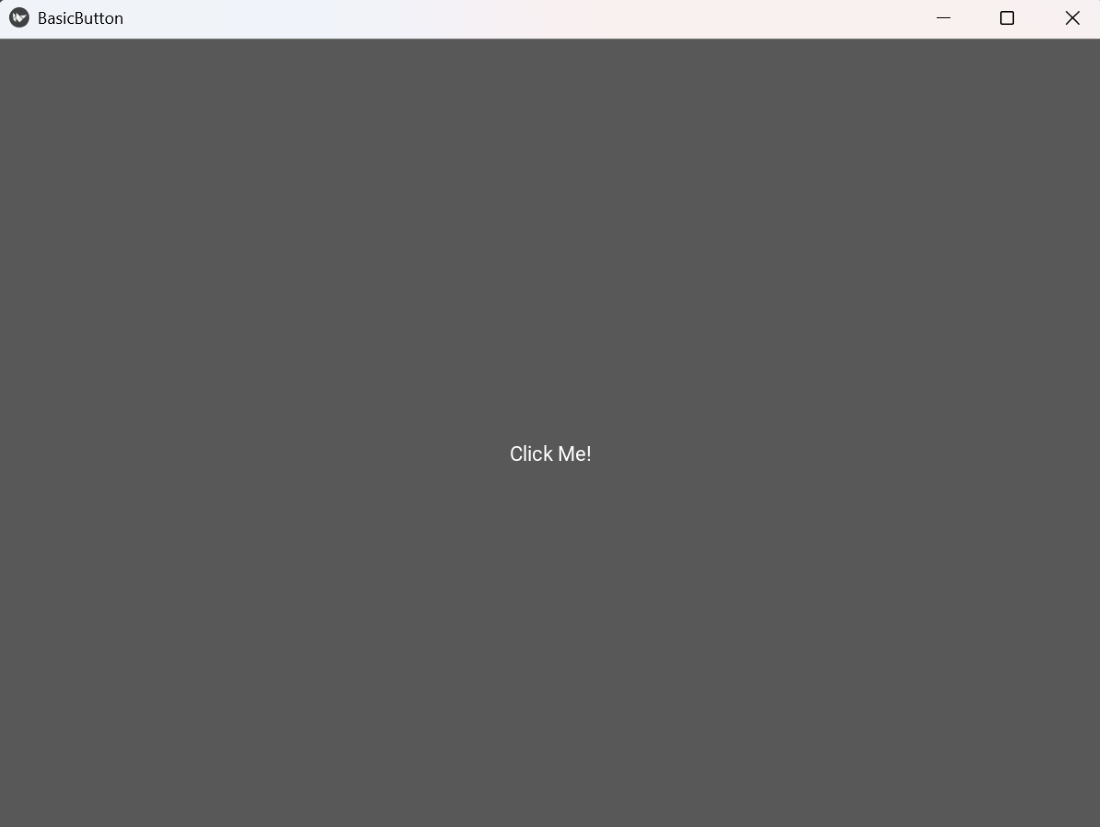 Basic Button
Explanation:
- Button(text="Click Me!"): Creates a button with the specified label.
- btn.bind(on_press=on_press_action): Binds the function to run when the button is pressed.
- on_press_action(instance): Callback function printing the message.
Syntax
Button(text="Label", size_hint=(w,h), pos=(x,y), background_color=(r,g,b,a))
Parameters:
- text: Label displayed on the button.
- size_hint: Fractional width and height relative to parent (use (None, None) for fixed size).
- pos: Position of the button (requires fixed size).
- background_color: Color of the button (RGBA).
- on_press/on_release: Functions to execute when button is pressed or released.
Examples
Example 1: This code updates a label when the button is pressed.
Python
from kivy.app import App
from kivy.uix.button import Button
from kivy.uix.label import Label
from kivy.uix.boxlayout import BoxLayout

class LabelUpdateApp(App):
    def build(self):
        root = BoxLayout(orientation="vertical")
        lbl = Label(text="Not clicked")
        btn = Button(text="Press Me", size_hint=(1,0.3))

        def on_press_action(instance):
            lbl.text = "Button Pressed!"

        btn.bind(on_press=on_press_action)
        root.add_widget(lbl)
        root.add_widget(btn)
        return root

if __name__ == "__main__":
    LabelUpdateApp().run()
Output
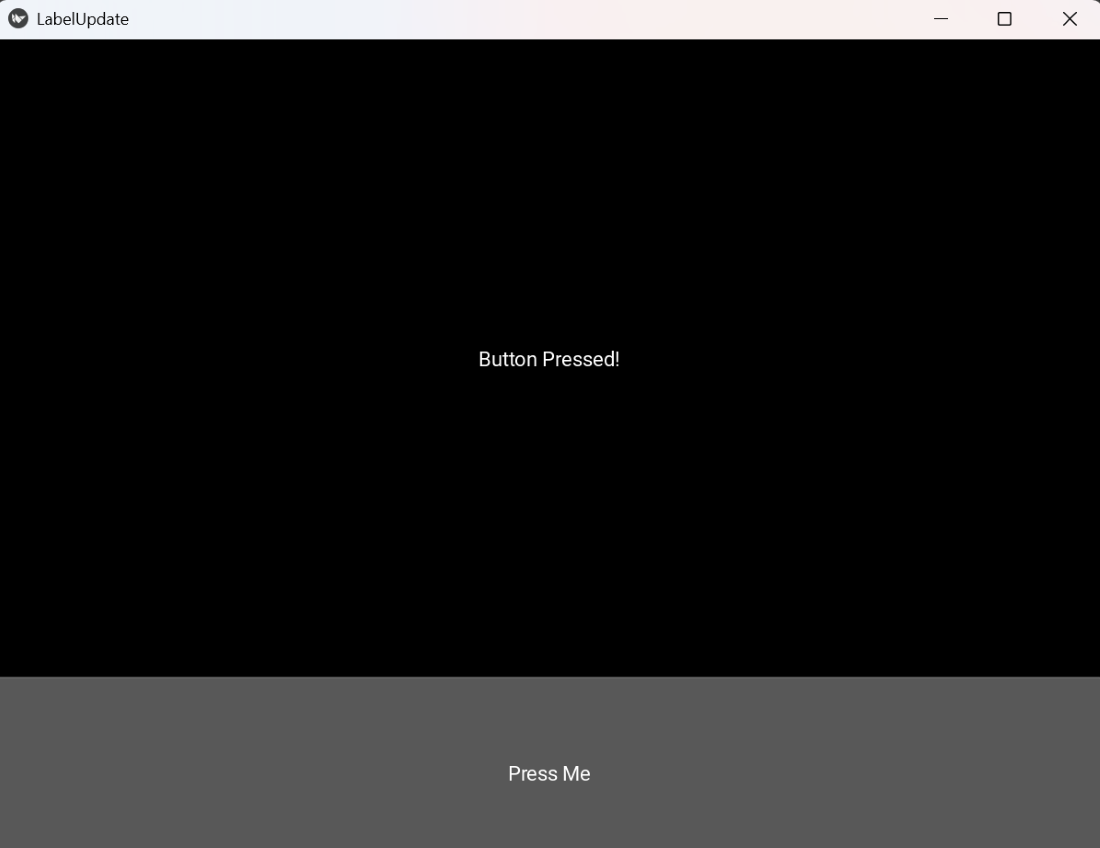 Label Button
Explanation:
- BoxLayout(orientation="vertical"): Arranges widgets vertically.
- lbl.text = "Button Pressed!": Updates the label dynamically.
- btn.bind(on_press=on_press_action): Calls the function when button is pressed.
Example 2: This example demonstrates two buttons, each performing a separate action when clicked.
Python
from kivy.app import App
from kivy.uix.button import Button
from kivy.uix.boxlayout import BoxLayout

class MultiButtonApp(App):
    def build(self):
        root = BoxLayout(orientation="vertical", spacing=10)

        def say_hello(instance):
            print("Hello!")

        def say_bye(instance):
            print("Goodbye!")

        btn1 = Button(text="Hello")
        btn2 = Button(text="Goodbye")
        btn1.bind(on_press=say_hello)
        btn2.bind(on_press=say_bye)

        root.add_widget(btn1)
        root.add_widget(btn2)
        return root

if __name__ == "__main__":
    MultiButtonApp().run()
Output
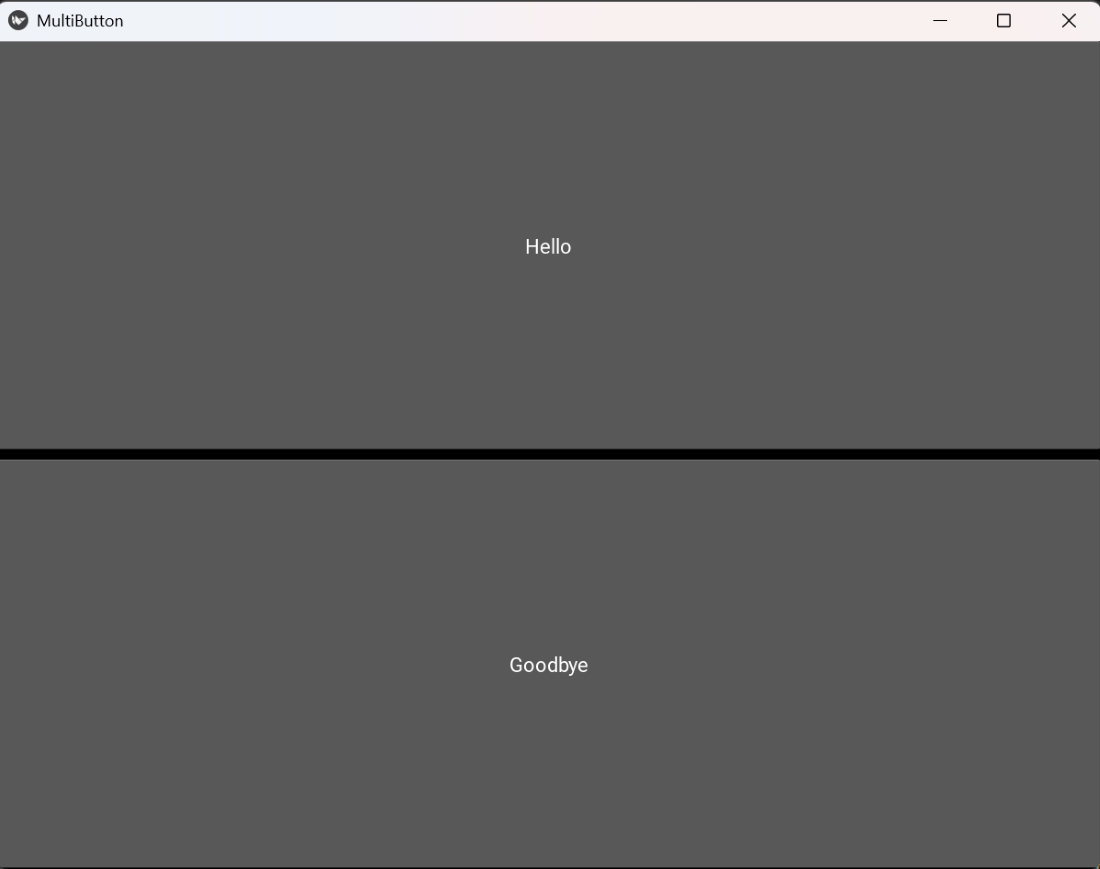 Multi Button
Explanation:
- BoxLayout(orientation="vertical", spacing=10): Stacks buttons vertically with spacing.
- Each button has an independent callback using bind(on_press=...).
- Actions are executed when respective buttons are pressed.
Explore
Python Fundamentals
Python Data Structures
Advanced Python
Data Science with Python
Web Development with Python
Python Practice