PostgreSQL - Connect and Access a Database
Last Updated :
23 Jul, 2025
In this article, we will learn about how to access the PostgreSQL database. Once the database is created in PostgreSQL, we can access it in two ways using:
- psql: PostgreSQL interactive terminal program, which allows us to interactively enter, edit, and execute SQL commands.
- pgAdmin: A graphical frontend web-based tool, suite with ODBC or JDBC support to create and manipulate a database.
Connect and Access PostgreSQL Database Server using psql:
A psql is an interactive terminal program provided by the PostgreSQL installer. It allows us to interact with the PostgreSQL database server to perform/execute SQL statements and manage database objects.
Step 1: Launch SQL Shell (psql) program tool.

It will open a command window like below where we need to provide details of Server, Database, Port, Username, and Password.

Step 2: To use the default value specified in the square bracket [ ], just press Enter and move on to the next line. While entering the password for user Postgres, we need to enter the password that we set during the PostgreSQL installation.
Step 3: Now, interact with the database server using SQL commands.

Step 4: Using the' select version();' command, it will print the current version details of PostgreSQL. Below are some of the commands to interact with the PostgreSQL database.

Step 5: The psql program supports a number of internal commands that are not SQL commands. They begin with the backslash character, “\”. Type \? at the psql prompt to get these commands.

Connect and Access PostgreSQL Database Server using pgAdmin:
This is the other way to access a database is by using the pgAdmin application. The pgAdmin is a web-based front-end application that allows interacting with the PostgreSQL database server via an intuitive user interface.
Step 1: Launch the 'pgAdmin' application.

It will open the below application where we can create databases, tables and execute queries accordingly.

Step 2: By default, PostgreSQL has a database named 'Postgres'. We can create Schemas, Tables, Triggers, etc. We can also create our own database in the PostgreSQL server.

Step 3: Under the Tools section, we can use Query Tool to query the database.

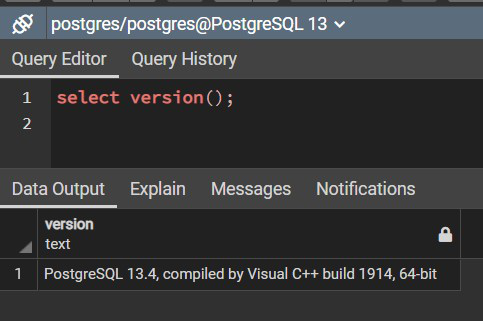
Step 4: We can run SQL commands to query the database like below.
We can access the PostgreSQL database using 'psql' tool or the 'pgAdmin' application. Other than these, we can also connect to the database by writing a custom application, using one of the several available language bindings that support ODBC or JDBC like Python, Java, etc.
Explore
Basics
Queries & Operations
SQL Joins & Functions
Data Constraints & Aggregate Functions
Advanced SQL Topics
Database Design & Security