Summary: in this tutorial, you’ll learn how to use the PyQt QLabel widget to display text or an image.
Introduction to the PyQt QLabel Widget #
The QLabel class allows you to create a label widget that displays text, an image, or an animated image (GIF).
To create a label widget, you follow these steps:
First, import the QLabel widget from PyQt6.QtWidgets module:
from PyQt6.QtWidgets import QLabelCode language: Python (python)Second, create a new instance of the QLabel class:
label = QLabel('This is QLabel widget')Code language: Python (python)In this syntax, you pass a string that you want to display to the QLabel.
Also, you can use the setText() method to set a text to the QLabel widget after creating the QLabel widget:
label = QLabel()
label.setText('This is QLabel widget')Code language: Python (python)
To get the text of the QLabel()text() method:
label.text()Code language: Python (python)To clear the text of a QLabel widget, you use the clear() method:
label.clear()Code language: Python (python)PyQt QLabel widget example #
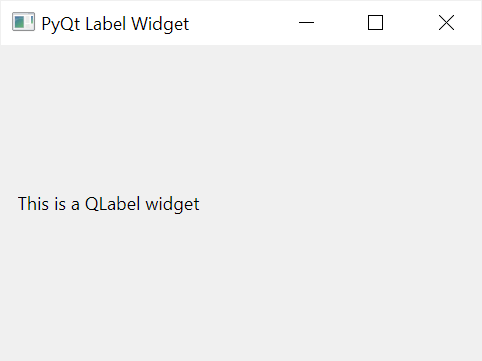
The following program shows a window that displays a QLabel widget:
import sys
from PyQt6.QtWidgets import QApplication, QWidget, QLabel, QVBoxLayout
from PyQt6.QtGui import QFont


class MainWindow(QWidget):
    def __init__(self, *args, **kwargs):
        super().__init__(*args, **kwargs)

        self.setWindowTitle('PyQt Label Widget')
        self.setGeometry(100, 100, 320, 210)

        # create a QLabel widget
        label = QLabel('This is a QLabel widget')

        # place the widget on the window
        layout = QVBoxLayout()
        layout.addWidget(label)
        self.setLayout(layout)

        # show the window
        self.show()


if __name__ == '__main__':
    app = QApplication(sys.argv)

    # create the main window
    window = MainWindow()

    # start the event loop
    sys.exit(app.exec())Code language: Python (python)
Output:
Using the PyQt QLabel widget to display an image #
To display an image using the QLabel widget, you do the following steps:
First, import QPixmap from PyQt6.QtGui module:
from PyQt6.QtGui import QPixmapCode language: Python (python)Second, create a new QPixmap widget with a path to an image file:
pixmap = QPixmap('python-logo.svg')Code language: Python (python)Note that the python-logo.svg file must be in the same directory as the python program
Third, create a QLabel widget and call the setPixmap() method to display the image:
label = QLabel()
label.setPixmap(pixmap)Code language: Python (python)
The following program shows how to display an image using a QLabel widget:
import sys
from PyQt6.QtWidgets import QApplication, QWidget, QLabel, QVBoxLayout
from PyQt6.QtGui import QPixmap


class MainWindow(QWidget):
    def __init__(self, *args, **kwargs):
        super().__init__(*args, **kwargs)

        self.setWindowTitle('PyQt Label Widget')
        self.setGeometry(100, 100, 320, 210)

        label = QLabel()
        pixmap = QPixmap('python-logo.png')
        label.setPixmap(pixmap)

        # place the widget on the window
        layout = QVBoxLayout()
        layout.addWidget(label)
        self.setLayout(layout)

        # show the window
        self.show()


if __name__ == '__main__':
    app = QApplication(sys.argv)

    # create the main window
    window = MainWindow()

    # start the event loop
    sys.exit(app.exec())Code language: Python (python)
Output:
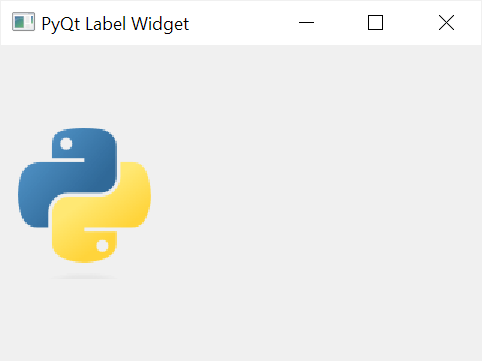
The QPixmap widget supports the following popular image formats including bmp, gif, jpg, jpeg, png, etc.
Using the PyQt QLabel widget to display an animated image #
To create a movie, you can follow these steps:
First, import QMovie from PyQt6.QtGui module:
from PyQt6.QtGui import QMovieCode language: Python (python)Second, create a QMovie object with a path to the GIF file:
movie = QMovie('python.gif')Code language: Python (python)Third, create a new QLabel widget:
label = QLabel(self)Code language: Python (python)Fourth, set the movie to the QLabel widget by calling the setMovie() method:
label.setMovie(movie)Code language: Python (python)Finally, call the start() method of the QMovie object to show the movie:
movie.start()Code language: Python (python)The following program shows how to display a movie using the QLabel & QMovie widgets:
import sys
from PyQt6.QtWidgets import QApplication, QWidget, QLabel, QVBoxLayout
from PyQt6.QtGui import QMovie


class MainWindow(QWidget):
    def __init__(self, *args, **kwargs):
        super().__init__(*args, **kwargs)

        self.setWindowTitle('PyQt QLabel Widget')
        self.setGeometry(100, 100, 320, 210)

        label = QLabel()
        movie = QMovie('python.gif')
        label.setMovie(movie)
        movie.start()

        # place the widget on the window
        layout = QVBoxLayout()
        layout.addWidget(label)
        self.setLayout(layout)

        # show the window
        self.show()


if __name__ == '__main__':
    app = QApplication(sys.argv)

    # create the main window
    window = MainWindow()

    # start the event loop
    sys.exit(app.exec())Code language: Python (python)
Summary #
- Use a PyQt
QLabelwidget to display a text or an image including an animated image.


