Summary: in this tutorial, you’ll learn how to use the PyQt QLineEdit widget to create a single-line text-entry widget.
Introduction to the PyQt QLineEdit widget #
The PyQt QLineEdit allows you to create a single-line text-entry widget. Typically, you’ll use the QLineEdit in a data-entry form.
In practice, you often use the QLineEdit widget with a QLabel widget.
To create a QLineEdit widget, you follow these steps.
First, import QLineEdit from PyQt6.QtWidgets module:
from PyQt6.QtWidgets import QLineEditCode language: Python (python)Second, create a new QLineEdit object that uses:
- No arguments.
- With only a parent widget.
- Or with a default string value as the first argument.
For example:
line_edit = QLineEdit('Default Value', self)Code language: Python (python)Also, you can use the following additional properties:
| Property | Type | Description |
|---|---|---|
| text | string | The content of the line edit |
readOnly | Boolean | True or False. If True, the line edit cannot be edited |
clearButtonEnabled | Boolean | True to add a clear button |
placeholderText | string | The text that appears when the line edit is empty |
maxLength | integer | Specify the maximum number of characters that can be entered |
echoMode | QLineEdit.EchoMode | Change the way the text displays e.g., password |
PyQt QLineEdit widget examples #
Let’s take some examples of using the QLineEdit widget.
1) Simple PyQt QLineEdit example #
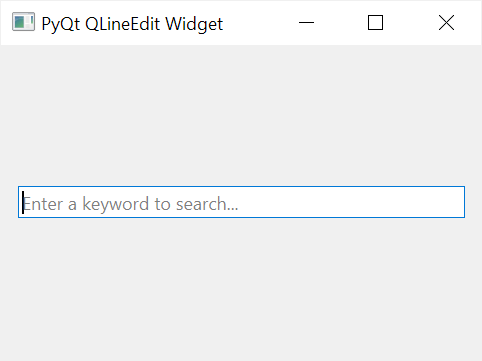
The following program shows how to create a QLineEdit widget:
import sys
from PyQt6.QtWidgets import (
    QApplication,
    QWidget,
    QLineEdit,
    QVBoxLayout
)


class MainWindow(QWidget):
    def __init__(self, *args, **kwargs):
        super().__init__(*args, **kwargs)

        self.setWindowTitle('PyQt QLineEdit Widget')
        self.setGeometry(100, 100, 320, 210)

        search_box = QLineEdit(
            self,
            placeholderText='Enter a keyword to search...',
            clearButtonEnabled=True
        )

        # place the widget on the window
        layout = QVBoxLayout()
        layout.addWidget(search_box)
        self.setLayout(layout)

        # show the window
        self.show()


if __name__ == '__main__':
    app = QApplication(sys.argv)
    window = MainWindow()
    sys.exit(app.exec())Code language: Python (python)
Output:
2) Using the PyQt QLineEdit to create a password entry #
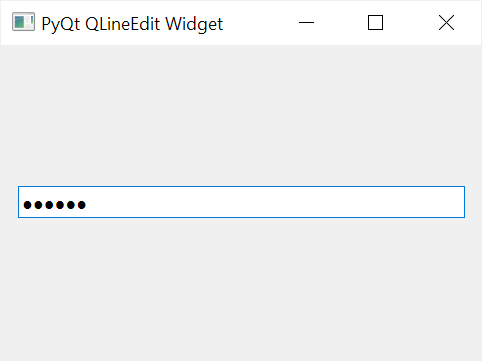
The following program creates a new QLineEdit widget as a password entry:
import sys
from PyQt6.QtWidgets import (
    QApplication,
    QWidget,
    QLineEdit,
    QVBoxLayout
)


class MainWindow(QWidget):
    def __init__(self, *args, **kwargs):
        super().__init__(*args, **kwargs)

        self.setWindowTitle('PyQt QLineEdit Widget')
        self.setGeometry(100, 100, 320, 210)

        password = QLineEdit(self, echoMode=QLineEdit.EchoMode.Password)

        # place the widget on the window
        layout = QVBoxLayout()
        layout.addWidget(password)
        self.setLayout(layout)

        # show the window
        self.show()


if __name__ == '__main__':
    app = QApplication(sys.argv)
    window = MainWindow()
    sys.exit(app.exec())Code language: Python (python)
To make the QLineEdit widget a password entry, you set the echoMode to QLineEdit.EchoMode.Password:
password = QLineEdit(self, echoMode=QLineEdit.EchoMode.Password)Code language: Python (python)Output:
3) Using the PyQt QLineEdit with the auto-complete feature #
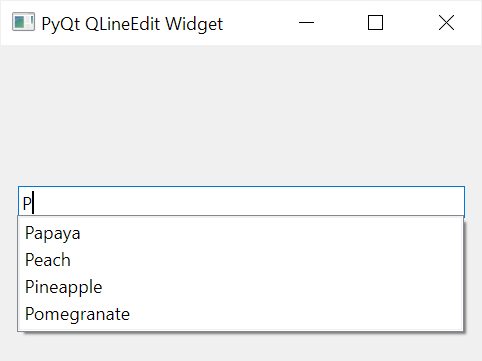
To create an entry with the auto-complete feature, you follow these steps:
First, import the QCompleter from PyQt6.QtWidgets module.
Second, create a QCompleter widget with a list of strings used for autocomplete feature:
completer = QCompleter(word_list)Code language: Python (python)Third, create a QLineEdit and call its setCompleter() method with the completer object:
line_edit = QLineEdit(self)
line_edit.setCompleter(completer)Code language: Python (python)
For example, the following program shows a QLineEdit widget with an auto-complete feature:
import sys
from PyQt6.QtWidgets import (
    QApplication,
    QWidget,
    QLineEdit,
    QVBoxLayout,
    QCompleter
)


class MainWindow(QWidget):
    def __init__(self, *args, **kwargs):
        super().__init__(*args, **kwargs)

        self.setWindowTitle('PyQt QLineEdit Widget')
        self.setGeometry(100, 100, 320, 210)


        common_fruits = QCompleter([
            'Apple',
            'Apricot',
            'Banana',
            'Carambola',
            'Olive',
            'Oranges',
            'Papaya',
            'Peach',
            'Pineapple',
            'Pomegranate',
            'Rambutan',
            'Ramphal',
            'Raspberries',
            'Rose apple',
            'Starfruit',
            'Strawberries',
            'Water apple',
        ])
        fruit = QLineEdit(self)
        fruit.setCompleter(common_fruits)

        # place the widget on the window
        layout = QVBoxLayout()
        layout.addWidget(fruit)
        self.setLayout(layout)

        # show the window
        self.show()


if __name__ == '__main__':
    app = QApplication(sys.argv)
    window = MainWindow()
    sys.exit(app.exec())Code language: Python (python)
Output:
Summary #
- Use the
QLineEditto create a single-line entry widget. - Use the
echoModeproperty to change the way the text is displayed. - Use the
QLineEditwidget with a QCompleter widget to support the auto-complete feature.


