Summary: in this tutorial, you’ll learn how to use the PyQt QMessageBox class to create a modal dialog that alerts the user or asks the user to make a decision.
Introduction to PyQt QMessageBox class #
The QMessageBox class allows you to create a modal dialog that alerts the user with important information or asks the user a question and receives an answer.
The QMessageBox provides some useful static methods for displaying a message box:
information()– show an information message.question()– ask the user a question and receives an answer.warning()– show a warning message.critical()– display critical information.
PyQt QMessageBox examples #
The following program shows a window with four buttons, clicking a button will display a corresponding message:
import sys
from PyQt6.QtWidgets import QApplication,  QMessageBox, QWidget, QHBoxLayout,  QPushButton


class MainWindow(QWidget):
    def __init__(self, *args, **kwargs):
        super().__init__(*args, **kwargs)

        self.setWindowTitle('PyQt QMessageBox')
        self.setGeometry(100, 100, 300, 100)

        layout = QHBoxLayout()
        self.setLayout(layout)

        btn_question = QPushButton('Question')
        btn_question.clicked.connect(self.question)

        btn_info = QPushButton('Information')
        btn_info.clicked.connect(self.info)

        btn_warning = QPushButton('Warning')
        btn_warning.clicked.connect(self.warning)

        btn_critical = QPushButton('Critical')
        btn_critical.clicked.connect(self.critical)

        layout.addWidget(btn_question)
        layout.addWidget(btn_info)
        layout.addWidget(btn_warning)
        layout.addWidget(btn_critical)

        self.show()

    def info(self):
        QMessageBox.information(
            self,
            'Information',
            'This is important information.'
        )

    def warning(self):
        QMessageBox.warning(
            self,
            'Warning',
            'This is a warning message.'
        )

    def critical(self):
        QMessageBox.critical(
            self,
            'Critical',
            'This is a critical message.'
        )

    def question(self):
        answer = QMessageBox.question(
            self,
            'Confirmation',
            'Do you want to quit?',
            QMessageBox.StandardButton.Yes |
            QMessageBox.StandardButton.No
        )
        if answer == QMessageBox.StandardButton.Yes:
            QMessageBox.information(
                self,
                'Information',
                'You selected Yes. The program will be terminated.',
                QMessageBox.StandardButton.Ok
            )
            self.close()
        else:
            QMessageBox.information(
                self,
                'Information',
                'You selected No.',
                QMessageBox.StandardButton.Ok
            )


if __name__ == '__main__':
    app = QApplication(sys.argv)
    window = MainWindow()
    sys.exit(app.exec())Code language: Python (python)
How it works.
The question() method displays a message box with a question that asks the user to select either a Yes or No button:
answer = QMessageBox.question(
    self,
    'Confirmation',
    'Do you want to quit?',
    QMessageBox.StandardButton.Yes |
    QMessageBox.StandardButton.No
)Code language: Python (python)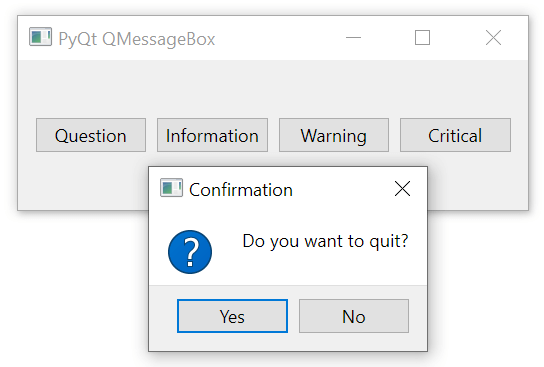
To get which button the user clicked, you compare the return value of the question() method with the Yes and No members of the QMessageBox.StandardButton enum:
if answer == QMessageBox.StandardButton.Yes:
    QMessageBox.information(
        self,
        'Information',
        'You selected Yes. The program will be terminated.',
        QMessageBox.StandardButton.Ok
    )
    self.close()
else:
    QMessageBox.information(
        self,
        'Information',
        'You selected No.',
        QMessageBox.StandardButton.Ok
    )Code language: Python (python)
The information() method displays a message box with information. It accepts the parent widget, the title of the message box, and the message.
 QMessageBox.information(
    self,
    'Information',
    'This is important information.'
)Code language: Python (python)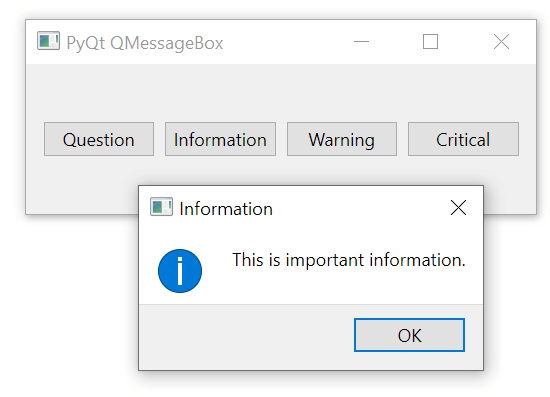
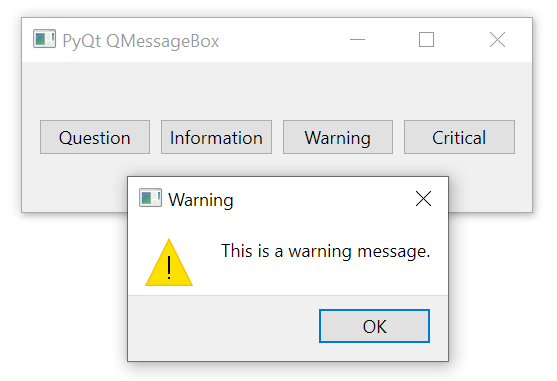
The warning() method displays a warning message. Its appearance is like the information except for the warning icon:
QMessageBox.warning(
    self,
    'Warning',
    'This is a warning message.'
)Code language: Python (python)
Output:
The critical() method displays a critical message on the message box. The stop icon makes the message critical.
QMessageBox.critical(
    self,
    'Critical',
    'This is a critical message.'
)Code language: Python (python)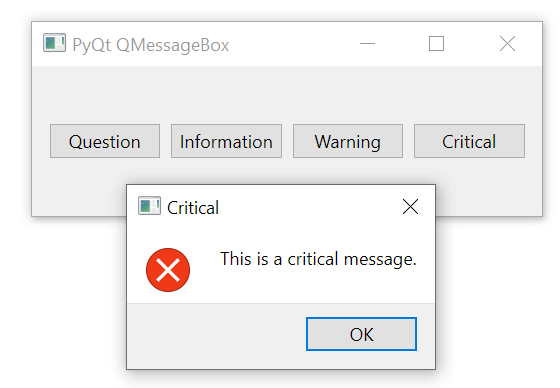
Summary #
- Use
QMessageBoxclass to create a modal dialog that displays a message box or asks the user a question and receives an answer.


