Summary: in this tutorial, you’ll learn how to use the PyQt QTextEdit class to create a widget that edits and displays both plain and rich text.
Introduction to the PyQt QTextEdit #
The QLineEdit class allows you to create a widget that supports editing a single line of text. To enter multiple lines of text, you use QTextEdit class.
Unlike QLineEdit, QTextEditQTextEdit
The QTextEditHTML-styles tag or Markdown format. The QTextEdit
PyQT QTextEdit example #
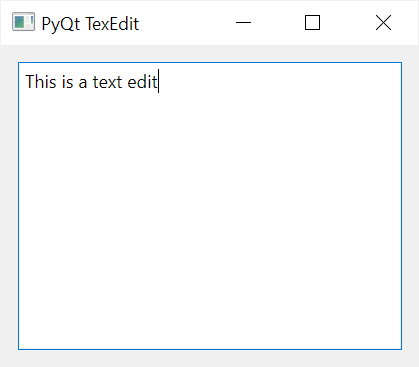
The following example shows how to create a simple multi-line text widget using the QTextEdit class:
import sys
from PyQt6.QtWidgets import QApplication, QWidget, QTextEdit, QFormLayout
from PyQt6.QtCore import Qt


class MainWindow(QWidget):
    def __init__(self, *args, **kwargs):
        super().__init__(*args, **kwargs)

        self.setWindowTitle('PyQt TexEdit')
        self.setMinimumWidth(200)

        layout = QFormLayout()
        self.setLayout(layout)
        text_edit = QTextEdit(self)
        layout.addRow(text_edit)

        self.show()


if __name__ == '__main__':
    app = QApplication(sys.argv)
    window = MainWindow()
    sys.exit(app.exec())Code language: Python (python)
Output:
Summary #
- Use
QTextEditto create a widget that supports multiline text editing and viewing.
Was this tutorial helpful ?


