Summary: In this tutorial, you’ll learn how to link widgets with Python variables using the Tkinter IntVar objects.
Introduction to the Tkinter IntVar #
In Tkinter, the IntVar class allows you to create integer variable objects.
An IntVar object holds an integer value. Tkinter links an IntVar object with a widget, such as an entry, checkbox, or radio button.
By using IntVar objects, you can dynamically manage the widget’s values in Python.
Creating and Associating an IntVar Object with a Widget #
Here are the steps for using the IntVar objects:
First, import the tkinter module:
import tkinter as tkCode language: Python (python)Second, create a new IntVar object:
quantity_var = tk.IntVar()Code language: Python (python)Third, associate the int_var object with a widget. For example, you can associate it with an entry widget:
quantity_entry = ttk.Entry(root, textvariable=quantity_var)Code language: Python (python)Accessing and Changing IntVar Value #
Since the IntVar object is already associated with the entry widget, you can get the current value of the entry widget using the IntVar object:
current_value = int_var.get()Code language: Python (python)You can also change the value of the entry widget via the IntVar object using the set function:
int_var.set(20)Code language: Python (python)Tracing Values #
If you want to execute a function when the value of an IntVar changes, you can use the trace_add method:
int_var.trace_add(mode, callback)Code language: Python (python)The trace_add() method accepts two parameters:
mode: Determines when theIntVarobject should execute the callback function. The mode can be'write','read', and'unset', or a tuple of these strings. For example, if you set the mode to'write', theIntVarobject will execute the callback when its value changes.callback: A function that theIntVarwill execute according to the mode.
To stop tracing, you can use the trace_remove() method:
int_var.trace_remove(mode, callback)Code language: Python (python)The trace_remove() method removes the callback from executing for particular modes.
Using IntVar with Entry Widgets #
The following program shows how to use an IntVar object with the entry widget:
import tkinter as tk
from tkinter import ttk
from tkinter.messagebox import showinfo


root = tk.Tk()
root.geometry('400x300')
root.title('IntVar Demo')


quantity_var = tk.IntVar()

label = ttk.Label(root, text='Quantity:')
label.pack(side=tk.LEFT, padx=5, pady=10, anchor=tk.W)

quantity_entry = ttk.Entry(root, textvariable=quantity_var)
quantity_entry.pack(side=tk.LEFT, padx=5, pady=10, anchor=tk.W)


button = ttk.Button(
    root,
    text='Submit',
    command=lambda: showinfo(title='Quantity', message=quantity_var.get()))

button.pack(side=tk.LEFT, padx=5, pady=10, anchor=tk.W)

root.mainloop()Code language: Python (python)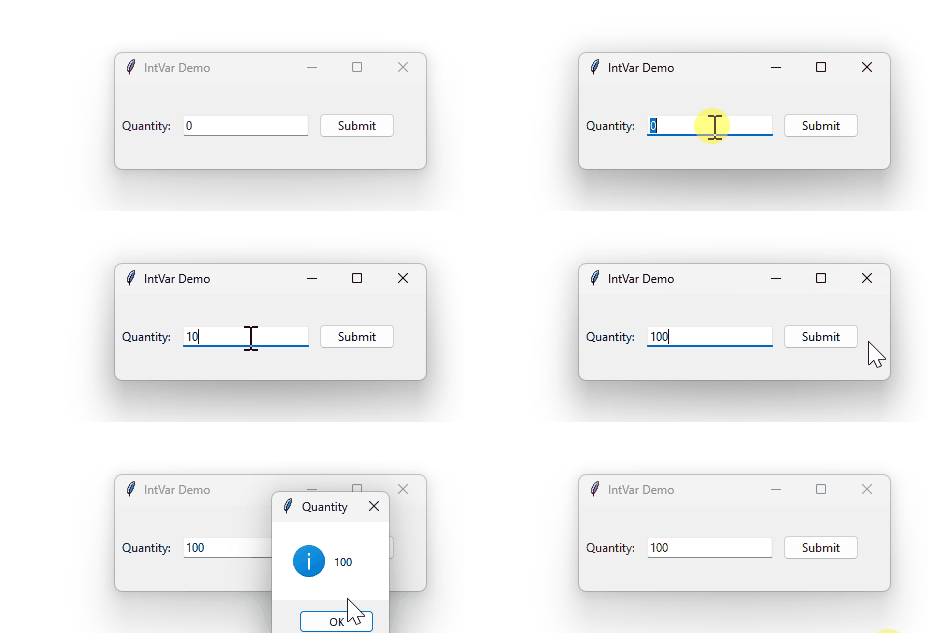
How the Program Works:
First, create a new IntVar object:
quantity_var = tk.IntVar()Code language: Python (python)Second, link the IntVar object with an Entry widget:
entry = ttk.Entry(root, textvariable=quantity_var)Code language: Python (python)Third, show the value of the quantity entry via the quantity_var object when the button is clicked:
button = ttk.Button(
    root,
    text='Submit',
    command=lambda: showinfo(title='Quantity', message=quantity_var.get()))Code language: Python (python)
Using IntVar with Scale Widgets #
The following program shows how to use the IntVar object with a Scale widget:
import tkinter as tk
from tkinter import ttk


root = tk.Tk()
root.geometry("400x300")
root.title("Scale Example with IntVar and ttk")

int_var = tk.IntVar()

scale = ttk.Scale(
    root,
    from_=0,
    to=100,
    orient=tk.HORIZONTAL,
    variable=int_var,
    command=lambda val: label.config(text=f"Scale Value: {int_var.get()}")
)
scale.pack(pady=20)

# Create a Label to display the scale value
label = ttk.Label(root, text="Scale Value: 0")
label.pack(pady=10)

root.mainloop()Code language: Python (python)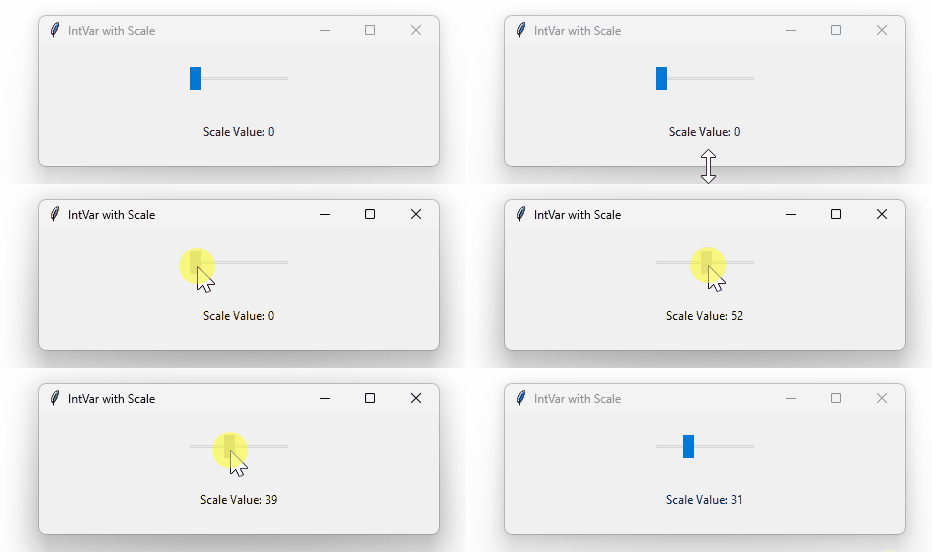
How the Program Works:
First, create a new IntVar object:
int_var = tk.IntVar()Code language: Python (python)Second, link the IntVar object to a Scale widget:
scale = ttk.Scale(
    root,
    from_=0,
    to=100,
    orient=tk.HORIZONTAL,
    variable=int_var,
    command=lambda val: label.config(text=f"Scale Value: {int_var.get()}")
)Code language: Python (python)
When the scale value changes, update the label by getting the current value of the scale via the IntVar object:
command=lambda val: label.config(text=f"Scale Value: {int_var.get()}")Code language: Python (python)Summary #
- Use the
IntVarclass to create integer variable objects. - Link
IntVarobjects to widgets to get the integer values.


