Running multiple Angular projects on a single machine with different versions of Angular can be tricky. The task also becomes more challenging because Angular depends on Node.js. Various versions of Angular require different versions of Node.js to run. In this tutorial, we’ll walk you through how to set up and run multiple Angular projects with different Angular and Node.js versions on the same machine.
Table of Contents
Multiple Angular versions
Angular projects depend on Node.js, TypeScript, and RxJS. While you can install TypeScript and RxJS locally for each project without issue, compatibility problems arise when you want to run older Angular versions, alongside the newer versions. This is because each version of Angular requires specific Node.js versions.
To help you manage multiple Angular versions on a single machine, you can use the following tools:
- NVM (Node Version Manager): To manage and switch between different versions of Node.js.
- NPX: To execute different versions of Angular CLI without globally installing them.
Refer to the article, Angular version history to see the compatibility matrix for Angular, Node.js, TypeScript, and RxJS versions.
What is NPX?
NPX stands for Node Package eXecute, and it works similarly to NPM. NPX allows us to execute npm packages directly, even if we have not installed them locally. If the required package is not found locally, NPX will download it from the npm registry and execute it for us.
NPX is included with Node.js (version 8.0 or higher) or npm (version 5.2.0 or higher) and is installed automatically. If, for any reason, NPX is not installed on your system, you can install it using the following command.
1 2 3 | npm install -g npx |
You can verify the installed version of NPX with
1 2 3 | npx -v |
You can now use NPX to create Angular projects and execute Angular CLI commands with the desired version of Angular. To create a new Angular project with the latest version of Angular CLI.
1 2 3 | npx @angular/cli new helloworld |
To create a new project with a specific version (e.g., Angular 11 / Angular 18)
1 2 3 4 5 | npx @angular/cli@11 new helloworld11 //Angular 11 npx @angular/cli@18 new helloworld18 //Angular 18 |
You can also generate components within a project.
1 2 3 | npx ng generate component my-component |
Use it to serve the project.
1 2 3 | npx ng serve |
You can also build the project.
1 2 3 | npx ng build |
Running Multiple versions of Node using nvm
NVM (Node Version Manager) is a command-line tool that helps you install and manage multiple versions of Node.js. This allows you to switch between different versions depending on the project you’re working on.
Installing NVM on Linux
To install NVM on Linux, you can use one of the following commands
with curl
1 2 3 | curl -o- https://raw.githubusercontent.com/nvm-sh/nvm/v0.37.2/install.sh | bash |
with wget
1 2 3 | wget -qO- https://raw.githubusercontent.com/nvm-sh/nvm/v0.37.2/install.sh | bash |
Installing NVM on Windows
For Windows users, you can download the NVM installer from the NVM Releases page and run the nvm-setup.exe file.
Before installing NVM on Windows, you should uninstall any existing global installation of Node.js. We will reinstall Node.js using NVM.
Installing different versions of Node.js
To install the latest version of Node.js:
1 2 3 | nvm install latest |
To install the latest LTS (Long Term Support) version
1 2 3 | nvm install lts |
Install a specific version of Node.js (e.g., version 17.2.0)
1 2 3 | nvm install 17.2.0 |
To see all the installed versions of Node.js
1 2 3 | nvm list |
Switch Between Node.js versions
To switch between installed versions of Node.js, use
1 2 3 | nvm use 12.11.1 |
Use nvm alias for Easier Switching. The code below creates an alias angular11 for Node.js version 12.11.1
1 2 3 | nvm alias angular11 12.11.1 |
Now. you can use the alias name instead of Node.js version
1 2 3 | nvm use angular11 |
Similarly, you can create aliases.
1 2 3 4 | nvm alias angular11 12.11.1 nvm alias angular18 18.0.0 |
Creating Angular 11 Project using npx & nvm
Let’s create an Angular project with a specific version of Node.js and Angular CLI.
Install Node 12.11.1 using nvm
1 2 3 | nvm install 12.11.1 |
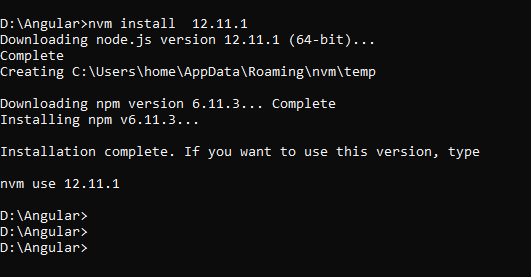
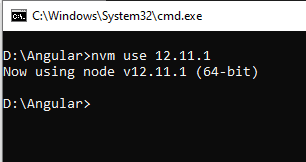
Switch to the installed version of Node.js:
1 2 3 | nvm use 12.11.1 |
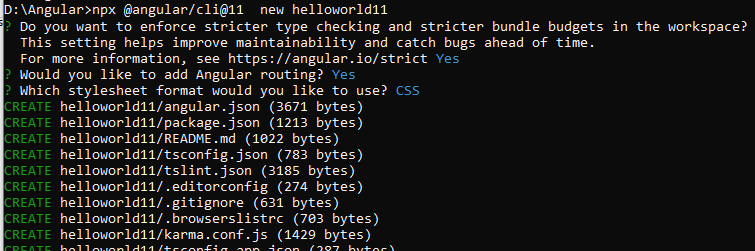
Use NPX to create a new Angular 11 project:
1 2 3 | npx @angular/cli@11 new helloworld11 |
Navigate to your project directory and serve the project:
1 2 3 4 | cd helloworld11 npx ng serve |
You can also use NPX to run other Angular commands, such as building the project
1 2 3 | npx ng build |
Similarly, you can create an Angular 18 project
1 2 3 4 | nvm install 18.19.1 npx @angular/cli@18 new helloworld18 |
You can find out the installed Angular CLI, Node.js, TypeScript, and RxJS versions.
1 2 3 | npx ng version |
References
Summary
By using NVM and NPX, you can easily switch between different versions of Node.js and Angular, enabling you to work on multiple Angular projects with different version requirements on the same machine.