
The launchSettings.json file is used to store the configuration information, which describes how to start the ASP.NET Core application, using Visual Studio. The file is used only during the development of the application using Visual Studio. It contains only those settings that required to run the application. This file is ignored when we publish the app.
Table of Contents
launchSettings
You will find the launchSettings.json file under the folder properties.
Create a new ASP.NET core web application with the name LaunchSettingsExample. Choose .NET Core & ASP.NET Core 3.1. You will see the following contents in the launchSettings.json file
1 2 3 4 5 6 7 8 9 10 11 12 13 14 15 16 17 18 19 20 21 22 23 24 25 26 27 28 29 30 | { "iisSettings": { "windowsAuthentication": false, "anonymousAuthentication": true, "iisExpress": { "applicationUrl": "http://localhost:57367", "sslPort": 44331 } }, "profiles": { "IIS Express": { "commandName": "IISExpress", "launchBrowser": true, "environmentVariables": { "ASPNETCORE_ENVIRONMENT": "Development" } }, "LaunchSettingsExample": { "commandName": "Project", "launchBrowser": true, "applicationUrl": "https://localhost:5001;http://localhost:5000", "environmentVariables": { "ASPNETCORE_ENVIRONMENT": "Development" } } } } |
The file has two sections. One is iisSettings and the other one is profiles section
iisSettings: contains the settings required to debug the application under the IIS or IIS Express.
profiles section contains the debug profiles. Our example file contains two profiles IIS Express & LaunchSettingsExample (same as the name of the project). Visual Studio creates these profiles when it creates the project.
1 2 3 4 5 6 7 8 9 10 11 12 | "profiles": { "IIS Express": { ... ... }, "LaunchSettingsExample": { ... ... } |
Debug Profiles / Launch Profiles
The IIS Express & LaunchSettingsExample are also goes by the name Debug Profiles or Launch Profiles.
While debugging the App via Visual Studio, We need to select Profile. We do that by selecting the dropdown next to the debug icon as shown below.
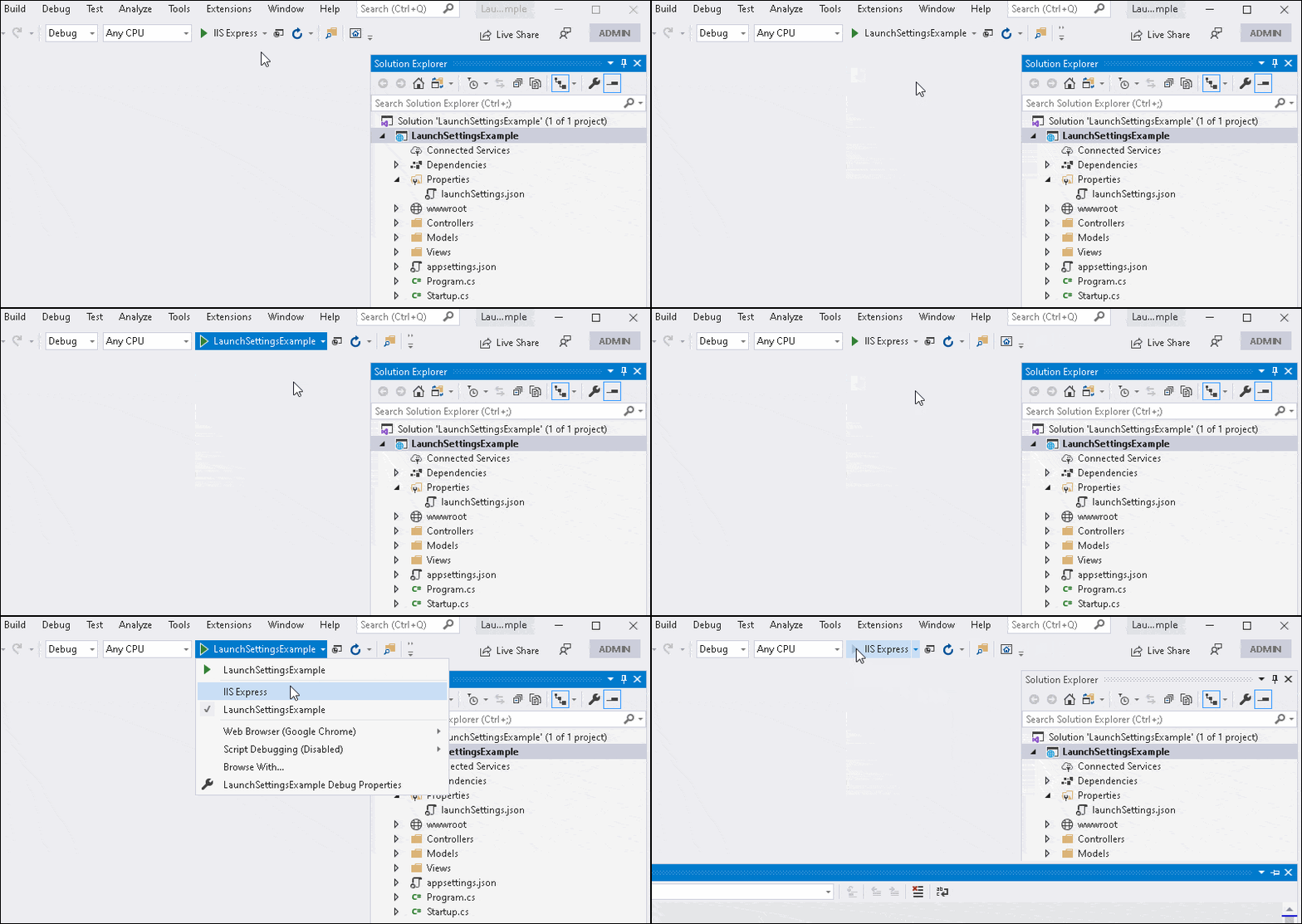
The debug profile determines how to application starts. If you look at the commandName option under the IIS Express, it mentions IISExpress. This is how Visual Studio knows to invoke the IIS Express, when we start the app. Similarly commandName project starts the app under the Kestrel web server.
Creating the new debug profile
To Create a new debug profie
- Select Project
- Right Click and click on
Propertyoption - Select
DebugTab - Click on the
Newbutton - Enter the name of the profile and click ok.
- Under the Environment Variables tab create
ASPNETCORE_ENVIRONMENTand give it a value - Under Launch select the appropriate Launch command. Available options are
IIS,IISExpress,Project&Executables - Save
- Choose the Dropdown under the debug Icon
- Select the newly created Profile
- Click debug to start the application using the new profile
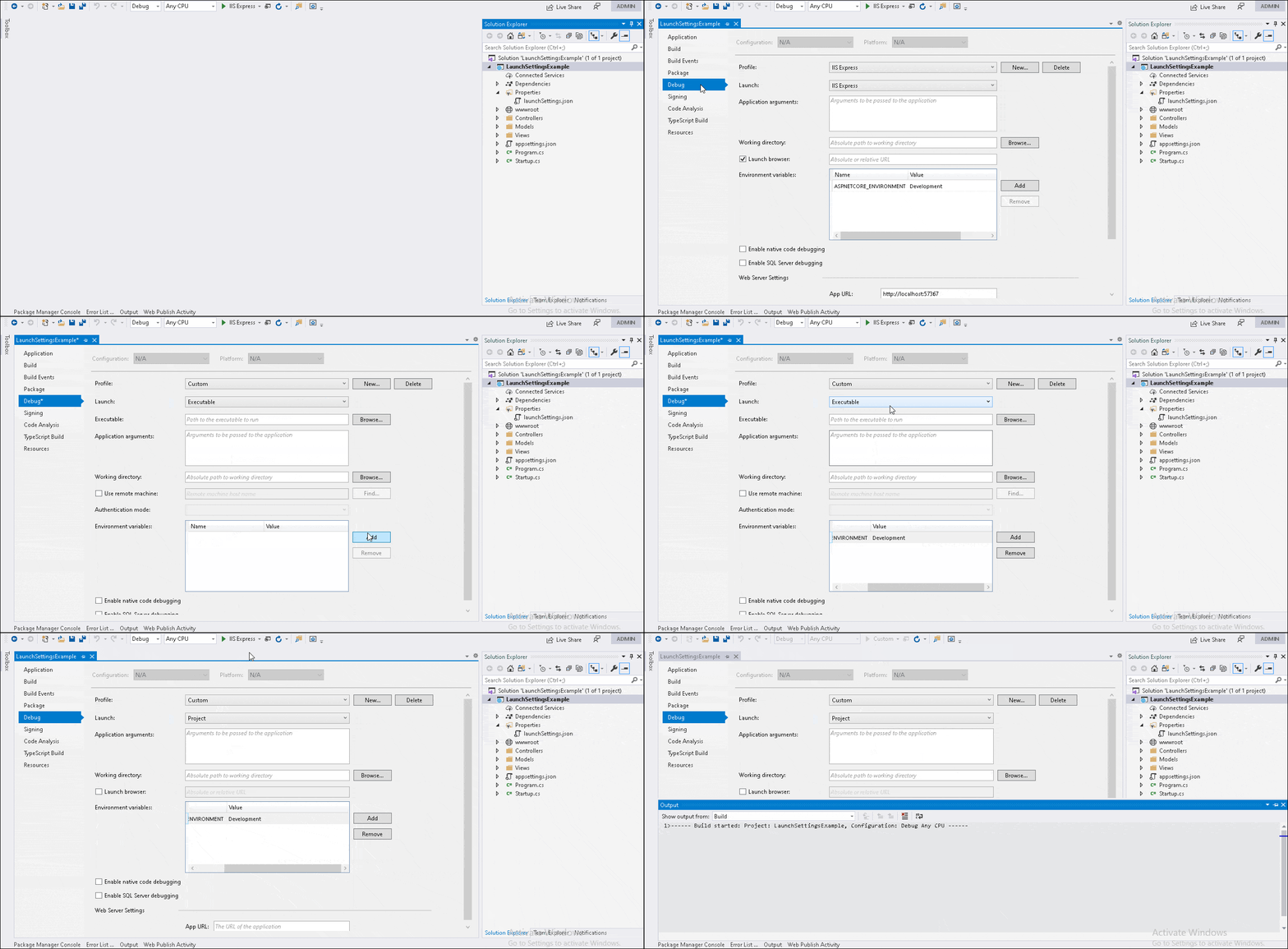
Now, if you open the launchSettings.json file, you will see the newly created profile Custom
1 2 3 4 5 6 7 8 9 10 11 12 13 14 15 16 17 18 19 20 21 22 23 24 25 26 27 28 29 30 31 32 33 34 35 36 37 38 39 | { "iisSettings": { "windowsAuthentication": false, "anonymousAuthentication": true, "iis": { "applicationUrl": "http://localhost/LaunchSettingsExample", "sslPort": 0 }, "iisExpress": { "applicationUrl": "http://localhost:57367", "sslPort": 44331 } }, "profiles": { "IIS Express": { "commandName": "IISExpress", "launchBrowser": true, "environmentVariables": { "ASPNETCORE_ENVIRONMENT": "Development" } }, "LaunchSettingsExample": { "commandName": "Project", "launchBrowser": true, "environmentVariables": { "ASPNETCORE_ENVIRONMENT": "Development" }, "applicationUrl": "https://localhost:5001;http://localhost:5000" }, "Custom": { "commandName": "Project", "environmentVariables": { "ASPNETCORE_ENVIRONMENT": "Development" } } } } |
Modifying the launchSettings.json
The better way to modify the launchSettings
- Select Project
- Right Click and click on
Propertyoption - Select
DebugTab
Visual Studio automatically saves all the settings in the launchSettings.json. You can also directly modify the launchSettings.json
Launch Configuration
The debug tab under project -> Properties has few important options.
Launch/commandName:
This option determines how the application starts. The available options are
- IIS: Launches the Application IIS Webserver
- IISExpress: Uses IIS Express, which is a lightweight version of IIS to launch the application.
- Project: Launches the application using the Kestrel Web server
- Executables: Creates a self-contained executable file.
Environment Variables:
This option allows us to add/remove Environment Variables. The most important one is ASPNETCORE_ENVIRONMENT, which allows us to choose the application stage. The Application stage can be Development, Staging & Production, or anything we choose. The ASP.NET Configuration system reads this value to configure the Application.
Hosting Model:
Another important feature is choosing the Hosting Model. This option comes into the picture if we choose the IIS or IISExpress as launch options.
launchBrowser: A value of true here, will loads the application in the browser automatically.