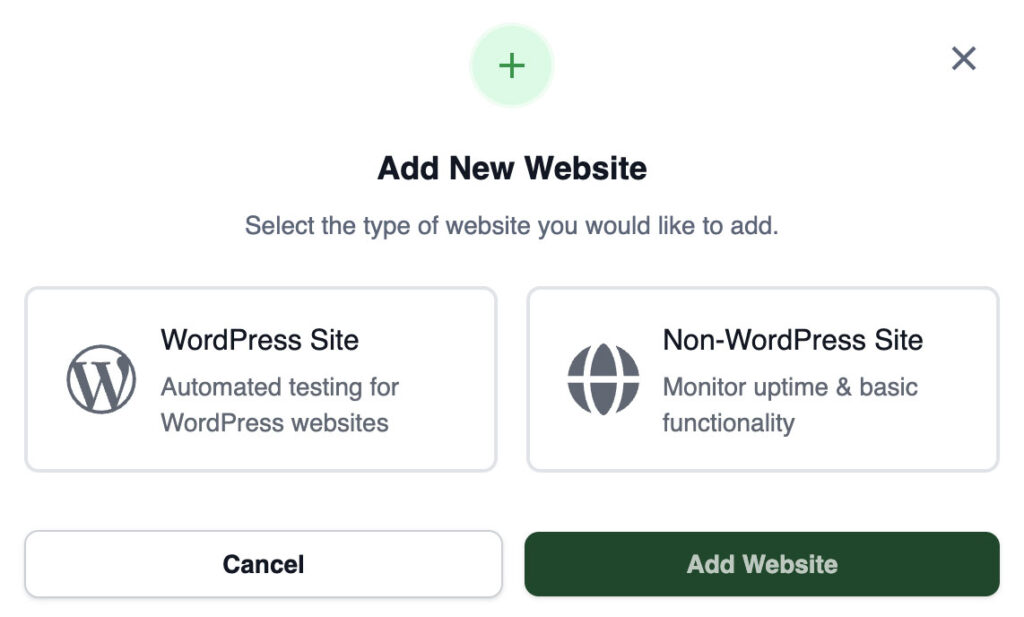
From your main CheckView dashboard, click Add Website to begin connecting your site.
After entering your URL, select whether your site is a WordPress site or a non-WordPress site.
If it’s a WordPress site: you’ll connect using the free CheckView plugin.
If it’s a non-WordPress site: CheckView will take you straight to the test step editor, where you can manually build test flows that work across many platforms, including SaaS apps, landing pages, and other CMSs.
Enter your site’s full URL. Type in the complete public frontend URL of your website, including https://.
For WordPress sites:
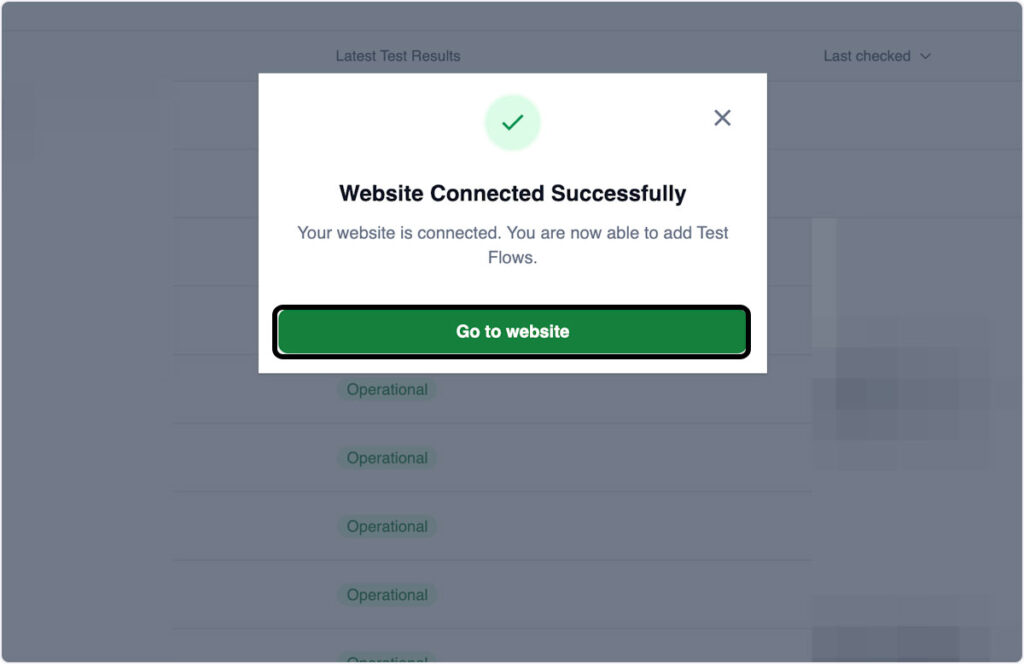
If you’ve already installed and activated the free CheckView plugin, you should see a message saying “Website Connected Successfully.”
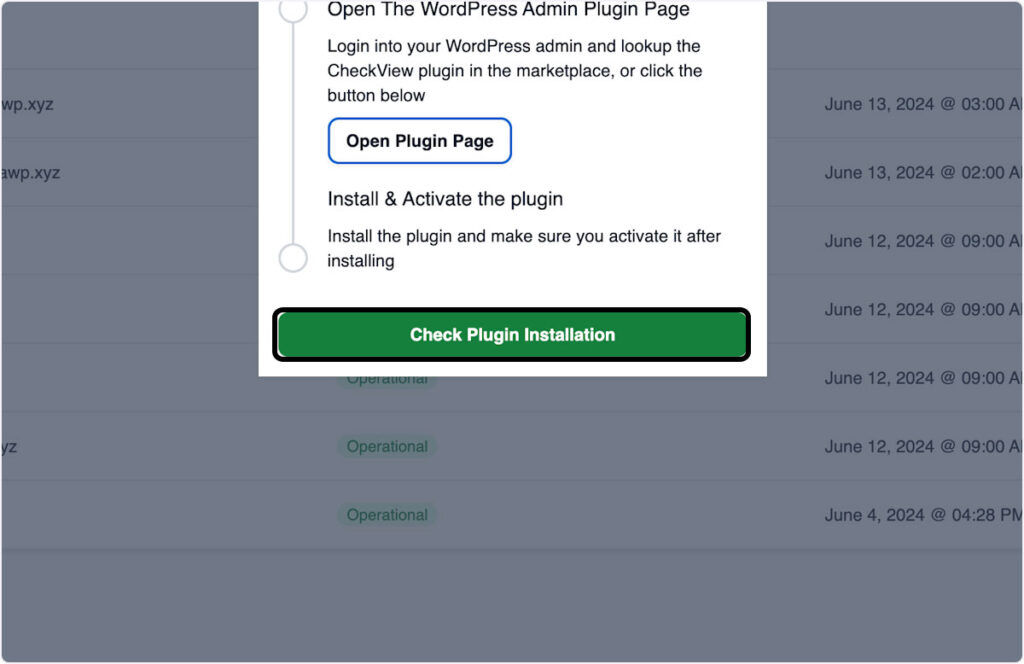
If you haven’t installed it yet, click Open Plugin Page. This will open your WordPress admin’s “Add Plugins” screen.
Log in to your WordPress admin (if prompted), then click Install Now followed by Activate.
Once the plugin is active, return to CheckView and click Check Plugin Installation.
You should now see “Website Connected Successfully.”
For non-WordPress sites:
You’ll be taken directly to the Test Step Editor, where you can begin creating and customizing your automated test flow.
These flows work with most websites and SaaS platform, no plugin required.
You’re all set! Your site is now connected to CheckView. You can start creating automated tests to ensure your forms, checkouts, and user flows are always working as expected.