

Description
🏆 #1 Free Virtual Tour Creator and 360 Panorama Viewer for WordPress.
Create stunning virtual tours of your properties, shops, hotels, or even your art exhibitions with WPVR – the best free virtual tour software for WordPress – and let prospects interact with your business from anywhere, 24/7!
Give visitors the option to explore your spaces online in a full 360 panoramic view — navigating different areas, interacting with your brand, and getting the key details they need to make a confident decision.
Whether you are selling real estate, trying to get more hotel bookings, or simply willing to take advantage of VR for your business, WPVR is your go-to solution to help you build virtual tours without the high expenses.
🎄 Merry Christmas – Get 30% OFF All RexTheme Products 🎄
🌟 Why Use WPVR?
WPVR comes with all the necessary features to create a free virtual tour on your own — all you need is a 360 panoramic image to get started.
Documentation | Video Tutorials | Guides | Get WPVR Pro 💎
WPVR has a simple & easy virtual tour builder, designed for you to create virtual tours real quickly, even without any expertise.
Tatsächlich können Sie in weniger als 5 Minuten kostenlos eine virtuelle Tour erstellen!!
Take a look at some of the amazing virtual tours created using WPVR!
- Real Estate Virtual Tour
- Virtual Art Gallery
- Hotel Virtual Tour
- Virtual Car Showroom
- Virtual Tour Of A Pub/Bar
Here, you will see that not only you can offer an engaging tour, you can place interactive hotspots to make it more realistic and exciting. And there’s so much more.
👉 Offer A 360 Virtual Experience
The virtual tour will let users explore in full 360 directions. And you can allow gyroscope for mobile users to get a near realistic visit.
👉 Place Interactive Hotspots
Use hotspots that people can click to get additional information via tooltips, images, videos, or audio, so that visits can get questions answered, and interest piqued.
👉 Easy To Highlight Your Brand
Easily place your brand logo and contact information on the tour. Plus, customize the colors of the control buttons to match your brand.
👉 Optimize For Inquiries & Bookings
Place booking forms or generic inquiry forms either on a hotspot (maybe at the reception desk in the tour), or on a CTA button below the tour. Let prospects contact you as soon as they are ready.
👉 Make The Visitor Feel Welcomed
Place a mini-welcome video and add soothing background music to make the visitor feel optimistic and valued right from the start.
All-in-all, offer an experience your prospects won’t forget.
🌟 Create A Free Virtual Tour In Just Easy 3 Steps 🌟
WPVR makes virtual tour creation super easy.
All you need are multiple 360 panorama images to cover different rooms, corners, or spots.
Then, you may follow these 3 simple steps to create a free 360 VR tour in no time;
- Upload the images to WPVR and they will turn into 360 panoramic views.
- Connect them to each other for navigation easily.
- Place hotspots to provide information around your location.
And you are ready. Now you can publish it and place it on any page on your website.
That’s it, you’ve just created a virtual tour, that too, absolutely free!
Your viewers can move inside or back and forth in this virtual tour, get extra information through hotspots, and get an experience similar to a real-life visit.
In the free version, you can connect up to 5 scenes, and place up to 5 hotspots on each scene.
For unlimited scenes and hotspots, you consider using WPVR Pro 💎
You can also add Scene Transitions (PRO) to make the journey more exciting.
Everything You Need To Create Virtual Tours That Engage & Convert
WPVR is a unique VR tour creator that comes with several exclusive features to make virtual tours more engaging and conversion-optimized.
Simply put, it’s not just a tool to show off, but also a solution to help you get real clients interested to make inquiries, place bookings, and contact you for negotiations.
🔮 High Quality Virtual Tours With Multiple Scenes 🔮
Suppose you want to highlight a property with 3 bedrooms, 2 bathrooms, a kitchen, a living room, and maybe 2 balconies. Maybe it has a backyard as well.
No problem. Simply take 360 panoromic images of each of the spaces and use WPVR to combine them into a single virtual tour, where people can view all of them.
But, one of the main concerns you probably have is quality. If you want it to be realistic, it has to be of high quality.
In WordPress, large images are automatically compressed, reducing panorama image quality. A good 360 panorama image usually comes with a very high resolution that can easily go over 3000×1500 pixels.
But don’t worry, WPVR comes with the free option to disable this.
You can use any high-quality panorama images (JPEG, PNG, WebP) to make your own free 360 VR tours without compromising quality.
🔮 Use Interactive Hotspots To Answer Questions & Engage With Prospects 🔮
During a real visit, you would expect people to ask questions, take a closer look at interesting stuff, and get additional facts from you.
Well, why not offer something similar within the tour? 🤔
Simply use interactive hotspots or pointers where you will have full control through HTML Editor/WYSIWYG Editor to place any type of content for the hotspot.
You can do the following:
**➤ Add Tooltips**
Add quick information or instructions to view when hovered by visitors.
**➤ Descriptions**
Let people click to view additional descriptions on an object or a section for better understand.
For example, you can add description for the bed in a hotel room to describe the quality and comfort, exactly what people need to decide.
**➤ Images or gifs**
If a certain area is unclear, let people click to view clear images or gifs.
**➤ Videos**
Instead of text, you can place a pre-recorded video to explain it yourself.
**➤ Audio**
Rather than the rest, when clicked on, play a pre-recorded audio to explain it like a human.
Pro Tip: Think about all the possible questions, concerns, or advantages you could offer as a direct guide. Deliver them on the tour using hotspots.
Other than these, you can even place buttons to load forms or add a link to an external page to maybe take people to an inquiry form or booking form.
We do have direct support for booking.
Bonus: You’ll get access to 900+ custom icons to use as hotspots to make the experience meaningufl. And you can add custom colors (Pro) or ripple animation (Pro) to grab user attention.
P.S. If you want, you can also add custom icons of your own using snippets. (Hear’s how.)
🔮 Place Virtual Tours Anywhere On Your Website Naturally, No Complications 🔮
Once you have a virtual tour ready, you can use it’s shortcode to place the virtual tour on any page, no matter what theme you use.
And, to make it easier, we have made it compatible with popular page builder through dedicated blocks/widgets.
- 360° Ansicht &virtuelles Tour-Widget für Elementor.
- 360° Bildbetrachter und virtueller Tourblock für Gutenberg.
- Virtueller Rundgang & 360° VR Panorama-Modul für Divi.
- Panoramabild 360° Ansicht & Virtuelles Tour Element für Oxygen.
- 360° Panorama Betrachter & Virtuelles Rundgang-Element für Visual Composer.
You will have additional control to set custom height, width, and radius, or set it to full-width mode, or full-screen mode by default.
You can also Publish Virtual Tours with Password Protection in case you want to offer private access (maybe for a fee).
🔮 Interactive Virtual Floor Plan for Meaningful Direction (Pro) 🔮
One of key highlights of WPVR is it’s floor plan feature, popular among realtors and real estate agencies.
- If you have a real estate floor plan available, you can add it to the virtual tour. Then you can place pointers on the map and connect them to respective scenes.
- People can look at this map within the tour to know exactly where they are in the property, and click on pointers there to visit that scene directly.
This can play a crucial role in helping visitors get a sense of direction of the property and make a more informed decision.
Learn more about using Interactive Virtual Floor Plan in case you want to offer private access (maybe for a fee).
🔮 Share Your Virtual Tour On Social Media Via Link Or QR Code (Pro) 🔮
With WP VR, you can easily share your 360 degree virtual tours to others or on social media (even without placing it on a web page).
Once you generate a tour, you can either
* copy a shareable link, or
* generate a QR code.
This you can post on any social channel (Facebook, LinkedIn, Reddit, etc.) or send to your clients via email & direct message.
🔮 360 Video Player for WordPress 🔮
Apart from virtual tours using 360 panoramic images, you can use WPVR as a 360 video player on your website.
Meaning, if you have a 360 degree video, you can upload it to your media folder or on YouTube/Vimeo, and then use WPVR to embed it on your website – no custom codes needed.
🔮 Cardboard & VR Headset Support for Full Immersive Experience (Pro) 🔮
An exciting aspect of WPVR is it’s VR headset support.
You can let people turn on the VR Glass mode in the virtual tour so that visitors can place it on their Google Cartboard or VR headset and take a realistic virtual tour experience!
🔮 WPVR Analytics Support (Pro) 🔮
Apart from all those interactive options, you also get to view analytics to help you make business decisions.
You will be able to:
- 📈 Track Individual Tour Views: Identify which virtual tours got the most attention.
- 🔥 Analyze Hotspot Interactions: You’ll know which features your clients found most interesting.
- 🗓️ Filter Report Periods: Get reports broken into Weeks, months, years, or even custom dates – everything will be crystal clear.
You will be able to understand your customers better, and plan improvements to increase conversions with a data-driven approach.
🔮 Mobile First VR Approach 🔮
WPVR is designed with a mobile-friendly output in mind. All the tours you make will be fully responsive and weightless for mobile devices.
👉 Faster Interactive VR Tour Loading on Phone:
Use an auto-resize feature to make virtual tours weightless on mobile devices.
👉 Better Size For Mobile View
Set up separate heights for mobile devices to offer a comfortable view.
👉 Notice for Smartphones
You can show custom notices on smartphones to help people with directions.
This makes WPVR an ideal virtual tour creator to match today’s business trends.
🌟 Who Should Use WP VR? 🌟
Any business you run, if it gives you any advantage by showing your location or space to prospects, then you can use WPVR.
If you part of any of the following industries, WPVR can be your go-to virtual tour creator:
- Real Estate Industry
- Schulen und Hochschulen (Virtuelle Campus-Touren 🏫)
- Hotels & Resorts
- Restaurants.
- Travel/Tourism.
- Museums.
- Art Galleries & Exhibitions.
- Car Showrooms.
- Möbelausstellungsräume.
- Clothing Stores.
- Grocery and Retail Stores.
- Bars/Kneipen.
👉 Check out Virtual Tours For Different Industries Made With WPVR: Take A Look Now!
To have more control over creating a virtual tour, learn about the Premium version.
FREE FEATURES
- An unlimited number of 360 Panorama VR tours
- 360° Videounterstützung (selbst gehostete, Youtube, & Vimeo Videos).
- Virtuelle Rundgänge im Vollfenster.
- VR-Glas-Unterstützung für Videotouren.
- Kurzcode-Unterstützung.
- Gutenberg-Blockunterstützung.
- Elementor Widget Unterstützung.
- Unterstützung für Webp-Bilder
- Live-Vorschau der Tour im Backend.
- Tour-Vorschaubild.
- Tour Autoladen-Funktion.
- Animation zum Ausblenden der Szene.
- Private and Password Protected Tour
- Automatische Drehung mit Geschwindigkeitsregelung.
- Automatische Drehrichtung, Pausen- und Stoppsteuerung.
- Grundlegende Steuerungsschaltflächen (Vergrößern, Verkleinern und Vollbild).
- Maus-Ziehsteuerung auf virtueller Tour.
- Vergrößern und Verkleinern mit Mausscrollen auf virtueller Tour.
- Vergrößern und Verkleinern mit den Tasten + und -.
- Fügen Sie mehrere Szenen und Hotspots hinzu.
- Szenentyp Hotspot, um Szenen zu verbinden.
- Info-Typ Hotspots, um Informationen zu geben.
- Option Schweben und 1-Klick-Inhalt für Hotspots.
- Betten Sie Texte, Videos, Bilder, GIFs und Webseiten-Links in Hotspots ein.
- Hotspot-Anpassung mit benutzerdefiniertem CSS.
- Tour-Tag in voller Breite.
- Radius-Tag für Tour-Rahmenradius.
- Multi-Site-Unterstützung.
- Unterstützung von WP-Benutzerrollen (Editoren und Autoren).
- Deaktivieren Sie die FontAwesome-Option.
- Deaktivieren Sie WordPress Standardhandler für große Bilder.
- Steuern Sie Plugin-Assets, die nur auf bestimmten Seiten/Beiträgen geladen werden.
- Aktivieren Sie den Frontend-Hinweis für mobile Besucher.
- Option zum Ändern der Größe mobiler Medien.
- Urückroll-Option für die Plugin-Version.
- Passwortgeschützte Tour.
- Unterstützung durch das Support-Forum.
PREMIUM FEATURES
- Alle kostenlosen Funktionen.
- Unbegrenzte 360º Panorama VR (Szenen).
- Unbegrenzte Hotspots.
- Touren überall veröffentlichen (Add-on einbetten)
- WooCommerce Add-on für Hotspots.
- WooCommerce Produkte – In den Warenkorb.
- Szenengalerie (Panorama-Bildergalerie).
- Unterstützung für VR Glass / Cardboard Unterstützung.
- Grundriss-Unterstützung.
- Erklärvideo.
- Hintergrundmusik
- Autoplay, Loop, and pause in virtual tours
- Gyroskop-Unterstützung für Virtual Reality (mobile Geräte).
- VR-Glas-Unterstützung für Videotouren.
- 900+ Premium-Symbole für Hotspot.
- RGB-Farbunterstützung für Hotspots.
- Teilpanorama / Mobiles Panorama.
- Google Street View Unterstützung.
- Cubemap-Bildunterstützung.
- Virtuelle Touren importieren und exportieren.
- Benutzerdefinierte Zoomeinstellungen für 360° Bilder.
- Hintergrund 360° Panorama Betrachter.
- Fließende Formulare Add-on.
- Firmenlogo & Beschreibung (White-Label).
- Duplizieren Sie Touren mit einem Klick.
- Steuern Sie die horizontale und vertikale 360° Ansicht.
- Benutzerdefinierter Ladepunkt (Gesicht) für 360° Ansichten.
- Szenentitel, Autorenname & URL.
- Bildschirm-Kompass für 360° Bildbetrachtermodus.
- Direkte Freigabe über soziale Medien.
- Teilen Sie virtuelle Touren mit einem QR-Code.
- Vorrangiger Support.
👉 Upgrade to Pro ✨
Wir haben noch viele weitere tolle Funktionen geplant. Werfen Sie einen Blick auf unsere Entwicklungs-Roadmap.
Kommende Funktionen
- Kontaktformular/Buchungsoption.
- Geschichtenerzählen.
- Mail Mint Integration für die Lead-Generierung.
Privacy & Data Collection
WP VR includes an optional, opt-in usage tracking module powered by Appsero SDK to help us troubleshoot issues faster and improve plugin performance, feature stability, and overall user experience.
What data we collect (only if you opt in)
WP VR does not collect any data by default.
If you explicitly allow data collection via the Appsero admin notice, the plugin may collect the following telemetry data:
– WordPress version
– PHP version
– WP VR plugin version
– Active theme and …
Screenshots
360° Bild hochladen 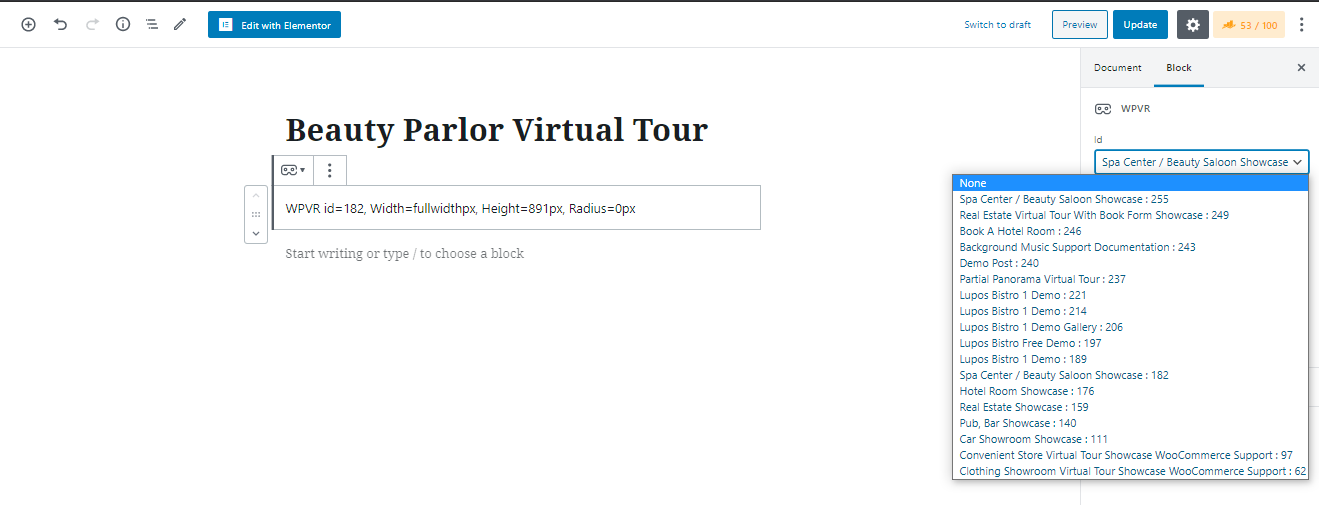
Vorschau 360° Bild 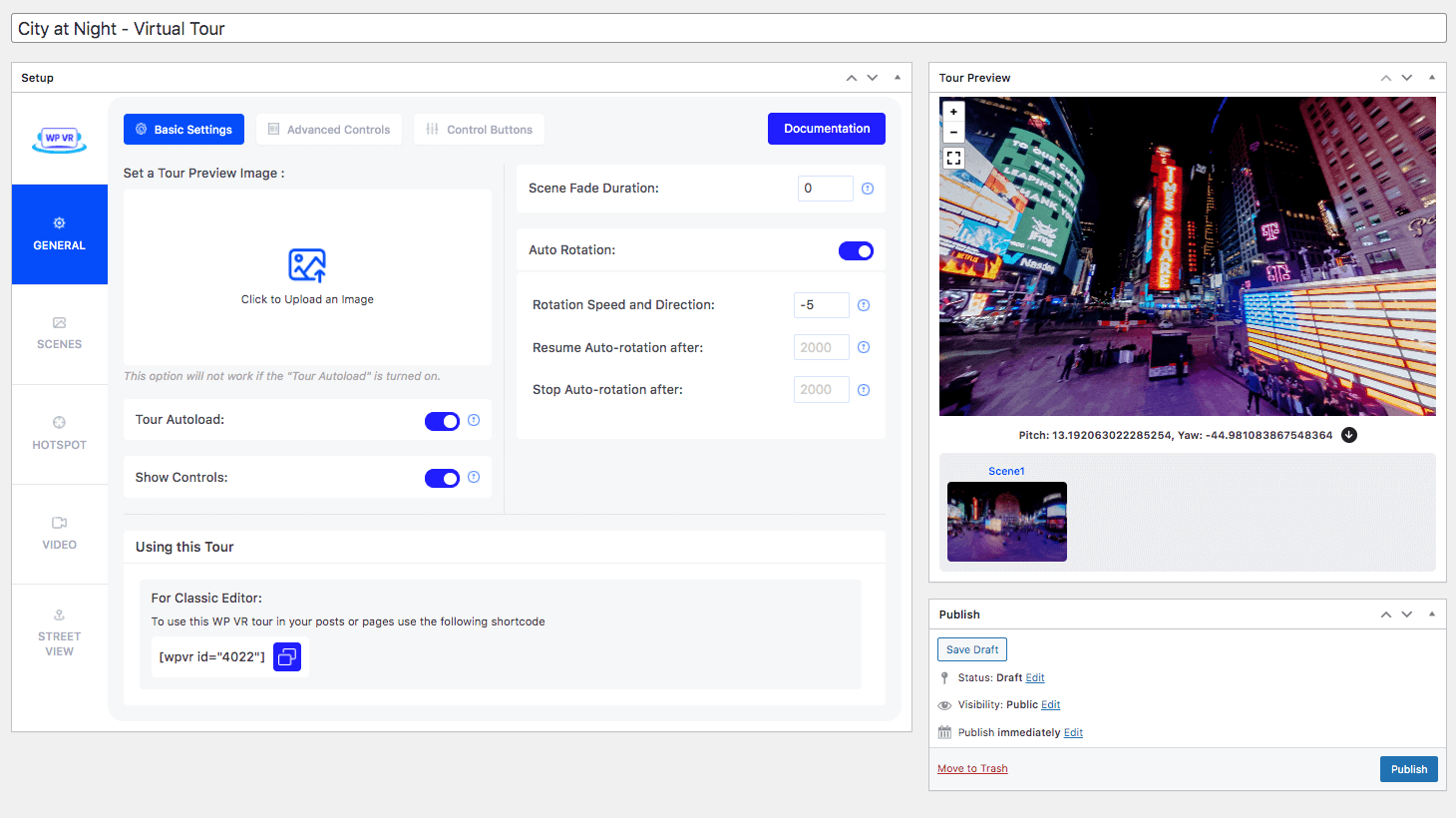
Grundeinstellungen der virtuellen Tour 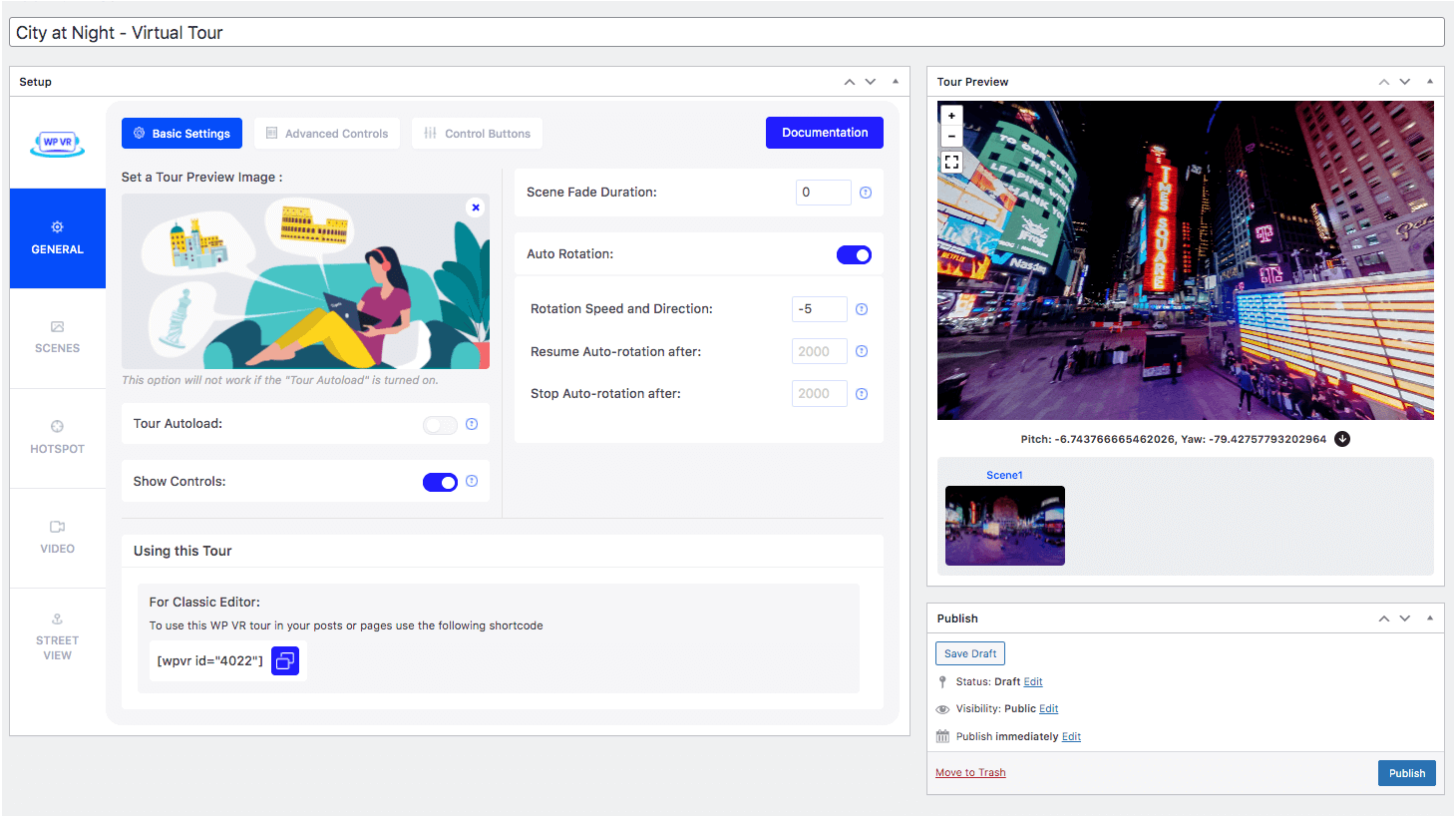
Vorschaubild auf virtueller Tour 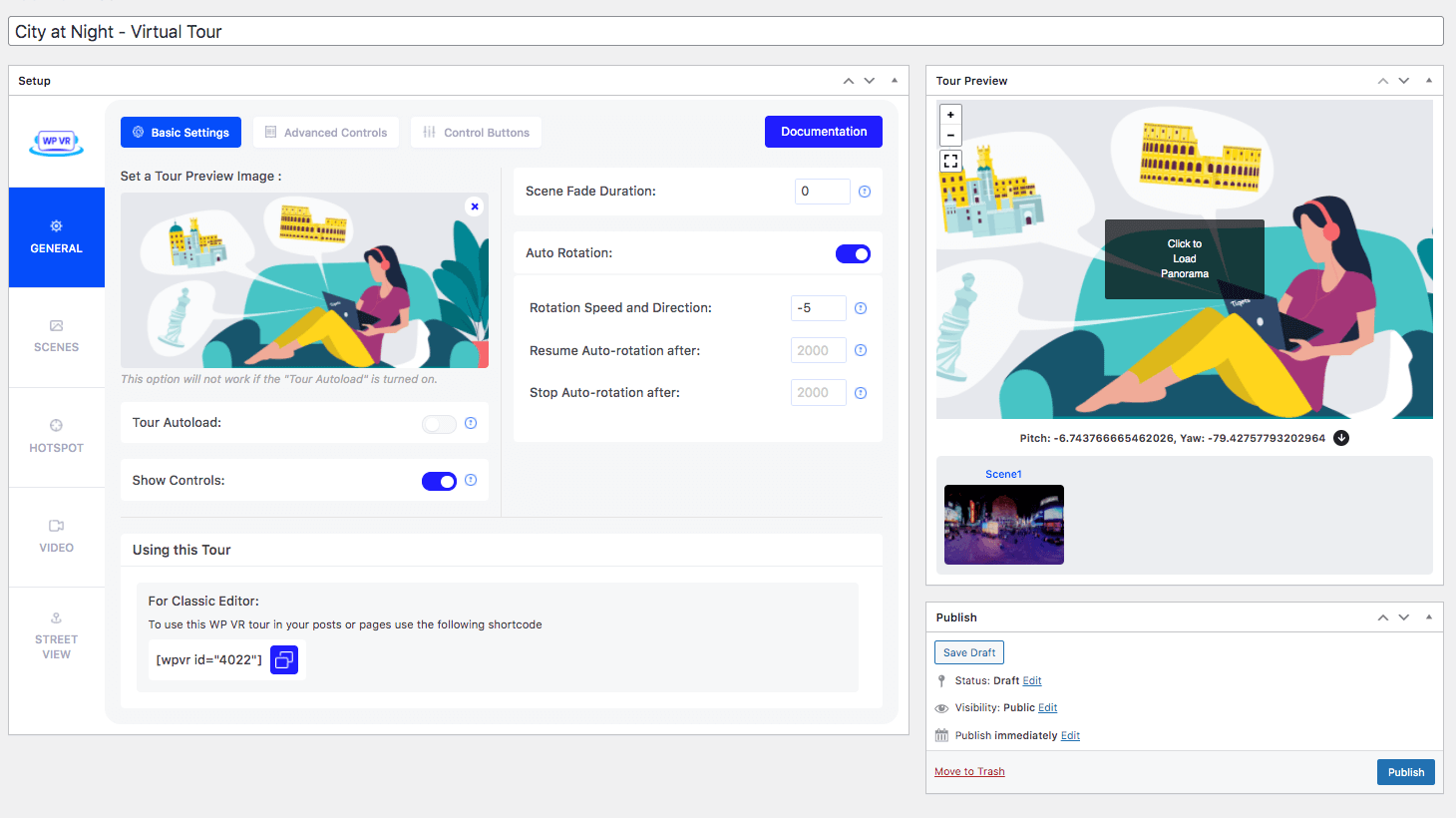
Vorschaubild Virtuelle Tour 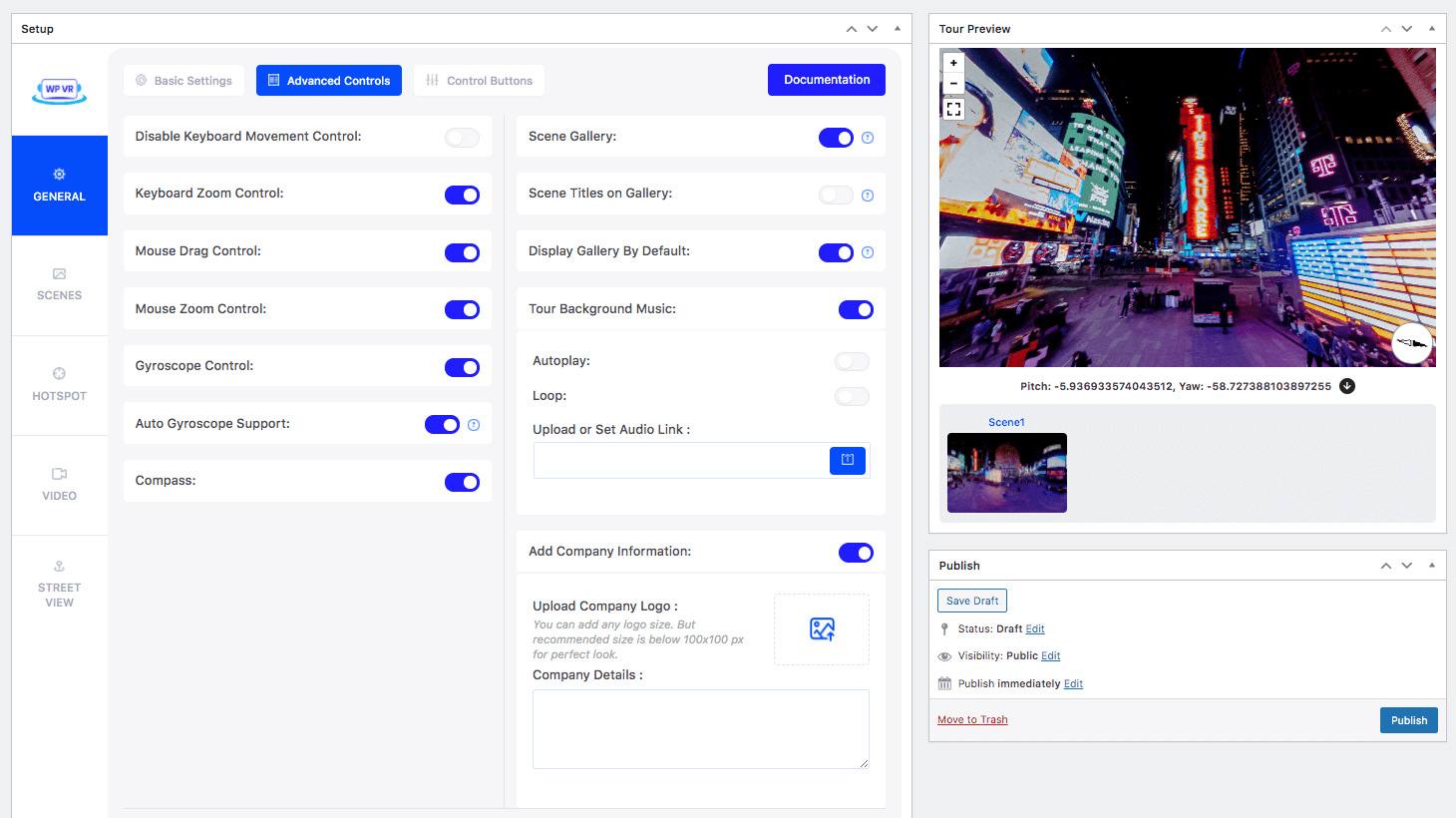
Erweiterte Steuerung der virtuellen Tour 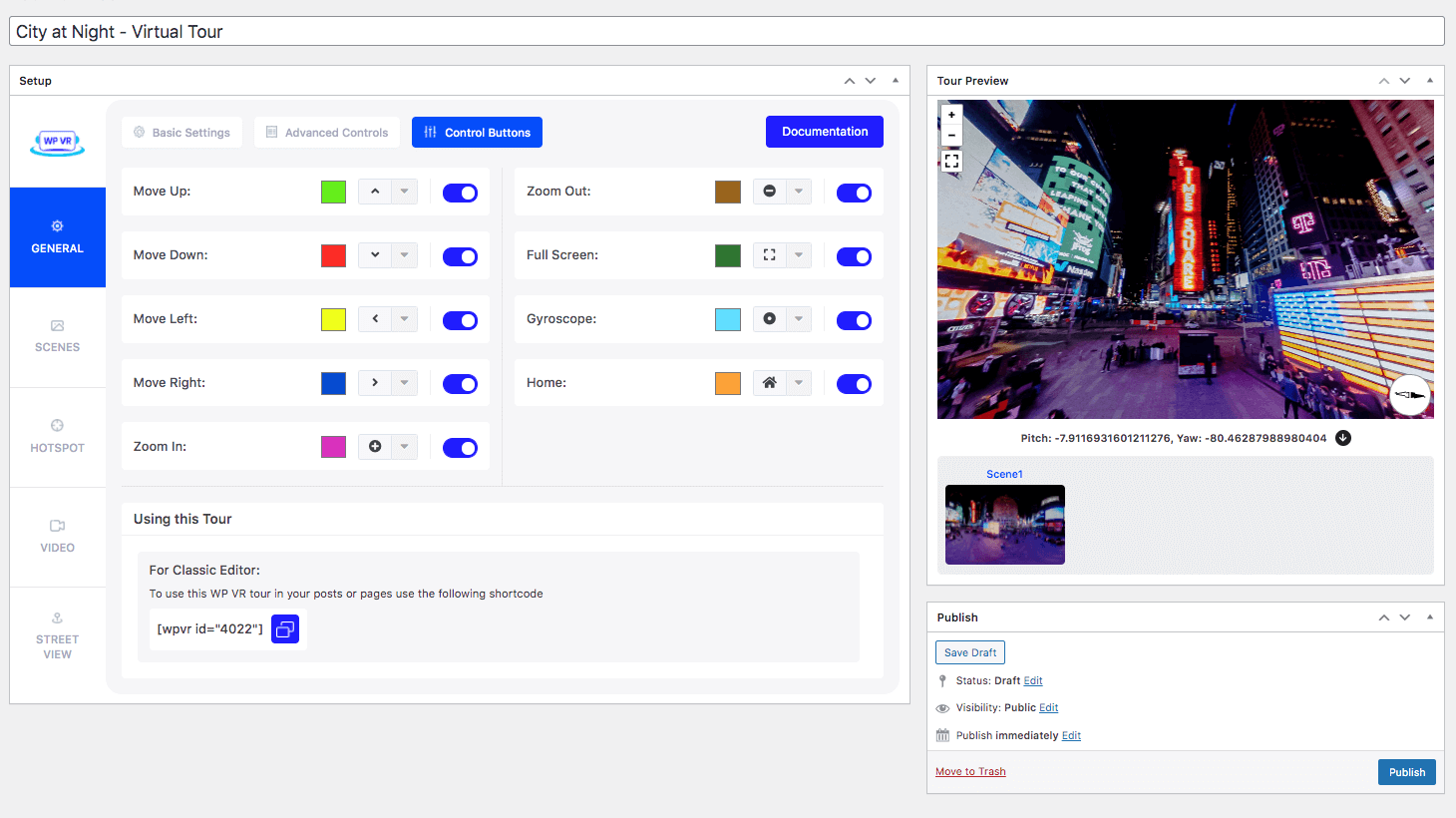
Steuertasten der virtuellen Tour 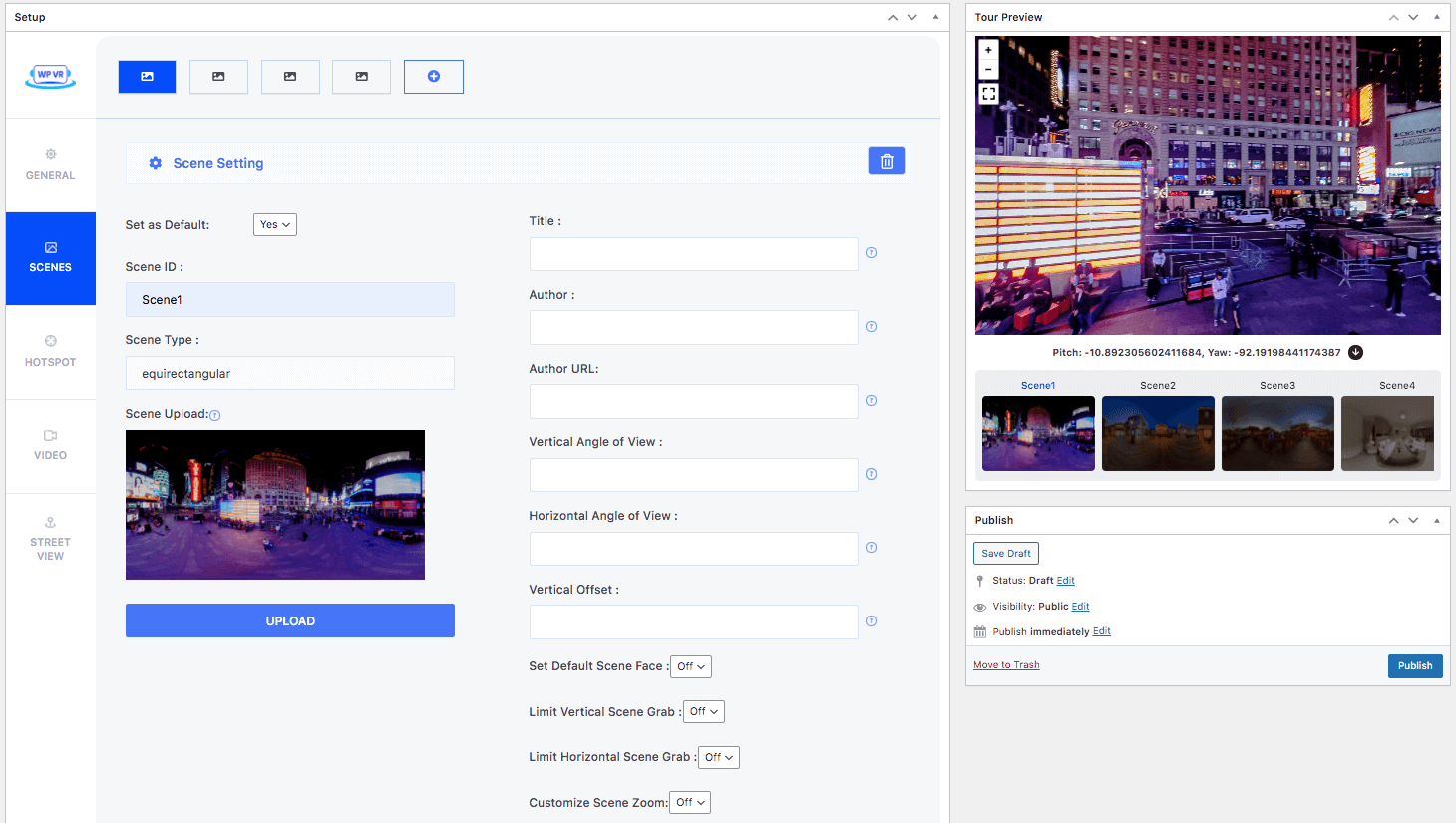
360° Bilder Grundeinstellungen 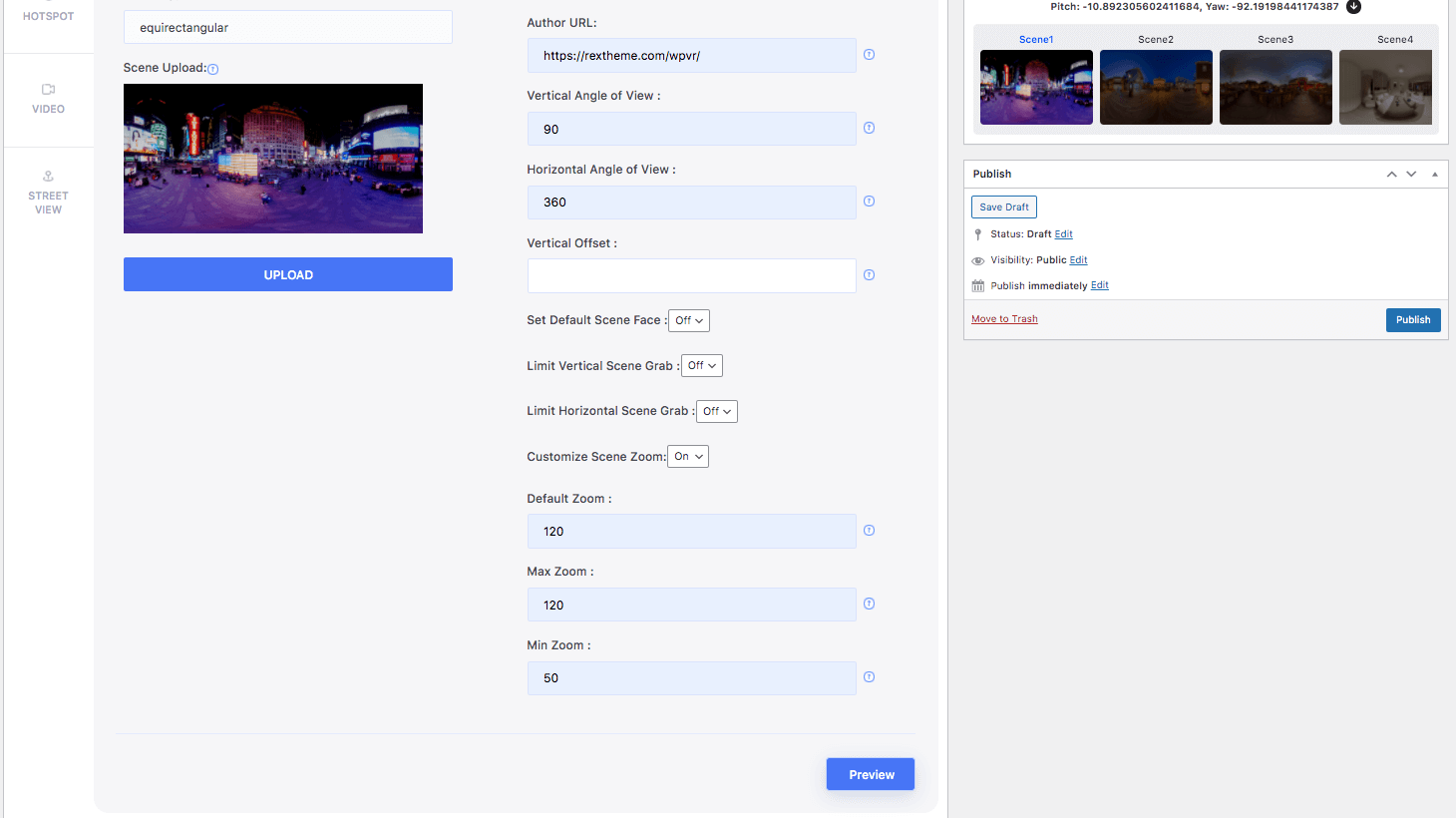
Erweiterte 360° Bildeinstellungen 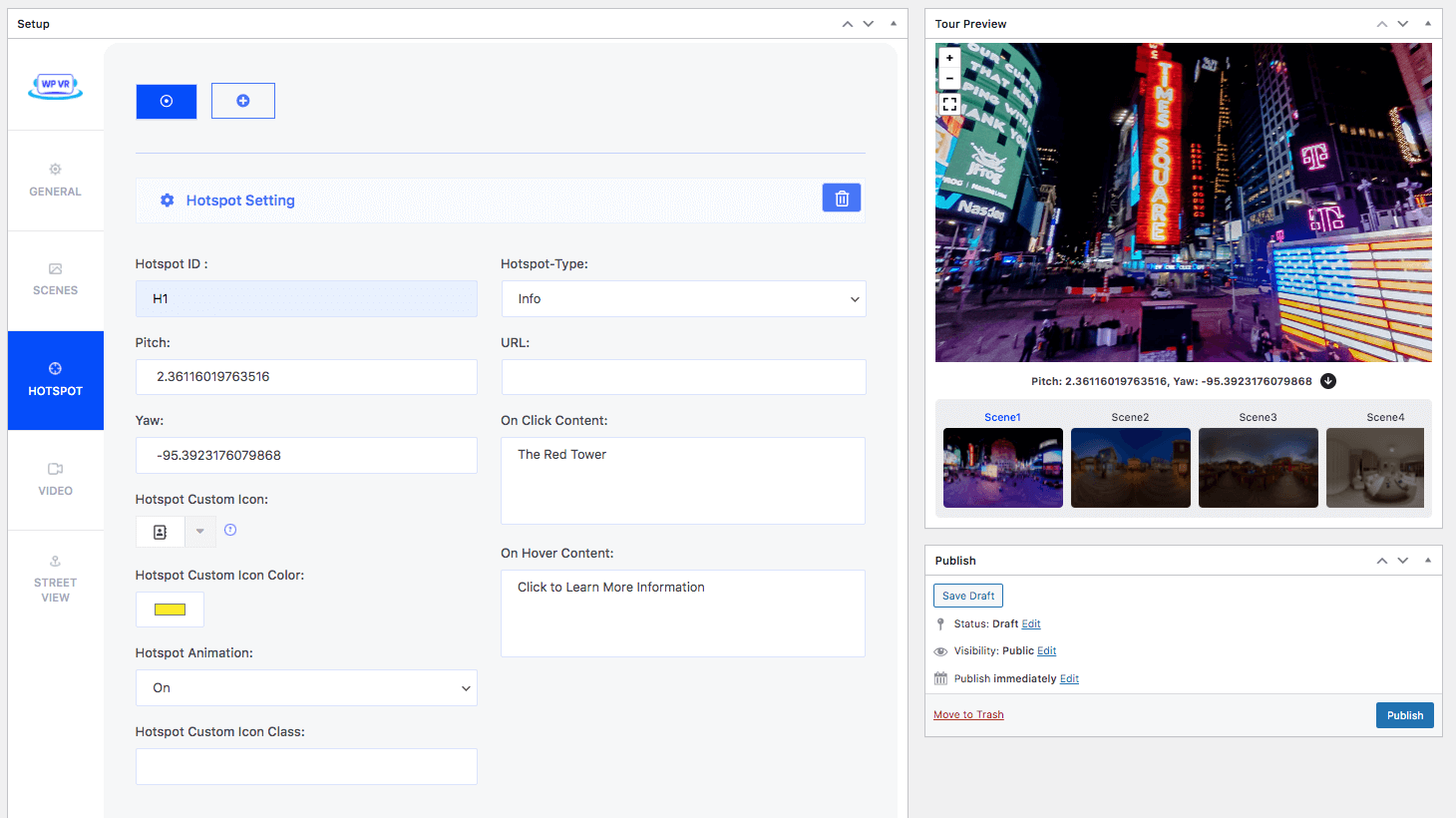
Festlegen von Informationen zu Hotspots 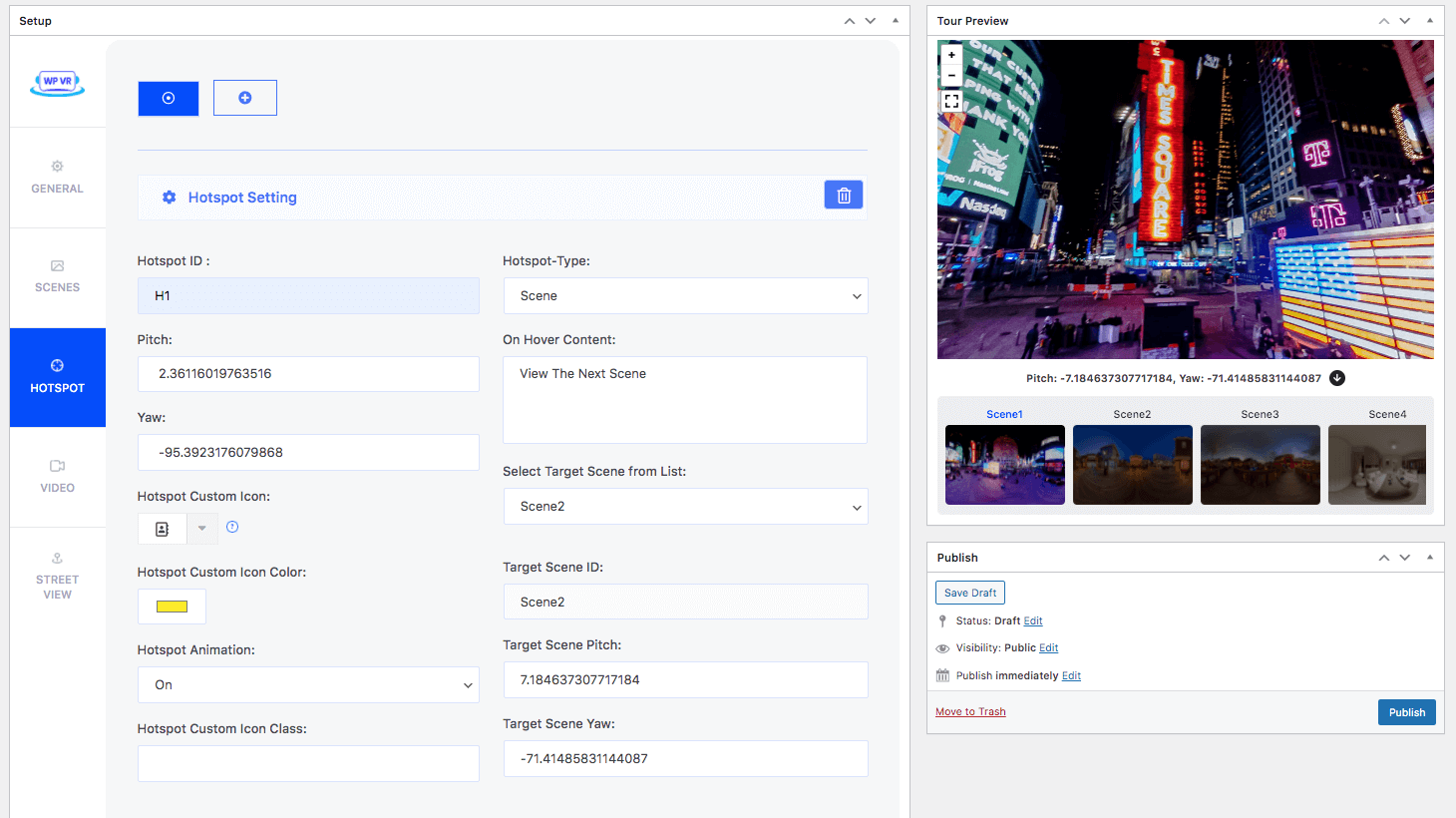
Verbinden 360° Bilder an Hotspots 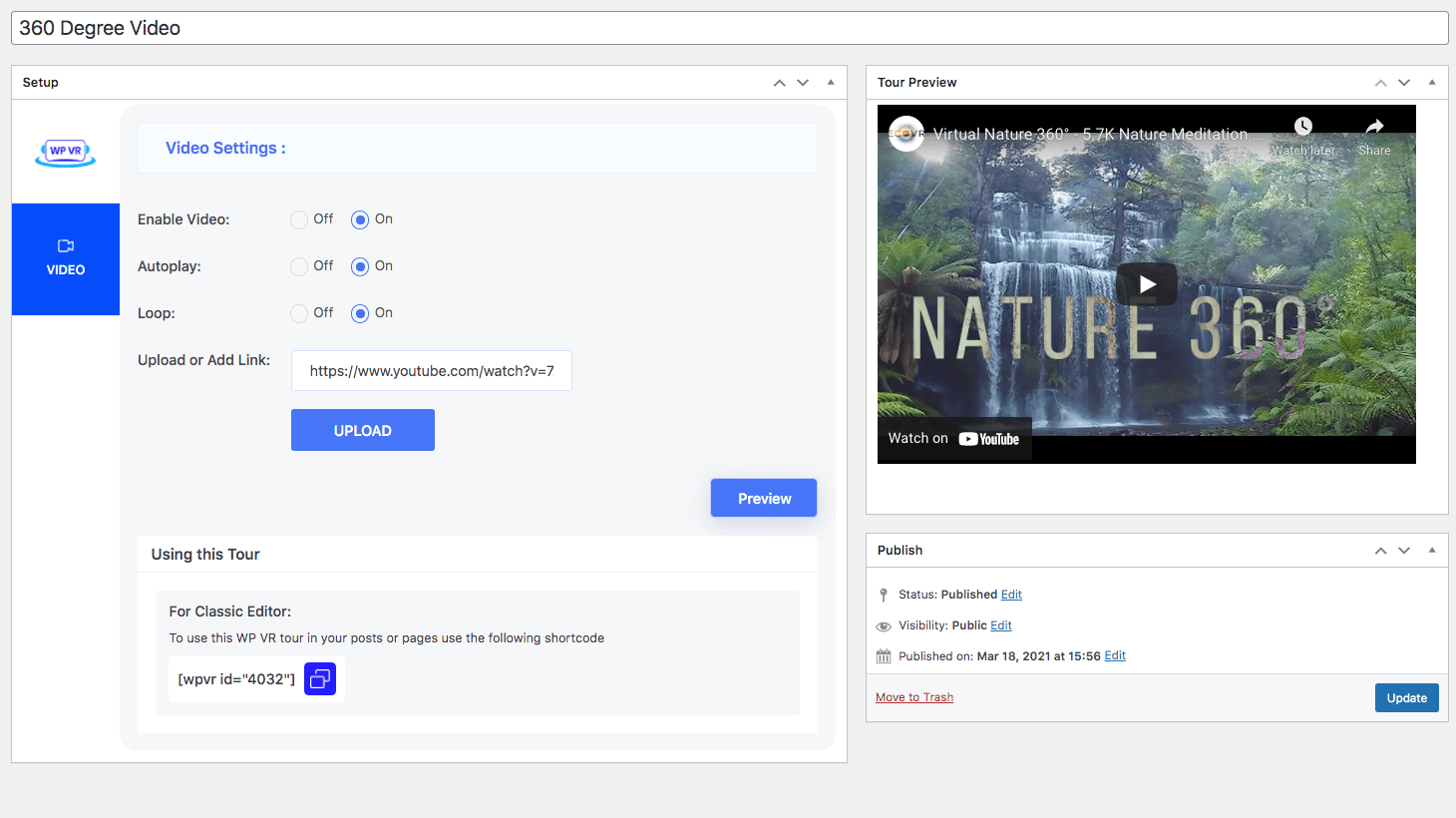
360° Videotour


Blocks
This plugin provides 1 block.
- WPVR Tour
Installation
- Laden Sie WPVR in das Verzeichnis /wp-content/plugins/ hoch
- Aktivieren Sie das Plugin über das Menü „Plugins“ in WordPress
- Folgen Sie dem Einrichtungsassistenten, um das Plugin für die Verwendung zu konfigurieren
FAQ
-
1. Warum brauche ich WP VR?
-
Mit WP VR können Sie ganz einfach kostenlos eine virtuelle Tour erstellen, um eine virtuelle Präsenz Ihres Unternehmens aufzubauen.
Stellen Sie einfach ein 360° Panoramafoto zur Verfügung und dieses Plugin erstellt eine virtuelle Tour, in der Ihre Besucher leicht navigieren können.
Ermöglichen Sie Ihren potenziellen Kunden eine realistische Tour durch Ihre Einrichtung, bevor sie sich für den Kauf Ihrer Dienstleistung entscheiden, und erhöhen Sie Ihre Konversionsrate.
-
2. Wie installiere und aktiviere ich WP VR?
-
Sobald Sie die Datei heruntergeladen haben, gehen Sie zu Ihrem Dashboard. Wählen Sie unter Plugins die Option Neu hinzufügen aus, und laden Sie die Datei hoch. Installieren und aktivieren Sie dann das Plugin.
Nach der Aktivierung finden Sie auf der linken Seite unter Ihrem Dashboard die Option WP VR unten.
-
3. Welche Art von Bildern sollte ich verwenden, um eine virtuelle Tour zu erstellen?
-
Um ein perfektes äquirektangulares Bild zu erstellen, müssen Sie ein 360° Panoramafoto des Bereichs verwenden, den Sie in der Vorschau anzeigen möchten.
Sie können Panoramabilder aber auch mit Ihrem Smartphone aufnehmen und damit eine Teilpanoramatour erstellen.
-
5. Kann ich die Hotspot-Symbole anpassen?
-
Ja. Sie können eine benutzerdefinierte Klasse für Ihr Design erstellen, die den gewünschten Stil angibt.
Dann können Sie den Klassennamen im Abschnitt Benutzerdefinierte Hotspot-Klasse in einen Hotspot eingeben, und der angezeigte Inhalt wird entsprechend dem von Ihnen festgelegten Stil angepasst.
-
6. Kann ich eine 360° Videotour mit WP VR erstellen?
-
Ja, mit WP VR können Sie eine 360° Videotour erstellen.
Sie können entweder das Video hochladen, um eine Tour zu erstellen, oder einen Link zu einem Youtube/Vimeo 360° Video setzen.
-
7. Wie bette ich eine virtuelle Tour mit dem Gutenberg Block Editor ein?
-
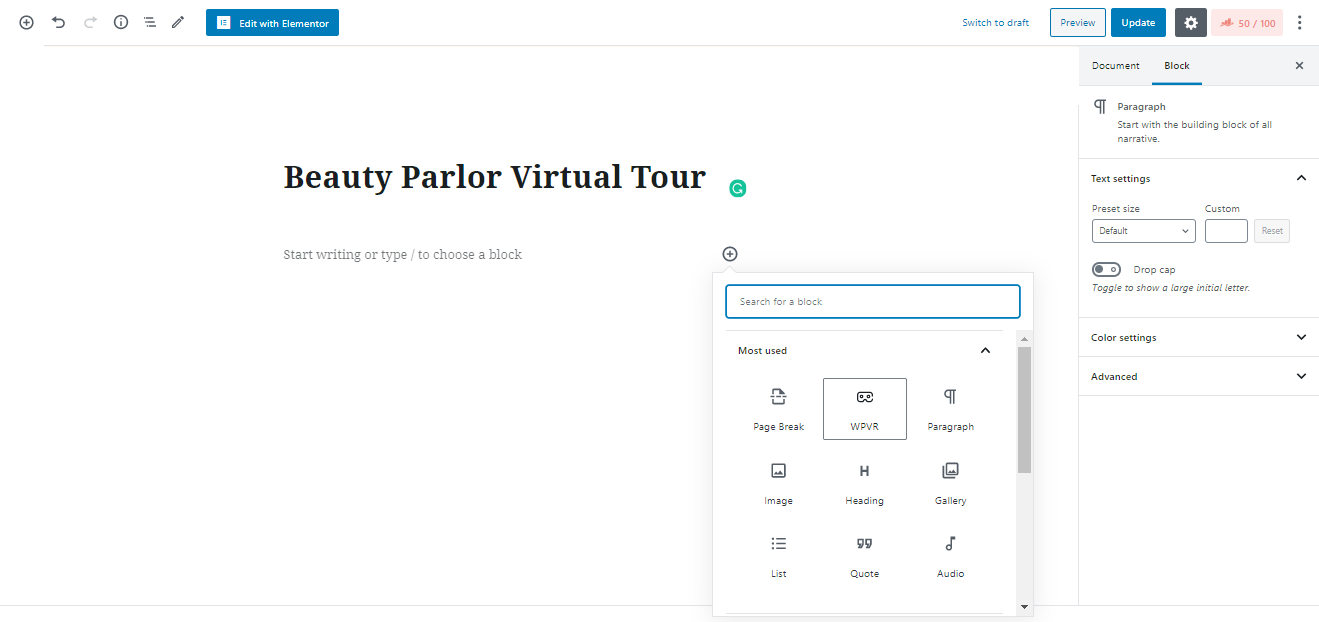
Unter gemeinsamen Blöcken finden Sie einen Block namens WP VR. Wählen Sie den Block aus und auf der dynamischen Symbolleiste auf der rechten Seite erhalten Sie die Optionen zum Hinzufügen von ID, Höhe und Breite.
Sammeln Sie die ID von der virtuellen Tour, die Sie erstellt haben. Weisen Sie die Höhe und Breite nach Ihren Wünschen zu.
-
8. Die Tour wird nicht auf der Webseite geladen.
-
Gehen Sie zu Ihrem WordPress-Dashboard > WPVR > Erste Schritte > Einstellungen.
Überprüfe den Status der Option Skriptsteuerung aktivieren.
Wenn die Option Skriptsteuerung aktivieren aktiviert ist, deaktivieren Sie sie und laden Sie die Tourseite neu.
Wenn Sie diese Funktion verwenden möchten, müssen Sie die URLs aller Seiten Ihrer Webseite mit einer virtuellen Tour im Feld Liste der zulässigen Seiten zum Laden von WPVR-Skripts festlegen.
-
9. Was tun, wenn ich die Fehlermeldung „DIE DATEI (Bildlink) KONNTE NICHT AUFGERUFEN WERDEN“ erhalte?
-
Manchmal, wenn Sie eine Tour zu Ihrer Website hinzufügen, können Sie mit dem Problem konfrontiert werden, dass anstatt die Tour zu laden, der Fehler «AUF DIE DATEI (…) KONNTE NICHT ZUGEGRIFFEN WERDEN.»
Dieser Fehler tritt auf, wenn Sie eine Website unter «HTTPS» (gesichert mit SSL-Zertifikat) betreiben, während sich Ihr Bildlink unter «HTTP» (ungesichert) befindet.
Um dieses Problem zu lösen, gehen Sie zu Ihrem WordPress-Dashboard > Einstellungen > Allgemein.
Stellen Sie hier sicher, dass Sie «HTTP» sowohl zur WordPress Adresse (URL)» als auch zu «Seiten Adresse (URL)» hinzugefügt haben.
Und das ist es. Ihre virtuelle Tour sollte ohne Probleme geladen werden.
-
10. Kann ich die virtuelle Tour in voller Breite erstellen?
-
Ja, Sie können die Touren in voller Breite Ihrer Seite/Ihres Beitrags veröffentlichen.
Lege für Gutenberg, Elementor und Oxygen Builder die volle Breite im Feld Breite fest. Für Kurzcodes lege Breite = «volle Breite» fest.
-
11. Was passiert, wenn ich ein Optimierungs- oder Caching-Plugin verwende?
-
Wenn Sie Optimierungs- oder Caching-Plugins verwenden, müssen Sie WP VR von der Optimierungsfunktion ausschließen.
Fügen Sie einfach ‚/plugins/wpvr‘ zum Ausschlussfeld hinzu (oder verwenden Sie den Speicherort, an dem Sie Plugins speichern).
-
12. Kann ich den Nutzern meiner Webseite erlauben, virtuelle Touren zu erstellen?
-
Sie können nur den Back-End-Benutzern wie Administratoren, Redakteuren und Autoren Ihrer Webseite erlauben, virtuelle Touren zu erstellen.
Administratoren und Redakteure haben Zugriff auf alle virtuellen Touren auf der Webseite, um sie zu ändern, zu aktualisieren und zu löschen.
Autoren können nur auf ihre eigenen Touren zugreifen und diese ändern, aktualisieren oder löschen.
Administratoren können den Zugriff von Autoren und Redakteuren jederzeit entfernen.
-
13. Wie kann ich Sicherheitslücken melden?
-
Sie können Sicherheitslücken über das Patchstack Vulnerability Disclosure Program melden. Das Patchstack-Team hilft bei der Validierung, Triage und Behebung von Sicherheitslücken. Sicherheitslücke melden.
Reviews


Contributors & Developers
“WP VR – 360° Panorama und kostenloser Virtual Tour Ersteller für WordPress” is open source software. The following people have contributed to this plugin.
Contributors


“WP VR – 360° Panorama und kostenloser Virtual Tour Ersteller für WordPress” has been translated into 4 locales. Thank you to the translators for their contributions.
Interested in development?
Browse the code, check out the SVN repository, or subscribe to the development log by RSS.
Changelog
WPVR (Free)
8.5.50 (2025-12-19)
-
Bug Fix: Vimeo videos in Hotspot popups now stop playing when the popup is closed.
