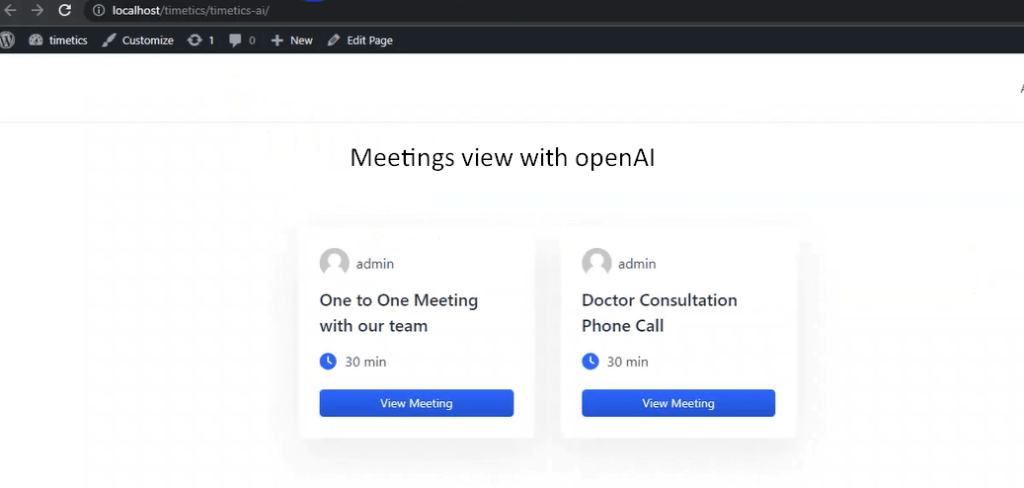
For OpenAI integration, you need to install the recommended plugins.
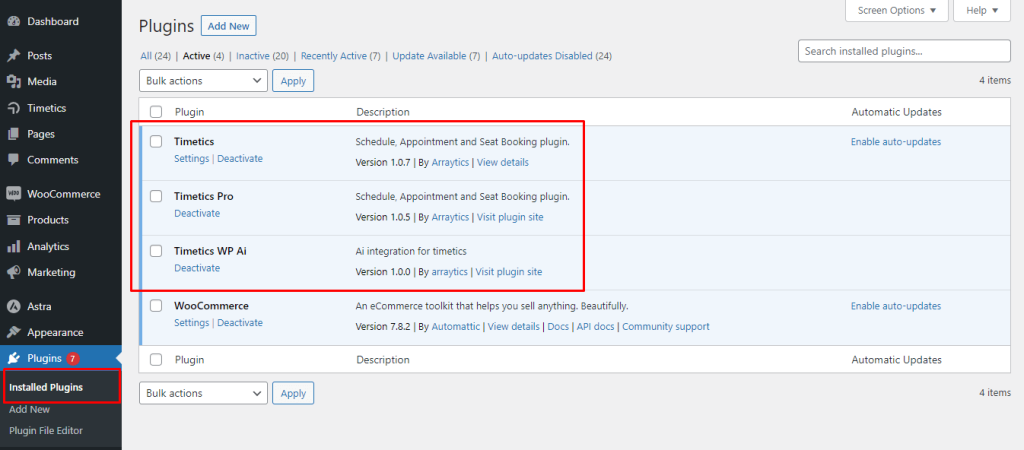
- Timetics Free
- Timetics Pro
- TImetics WP AI
You will get the Timetics WP AI plugin with the PluginBundles.
Install plugins
First of all, install and activate the Timetics(free & pro) and Timetics WP AI plugins.
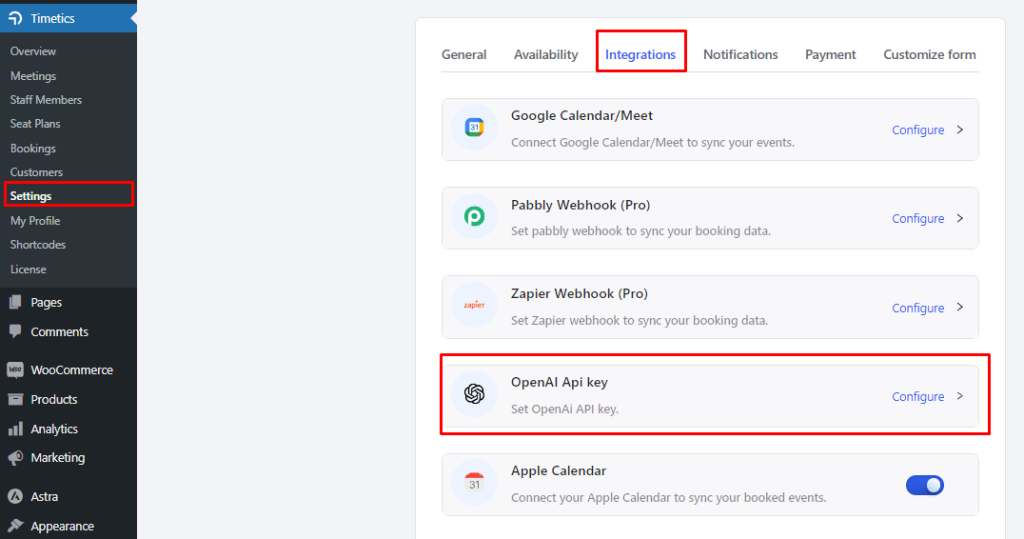
After installing the plugin, you will see the OpenAI configure option in Timetics -> Settings -> Integrations.
Insert OpenAI API Key
First, you need to sign up and sign in on the OpenAI platform from this LINK. Then, go to the API Key from the side menu.
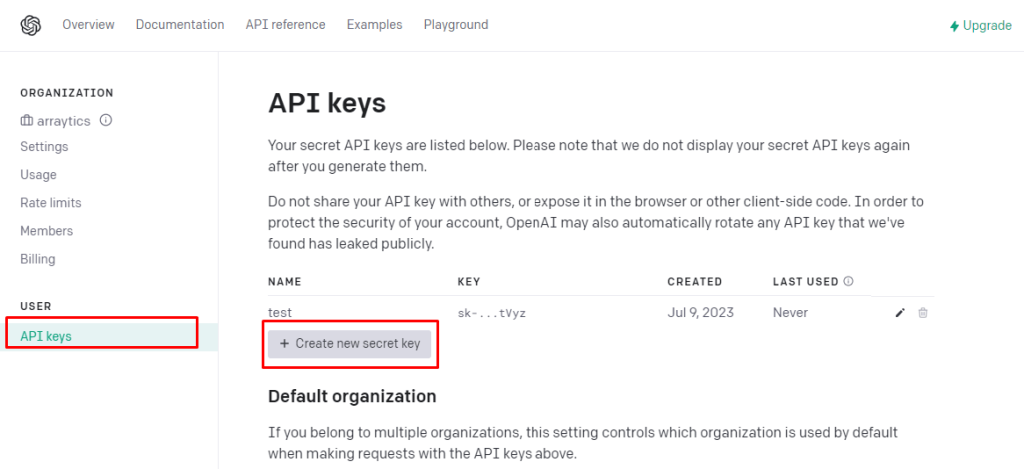
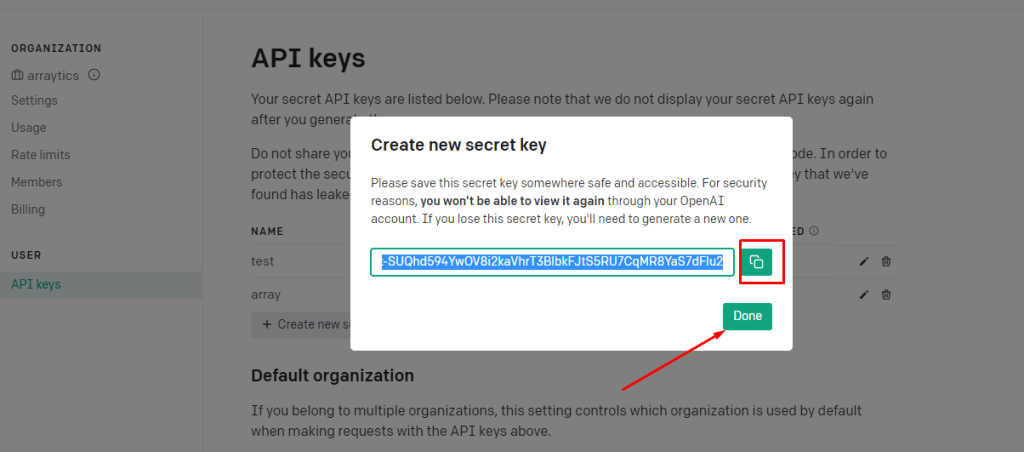
Now, click on “Create new secret key” and generate the key.
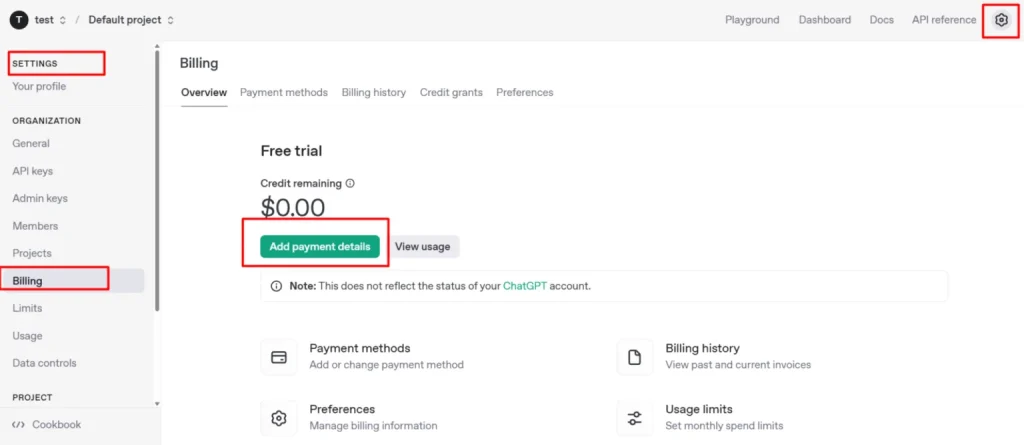
Now, you need to pay for the API key.
Note: Make sure you are using the paid key; otherwise, it will not work.
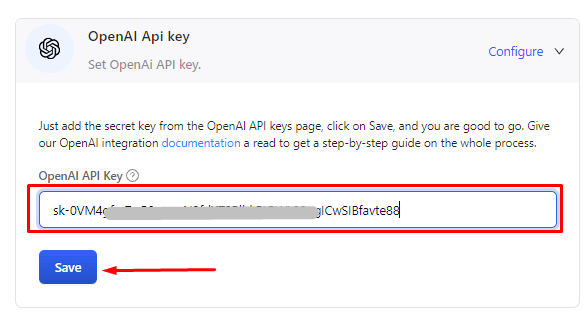
Copy the API key and insert it into the Timetics settings API key field. Don’t forget to save the changes.
Use shortcode
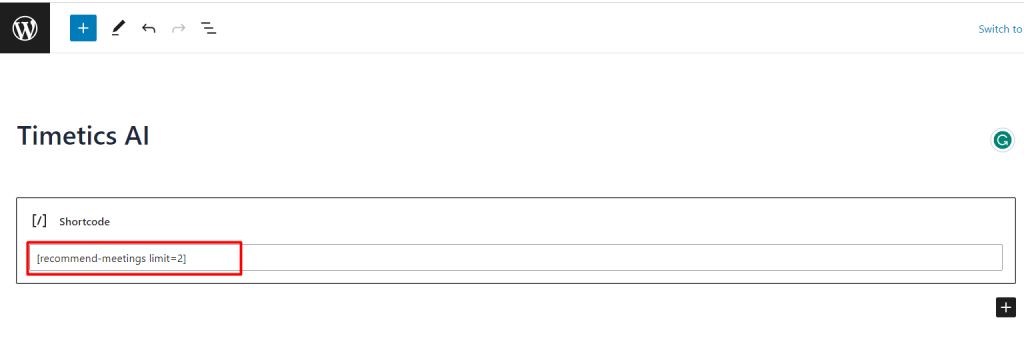
Go to the Timetics -> Shortcodes -> Get Recommended Meeting List Powered By Ai -> Set Meeting Limit. Now click on generate shortcode.
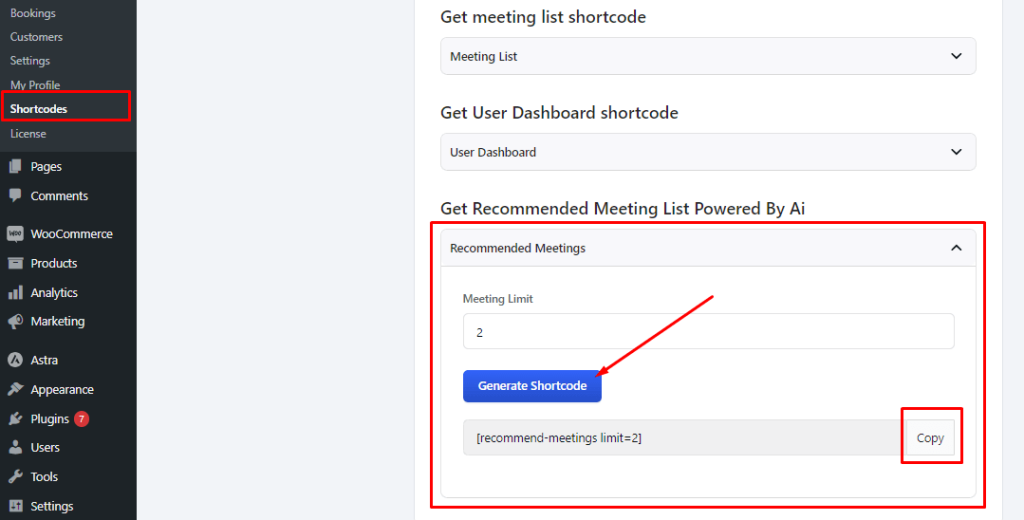
Now, copy the shortcode and paste it on a newly created page.
Frontend view