
Description
Plugin Migration Notice
Pretty Google Calendar is transitioning to Hydrogen Calendar Embeds. Please install that plugin for future updates and improvements.
Why Switch to Hydrogen Calendar Embeds?
- No more fussing with the Google API — just use simple .ics calendar feeds
- Display any calendar that provides a public .ics feed (e.g. Google Calendar, Apple Calendar, Outlook, etc.)
- Works with blocks and shortcodes
- More features, fewer bugs, and still lightweight
- 100% FREE
- Active development and ongoing support
Legacy Pretty Google Calendar Features
You: I just want to embed a Google Calendar in my WordPress site.
Google: Here’s a special kind of ugly!
Pretty Google Calendar: I got this.
This is a light and simple to use plugin that embeds Google Calendars in your website with style, beauty and grace.
Highlights:
- Out of the box support for calendar grid and agenda list view (and most other FullCalendar views)
- Responsive design switches to list view on smaller screens
- List view customizable to day, week, month, year or custom number of days
How it works:
- Continue to manage events using Google Calendar as you’ve always done.
- Add a shortcode to your page.
- Sigh with relief.
- That’s it.
Screenshots
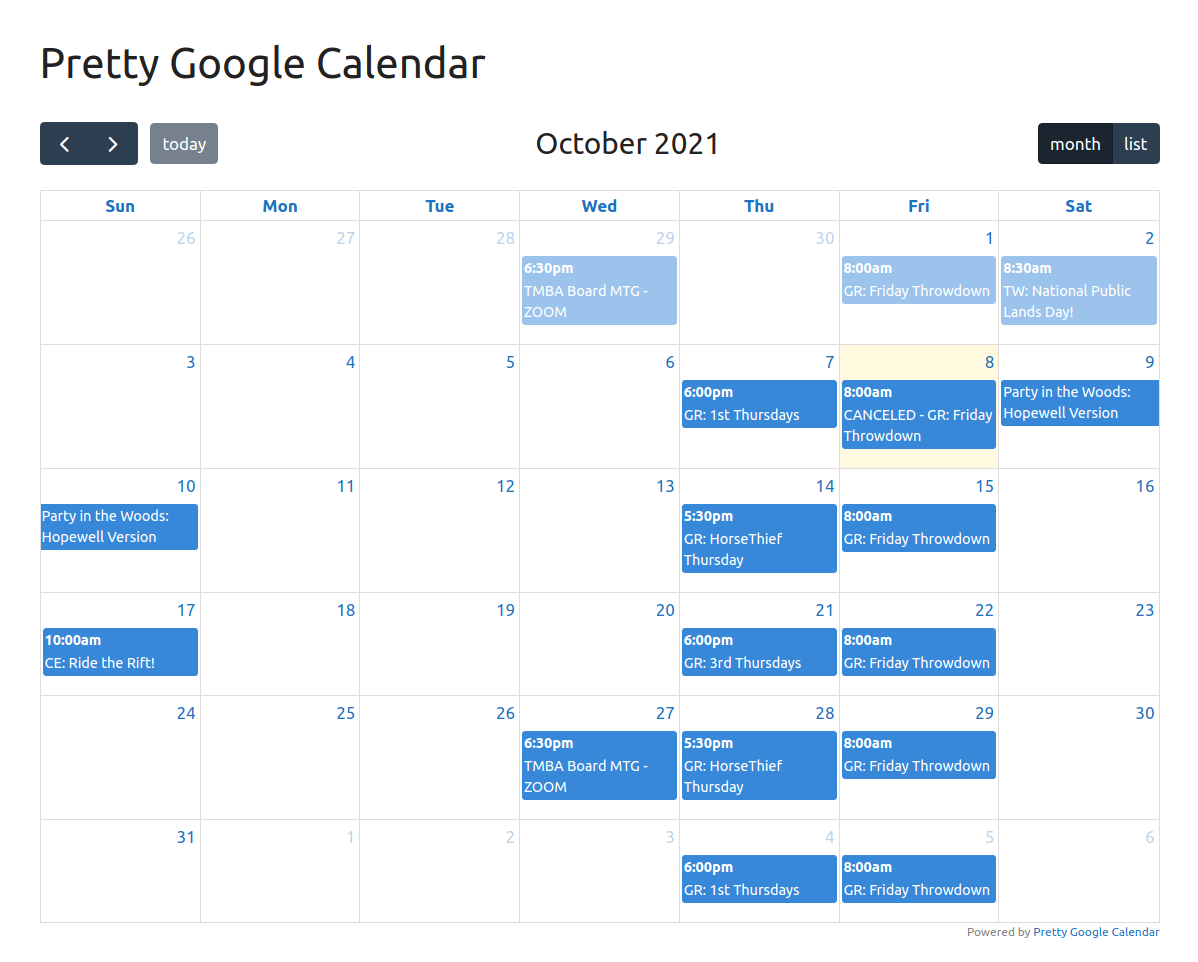
Pretty Google Calendar. 
List View. 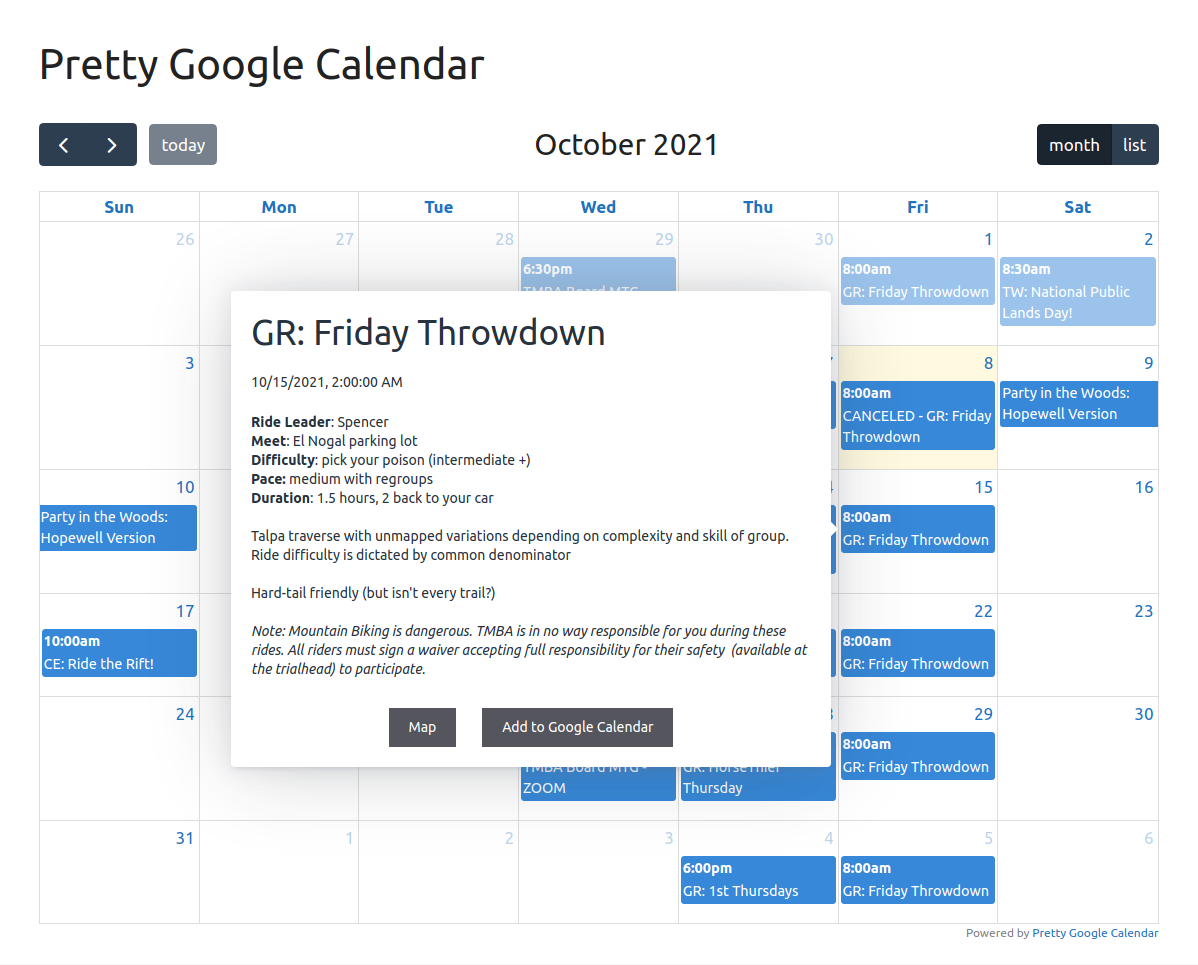
Optional Event Popover. 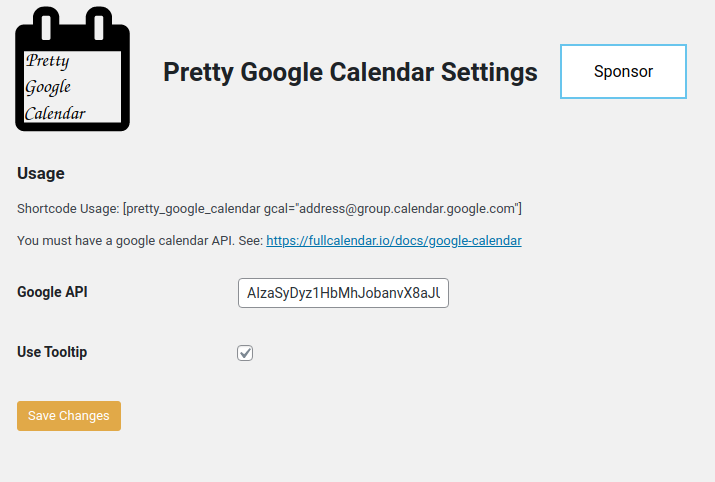
Settings page. It’s that simple.


Installation
- Upload the
pretty-google-calendarfolder to the/wp-content/plugins/directory. - Activate
Pretty Google Calendarthrough the ‘Plugins’ menu in WordPress dashboard. - Obtain your Google Calendar API key (see below)
- Add the API key to Settings -> Pretty Google Calendar Settings
- Use the shortcode
[pretty_google_calendar gcal="[email protected]"]directly in your page or post content.
Shortcode Options
gcal="CalendarID,CalendarID"
Calendar ID of the desired google calendar (note: must be set to ‘Make available to public’. To display multiple calendars, separate ID’s by a comma. (Note: calendars must fall under same API access.))
cal_ids="identifier,identifier" \
Optional custom CSS identifiers for each calendar (must match the number of calendars in gcal). Allows using meaningful names instead of numeric indexes for styling. Example: cal_ids="soccer,baseball" generates classes like .pgcal-calendar-soccer and .pgcal-calendar-baseball. Identifiers should be lowercase alphanumeric with hyphens.
Defaults to numeric indexes (0, 1, 2, etc.)
locale="en"
Sets the locale for calendar. Defaults to “en”.
list_type="listCustom"
Sets the list type. Options: listDay, listWeek, listMonth, listYear, and listCustom. (Also accepts day, week, month, year, and custom).
Defaults to listCustom for backward compatibility.
Note: listCustom allows you to set the number of days you want to display from the current date. Whereas listMonth shows
all the events from this month (including past events), list_type="custom" custom_days="28" will show the next 28 days
across months.
custom_days="28"
Sets the number of days to show in the list tab. Defaults to 28. Only used with listCustom.
custom_list_button="list"
Sets the label for the listCustom button. Defaults to “list”.
views="dayGridMonth, listCustom"
Sets the view types available. If only one view is provided, no view switch buttons will be shown. Defaults to “dayGridMonth, listCustom”.
initial_view="dayGridMonth"
Sets the default view to be displayed when opening the page. Defaults to “dayGridMonth”. Note: If only one view is specified in “views”, “initial_view” will automatically be set to that view and does not need to be specified.
enforce_listview_on_mobile="true"
Sets the change to the list view behavior on small screens. Options: “true” and “false”. Defaults to “true”. This option has no effect if there is no list view declared in the “views” option.
show_today_button="true"
Sets the visibility of the “Today” button. Options: “true” and “false”. Defaults to “true”.
show_title="true"
Sets the visibility of the calendar title. Options: “true” and “false”. Defaults to “true”.
hide_past="false"
Hides past events from the calendar completely. Options: true and false. Defaults to false. When set to true, events before today will not be displayed in any view.
id_hash=random
Sets the ID hash for a calendar. If you have multiple calendars on a page and need to style them, you can set this to a permanent code. Otherwise, it’ll randomly generate each load. (Note: as of v2.0.0 this can only be alphanumeric.)
use_tooltip="true"
Migrating from global setting for individual calendar styling. Whether the floating tooltip for event pops up on click.
no_link="true"
Migrating from global setting for individual calendar styling. Whether to disable link to calendar.google.com on click.
fc_args = JSON string ((EXPERIMENTAL))
Allows you to override or impliment just about any FullCalendar argument (with some exception). For example: fc_args='{"weekNumbers":"true", "eventTextColor":"red"}'
Note: any argument that contains [] will fail due to WordPress’ parsing of shortcodes. No workaround currently.
Note: this is experimental – things may break.
Styling Multiple Calendars
As of v1.7.0, each calendar gets it’s own CSS selector: pgcal-event-# where the # is the order of the listed calendar (starting with 0). So if you have two calendars in one, you can use pgcal-event-0 to style the first, and pgcal-event-1 to style the second calendar.
The following improvements were made in v2.2.0 for easier styling of multiple calendars:
– Custome calendar identifiers via cal_ids shortcode argument (see above) (defaults to numeric indexes if not provided).
– Events get new class name: pgcal-calendar-0-event for consistent naming convention (old class pgcal-event-0 is still supported for backward compatibility).
– Event pop-up tooltips now get a calendar-specific class: pgcal-calendar-0-event-popup for easier styling of event pop-ups per calendar.
Obtaining Google Calendar API Key
- Go to the Google Cloud Console and sign in.
- Click the project selector (top bar) New project.
- Give the project a name and click Create.
- With the project selected, go to APIs & Services Library.
- Search for Google Calendar API and click Enable.
- Go to APIs & Services Credentials.
- Click Create credentials API key.
- Copy the API key.
- (Recommended) Restrict the key:
- Click the API key you just created.
- Under Application restrictions, choose Websites (HTTP referrers).
- Add your site’s URL (e.g. https://example.com/*).
- Under API restrictions, choose Restrict key.
- Select Google Calendar API.
- Click Save.
- Paste the API key into Pretty Google Calendar’s Google API field in WordPress and save.
Make your Google Calendar public:
- In the Google Calendar interface, locate the “My calendars” area on the left.
- Hover over the calendar you need and click the downward arrow.
- A menu will appear. Click “Share this Calendar”.
- Check “Make this calendar public”.
- Make sure “Share only my free/busy information” is unchecked.
- Click “Save”.
Obtain your Google Calendar’s ID:
- In the Google Calendar interface, locate the “My calendars” area on the left.
- Hover over the calendar you need and click the downward arrow.
- A menu will appear. Click “Calendar settings”.
- In the “Integrage Calendar” section of the screen, you will see your “Calendar ID”. It will look something like “[email protected]” (or your email if it’s your default calendar) this is the value you enter into the shortcode.
FAQ
-
What sorcery is this?!
-
Pretty Google Calendar impliments the excellent Full Calendar for you, and tosses in a little Tippy.js and Popper to make things… well… pop.
-
Can I use this to manage a calendar?
-
No. All calendar events are maintaned via Google Calendar, this plugin just displays them in a non-shitty way.
-
How do I theme the calendar?
-
Add custom css to your theme to tweak to your desire.
-
Can this plugin do X,Y or Z?
-
Probably not. But it maybe could!
Pretty Google Calendar is purposefully simple and easy, set up with a few defaults to make things just work. However, there may be a killer feature you want that others are clammering for.
Since it is based on Full Calendar, theoretically, anything that is possible there is possible here. Contact me for requests for additional functionality, and let’s see what we can create together!
Reviews


Contributors & Developers
“Pretty Google Calendar” is open source software. The following people have contributed to this plugin.
Contributors
“Pretty Google Calendar” has been translated into 6 locales. Thank you to the translators for their contributions.
Translate “Pretty Google Calendar” into your language.
Interested in development?
Browse the code, check out the SVN repository, or subscribe to the development log by RSS.
Changelog
2.2.1
- Introducing Hydrogen Calendar Embeds! (See https://wordpress.org/plugins/hydrogen-calendar-embeds/)
2.2.0
- Fixed: Handle spaces in multiple calendar IDs (Fixes #39)
- Fixed: Free/busy events with undefined titles now display “Busy” (Closes #41)
- Fixed: fc_args removing views
- Added: hide_past shortcode argument (Closes #48)
- Added: close button to tooltip (Closes #59)
- Added: Better CSS in tooltip (Closes #56)
- Added: Handle displayEventEnd arg in popup
- Added: Download .ics button in popup
- Added: Pupup button styling
- Added: calendar-specific popup styling classes (closes #46)
- Added: Custom calendar identifiers via
cal_idsshortcode arg
2.1.0
- Fixed: Better list args parsing (Fixes #57)
- Fixed: Removed hardcoded timezone argument for correct local time display. Override with
fc_args='{"timeZone":"###"}'if needed. - Fixed: Admin CSS versioning
- Fixed: Sanitization of Google API key in admin
- Improved: id_hash generation
- Improved: Automatic initial_view resolution when only one view is specified (Fixes #51)
2.0.2
- Fixed: Security fix (no known exploit)
2.0.1
- Tested: WordPress 6.9
2.0.0
- Fixed: XSS vulnerability (required elevate privileges, not likely to be exploited). May break CSS for folks using the
id_hashshortcode argument. - Tested: WordPress 6.5.2
1.7.2
- Tested: WordPress 6.4.3
- Fixed: Security fix
1.7.1
- Fixed: full FullCalendar locale support
- Updated: FC Google Calendar to 6.1.10
1.7.0
- Tested: WordPress 6.4.2
- Added: (Almost) full implimentation of FullCalendar args (see Shortcode Options)
- Added: Colors for multiple calendars in one
- Fixed: Removed view restrictions
- Update: FullCalendar to v6.1.9
- Update: Tippy.js to 6.3.7
- Update: Popper.js to 2.11.8
1.6.2
- Fixed: Broken table margin
1.6.1
- Fixed: Arg parsing in shortcode
1.6.0
- Added: Multiple calendars on one page
- Added: use_tooltip shortcode arg for calendar specific options
- Added: no_link shortcode arg for calendar speficic options
- Fixed: Security fixes
1.5.1
- Fixed: Better parsing of urls to accomodate existing tags
1.5.0
- Tested to WordPress 6.3.1
- Added: End times in details popup
- Added: Location under time in popup
- Added: Shortcode instructions link to settings page
- Fixed: URLs in descriptions are now parsed
- Fixed: Remove seconds on pop-up time
1.4.1
- Fixed: localization text domain
1.4.0
- Added: support for multiple calendars displayed in one
- Added: full internationalization (Thanks @mwguerra!)
- Added: new shortcode parameters (view, initial_view, enforce_listview_on_mobile, show_today_button, show_title) (Heroic work by @mwguerra!)
- Tested to WordPress 6.0.3
1.3.1
Version bump for WP’s awkward versioning system.
1.3.0
- Added: list type switcher
- Added: custom list button label
- Added: locale support
1.2.0
- Added: disable link option
- Added: “list_days” shortcode option
- Fixed: timezone on tooltip
- FullCalendar update to v5.11.0
- Tested to WordPress 5.9.3
1.1.0
Initial Public Release
