Search the Community
Showing results for tags 'steamgrid'.
Found 4 results
-
Version .8.2.1
52 downloads
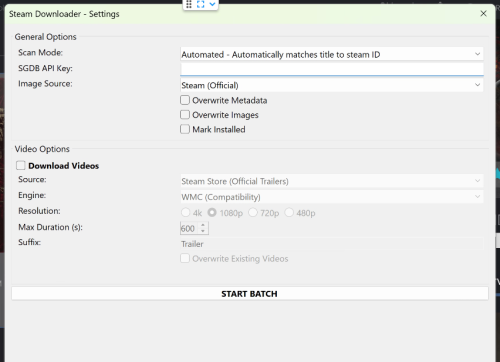
PC Game Scraper A comprehensive LaunchBox plugin designed to scrape metadata, images, videos, and completion times from Steam, SteamGridDB, YouTube, and HowLongToBeat. 📖 Overview PC Game Scraper is a plugin that automates the process of filling in metadata and downloading images and videos. It is designed to work for games that have not been imported from a specific digital storefront. ✨ Features Metadata Scraping Fetches Developer, Publisher, Release Date, Genres, Rating, Controller Support, and Descriptions directly from the Steam Store. Media Downloading Images: Downloads Box Art, Clear Logos, Fanart, and Screenshots from Steam or SteamGridDB. Videos: Downloads Trailers or Gameplay videos using yt-dlp via Steam or YouTube. Supports FFmpeg and WMC codecs (up to 4K resolution). HowLongToBeat (HLTB) Integration Scrapes game completion times and categorizes game length automatically. Custom Fields Created: HLTB - Main Story HLTB - Main + Extra HLTB - Completionist Length Category (e.g., "Extended (15-30h)", "Massive (60h+)") Smart Safety: Uses randomized "humanized" delays and smart retry logic to prevent IP flagging while ensuring data accuracy. Multiple Scan Modes Automated: Auto-matches Steam AppIDs based on game title. If the game is not on Steam, it falls back to SteamGridDB (SGDB). SteamGridDB: Skips Steam entirely and searches SteamGridDB directly (requires API Key). Manual: Allows user input of specific AppIDs or Store URLs. Smart Matching Uses a similarity algorithm combined with exact match logic to detect the correct game, even if the title in your library is not an exact match to the store title. 🛠️ Prerequisites To use this plugin, you must download the following external tools and place them in the plugin folder: yt-dlp.exe (Required for video downloading) ffmpeg.exe (Required for video processing) FlareSolverr (Required for HLTB Scraping) HLTB uses Cloudflare protection. You must have a running instance of FlareSolverr (usually running on http://localhost:8191) to bypass this protection. **WARNING** HLTB DOESNT LIKE THIS AND BY USING FLARESOLVERR TO BYPASS CLOUDFLARE PROTECTIONS YOU COULD POTENTIALLY HAVE YOUR IP MARKED AS SUSPICIOUS OR BANNED BY CLOUDFLARE. IF YOU START TO GET A LOT OF ERRORS WHEN SEARCHING FOR HLTB OR YOU SEE SITES MAKING YOU CAPTCHA WHEN THEY PREVIOUSLY DIDN'T IT MIGHT BE TIME TO ROTATE YOUR IP. I TAKE NO RESPONSIBILITY FOR THIS. THERE ARE PROTECTIONS IN PLACE TO HELP PREVENT THIS BUT NO GUARANTEES. IN THE PROCESS OF TESTING I RAN OVER 30 GAMES IN A ROW WITHOUT ISSUE. 🚀 Installation Extract the plugin archive to your LaunchBox Plugins folder. Download the latest release of yt-dlp.exe and place it in the plugin folder. Download the latest version of FFmpeg (Essentials build). Locate ffmpeg.exe inside the bin folder of the download and extract it to the plugin folder. Verify that the plugin folder contains the .dll file, yt-dlp.exe, and ffmpeg.exe. Download flaresolverr and run. If on windows a command prompt will open. When it is running you will see some success messages with 0.0.0.0:8191. 💻 Usage Open LaunchBox. Select one or multiple games. Right-click and select PC Game Scraper. Configure your settings in the popup menu. ⚙️ Configuration Options Scan Mode Choose between Automated, SteamGridDB, or Manual search. Automated Mode: Depending on your settings, this will automatically scan Steam or SGDB by title. If a Steam match is found, the plugin fills missing metadata and downloads Box Art, Fanart, Screenshots, and Video (if enabled). If images are missing or do not match standard Steam resolutions, the plugin falls back to SGDB using the SteamID. If the title is not on Steam, you will be prompted to fall back to SGDB for images. Matching Logic: A game title must match 100% or be at least 93% similar to match without user input. Example: If you search for "Doom 2," the plugin will attempt to match it to "Doom 2" because it is an exact match. However, there is no straight "Doom 2" on Steam. Therefore, the plugin will prompt the user for input to try and find a correct match. If you select "Skip Steam," the plugin will search SGDB as the fallback, at which point it should auto-match. HowLongToBeat Options Enable scraping of completion times. FlareSolverr URL: Enter the address of your running FlareSolverr instance (e.g., http://localhost:8191). The plugin pings your flaresolverr address to ensure it is correct before proceeding. Overwrite HLTB Data: If unchecked, the plugin will skip games that already have HLTB fields populated. Check this to force an update. Manual Search Fallback: If a game isn't found (e.g., "Disco Elysium - The Final Cut" vs "Disco Elysium"), the plugin will prompt you to enter a manual search term or stop the batch. Due to the nature of HLTB cloudflare protection this step will take the longest and may fail on some titles. Make sure your titles match HLTB or you are entering the correct title into the manual search bar when prompted. If it fails try again and check the log. Image Source Prioritize "Steam (Official)" or "SteamGridDB (Community)." Box Art: Restricted to aspect ratios between 0.6 and 0.75. When a game is not on Steam, it is possible the highest-rated box art will be 660x930. The logic ensures you get the best-rated image within a reasonable range. Fanart: Downloads up to 4K resolution as long as it matches the correct aspect ratio. Overwriting and Mark Installed Default Behavior: The plugin only fills empty metadata fields. If you have already populated fields using the LaunchBox Database, the plugin will skip them. Overwrite: Select the corresponding overwrite options to replace existing data with Steam, SGDB, or YouTube data. Mark Installed: Marks the selected games as "Installed" in LaunchBox. Video Options Enable video downloads, select the source (Steam/YouTube), and set the resolution (480p - 4K). Engine Selection: FFmpeg: Select this if LaunchBox does not crash and videos play using FFmpeg as the video playback engine. It supports modern codecs providing high video quality with significantly smaller file sizes. WMC: Use this for legacy compatibility if FFmpeg causes playback issues. It is the most compatible option. ⚠️ YouTube Download Warning: yt-dlp cannot download age-restricted trailers without authentication, and YouTube may block automated requests. If you see errors in the log asking for sign-in: Extract your cookies file from your browser. Place the file in the plugin folder (named cookies.txt). The plugin will automatically use this file to pass verification. SGDB API Key Required to download community art from SteamGridDB. You can generate an API key in your profile section on the SteamGridDB website. 📂 File Locations Logs: LaunchBox/Plugins/PCGameScraper/PCGameScraper.log Config: LaunchBox/Plugins/PCGameScraper/config.json Downloaded Media: Files are saved directly into the plugin folder under Images/ and Videos/. Please reach out if you have questions! I plan on trying to implement IGDB support later and if anyone has suggestions or finds a bug please reach out. Special thanks: srxz, for developing the original steam scraper your plugin saved me lots of time and was the major inspiration for this plugin. maikeru1986, for creating the vidsnap scraper which again saved me lots of time getting videos and was the major inspiration for the video download portion of the plugin (I basically ripped off your menu sorry) JOEVIKING245: a god among moderators and who seems to have INFINITE PATIENCE. Seriously this person needs more credit! 7nseccmem: for helping test the features on discord Finally Google's Gemini which wrote the whole thing. It was a team effort I promise! If you don't believe me you go try and get Gemini to do something similar see how easy it is. -
PC Game Scrapper View File PC Game Scraper A comprehensive LaunchBox plugin designed to scrape metadata, images, videos, and completion times from Steam, SteamGridDB, YouTube, and HowLongToBeat. 📖 Overview PC Game Scraper is a plugin that automates the process of filling in metadata and downloading images and videos. It is designed to work for games that have not been imported from a specific digital storefront. ✨ Features Metadata Scraping Fetches Developer, Publisher, Release Date, Genres, Rating, Controller Support, and Descriptions directly from the Steam Store. Media Downloading Images: Downloads Box Art, Clear Logos, Fanart, and Screenshots from Steam or SteamGridDB. Videos: Downloads Trailers or Gameplay videos using yt-dlp via Steam or YouTube. Supports FFmpeg and WMC codecs (up to 4K resolution). HowLongToBeat (HLTB) Integration Scrapes game completion times and categorizes game length automatically. Custom Fields Created: HLTB - Main Story HLTB - Main + Extra HLTB - Completionist Length Category (e.g., "Extended (15-30h)", "Massive (60h+)") Smart Safety: Uses randomized "humanized" delays and smart retry logic to prevent IP flagging while ensuring data accuracy. Multiple Scan Modes Automated: Auto-matches Steam AppIDs based on game title. If the game is not on Steam, it falls back to SteamGridDB (SGDB). SteamGridDB: Skips Steam entirely and searches SteamGridDB directly (requires API Key). Manual: Allows user input of specific AppIDs or Store URLs. Smart Matching Uses a similarity algorithm combined with exact match logic to detect the correct game, even if the title in your library is not an exact match to the store title. 🛠️ Prerequisites To use this plugin, you must download the following external tools and place them in the plugin folder: yt-dlp.exe (Required for video downloading) ffmpeg.exe (Required for video processing) FlareSolverr (Required for HLTB Scraping) HLTB uses Cloudflare protection. You must have a running instance of FlareSolverr (usually running on http://localhost:8191) to bypass this protection. **WARNING** HLTB DOESNT LIKE THIS AND BY USING FLARESOLVERR TO BYPASS CLOUDFLARE PROTECTIONS YOU COULD POTENTIALLY HAVE YOUR IP MARKED AS SUSPICIOUS OR BANNED BY CLOUDFLARE. IF YOU START TO GET A LOT OF ERRORS WHEN SEARCHING FOR HLTB OR YOU SEE SITES MAKING YOU CAPTCHA WHEN THEY PREVIOUSLY DIDN'T IT MIGHT BE TIME TO ROTATE YOUR IP. I TAKE NO RESPONSIBILITY FOR THIS. THERE ARE PROTECTIONS IN PLACE TO HELP PREVENT THIS BUT NO GUARANTEES. IN THE PROCESS OF TESTING I RAN OVER 30 GAMES IN A ROW WITHOUT ISSUE. 🚀 Installation Extract the plugin archive to your LaunchBox Plugins folder. Download the latest release of yt-dlp.exe and place it in the plugin folder. Download the latest version of FFmpeg (Essentials build). Locate ffmpeg.exe inside the bin folder of the download and extract it to the plugin folder. Verify that the plugin folder contains the .dll file, yt-dlp.exe, and ffmpeg.exe. Download flaresolverr and run. If on windows a command prompt will open. When it is running you will see some success messages with 0.0.0.0:8191. 💻 Usage Open LaunchBox. Select one or multiple games. Right-click and select PC Game Scraper. Configure your settings in the popup menu. ⚙️ Configuration Options Scan Mode Choose between Automated, SteamGridDB, or Manual search. Automated Mode: Depending on your settings, this will automatically scan Steam or SGDB by title. If a Steam match is found, the plugin fills missing metadata and downloads Box Art, Fanart, Screenshots, and Video (if enabled). If images are missing or do not match standard Steam resolutions, the plugin falls back to SGDB using the SteamID. If the title is not on Steam, you will be prompted to fall back to SGDB for images. Matching Logic: A game title must match 100% or be at least 93% similar to match without user input. Example: If you search for "Doom 2," the plugin will attempt to match it to "Doom 2" because it is an exact match. However, there is no straight "Doom 2" on Steam. Therefore, the plugin will prompt the user for input to try and find a correct match. If you select "Skip Steam," the plugin will search SGDB as the fallback, at which point it should auto-match. HowLongToBeat Options Enable scraping of completion times. FlareSolverr URL: Enter the address of your running FlareSolverr instance (e.g., http://localhost:8191). The plugin pings your flaresolverr address to ensure it is correct before proceeding. Overwrite HLTB Data: If unchecked, the plugin will skip games that already have HLTB fields populated. Check this to force an update. Manual Search Fallback: If a game isn't found (e.g., "Disco Elysium - The Final Cut" vs "Disco Elysium"), the plugin will prompt you to enter a manual search term or stop the batch. Due to the nature of HLTB cloudflare protection this step will take the longest and may fail on some titles. Make sure your titles match HLTB or you are entering the correct title into the manual search bar when prompted. If it fails try again and check the log. Image Source Prioritize "Steam (Official)" or "SteamGridDB (Community)." Box Art: Restricted to aspect ratios between 0.6 and 0.75. When a game is not on Steam, it is possible the highest-rated box art will be 660x930. The logic ensures you get the best-rated image within a reasonable range. Fanart: Downloads up to 4K resolution as long as it matches the correct aspect ratio. Overwriting and Mark Installed Default Behavior: The plugin only fills empty metadata fields. If you have already populated fields using the LaunchBox Database, the plugin will skip them. Overwrite: Select the corresponding overwrite options to replace existing data with Steam, SGDB, or YouTube data. Mark Installed: Marks the selected games as "Installed" in LaunchBox. Video Options Enable video downloads, select the source (Steam/YouTube), and set the resolution (480p - 4K). Engine Selection: FFmpeg: Select this if LaunchBox does not crash and videos play using FFmpeg as the video playback engine. It supports modern codecs providing high video quality with significantly smaller file sizes. WMC: Use this for legacy compatibility if FFmpeg causes playback issues. It is the most compatible option. ⚠️ YouTube Download Warning: yt-dlp cannot download age-restricted trailers without authentication, and YouTube may block automated requests. If you see errors in the log asking for sign-in: Extract your cookies file from your browser. Place the file in the plugin folder (named cookies.txt). The plugin will automatically use this file to pass verification. SGDB API Key Required to download community art from SteamGridDB. You can generate an API key in your profile section on the SteamGridDB website. 📂 File Locations Logs: LaunchBox/Plugins/PCGameScraper/PCGameScraper.log Config: LaunchBox/Plugins/PCGameScraper/config.json Downloaded Media: Files are saved directly into the plugin folder under Images/ and Videos/. Please reach out if you have questions! I plan on trying to implement IGDB support later and if anyone has suggestions or finds a bug please reach out. Special thanks: srxz, for developing the original steam scraper your plugin saved me lots of time and was the major inspiration for this plugin. maikeru1986, for creating the vidsnap scraper which again saved me lots of time getting videos and was the major inspiration for the video download portion of the plugin (I basically ripped off your menu sorry) JOEVIKING245: a god among moderators and who seems to have INFINITE PATIENCE. Seriously this person needs more credit! 7nseccmem: for helping test the features on discord Finally Google's Gemini which wrote the whole thing. It was a team effort I promise! If you don't believe me you go try and get Gemini to do something similar see how easy it is. Submitter spiritedusual Submitted 12/28/2025 Category Third-party Apps and Plugins
-
Version 1.3.0
1,284 downloads
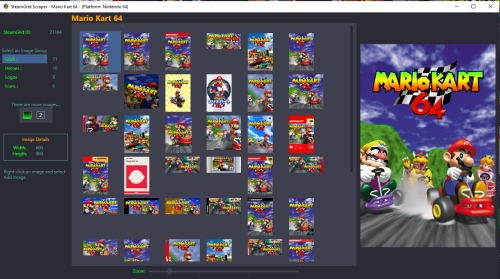
Preview and import images from SteamGrid Database directly into your LaunchBox collection. A personalized SteamGridDB API Key is required. (See below about getting yours) Downloaded images are saved to the default LaunchBox image folder(s). Installing Download and extract the contents of the download to your /LaunchBox/Plugins/ folder. i.e. D:/LaunchBox/Plugins/SteamGrid Scraper/SteamGridScraper.dll First Time Run Select a game, right-click it and select SteamGrid Scraper. The "API key Required" window will open. Paste (or manually type in) your personal SteamGrid API key. Click Save Using Select a game, right-click it and select SteamGrid Scraper. In cases where an exact match for the game Tite is not found, a window will popup listing 'close matches'. Double-click a game from the list to select it. Click on the SteamGrid image group you'd like to view. Options are: Grids Heroes Logos Icons Up to 50 images will show in the Gallery. If the selected group has more than 50 available, click "2" to see then next 50. Use the Zoom slider to increase/decrease the image sizes in the Gallery. Double-click on an image to see a larger view. (Opens in a separate window). The Icons group is pretty much useless in LaunchBox. But since they're available, they're included. Saving an image To add an image to your game, right-click the image in the gallery switch from Image Preview to Add Image and select Add Image. Select the Image Type (folder) you want to save it as from the dropdown box. (It doesn't change automatically for you.) Only a few select image types are shown by default. To see all image folders (types), check the box See All available image types. (Optional) To view your existing images for the game, click View Existing Images Gallery. (Opens in a separate window) This shows only the images for the selected image type. (Optional) Click Open Image Folder to open Windows Explorer to the folder where your existing images are and where the image will be saved to. Click Save Add Image to save the image. Getting your SteamGridDB API Key Log into your SteamGridDB account. Go to your Profile - Preferences - API Click 'Generate API key' As always, all comments and suggestions are welcome. 😎 -
SteamGridDB Scraper View File Preview and import images from SteamGrid Database directly into your LaunchBox collection. A personalized SteamGridDB API Key is required. (See below about getting yours) Downloaded images are saved to the default LaunchBox image folder(s). Installing Download and extract the contents of the download to your /LaunchBox/Plugins/ folder. i.e. D:/LaunchBox/Plugins/SteamGrid Scraper/SteamGridScraper.dll First Time Run Select a game, right-click it and select SteamGrid Scraper. The "API key Required" window will open. Paste (or manually type in) your personal SteamGrid API key. Click Save Using Select a game, right-click it and select SteamGrid Scraper. In cases where an exact match for the game Tite is not found, a window will popup listing 'close matches'. Double-click a game from the list to select it. Click on the SteamGrid image group you'd like to view. Options are: Grids Heroes Logos Icons Up to 50 images will show in the Gallery. If the selected group has more than 50 available, click "2" to see then next 50. Use the Zoom slider to increase/decrease the image sizes in the Gallery. Double-click on an image to see a larger view. (Opens in a separate window). The Icons group is pretty much useless in LaunchBox. But since they're available, they're included. Saving an image To add an image to your game, right-click the image in the gallery switch from Image Preview to Add Image and select Add Image. Select the Image Type (folder) you want to save it as from the dropdown box. (It doesn't change automatically for you.) Only a few select image types are shown by default. To see all image folders (types), check the box See All available image types. (Optional) To view your existing images for the game, click View Existing Images Gallery. (Opens in a separate window) This shows only the images for the selected image type. (Optional) Click Open Image Folder to open Windows Explorer to the folder where your existing images are and where the image will be saved to. Click Save Add Image to save the image. Getting your SteamGridDB API Key Log into your SteamGridDB account. Go to your Profile - Preferences - API Click 'Generate API key' As always, all comments and suggestions are welcome. 😎 Submitter JoeViking245 Submitted 08/18/2024 Category Third-party Apps and Plugins


.thumb.png.c9faf450e4d2b690a819048b18173f61.png)