

설명
The Version Info plugin helps you track essential version information for your WordPress install by displaying key system details such as WordPress version, PHP version, Web Server type, and MySQL version. This can be displayed in three areas:
- Admin footer – Displays WordPress, PHP, MySQL, and Web Server versions in the footer for quick reference.
- WP-Admin Bar – Optionally add version details to the top WP-Admin bar for instant visibility while navigating the admin area.
- Dashboard Widget – Activate the dashboard widget via the Screen Options to quickly view your site’s version information.
Key features of this plugin include:
- Shows the current WordPress version. If a new version is available, it will display the current version alongside the latest available version in the footer, with a link to update.
- Displays the PHP version running on your server, making it easy to verify if your site meets compatibility requirements for plugins and themes.
- Shows the Web Server type and version, whether you’re using Apache, Nginx, or another server setup.
- Includes the MySQL version to help you track the database version your WordPress site uses.
Why use this Plugin?
Ever wondered which version of WordPress or PHP your site is running? This plugin ensures you have that critical information at a glance.
Whether you’re a site administrator, developer, or someone managing a WordPress site, knowing your software versions is crucial for troubleshooting, compatibility checks, and ensuring optimal performance.
For developers, this plugin is an invaluable tool. When clients report an issue, they can quickly send you the version details of their setup by simply sharing a screenshot of their admin footer or copying the information. This makes diagnosing issues easier, as you’ll immediately know which version of WordPress, PHP, and MySQL they are using, along with the web server information.
GAUCHO PLUGINS PORTFOLIO
Payment Page: Start accepting payments in a beautiful payment form in less than 60 seconds
Split Pay Plugin: Split WooCommerce payments across multiple connected Stripe accounts.
Login for Stripe Customer Portal: Create an Account login area for your Stripe customers.
Gyta Buyback: Create a trade-in / buyback business using WooCommerce.
Version Info: Show WP, PHP, MySQL & Web Server Versions in the WP-Admin Dashboard.
China Payments Plugin: Accept WeChat Pay and Alipay payments from Chinese customers.
Blocked in China: Check if your website is available in the Chinese mainland.
Speed in China: Check your website’s speed in the Chinese mainland – coming soon!
스크린샷
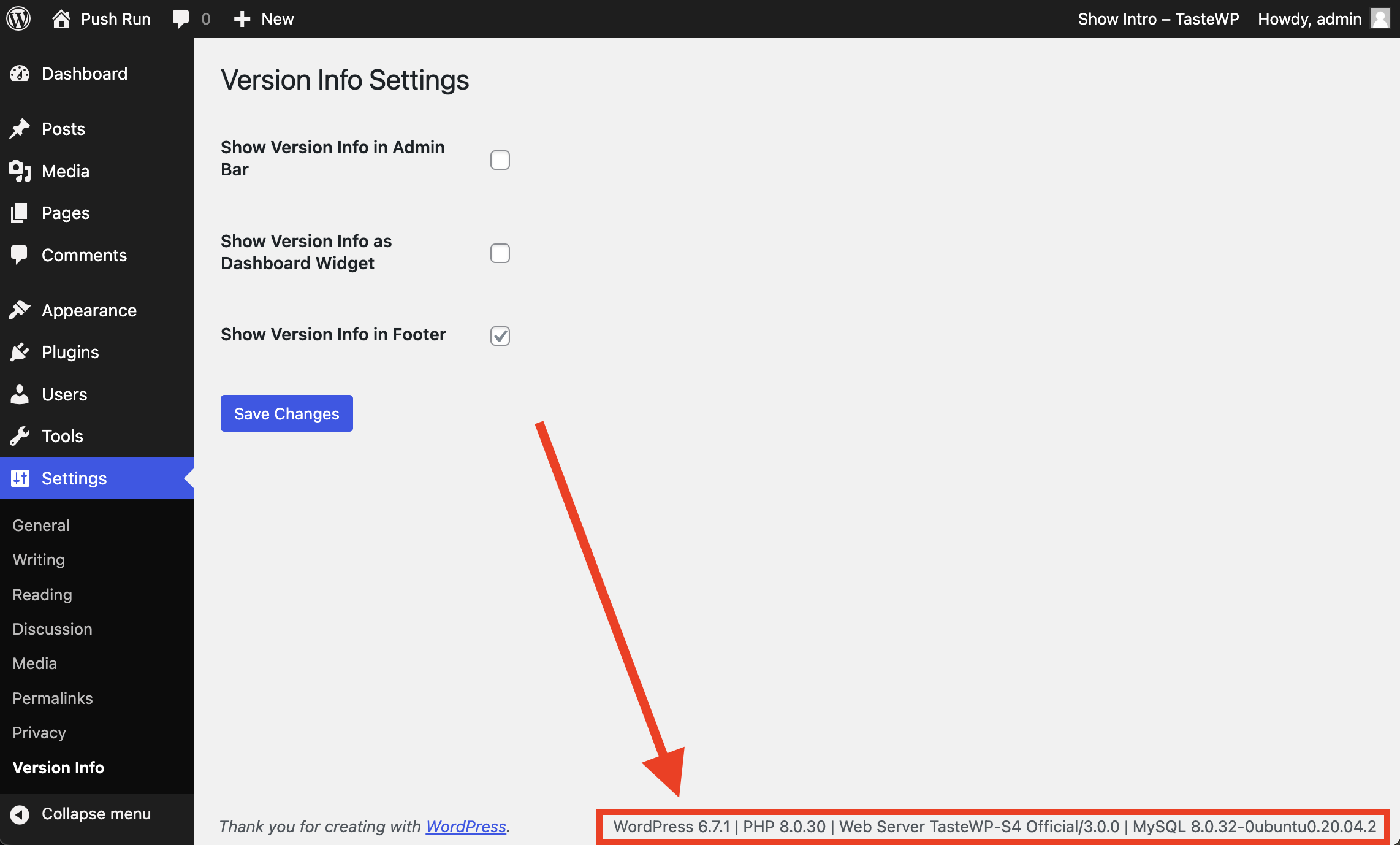
Plugin Settings Page & Footer Version Info 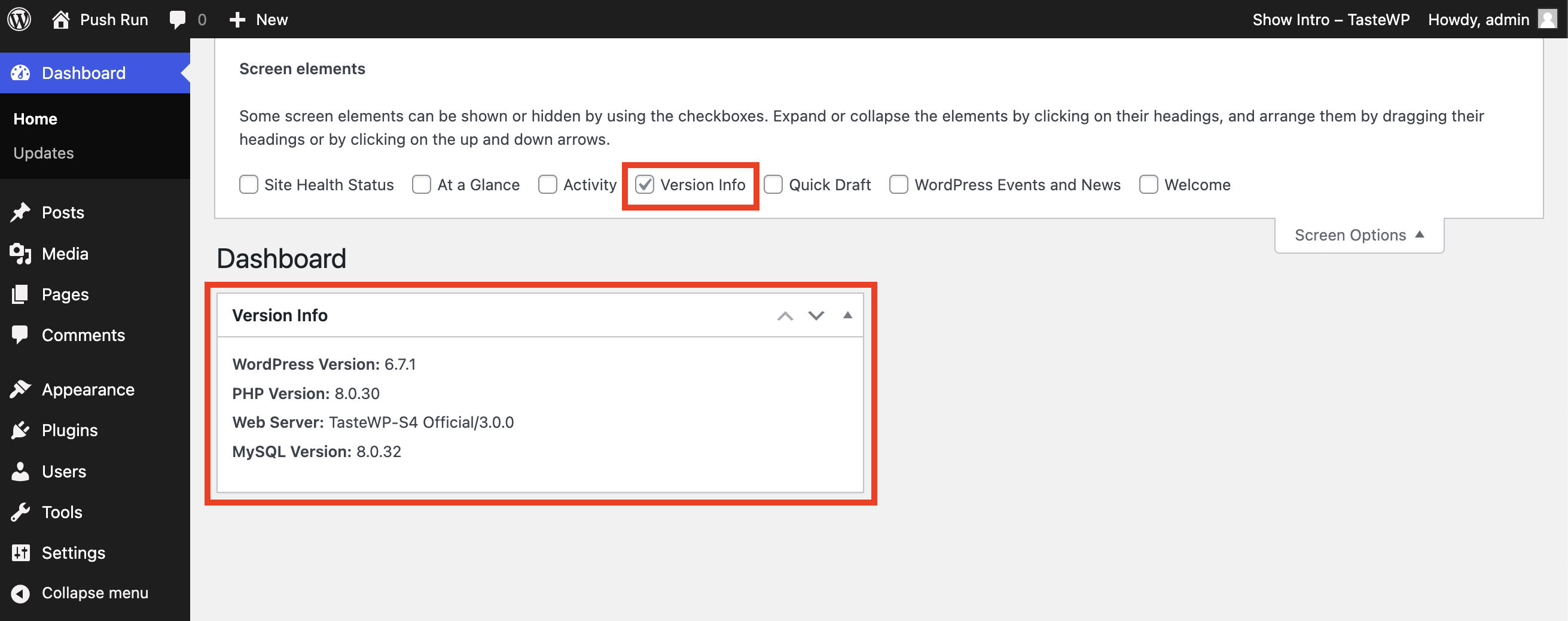
Dashboard Widget Version Info 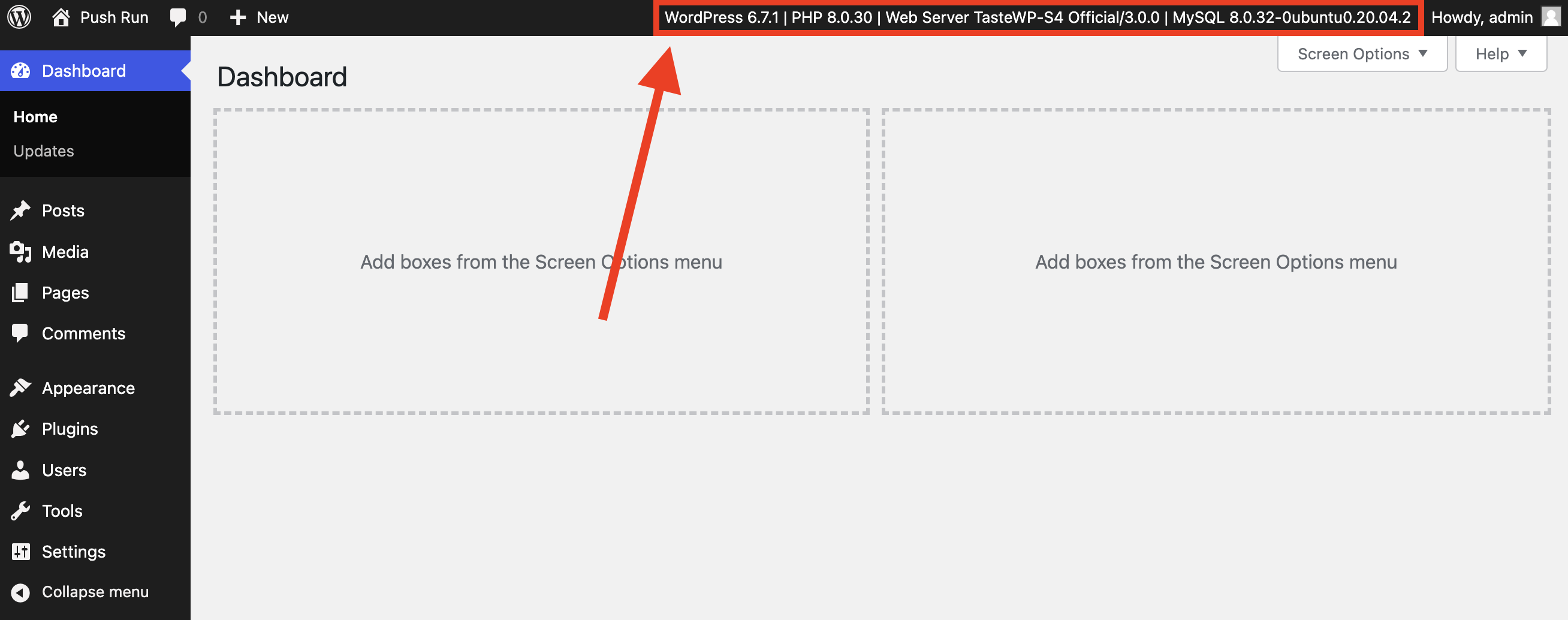
WP-Admin Bar Version Info


설치
- Upload the plugin to your plugins directory (possibly
/wp-content/plugins/), or install the plugin through the WordPress plugins screen directly. - Activate the plugin through the ‘Plugins’ screen in WordPress
FAQ
-
common.css hides the admin-footer on viewports smaller than 783px. To show the footer also on small viewports, add the following to a mu-plugin or your theme’s functions.php, etc.
add_action('admin_enqueue_scripts', function () {
    wp_add_inline_style('common', '@media screen and (max-width: 782px){#wpfooter {display: block;}}');
    wp_add_inline_style('admin-menu', '@media only screen and (max-width: 960px){.auto-fold #wpfooter{margin-left: 0px;}}');
});
후기


기여자 & 개발자
“Version Info | Show WP, PHP, MySQL & Web Server Versions in Admin Dashboard”(은)는 오픈 소스 소프트웨어입니다. 다음의 사람들이 이 플러그인에 기여하였습니다.
기여자

변경이력
1.3.3
- Verified WordPress 6.9 compatibility.
