WordPress just wasn’t really doing it for me.
I’ve now chosen to move to a Bookstack instance located here.
Bookstack was a better choice for a lot of my documentation needs, without all the issues WordPress brings.
Hope to see you there!
WordPress just wasn’t really doing it for me.
I’ve now chosen to move to a Bookstack instance located here.
Bookstack was a better choice for a lot of my documentation needs, without all the issues WordPress brings.
Hope to see you there!
Scroll Anchoring is a new feature of Google Chrome 51 and newer that prevents visible jumps of the active page when offscreen content changes.
You may have experienced the following situation when using a browser like Google Chrome: you load a page and some text is loaded quickly. You begin to read the text and scroll a bit or a lot, and suddenly the page begins to scroll automatically as other elements, images or media, are added to the page.
You lose sight of the position you were at when that happens. This scroll jumping can be confusing, as you need to locate the position on the page when things started to jump around to continue reading.
These visible jumps, when you start to scroll while a page is loading, is problematic on the desktop, and maybe even more so on mobile devices.
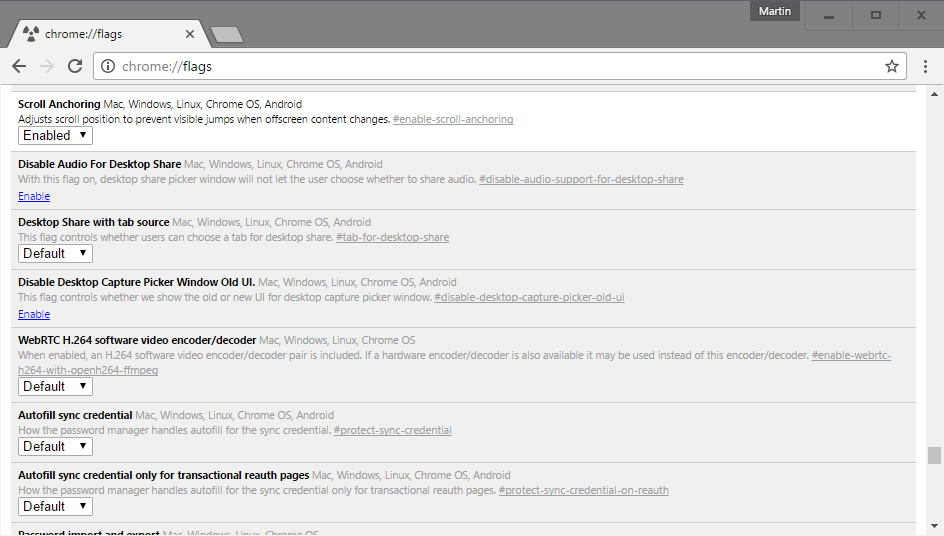
Scroll Anchoring has been designed to prevent these visible jumps from happening in Chrome. Basically, what the feature does is adjust the page in the background without jumping away from the part that is visible on the screen.
The feature is not enabled by default but part of the browser’s experimental flags. These features are not yet ready for prime time, or need further testing, before Google makes a decision whether to integrate it natively in Chrome or remove it again.
To enable scroll anchoring in Google Chrome, do the following:
The feature is available for all desktop versions of Google Chrome, for Chrome OS and for Chrome on Android.
To turn it off again, repeat the process outlined above but switch the preference to disabled this time to do so.
Source: http://www.ghacks.net/
I recently came across the following error message when one our users attempted to enable their out of office message in Outlook 2003:

Out of Office Fix
To fix this problem you will need to perform the following:
Shut down Outlook and open Windows Registry via Start->Run->regedit
Then find the following node:
HKEY_CURRENT_USERSoftwareMicrosoftOffice11.0OutlookResiliency
Export the entry key listed under this node(just in case) and then Delete afterwards.
Relaunch Outlook and you should be able to set the Out of Office.
Source: http://roqu3.com
Thoughts on IT, Photography, and everything.
Thoughts on IT, Photography, and everything.
Thoughts on IT, Photography, and everything.

 Alex's Local User Insights
You must be logged in to post a comment.