

Описание
Image Gallery helps you create stunning photo galleries on your WordPress site without any coding. Whether you run a portfolio, photography blog, or business website, this plugin lets you showcase your images in organized, visually appealing layouts.
View Free Demo: Image Gallery | View Pro Demo: Image Gallery Premium
More About Pro: Image Gallery Premium Details | Where To Buy: Buy Pro Version
With grid and masonry options, your galleries adapt to any screen size automatically. The built-in lightbox opens images in a sleek overlay, giving visitors a focused viewing experience. You can add unlimited images to each gallery and create as many galleries as your site needs.
Как это работает
Setting up a gallery takes just a few steps:
- Go to New Image Gallery menu in your dashboard
- Click Add Image Gallery
- Upload or select images from your media library
- Configure layout settings (grid, masonry, columns)
- Copy the shortcode and paste it into any post or page
The shortcode format is simple: [IMG-Gal id=X] where X is your gallery ID.
Gallery Layouts
- Grid Gallery — Images display in uniform rows and columns
- Masonry Gallery — Images stack naturally based on their dimensions
- Widget Gallery — Show galleries in sidebar areas
- Lightbox Preview — Opens full-size images in an overlay
Column Options
Choose from 2 to 6 columns to control how many images appear per row. The layout adjusts automatically on mobile devices for a smooth browsing experience.
Free Version Features
- Unlimited image galleries
- Grid and masonry layouts
- LD Lightbox for image preview
- Responsive design for all devices
- 2 to 6 column layouts
- Image title display option
- Shortcode for posts and pages
- Widget support for sidebars
- Drag and drop image ordering
- Image alt text for accessibility
- Custom spacing and borders
Pro Version Features
Upgrade to the Pro version for additional capabilities:
- All free features included
- 6 lightbox styles (BlueImp, PopTrox, Viewer, LD, and more)
- 30 hover effects for image thumbnails
- 2D transition animations
- Link gallery — add custom URLs to images
- Advanced sorting (ascending, descending, shuffle)
- Load more button for large galleries
- Custom CSS for further styling
- Thumbnail size and quality controls
- Priority email support
More Pro Version Demos
Скриншоты
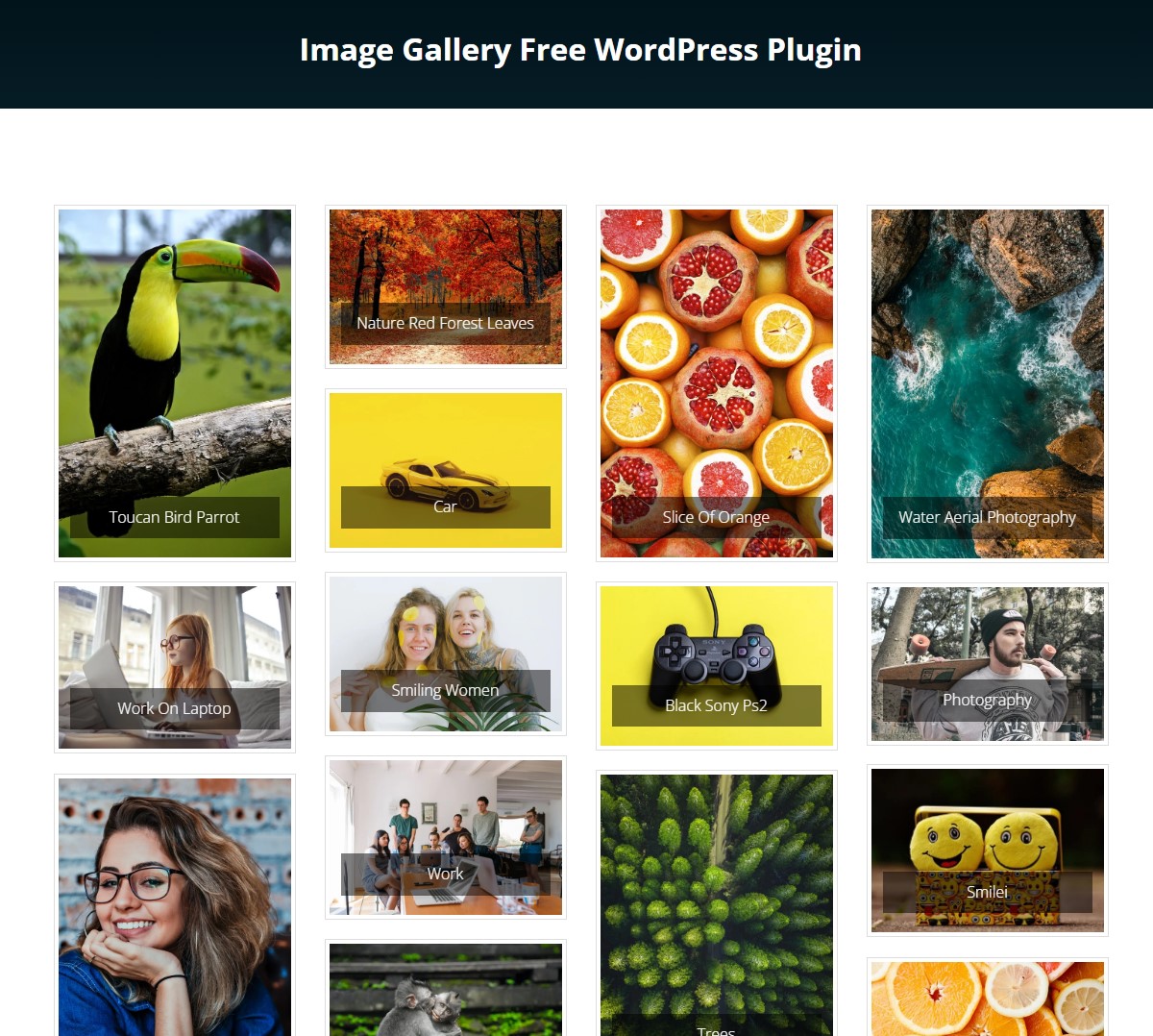
Image Gallery On Website 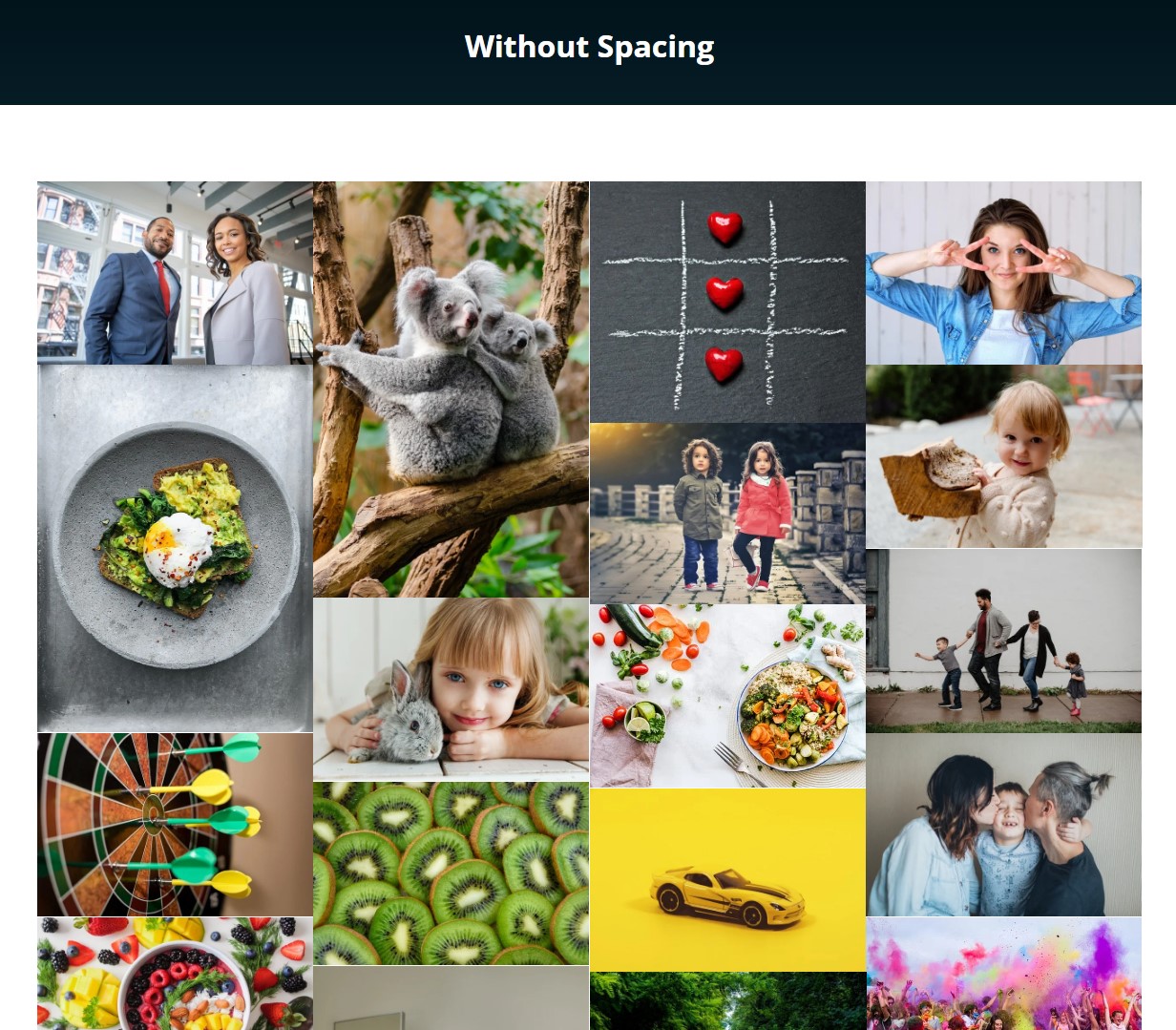
Grid Gallery Without Spacing 
Image Hover Effects 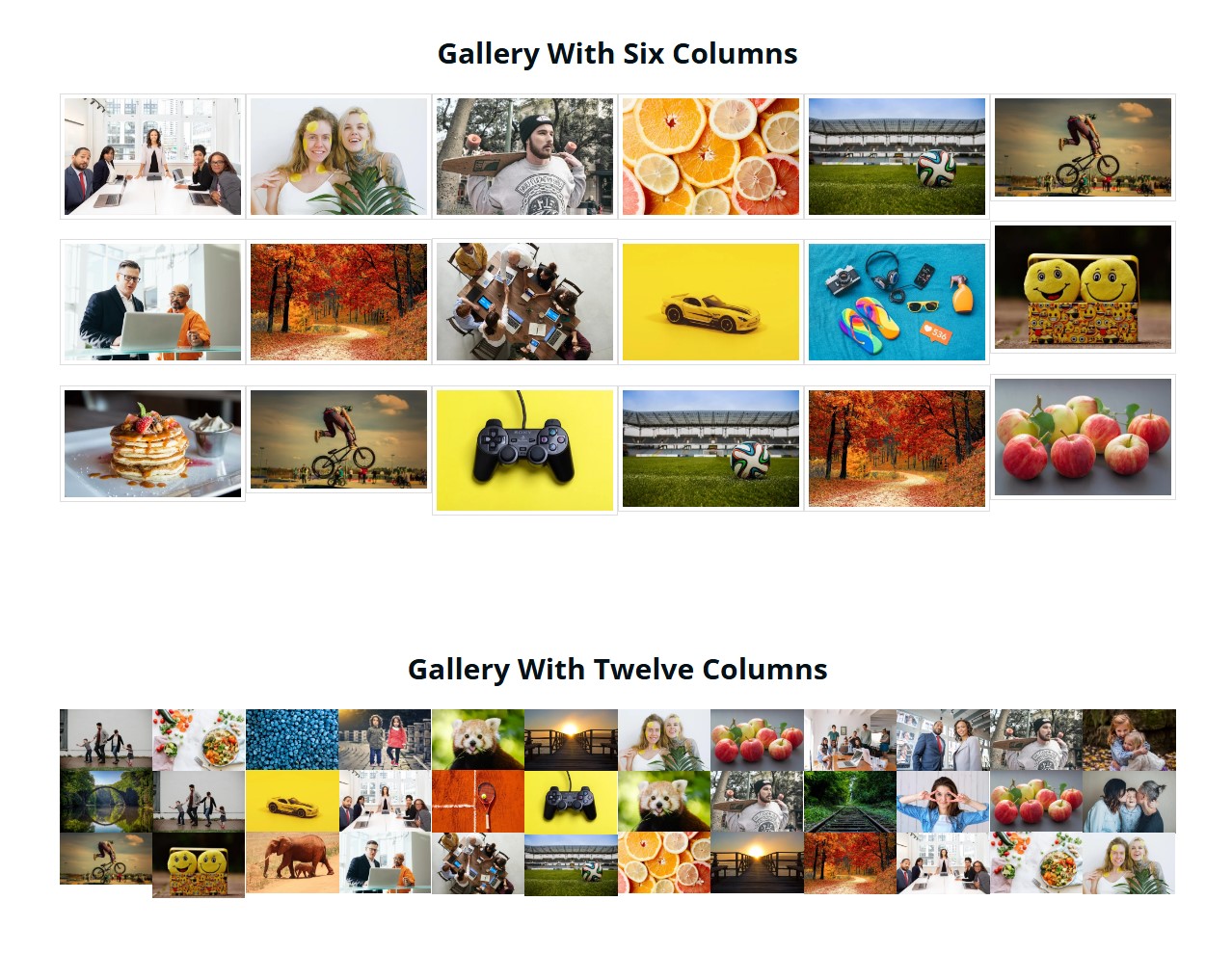
Image Gallery with Multiple Columns Example 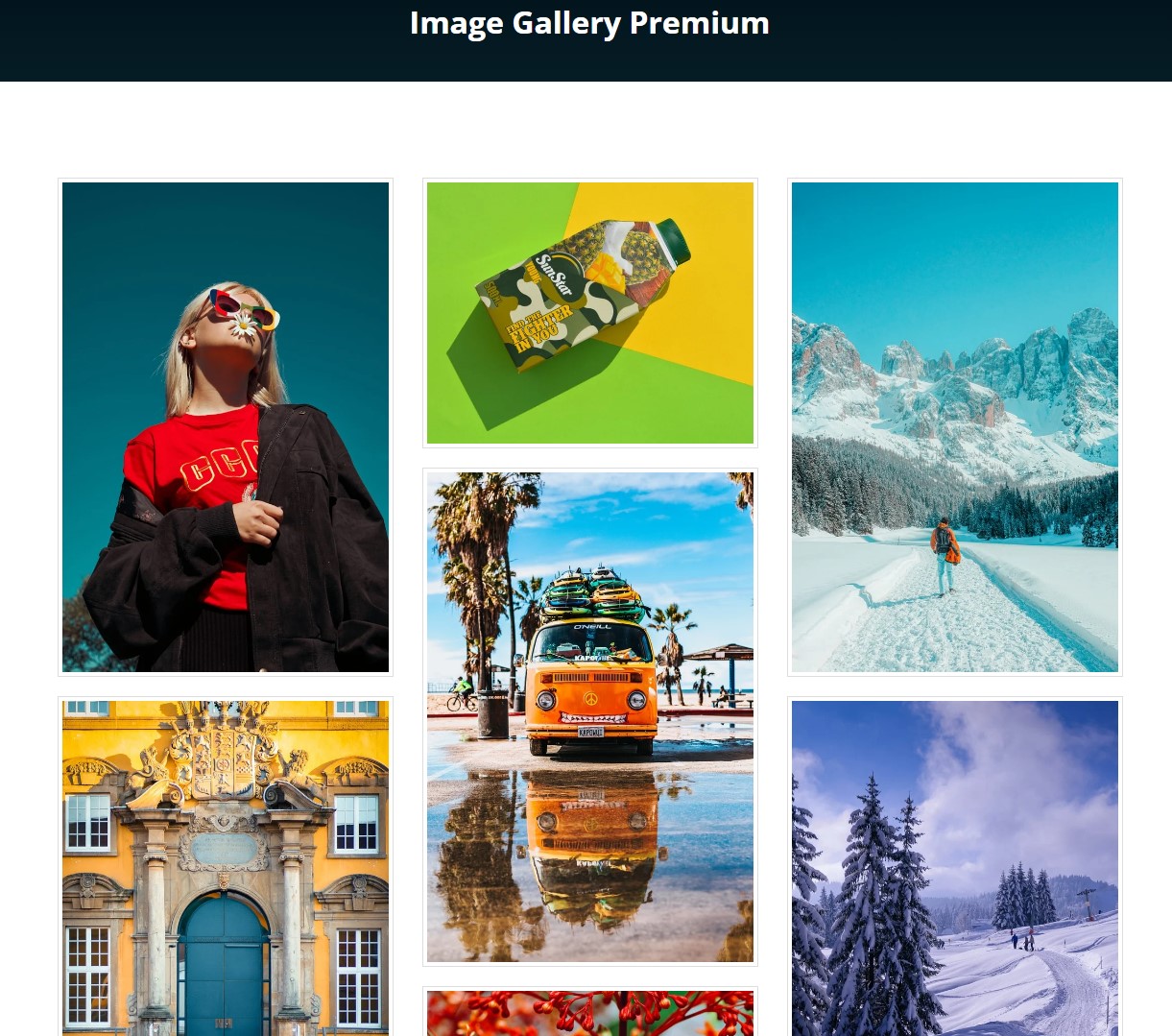
Image Gallery Premium Demo 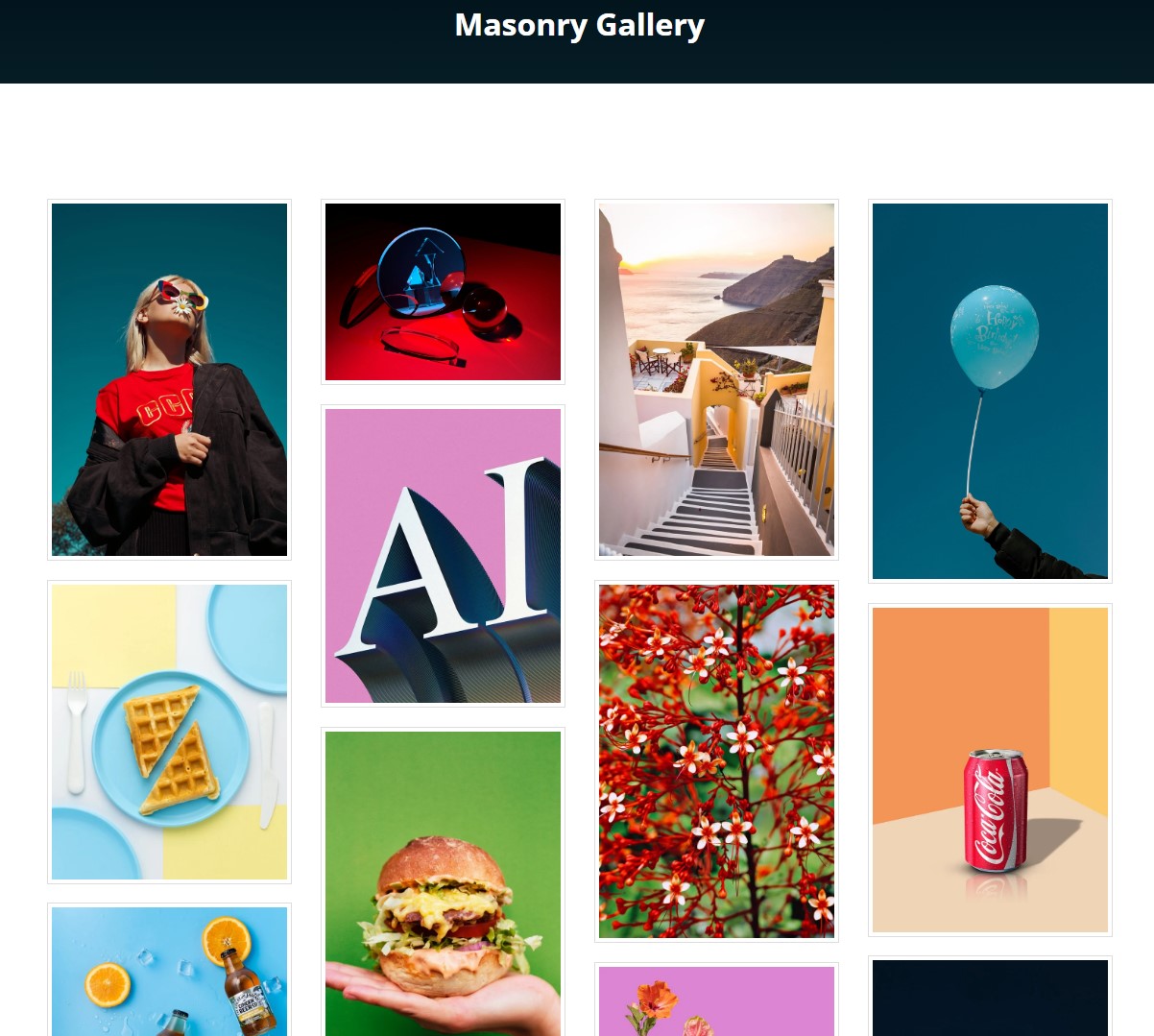
Masonry Gallery in Pro Demo 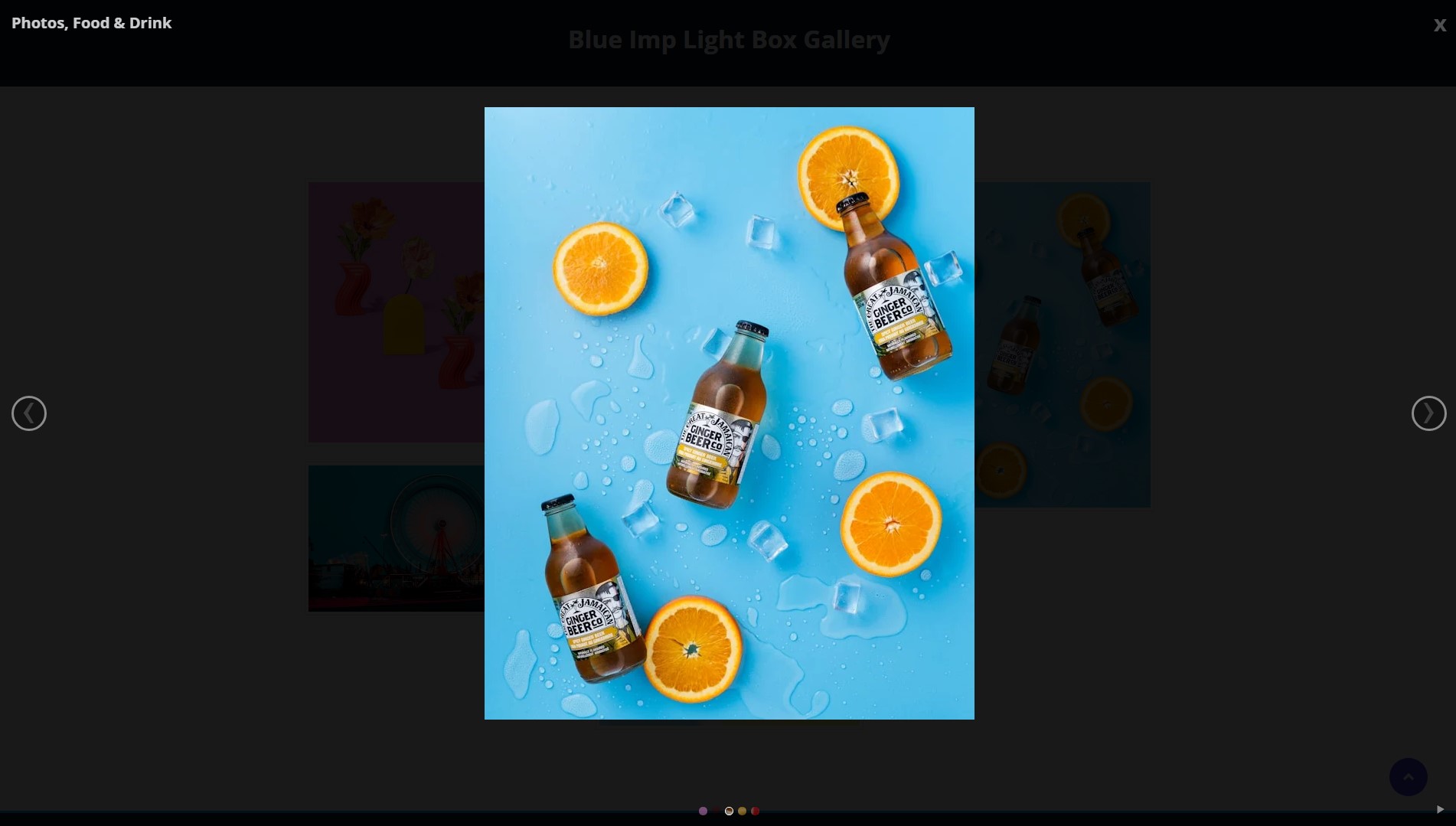
Lightbox Preview in Pro Demo 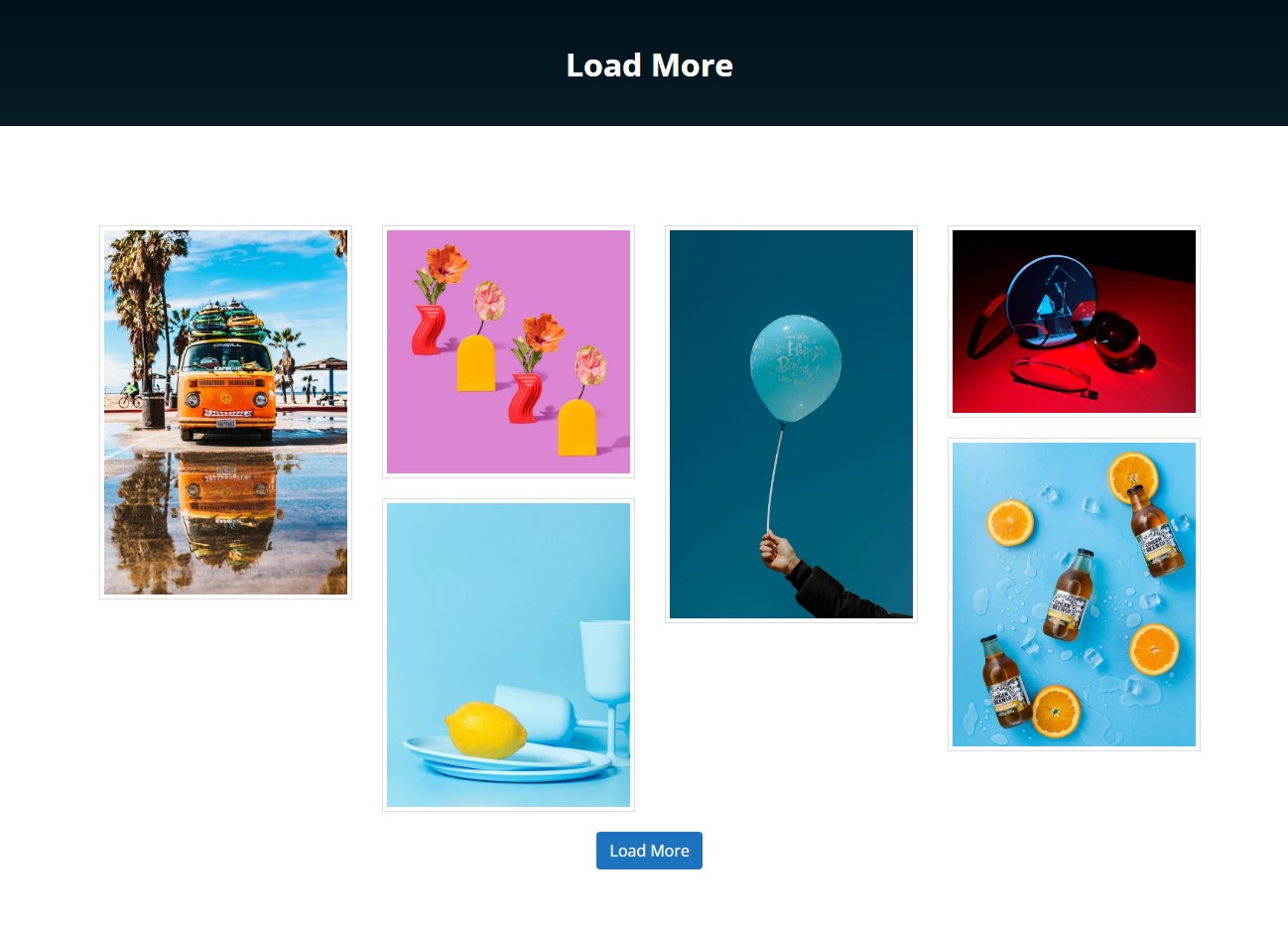
Gallery with Load More Button in Pro


Установка
- Upload the plugin files to
/wp-content/plugins/new-image-gallery/or install through the WordPress plugins screen - Activate the plugin through the Plugins screen
- Go to New Image Gallery in your admin menu
- Click Add Image Gallery to create your first gallery
- Add images and configure your settings
- Copy the shortcode and paste it into any post or page
Часто задаваемые вопросы
-
How do I create an image gallery?
-
Go to New Image Gallery > Add Image Gallery in your WordPress dashboard. Click the Add Images button to select photos from your media library. Configure your layout settings and save. Copy the shortcode shown at the top and paste it into any post or page.
-
Can I add multiple galleries on the same page?
-
Yes. Each gallery has a unique shortcode with its own ID. You can paste multiple shortcodes on a single page, and each gallery will display independently.
-
What is the shortcode format?
-
The shortcode format is
[IMG-Gal id=X]where X is your gallery ID number. You’ll find this shortcode at the top of each gallery’s edit screen. -
Is this gallery mobile-friendly?
-
Yes. The galleries use responsive design that adjusts automatically to phones, tablets, and desktop screens. Images resize and columns stack as needed for smaller viewports.
-
Can I customize the lightbox appearance?
-
The free version includes the LD Lightbox style. The Pro version adds 5 more lightbox styles with different designs and animations. You can choose the one that matches your site.
-
How do I add images to an existing gallery?
-
Edit your gallery from the New Image Gallery menu. Click the Add Images button to open the media uploader. Select additional images and save your gallery. The new images appear alongside existing ones.
-
Does this work with page builders?
-
Yes. Since galleries work through shortcodes, you can paste them into any page builder’s text or shortcode element. This includes Elementor, Beaver Builder, Divi, and others.
-
Yes. Use the Text widget or Custom HTML widget in your sidebar. Paste your gallery shortcode there, and the gallery will appear in the sidebar area.
-
What image formats are supported?
-
The gallery supports all standard web image formats including JPG, PNG, GIF, and WebP. Use whatever format is already in your WordPress media library.
-
How do I upgrade to the Pro version?
-
Visit AWPLife to purchase a license. After purchase, download the Pro plugin, deactivate the free version, and install the Pro version. Your existing galleries will continue to work.
-
Can I add captions to images?
-
Yes. When adding images, each image can have a title that displays on hover or below the image, depending on your settings.
-
How do I change the number of columns?
-
In the gallery settings, look for the Column Layout option. Choose from 2, 3, 4, 5, or 6 columns. Save your gallery to apply the change.
Отзывы


Участники и разработчики
«Image Gallery» — проект с открытым исходным кодом. В развитие плагина внесли свой вклад следующие участники:
Участники


«Image Gallery» переведён на 1 язык. Благодарим переводчиков за их работу.
Перевести «Image Gallery» на ваш язык.
Заинтересованы в разработке?
Посмотрите код, проверьте SVN репозиторий, или подпишитесь на журнал разработки по RSS.
Журнал изменений
1.6.0
- Tested with WordPress 6.9
1.5.9
- Added alt tag support in lightbox
- Tested with WordPress 6.8.3
1.5.8
- Bug fixes
- Tested with WordPress 6.8.1
1.5.7
- Bug fixes
- Tested with WordPress 6.7.2
1.5.6
- Fixed thumbnail spacing bug
- Tested with WordPress 6.7.1
1.5.5
- Bug fixes
- Tested with WordPress 6.7.1
1.5.4
- Bug fixes
- Tested with WordPress 6.6.2
1.5.3
- Fixed gallery settings page bug
- Tested with WordPress 6.6.2
1.5.2
- Tested with WordPress 6.6.1
1.5.1
- Updated Bootstrap library
- Tested with WordPress 6.5.5
1.5.0
- Tested with WordPress 6.5.4
