
- By Role (Everybody, Attendees, Speakers, Sponsors, etc)
- By Tag
- By Status (Waitlisted, Without a Schedule, etc)
- By Session
- Individual Participants
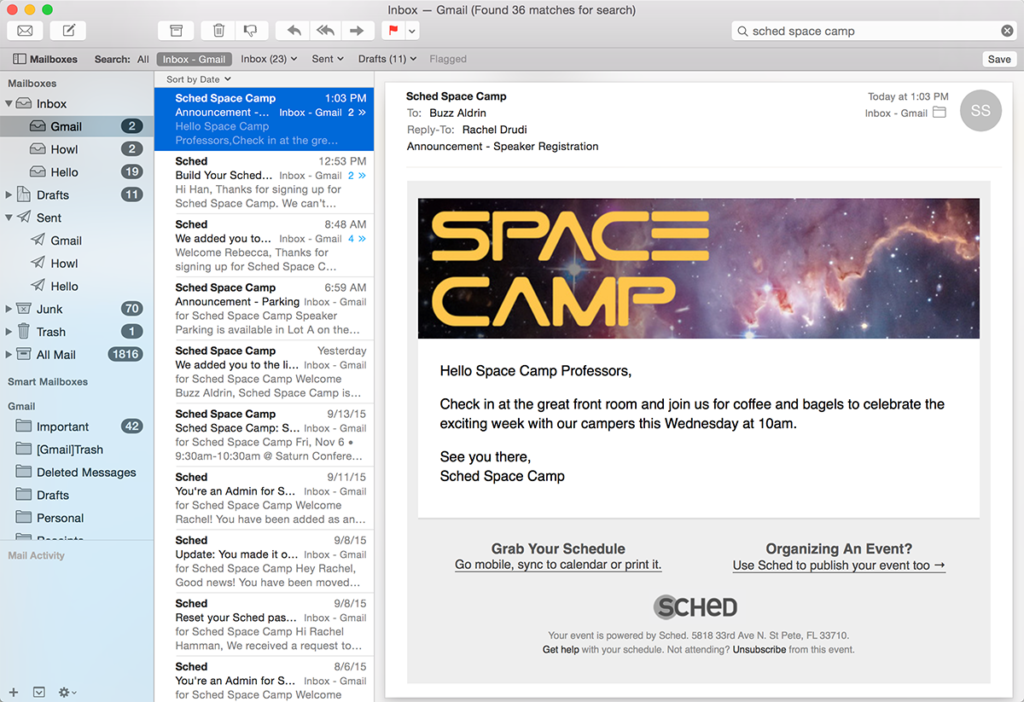
Customizing Email Announcements
Step-by-Step Messaging Tutorial #
Messaging by Role (Everyone, Attendees, Speakers, Sponsors, etc.) #
Use this option to send general announcements such as registration details, parking instructions, or sponsor messages.
Steps:
-
Go to the Communication tab and select Messages.
-
Choose the participant role you wish to message.
-
Complete the subject and message fields.
-
Choose to send the message immediately or schedule it for later.


Messaging by Tag
#
Tags let you group participants (e.g., speakers, VIPs, first-time attendees) so you can send targeted messages.
Note: Tags are only visible to administrators.
Tag Rules
-
No quotes (“) or newlines
-
Under 255 characters
-
Separate multiple tags with commas
-
(Example: speaker, VIP, first-time attendee)
How to Send a Message by Tag
-
Go to the Communication tab and click Messages.
-
Under Message Type, select Attendees w/ a tag.
-
From the Send To dropdown, choose the tag.
-
(You’ll see how many people are tagged.)
-
Add your subject and write your message.
-
Choose to send now or schedule for later.

Need help adding tags? Check this guide on how to add People Tags.
Messaging by Status (Waitlisted, No Schedule, etc.) #
Notify attendees who are waitlisted or have not added sessions to their schedule.
Steps:
-
Go to the Messages section.
-
Select the appropriate group from the Send New Message area (e.g., Waitlisted Attendees).
-
Fill out the message form.
-
Send immediately or schedule for later.

Messaging by Session #
Send updates to participants of a specific session, such as time changes or cancellations. You can also filter by attendance or waitlist status.
Steps:
-
Navigate to the Schedule tab and click Sessions.
-
Select the relevant session.
-
Click Message.
-
Enter your subject and message.
-
Choose to send immediately or schedule for later.


Session emails will include your event’s header and the custom message content. 
Messaging Individual Participants #
Reach out directly to attendees for personalized follow-ups, such as lost items or post-event communication.
Steps:
-
Go to the Attendees section or other role’s tab.
-
Click the attendee’s name.
-
Click Message.
-
Fill in the message form and send.


Message Log Management #
You can monitor and manage all your email communications from the Message Log.
Note: Automatically generated emails (e.g., welcome invites, schedule reminders) are not included in the log and cannot be reviewed from this section.
To Access the Message Log:
-
Go to your event’s Control Panel.
-
Under the Communication tab.
-
Select Log.


Within the Message Log, you can:
-
View sent and scheduled emails.
-
Reschedule or delete pending emails.
-
Track delivery status and recipient details for manual messages only


