I used JavaScriptExecutor for the first time not because I wanted more control, but because Selenium simply stopped responding the way I expected.
A click command ran without errors, yet nothing happened in the browser. The element was present, visible, and stable—but WebDriver could not interact with it. That failure made one thing clear: Selenium tests still depend on how the browser executes JavaScript.
Running JavaScript directly inside the browser exposed what WebDriver could not. Events fired, elements updated, and scrolling behaved exactly as the application intended. JavaScriptExecutor was not a workaround; it was a direct line into the browser’s execution layer.
Overview
What is JavaScript Executor
JavaScriptExecutor in Selenium is an interface that allows Selenium WebDriver to execute JavaScript code directly within the browser, enabling interaction with web elements and browser behaviors when standard WebDriver commands are insufficient or fail.
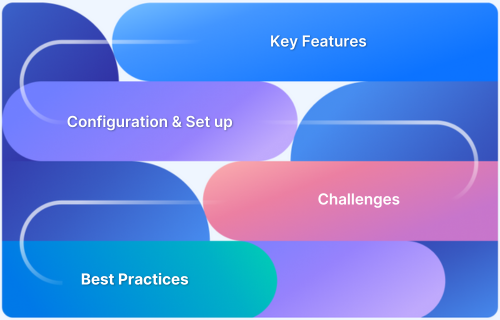
Key Features of JavaScriptExecutor
- Executes JavaScript directly within the browser context.
- Supports synchronous and asynchronous script execution.
- Returns values such as WebElement, String, Boolean, and Long.
- Enables interaction with elements not accessible through standard WebDriver actions.
- Helps handle dynamic content and complex UI behaviors.
- Extends Selenium’s control over browser-level operations.
Practical Usage Scenarios of Javascript Executor in Selenium
- Clicking buttons or checkboxes when Selenium locators fail.
- Entering text into input fields.
- Generating alert pop-ups for validation.
- Scrolling pages dynamically using async execution.
- Refreshing or reloading browser windows.
This article focuses on how JavaScriptExecutor works in Selenium, what problems it is designed to solve, and how to use it intentionally—without masking real issues or creating fragile automation.
What is JavascriptExecutor in Selenium?
In simple words, JavascriptExecutor is an interface that is used to execute JavaScript with Selenium. To simplify the usage of JavascriptExecutor in Selenium, think of it as a medium that enables the WebDriver to interact with HTML elements within the browser. JavaScript is a programming language that interacts with HTML in a browser, and to use this function in Selenium, JavascriptExecutor is required.
Practical Usage Scenarios of JavaScriptExecutor in Selenium
JavaScriptExecutor is commonly used when standard WebDriver interactions fail or behave inconsistently due to dynamic DOM updates, hidden elements, or browser-specific execution behavior.
- Clicking buttons or checkboxes when Selenium locators fail: JavaScriptExecutor can trigger click events directly on elements that are present in the DOM but not interactable through standard WebDriver actions due to overlays, custom event handlers, or complex UI frameworks.
- Entering text into input fields: Directly setting values using JavaScript helps handle inputs that block sendKeys, such as fields controlled by custom JavaScript validation, masked inputs, or dynamically rendered components.
- Generating alert pop-ups for validation: JavaScriptExecutor allows manual creation of alert dialogs to validate alert handling logic, confirm pop-up behavior, and test browser responses without relying on application-triggered alerts.
- Scrolling pages dynamically using async execution: Asynchronous JavaScript execution enables controlled scrolling for pages with infinite scroll, lazy-loaded content, or elements that load only after certain viewport interactions.
- Refreshing or reloading browser windows: Executing browser refresh commands through JavaScript helps reinitialize page state, handle cache-sensitive scenarios, or recover from partial page loads during test execution.
Components of JavascriptExecutor in Selenium
JavascriptExecutor consists of two methods that handle all essential interactions using JavaScript in Selenium.
- executeScript method – This method executes the test script in the context of the currently selected window or frame. The script in the method runs as an anonymous function. If the script has a return statement, the following values are returned:
- For an HTML element, the method returns a WebElement.
- For a decimal, the method returns Long.
- For a non-decimal number, the method returns Long.
- For a Boolean, the method returns Boolean.
- For other cases, the method returns a String.
- executeAsyncScript method – This method executes the asynchronous piece of JavaScript on the current window or frame. An asynchronous script will be executed while the rest of the page continues parsing, which enhances responsiveness and application performance.
Read More: Synchronous vs Asynchronous in JavaScript
How to get started with JavascriptExecutor
- Import the package
- Create a reference
- Call the JavascriptExecutor methods
[java]
//importing the package
Import org.openqa.selenium.JavascriptExecutor;
//creating a reference
JavascriptExecutor js = (JavascriptExecutor) driver;
//calling the method
js.executeScript(script, args);
[/java]
Now, let’s examine various scenarios where JavascriptExecutor can be used to perform different operations.
Read More: How to Find Elements by ID in Selenium
How JavascriptExecutor works in Selenium
Let’s try to understand the working of JavascriptExecutor using a simple example and implementation of both the JavascriptExecutor methods.
- JavascriptExecutor in Selenium to click a button
[java]
js.executeScript(“document.getElementByID(‘element id ’).click();”);
[/java]
- JavascriptExecutor in Selenium to send text
[java]
js.executeScript(“document.getElementByID(‘element id ’).value = ‘xyz’;”);
[/java]
- JavascriptExecutor in Selenium to interact with checkbox
[java]
js.executeScript(“document.getElementByID(‘element id ’).checked=false;”);
[/java]
- JavascriptExecutor in Selenium to refresh the browser window
[java]
js.executeScript(“location.reload()”);
[/java]
The above code snippets show the syntax to perform specific operations.
Now, let’s understand why it is important to use JavascriptExecutor in Selenium.
Read More: Page Object Model in Selenium and JavaScript
Why use JavascriptExecutor in Selenium?
Sometimes, Selenium WebDriver alone will not be able to perform certain operations or interact with web elements. In that case, JavaScript is needed to make sure those actions are being performed accurately. To understand its importance, let’s consider an example.
Let’s suppose a tester has written an automation script to click a few buttons, but there seems to be an issue due to which the script fails every time. To resolve this, the tester uses JavascriptExecutor.
Validate JavaScriptExecutor-driven Selenium tests on real browsers and devices with BrowserStack Automate to ensure JavaScript actions work reliably beyond local and headless runs.
Use Case Scenarios
To explain the concept of JavascriptExecutor, let’s look at two simple use cases:
Example 1
Problem Statement: Generate an alert window using JavascriptExecutor.
Objective: Create a login automation script using Selenium that generates an alert window using JavascriptExecutor methods.
Code:
[java]
package newpackage;
import org.openqa.selenium.WebDriver;
import org.openqa.selenium.chrome.ChromeDriver;
import org.testng.annotations.Test;
import org.openqa.selenium.JavascriptExecutor;
public class LoginAutomation {
@Test

public void login() {
System.setProperty("webdriver.chrome.driver", "path");
WebDriver driver = new ChromeDriver();
JavascriptExecutor js = (JavascriptExecutor)driver;
driver.manage().window().maximize();
driver.get("https://www.browserstack.com/users/sign_in");
js.executeScript("document.getElementById('user_email_login').value='rbc@xyz.com';");
js.executeScript("document.getElementById('user_password').value='password';");
js.executeScript("document.getElementById('user_submit').click();");
js.executeScript("alert('enter correct login credentials to continue');");
sleep(2000);
}

public static void sleep(int ms)
{
try

{
Thread.sleep(ms);
}
catch(InterruptedException e)

{
e.printStackTrace();
}

}
}
[/java]
Output:
Once the code runs, Selenium will automatically navigate to the URL mentioned. First, the driver will open the browser and the URL. After that, the credentials will be entered using the JavascriptExecutor’s executeScript method. Finally, the login button is clicked. In the end, a pop-up will appear stating the message written in the alert() method.
Example 2
Let’s look at another example, which uses the executeAsyncScript method to scroll down to the bottom of a webpage.
Code:
[java]
package newpackage;
import org.openqa.selenium.WebDriver;
import org.openqa.selenium.chrome.ChromeDriver;
import org.testng.Assert;
import org.testng.annotations.Test;

import org.openqa.selenium.JavascriptExecutor;
public class LoginAutomation {
@Test
public void login() {
System.setProperty("webdriver.chrome.driver", "C:\\Users\\Pictures\\chromedriver.exe");
WebDriver driver = new ChromeDriver();
JavascriptExecutor js = (JavascriptExecutor)driver;
driver.manage().window().maximize();
driver.get("https://www.browserstack.com");
js.executeAsyncScript("window.scrollBy(0,document.body.scrollHeight)");
}
}
[/java]
Output:
The program opens the web browser and navigates to the URL- browserstack.com. After that, using the executeAsyncScript method from the JavascriptExecutor package, the script scrolls to the bottom of the webpage.
Why Test JavaScriptExecutor on Real Browsers and Devices?
JavaScriptExecutor runs code directly inside the browser, which makes its behavior tightly coupled with how each browser handles JavaScript execution, rendering, and events. These behaviors are not always consistent across environments.
Local machines, headless browsers, or simulated setups often fail to reflect:
- Browser-specific JavaScript execution differences
- Variations in event handling, scrolling, and DOM updates
- Timing issues caused by real device performance and network conditions
As a result, Selenium tests using JavaScriptExecutor may pass locally but fail for real users.
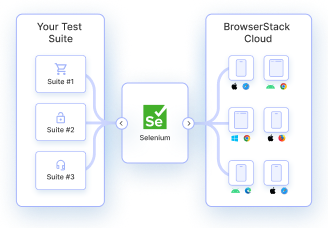
BrowserStack Automate addresses this gap by running Selenium tests—including JavaScriptExecutor commands—on real browsers and real devices. This ensures JavaScript-driven interactions behave correctly across actual Chrome, Firefox, Safari, Edge, and mobile browsers, helping catch failures that only appear in production-like conditions
Conclusion
Considering the issues that Selenium sometimes faces in web browser automation while interacting with web elements, learning how to use JavascriptExecutor methods is imperative for Selenium testers. The implementation of both methods – executeScript and executeAsyncScript is a perfect solution that efficiently solves the problem of any potential issues.