gunzip Command in Linux with Examples
Last Updated :
07 Nov, 2025
The gunzip command in Linux is used to decompress files that were compressed using the gzip command, restoring them to their original form.
- It automatically removes the .gz extension after decompression.
- Can decompress multiple files at once.
- Supports options like -k,-f, and -r or flexibility.
- Useful for extracting logs, backups, and archives compressed with gzip.
Example: Decompress a Single .gz File
gunzip example.txt.gz

- Extracts example
.txt.gz and restores it as example.txt, deleting the .gz file after decompression.
Syntax
Below is the syntax for gunzip command:
gunzip [Option] [archive name/file name]
Commonly Used gunzip Command Options
Option 1. '-c': Write output to standard output (stdout)
Command:
gunzip -c geeksforgeeks.txt.tar.gz

Output:

- Displays decompressed content directly on the terminal instead of saving it.
- Useful for viewing file content without extracting to disk.
Option 2. '-k': Keep original compressed file
Command:
gunzip -k example1.txt.gz

- Decompresses the
.gz file but retains the original file.txt.gz. - Handy when you want both compressed and uncompressed versions.
Option 3. '-f': Force decompression
Command:
gunzip -f example1.txt.gz

- Automatically overwrites existing files without prompting for confirmation.
- Useful in scripts or batch operations where manual confirmation isn’t possible.
Option 4. '-r': Recursive decompression
Command:
gunzip -r /home/vboxuser/gfg/

- Decompresses all
.gz files within the specified directory and its subdirectories. - Saves time when handling multiple compressed files in nested folders.
Option 5. '-v': Verbose mode
Command:
gunzip -v file1.txt.gz

- Displays detailed information while decompressing each file.
- Helps monitor the progress and confirms which files are being processed.
Option 6: '-t': Test integrity of file
Command:
gunzip -t example2.txt.gz

- Verifies whether a
.gz file is valid and not corrupted. - Does not decompress the file; only checks its consistency.
Option 7. '-l': List compression details
Command:
gunzip -l example2.txt.gz

- Displays compression statistics like original size, ratio, and name.
- Useful for checking space savings and compression efficiency.
Command:
gunzip -help
Output:

Option 9: '-a'
-a option uses ASCII text mode to convert End-of-line characters using local conversion. This option is only supported on MS-DOS systems. When -a option is used on a Unix system, it decompresses the file ignoring the --ascii option.
Command:
gunzip -a geeksforgeeks.txt.gz
Output:

Some Other Options:
- -n: This option does not save or restore the original name and time stamp while decompressing a file.
- -N: This option saves or restore the original name and time stamp while decompression.
- -q: This option suppresses all the warnings that arise during the execution of the command.
- -s: This option use suffix SUF on compressed files.
- -#: This option is used to control the speed and the amount of compression, where # can be any number between -1 to -9. -1 ensures the faster compression by decreasing the amount of compression while -9 ensures the best compression but takes more time comparatively.
Other useful Examples of gunzip
Example 1: Decompress Multiple .gz Files at Once
Command:
gunzip *.gz
Output:

- Decompresses all gzip files in the current directory in one go.
Example 2: Decompress a File from Another Directory
gunzip /home/vboxuser/gfg/GZIP/example1.txt.gz
Output:
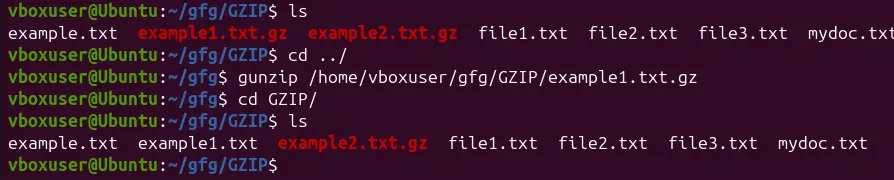
- Decompresses the example1.txt
.gz file located in the GZIP directory.
Example 3: Decompress Using a Pipeline
Command:
cat example.txt.gz | gunzip -c > example.txt
Output:
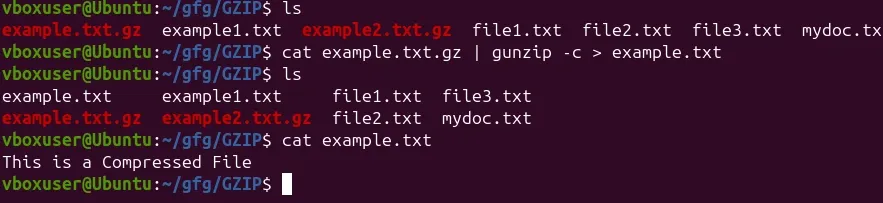
- Reads a compressed file from a stream and writes the uncompressed output to a new file.
Example 4: The option -L (uppercase L) in the gunzip command displays license information.
Command:
gunzip -L
Output:
- Shows the GNU General Public License (GPL) details under which
gunzip is distributed. - It’s mainly used for informational or documentation purposes, not for file decompression.
Explore
Getting Started with Linux
Installation with Linux
Linux Commands
Linux File System
Linux Kernel
Linux Networking Tools
Linux Process
Linux Firewall
Shell Scripting & Bash Scripting
Linux Administrator System