
Privacy laws require organizations to take steps to protect personal data, including redacting certain information when sharing personal data with third parties or responding to Data Subject Access Requests (DSARs).
Regulators and courts are increasingly attentive to the risks posed by hidden metadata. Under the GDPR, for example, supervisory authorities stress that "personal data" includes any information capable of identifying an individual, even indirectly. Metadata such as author names, GPS tags, or IP addresses often meets this standard. The UK ICO's 2025 anonymisation guidance highlights that even if visible identifiers are removed, hidden technical information can make re-identification "reasonably likely," triggering full compliance obligations.
However, what many organizations don't realize is that even if they redact visible text, failure to remove hidden metadata can reveal personal information and put them at risk of noncompliance.
This article explains what metadata is, why it matters, the privacy laws that apply, and the risks of non-compliance, as well as how to remove metadata to comply with privacy laws.
- 1. What Is Metadata?
- 2. Why Do You Need to Remove Metadata?
- 3. What Privacy Laws Apply to Metadata?
- 4. What Happens If You Don't Remove Metadata?
- 5. How Do You Remove Metadata to Comply With Privacy Laws?
- 5.1. Step 1. Check Files for Metadata
- 5.2. Step 2. Remove Metadata
- 5.2.1. How to Remove Data from Microsoft Word/Excel/PowerPoint Documents
- 5.2.2. How to Remove Metadata from Images
- 5.2.3. How to Remove Metadata from Emails
- 5.2.4. How to Remove Metadata from PDFs
- 5.2.5. How to Remove Metadata from Media Files
- 5.3. Step 3. Save Redacted Files in Safe Formats
- 5.4. Step 4. Maintain Metadata Removal Logs
- 6. Summary
What Is Metadata?
Metadata is data that contains information about other data. While metadata isn't typically visible when simply viewing a document, it can still be accessed by people with the technological know-how or access to the right tools.
Examples of metadata can include:
- Timestamps that show the date and time a file was created
- The geographic location where the file was created
- The file author's name and the names of any contributors
- IP addresses
- Device information, such as the make, model, and settings of a smartphone or tablet
- Document revision history, including deleted comments
From a compliance perspective, the key test is whether the metadata can, alone or combined with other information, identify an individual. This "reasonably likely to identify" standard has been confirmed by the Court of Justice of the European Union (CJEU) in several rulings, most recently in Case C-634/21, which stressed that indirect identifiers still fall within GDPR scope if the effort needed for re-identification is not "disproportionate."
Why Do You Need to Remove Metadata?
You should remove metadata to comply with privacy laws and protect personal and confidential information from unintentional disclosure.
Privacy laws require organizations to protect personal data. The exact definition of what constitutes personal data depends on the law, but, in general, any information that can be used–on its own or in combination with other information–to identify an individual can be considered personal data.
The California Privacy Rights Act (CPRA)'s definition of personal information includes names, identification numbers, and online identifiers, and can include any metadata that identifies, relates to, describes, or could be linked to a specific California consumer (resident) or household.
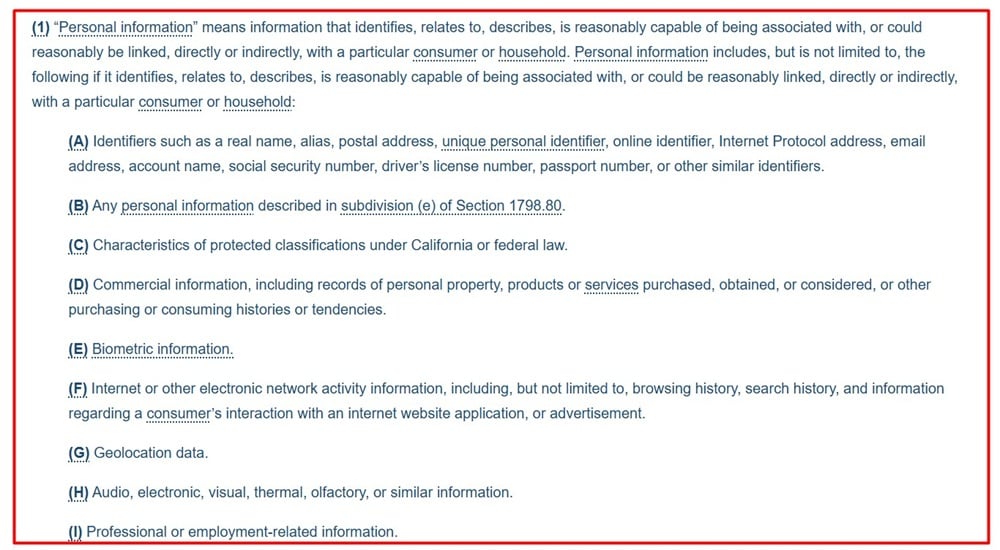
Metadata that can be used to identify individuals (such as document authors, IP addresses, and GPS tags) may be treated as personal data under state and global privacy laws.
It's important to remove any metadata that could reveal personal or confidential information–such as third-party personal data, confidential business information, and protected legal information–before disclosure.
For example, let's say you work at a legal firm and provide redacted documents to the opposing party during discovery (a pretrial procedure where the parties involved in a case share evidence and information). If you accidentally leave metadata that contains comments about case strategy, it could cause serious legal consequences and damage your firm's reputation.
Similar risks apply in Data Subject Access Requests (DSARs). The Irish Data Protection Commission has noted that when responding to DSARs, controllers must ensure hidden layers of information (such as tracked changes or email headers) are either disclosed appropriately or removed if irrelevant to the request, in order to avoid unlawful disclosure of third-party data.
What Privacy Laws Apply to Metadata?
Privacy laws that can apply to metadata include global laws, such as the European Union's (EU) General Data Protection Regulation (GDPR), as well as state laws like the California Consumer Privacy Act (CCPA).
The privacy laws that apply to your organization can depend on several factors, including where you and the people whose personal data you process (use) are located, how much personal data you handle, and your business activities.
While privacy laws don't explicitly require metadata removal, they do require organizations to protect personal data and comply with data minimization, purpose limitation, and data security principles. Removing metadata that contains or could potentially expose personal or confidential data before disclosure can help you comply with these principles.
Privacy laws that require you to protect personal data include:
- The GDPR
- The CCPA and CPRA
- The United Kingdom's (UK) GDPR
- Canada's Personal Information Protection and Electronic Documents Act (PIPEDA)
- Australia's Privacy Act of 1988
- Brazil's Lei Geral de Proteção de Dados (LGPD)
- The Virginia Consumer Data Protection Act
- The Colorado Privacy Act
- The Connecticut Data Privacy Act
Importantly, not all regimes treat metadata in the same way.
- GDPR/UK GDPR: Metadata is personal data if it can identify a person; failure to scrub it can breach Articles 5(1)(c) (data minimisation) and 5(1)(f) (integrity and confidentiality), as well as Article 32 (security).
- CPRA: Broad definitions of "personal information" cover online identifiers and technical data. While U.S. enforcement has been less explicit about metadata, the California Attorney General has highlighted that failure to safeguard technical identifiers may constitute an unfair practice.
- LGPD (Brazil): Similar to GDPR, but with stronger emphasis on proportionality.
- PIPEDA (Canada): Requires organisations to safeguard technical identifiers where they can be linked to an individual.
- Australian Privacy Act: Metadata may be personal information if it "reasonably" identifies someone.
This variability underscores the need for businesses operating internationally to treat metadata conservatively, assuming it qualifies as personal data unless proven otherwise.
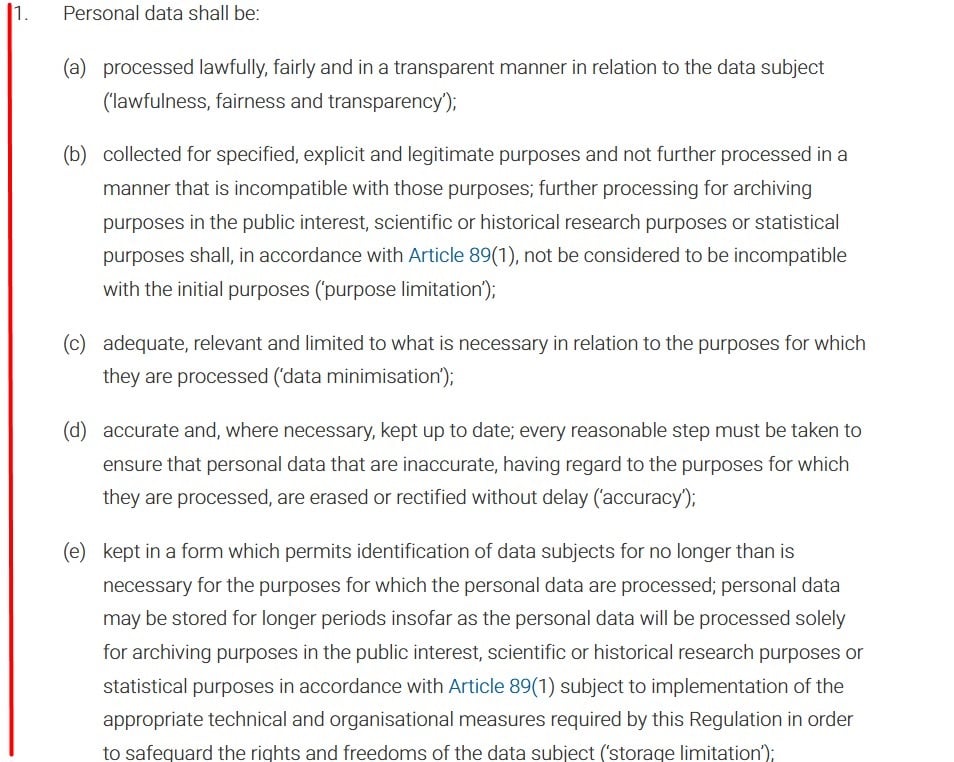
Article 5 of the GDPR explains that personal data must be processed lawfully, only used for specified purposes, and limited to what is necessary to fulfill those purposes, among other requirements.
What Happens If You Don't Remove Metadata?
Failure to remove metadata can expose personal data, resulting in data breaches, lawsuits, and penalties from regulatory authorities.
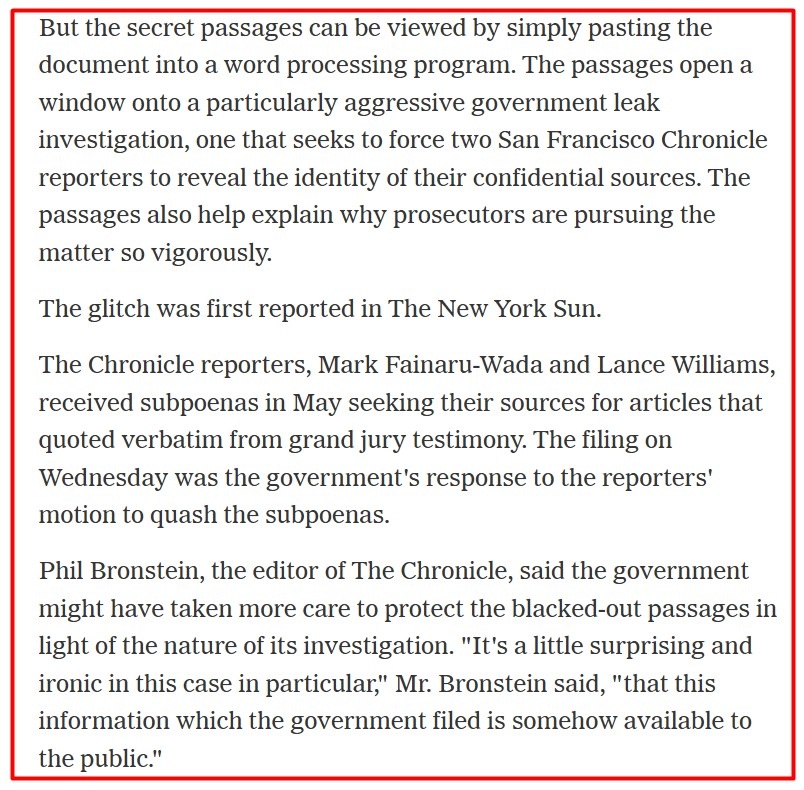
For example, an inadvertent metadata disclosure occurred in 2006, when digitally redacted excerpts from a U.S. Justice Department (DOJ) brief about a grand jury's investigation into steroid use in baseball were copied and pasted into a Microsoft Word document, making them publicly available.
A 2006 New York Times article notes the irony of the case, as the government had been investigating leaks of grand jury information, but their redaction failure ended up exposing hidden information.
Keep in mind that removing metadata is just one part of privacy law compliance; you will likely need to take additional steps to protect personal data, such as complying with purpose and storage limitation and data security and minimization principles.
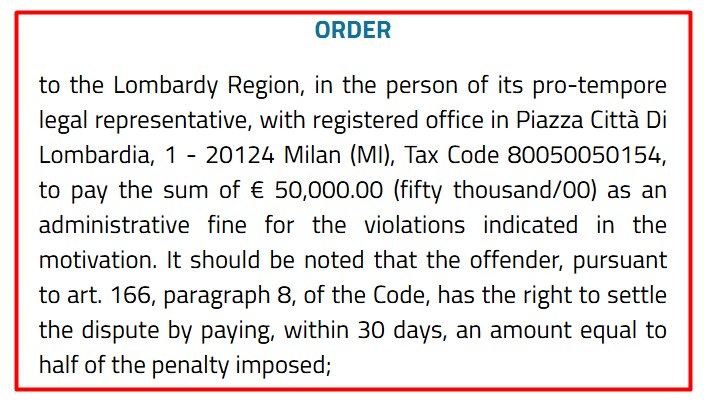
A recent example of how mishandling metadata can get you in trouble took place in Italy in April 2025. The Italian Data Protection Authority (the Garante) found that the Lombardy Region had retained email metadata for 90 days, much longer than the 21 days it had judged appropriate for technical purposes, violating both the GDPR and Italy's "Workers' Statute" (national legislation on remote monitoring of employees).
The Garante fined the Lombardy Region €50,000.00 for violating the GDPR.
More broadly, the CJEU has confirmed that damages may be awarded for non-material harm caused by data mishandling, including loss of control. In Case C-300/21 (Österreichische Post), the Court held that individuals can claim compensation under GDPR Article 82 without showing financial loss, where the mere exposure of their data (including technical data) caused distress. This reinforces the liability risks of metadata leaks.
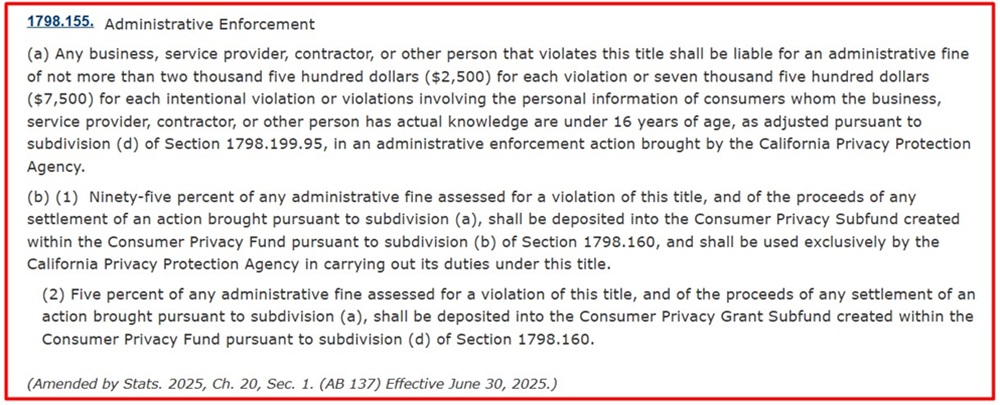
Penalties for violating privacy laws can be steep. For example, GDPR violations can result in fines of up to the greater amount of €20 million or 4% of an organization's global annual revenue, while organizations that unintentionally violate the CCPA can be fined up to $7,500 per violation.
Section 1798.155 of the CCPA explains that unintentional violations of the law can result in fines of up to $2,500 for each violation, while intentional violations involving personal information belonging to people under the age of 16 are subject to a maximum fine of $7,500 per violation.
How Do You Remove Metadata to Comply With Privacy Laws?
Removing metadata to comply with privacy laws typically involves identifying metadata in any files set for disclosure, using metadata scrubbing tools and/or following file-based steps for removing the metadata, saving the files in safe formats, and maintaining accurate metadata removal logs.
Organisations should approach metadata management as part of their broader governance framework. The accountability principle under GDPR (Article 5(2)) requires controllers to demonstrate compliance, which means having not only technical tools but also policies, staff training, and audit documentation for metadata handling. Embedding metadata removal into DSAR workflows, FOI responses, litigation disclosure, and employee monitoring reviews is now seen as best practice.
Follow this step-by-step guide to learn how to remove metadata to comply with privacy laws.
Step 1. Check Files for Metadata
Your first step is reviewing files that will be disclosed to check for metadata that could expose personal information.
You should check for metadata before engaging in data processing activities that involve sharing or disclosing personal data, such as:
- Sharing personal data with third parties
- Responding to DSARs
- Sharing employee monitoring logs
- Reviewing and disclosing data during email audits
- Publishing or releasing documents (especially those with redacted information)
- Reviewing or sharing data during a data breach investigation
- Sharing documents during the legal discovery process
If the metadata can be used to identify an individual, reveals information about a third party or confidential information, poses a security risk, or is irrelevant to the purpose of disclosure, then you should consider removing it.
You can check for metadata by using tools such as ExifTool or mat2, or use document properties panels to manually inspect your files. However, even if tools don't detect metadata or you don't find any during a manual inspection, it doesn't mean metadata doesn't exist in your files. It's best practice to clean all files that are set for disclosure, regardless of whether metadata has been detected.
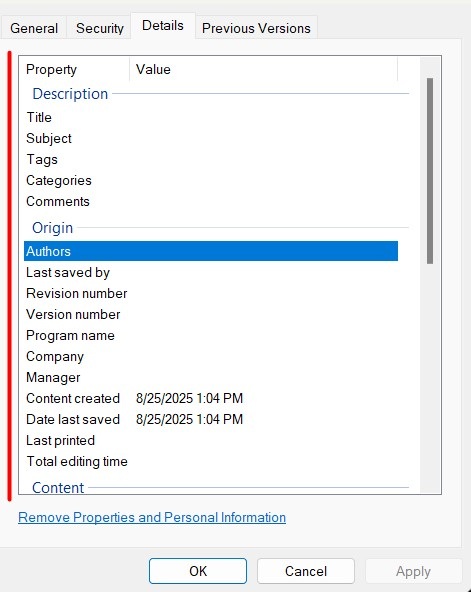
The document properties panel for a document in Windows File Explorer shows the different types of metadata a document can contain, including information about authors, who saved the document last, revision history, company name, and when the document was created, last saved, or last printed, among other information.
The ExifTool homepage lists the metadata formats it supports, including EXIF, GPS, XMP, and more.

Step 2. Remove Metadata
The steps you take to remove metadata depend on the types of files you are dealing with.
Different types of files and the metadata they can contain include:
- Document metadata. Information about the author, revision history, and creation and modification dates. Document metadata can be found in Google Docs, Microsoft Word, and PDF documents.
- Image metadata. Exchangeable Image File Format (EXIF) data can store information about the camera's model and settings, the date and time a photo was taken, geolocation data, and information about any software used to edit the photo.
- Email metadata. Email metadata is typically found in email headers, and can include information about the sender's address, recipients' addresses, and the date and subject line of the email. Email attachments can also contain metadata, such as the author's name, the file creation date, GPS information, revision history, and hidden comments.
- PDF metadata. PDF metadata can include the author's name, comments, keywords, timestamps, and copyright information.
- Media files. Audio and video files can contain metadata such as GPS info, timestamps, and information about editing software.
There are certain metadata scrubbing tools you can use across file types, such as Metadata2Go, Ardasus, and MetaCleaner.
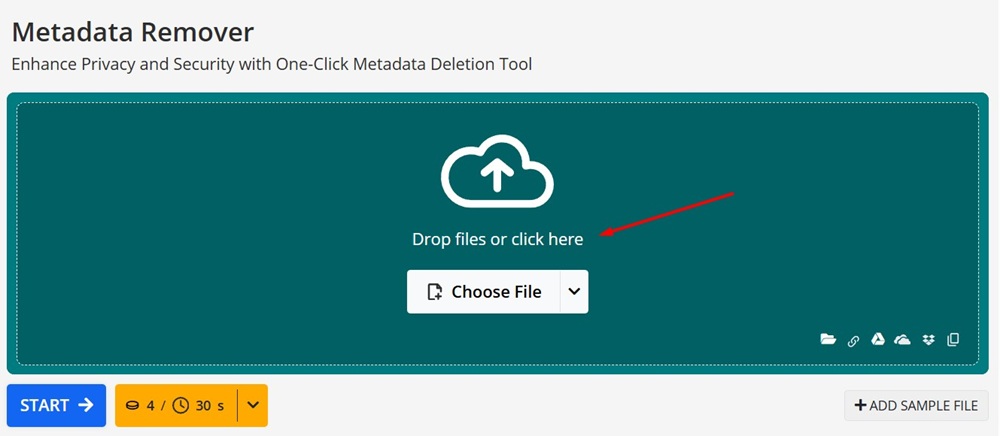
With Metadata2Go's Metadata Remover tool, you simply drag and drop a file and push the Start button to remove metadata.
There are also specific steps you can take to manually remove metadata from different types of files before sharing. Whether you remove metadata manually, use metadata scrubbing tools, or combine both methods depends on factors such as the number of files you are dealing with, whether you only want to remove specific metadata, and whether you need to verify which metadata has been removed.
Keep reading to find out how to remove metadata from specific file types, including documents, images, emails, PDFs, and media files.
How to Remove Data from Microsoft Word/Excel/PowerPoint Documents
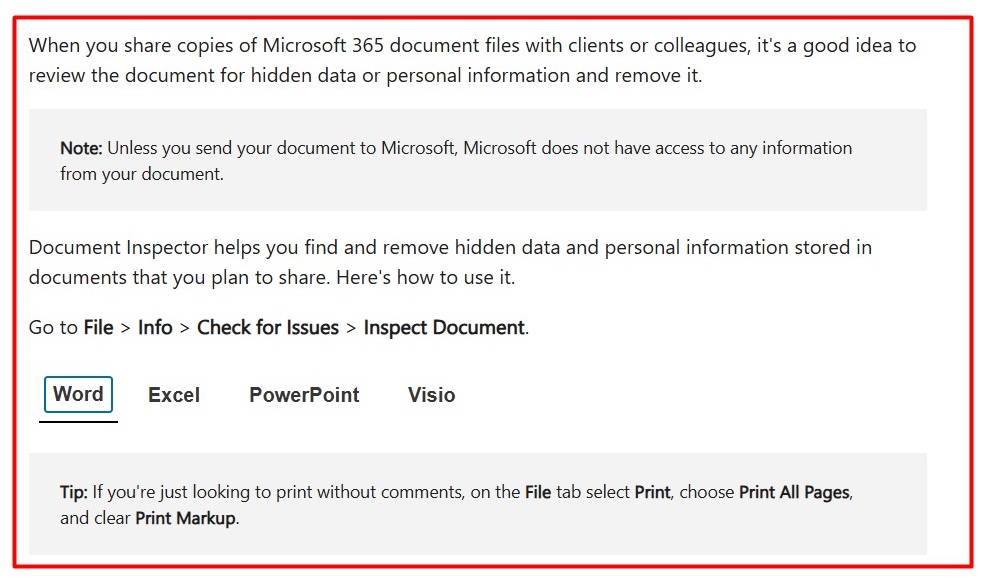
If you want to remove metadata from a Microsoft Word, Excel, or PowerPoint document, you can go to File, click on Info, go to Check for Issues, then click Inspect Document.
Microsoft suggests using the Document Inspector on a copy of the original document, since you may not be able to restore data the tool removes.
You can use the Document Inspector to find and remove data such as:
- Comments
- Revision marks from tracked changes
- Document version information
- Annotations
- Document properties, including metadata such as document authors, titles, and subjects
- Personal information
- Headers and footers
- Watermarks
- Hidden text (except text that was hidden using another method, such as using white text on a white background)
- Custom XML data
- Invisible content (except content that is hidden behind other objects)
Microsoft's Support website explains that users can remove hidden data and personal information by using its Document Inspector tool.
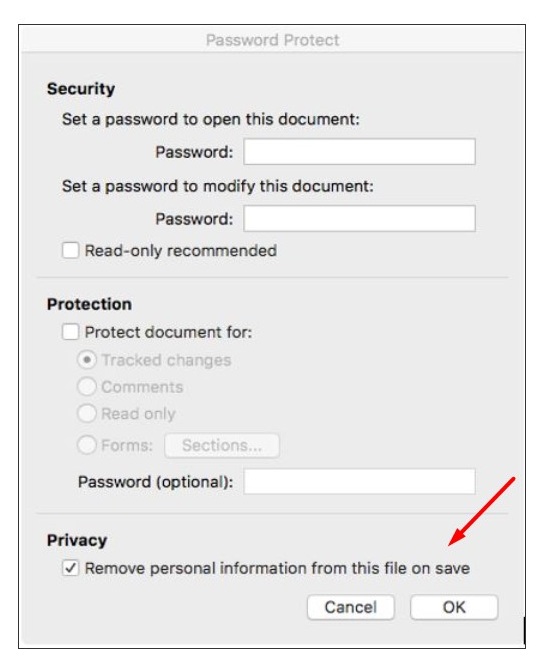
If you're using a Mac, you can remove metadata from a Word document by clicking on Tools, selecting Protect Document, and then checking Remove personal information from this file on save. Click OK and save the document.
The NCC School of Law Library's Removing Metadata From Word Using a PC page shows Mac users how they can remove metadata from a Microsoft Word document by using the Protect Document tool.
Another option for removing metadata is saving the document in plain text (.txt) format instead of as a Word document.
However, this isn't the best choice if you need to send the document in its original format, as you will lose formatting when you save a document as plain text (such as headings, images, and tables).
You can also choose Print to PDF in a document editor instead of saving the document directly to create a new PDF with all the content embedded in one layer, which minimizes metadata.
How to Remove Metadata from Images
What about metadata from an image? If the EXIF data from a photo can be used to identify an individual, then it can be considered personal data and needs to be protected. While some metadata may be necessary to preserve the quality of the image, other metadata, such as camera GPS and other sensor data, should be removed.
If you're using Windows 11, you have a few different options for removing EXIF metadata.
- Use the File Explorer. Open the File Explorer, right-click the image, and select Properties. Go to Details and click Remove Properties and Personal Information. From there, you can either Create a Copy with All Possible Properties Removed or select Remove the Following Properties from This File to choose which properties you want to remove. Go back to the Details tab to double-check that all the metadata has been removed.
- Use the Windows Photos App. Open the image, select Edit, and make a minor change to the photo–such as adjusting the brightness–to reset certain metadata (such as geotags). Click Save As Copy to keep from overwriting the original image.
- Use PowerShell. If you have a batch of photos that need to be scrubbed, you can use Windows PowerShell along with ExifTool to get rid of metadata by following these instructions.
Mac users can remove location metadata from photos by selecting an image from the Photos app, choosing Image > Location, then selecting either Hide Location or Revert to Original Location. To remove other metadata from photos, you can use tools like ExifTool or ImageOptim.
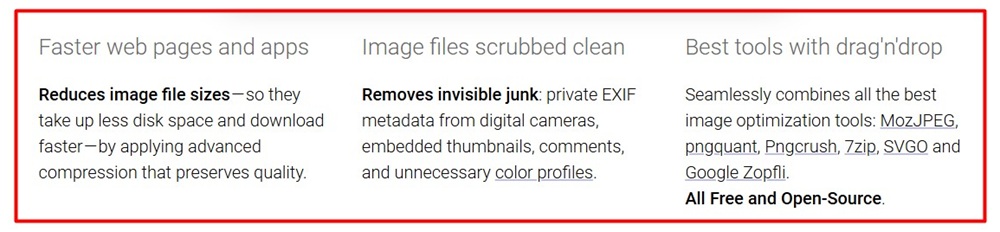
The ImageOptim for Mac app enables users to reduce image file sizes and remove EXIF metadata.
Another technique for reducing metadata is simply taking a screenshot of an image. However, while screenshotting can strip away some EXIF metadata, it does not entirely remove metadata, and should be done in combination with other metadata removal methods.
How to Remove Metadata from Emails
There are a few steps you can take to remove metadata from emails before forwarding them:
- Forward as plain text. Copying only the necessary content of an email and pasting it into a new email before sending can help ensure that only pertinent information is sent to recipients.
- Choose BCC. A common mistake is forwarding an email to multiple recipients and choosing CC ("Carbon Copy") instead of BCC ("Blind Carbon Copy"), which exposes all of the recipients' email addresses. Be sure to remove unnecessary recipients and put all recipients' email addresses in the BCC field.
- Use secure email services. Services such as Proton Mail and Tutanota can encrypt emails and minimize metadata.
- Use metadata removal tools. You can use tools such as Adarsus's MetaClean for Outlook and MetaClean for Gmail to remove metadata from attachments.
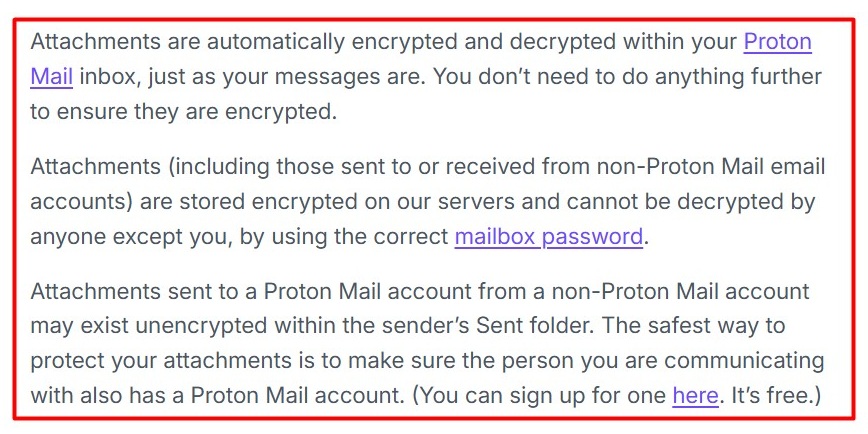
Proton Mail's Encrypting Attachments page explains that it automatically encrypts email attachments.
How to Remove Metadata from PDFs
To remove metadata from PDFs, you can use a program like Adobe Acrobat Pro or metadata scrubbing tools.
For example, you can use Adobe Acrobat's Redact Tool to both redact text and remove confidential information and hidden data from your PDF documents by selecting the text or image you want to redact information from, choosing if you want to sanitize or remove hidden data (including metadata), and saving the PDF as a sanitized document.
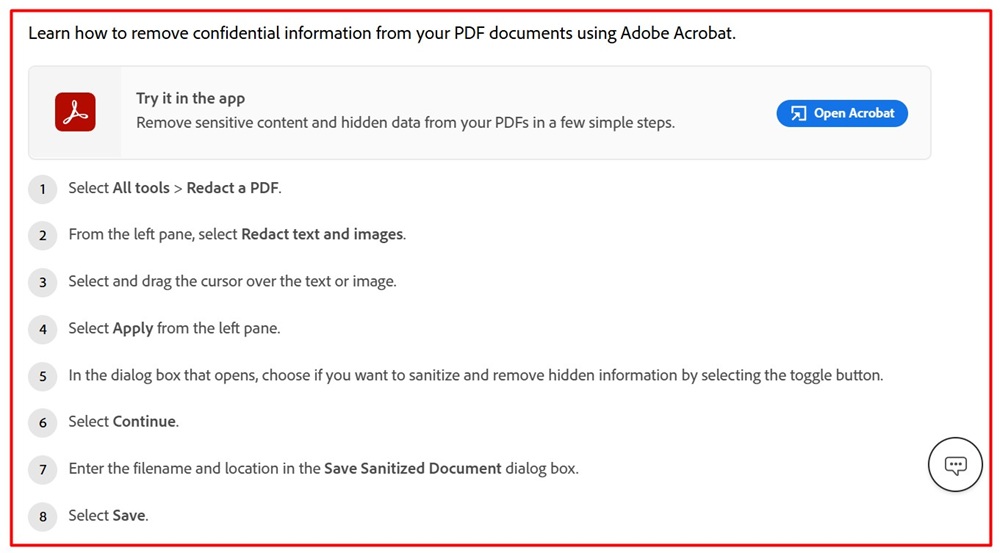
If you just need to edit or remove basic metadata from a document you own, you can follow these four steps:
- Open the PDF document in Adobe Acrobat, click either Menu (Windows) or File (Mac).
- Click Document Properties.
- Edit or delete metadata properties (be sure to check the Additional Metadata menu to make changes to additional metadata fields).
- Click OK and save the PDF.
Keep in mind that PDF permissions may prevent these instructions from working on a shared PDF.
You might also consider flattening PDFs (in combination with other metadata removal tools) as a way to help ensure a file is safe to share.
Flattening a PDF can make it so that other users can't edit or modify the document, and it is recommended before printing so that the printed copy is an exact replica of the digital version.
Once a PDF is flattened, interactive elements such as annotations, form fields, and multimedia will be removed or integrated into the PDF's base layer.
You can flatten a PDF using Adobe Acrobat by following these steps:
- Open Adobe Acrobat Pro.
- Click File.
- Select Open and choose the PDF to be flattened.
- Go to Tools and click Print Production.
- Click Flattener Preview.
- Choose any customizations you want to make (such as only flattening certain pages) and click Apply, then Yes to confirm your choices.
- Save the document by clicking File, then Save As.
You can also flatten a PDF online for free by using Adobe Acrobat's online compress tool, or using a program that can open and print PDFs (such as Google Chrome or Adobe Acrobat Reader).
Follow these steps to flatten a PDF by using the Print to PDF method:
- Select Print from the window's menu.
- Click Adobe PDF, Microsoft Print to PDF, or Save as PDF in the Printer dropdown menu.
- Click Print or Save to generate a new PDF.
You can flatten a PDF in Google Chrome by opening a saved PDF and selecting Print.

How to Remove Metadata from Media Files
The best way to thoroughly remove metadata from audio and video files is to use a metadata scrubbing tool.
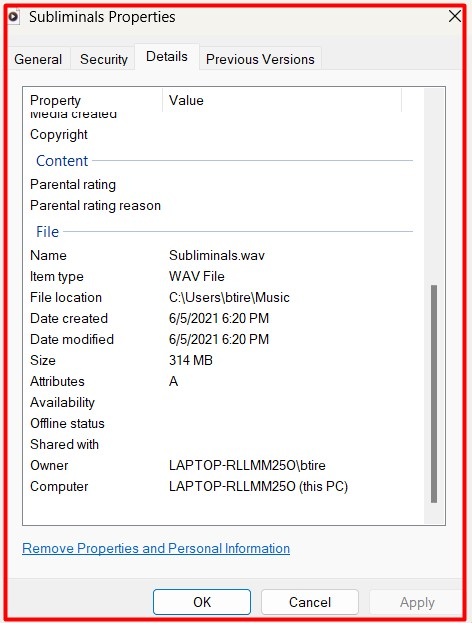
Windows users can also use the Windows File Explorer to remove metadata by right-clicking Properties, selecting Details, and choosing Remove Properties and Personal Information.
You can click Remove Properties and Personal Information from the Details tab in the Windows File Explorer to remove metadata from an audio file.
Step 3. Save Redacted Files in Safe Formats
Make sure to save a separate, sanitized version of the file, securely store the original version in your records, and clearly label the files so you don't confuse the scrubbed version with the original file.
Be aware of the consequences of how you save documents. For instance, you can always save a Microsoft Word document as plain text, but that may make it challenging for anyone else who needs to work on the document, as it removes a lot of the formatting.
The University of Illinois Urbana-Champaign's Data Cleaning for the Non-Data Scientist page provides an example of the differences between formatted text and plain text.

Before you send the sanitized version of the file, be sure to double-check for hidden layers, comments, tracked changes, or auto-saved version history (such as in cloud storage) to make sure no sensitive metadata remains.
Step 4. Maintain Metadata Removal Logs
You should keep a record of the metadata you have removed for audit purposes, to show that you have done your due diligence in case of a data breach, and for quality control purposes.
Your metadata removal log should contain the following information:
- The name, location, type, and format of the file
- The date and time the metadata was removed from the file
- What methods or tools you used to remove the metadata
- What metadata fields were removed
- Who removed the metadata
Keep in mind that metadata removal logs themselves can contain metadata, so they should be reviewed before disclosure.
Maintaining logs also supports the GDPR's accountability principle. In the event of regulatory scrutiny, showing documented processes (who removed what, when, and why) can significantly reduce sanction risks. The UK ICO and French CNIL have both stressed that proactive documentation of technical measures is a strong mitigating factor when assessing penalties.
Summary
Metadata is data about data, and can include information such as author and company names, timestamps, and revision history.
Even if you have redacted visible text from a file, it's important to also remove metadata before disclosure, as it can expose personal information.
While it's not explicitly required by privacy laws, removing metadata before sharing confidential information or responding to DSARs can help you comply with privacy and data protection legislation by protecting personal information.
If you don't remove metadata before disclosing files, you run the risk of exposing personal data, which can result in data breaches, lawsuits, and fines.
The steps you take to remove metadata depend on the file type. You can use metadata scrubbing tools, manually remove specific metadata, or use a combination of both methods to ensure the files are clean before sharing.
In short, metadata is no longer a "technical detail" but a compliance issue at the heart of privacy law. Regulators are clear: if hidden data can identify a person, it must be protected as carefully as visible text. The safest course for organisations is to adopt a conservative approach - assume metadata is personal data, remove or minimise it wherever possible, and document the process to demonstrate accountability.

The first step to compliance: A Privacy Policy.
Stay compliant with our agreements, policies, and consent banners — everything you need, all in one place.

![COPPA Privacy Policy Template [Download]](https://www.termsfeed.com/public/uploads/2024/04/coppa-privacy-policy-template.jpg)