
Equipment
Here is everything I use in my videos and can be found on Amazon:
✨ Printer: Epson Ecotank 8550
✨ Holographic Sticker Paper For printing with an inkjet printer
✨ Matte Sticker Paper For Printing with an inkjet printer
✨ Glossy Sticker Paper For Printing with an inkjet printer
✨ Sparkle Paper For overlaying on top of an existing print, adding sparkle effect
✨ 65lb Cardstock This results in slightly thicker than a real card, but with good “snap”
✨ 32lb Cardstock This results in same thickness as a real card, but less “snap”
✨ Cricut
✨ Corner Cutter
✨ Self Sharpening Paper Cutter
Difference between Ecotank Models
A common question I get is “Can my Epson Ecotank ____ do the same?”
If you have an Epson Ecotank, the print quality difference between the models is quite subtle. When I first started, I used the ET3850 model which is easily half the price of the 8550 model.
The main difference between the 8500 and 8550 models is the size capabilities. The 8550 can go up to 13” x 19” while the 8500 caps out at 8.5” x 11”. Both the 8500 and 8550 come with 6 color tanks (Cyan, Magenta, Yellow, two Blacks, and gray.)
The 8500 and 8550 series is made specifically for creatives offering slightly better Photographic dye inks and the extra gray ink cartridge for extra color depth and capabilities.
The series below it are the standard Ecotank printers. While they lack the extra gray cartridge and use slightly lower ink qualities, are still pretty dang good. While printing with my ET3850, larger art prints are slightly less in quality than the 8550 and can be quite noticeable in the color depth. However, when printing proxies, the difference is very subtle due to the size of the prints.
Cost Breakdown
Everyone always asks how much these cost and gasp at the price of the printer I use. Let me break it down clearly and transparently.
Epson Ecotank 8550:
I was able to find this for $389 at Best Buy during their Black Friday sale in 2024. I’ve been using it for two years and just now in May 2026 refilled the ink for the first time. I have been using this printer to print art prints (11x17 posters, 5x7 prints, 13x19 prints, and more), stickers for my Patreon sticker club, labels for shipping, proxies, and any office documents I may need.
Because of using it to print multiple different things, it’s hard to come up with the cost just for proxies. At least half of all my prints are stickers for my Patreon club. I know I’ve printed at least 1800 proxies based on proxy decks my partner and I own. A full round of ink is $109.95, $120.95 with shipping and tax directly from Epson. Say $60.475 for half divided by 1800 proxies = $0.03 a card
Paper:
Holographic Sticker Paper - $45.99 for 150 sheets. $0.30 a sheet. 9 cards up per sheet times two since there is a front and a back = $0.06 a card
Cardstock for mounting the sticker paper to - $12.81 for 100 sheets, $0.13 a sheet. 9 cards up per sheet = $0.01 a card
Total: $0.10 a card
Other costs: Paper cutter, corner rounder
To be fair, just buying this equipment for personal at-home proxies might be a little steep of a cost for some. That is understandable. Nobody is forcing you to buy the same equipment I have listed. There are more cost effective options, like buying a cheaper Epson model or other lower cost inkjet printer.
But for those who are also looking to sell art prints, stickers, or TCG proxies, the investment may be worth the initial upfront costs. My printer paid for itself in under 3 months from selling stickers and art prints.
View My Full Gallery of Proxy Art Here
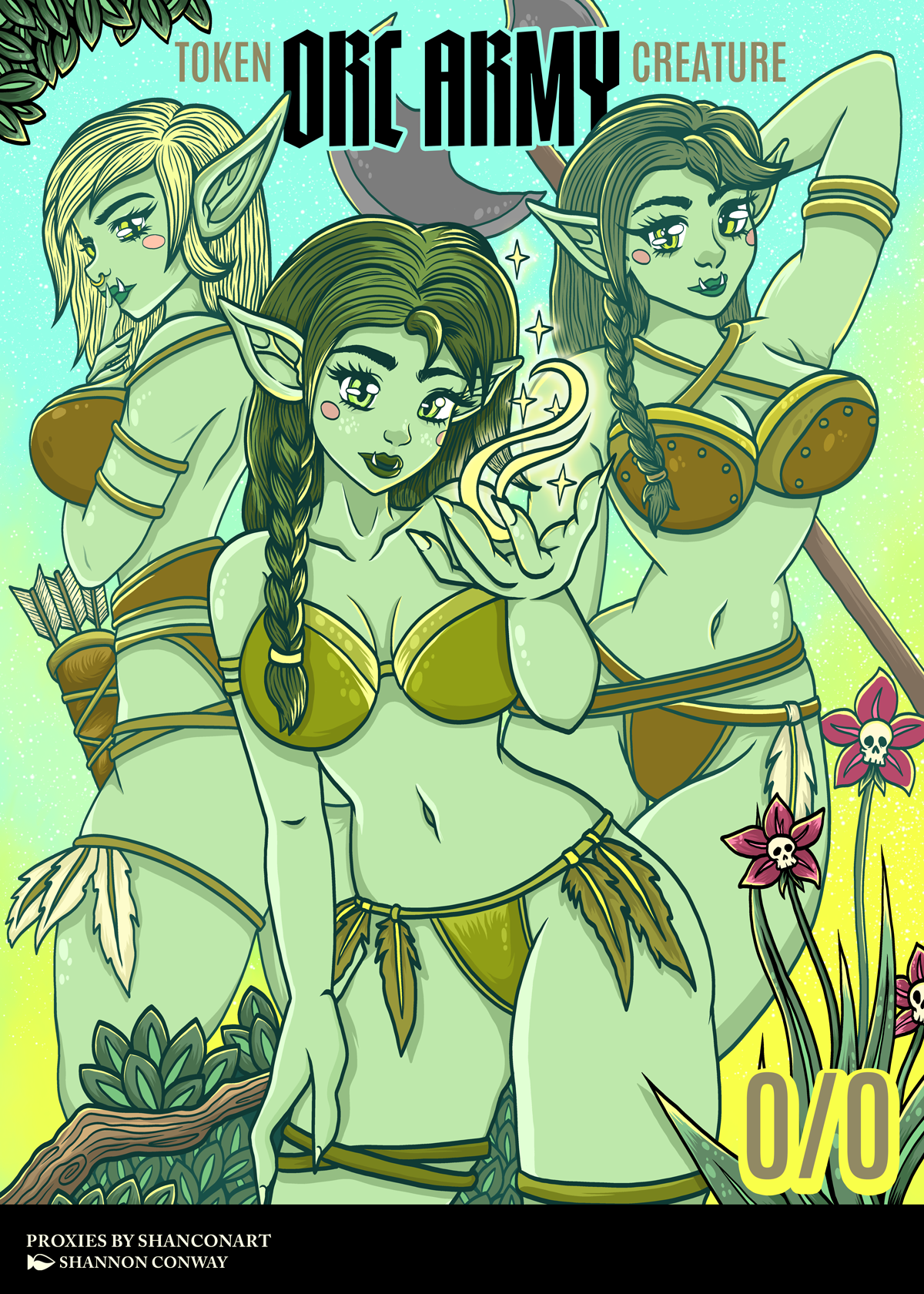
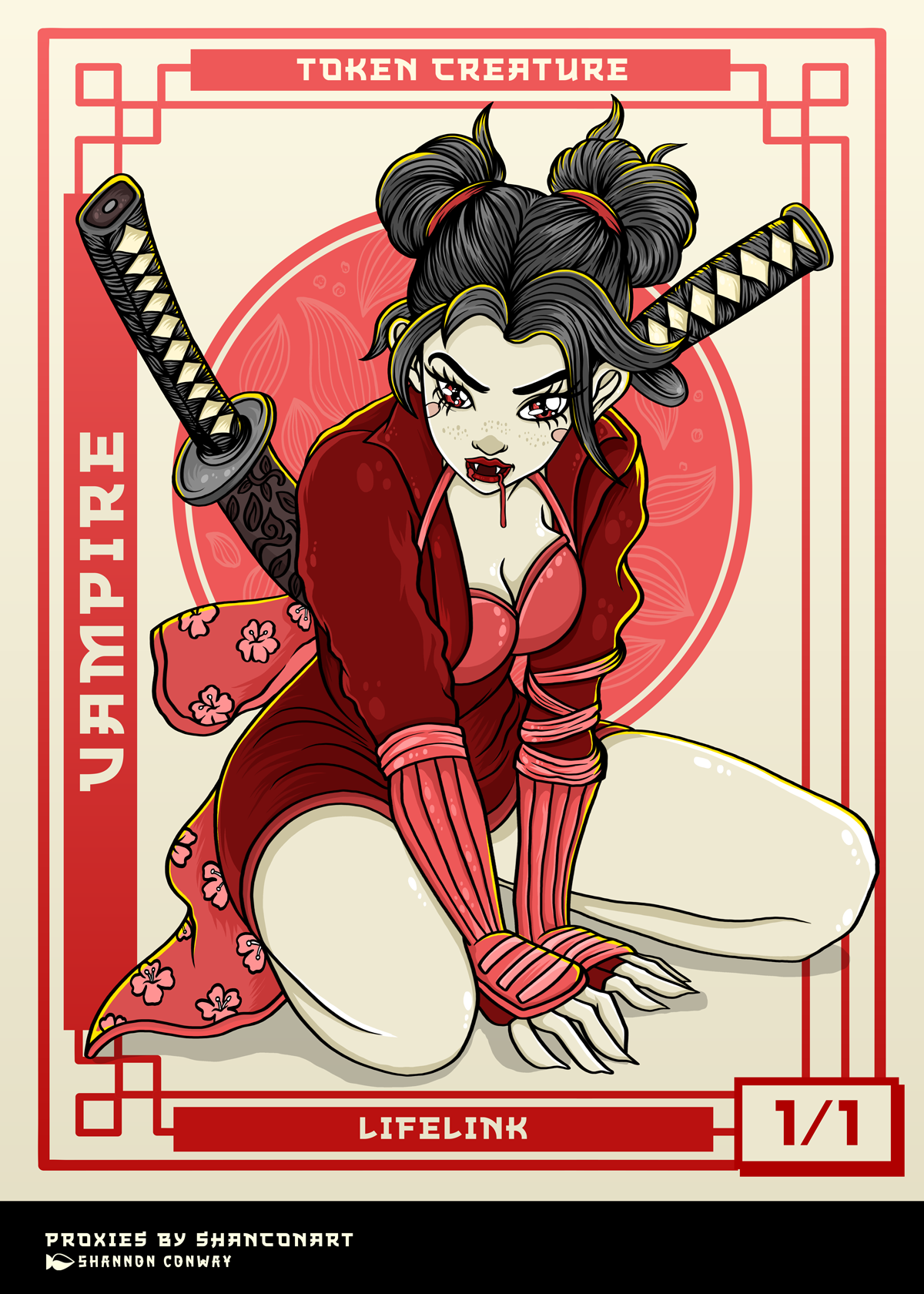
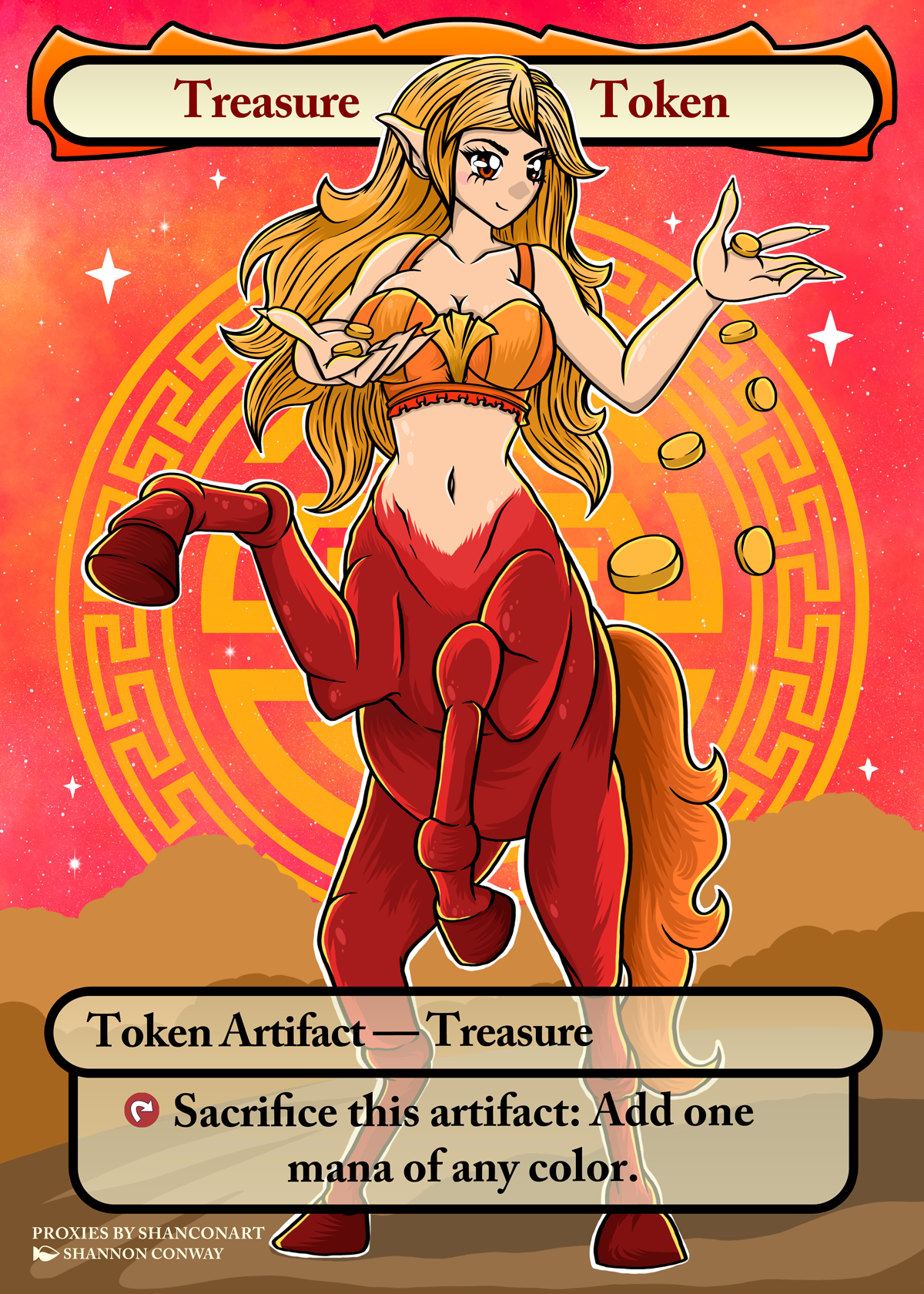
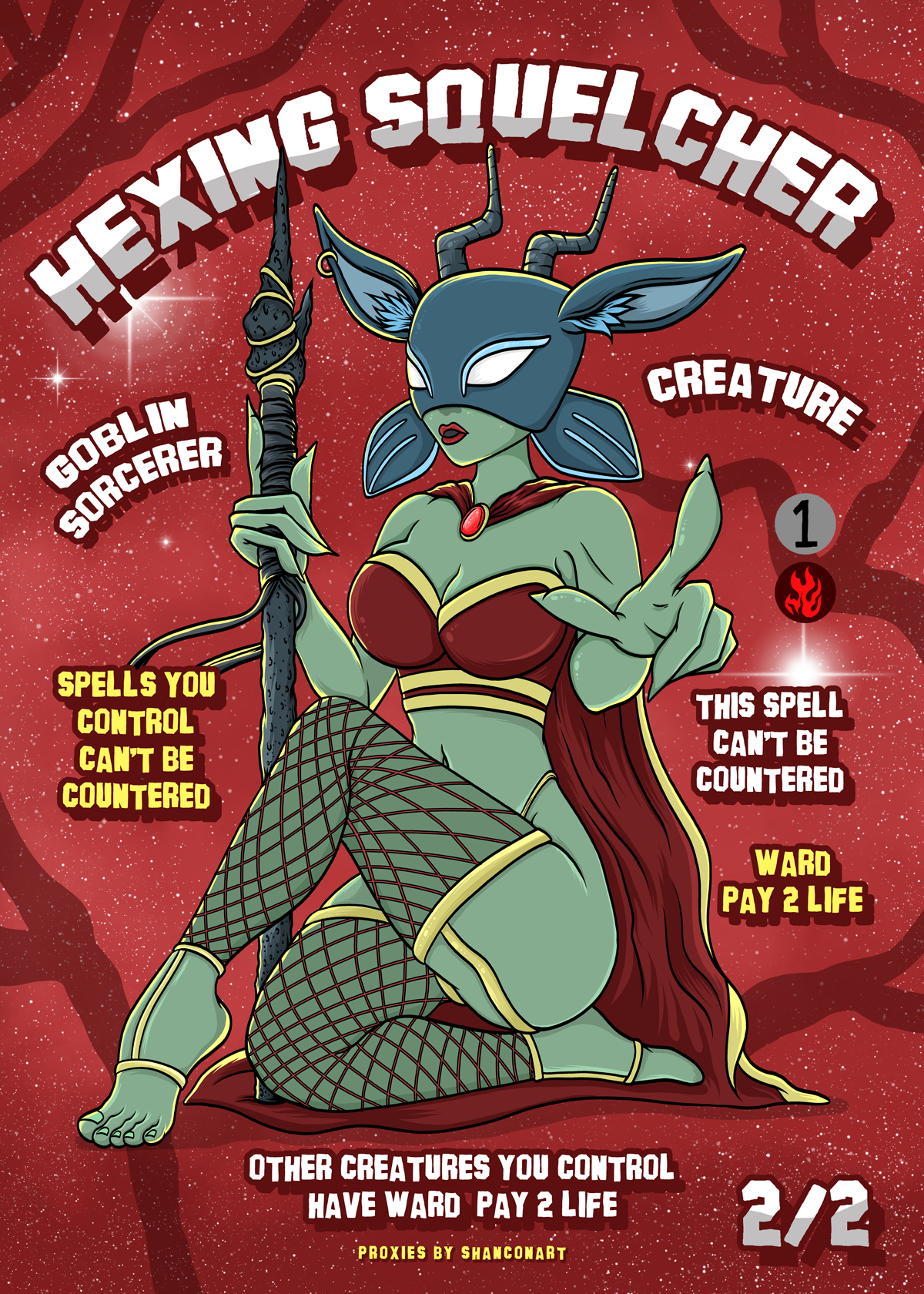
If you are printing for your own personal use for your own decks, feel free to use my artwork. However, nobody meaning no one, has permission to sell my artwork or sell proxies using my artwork. It is a very shitty thing to do. I spend thousands of hours hand-drawing these. Draw your own art if you would like to sell art.
Personal use only please.
Support My Artwork
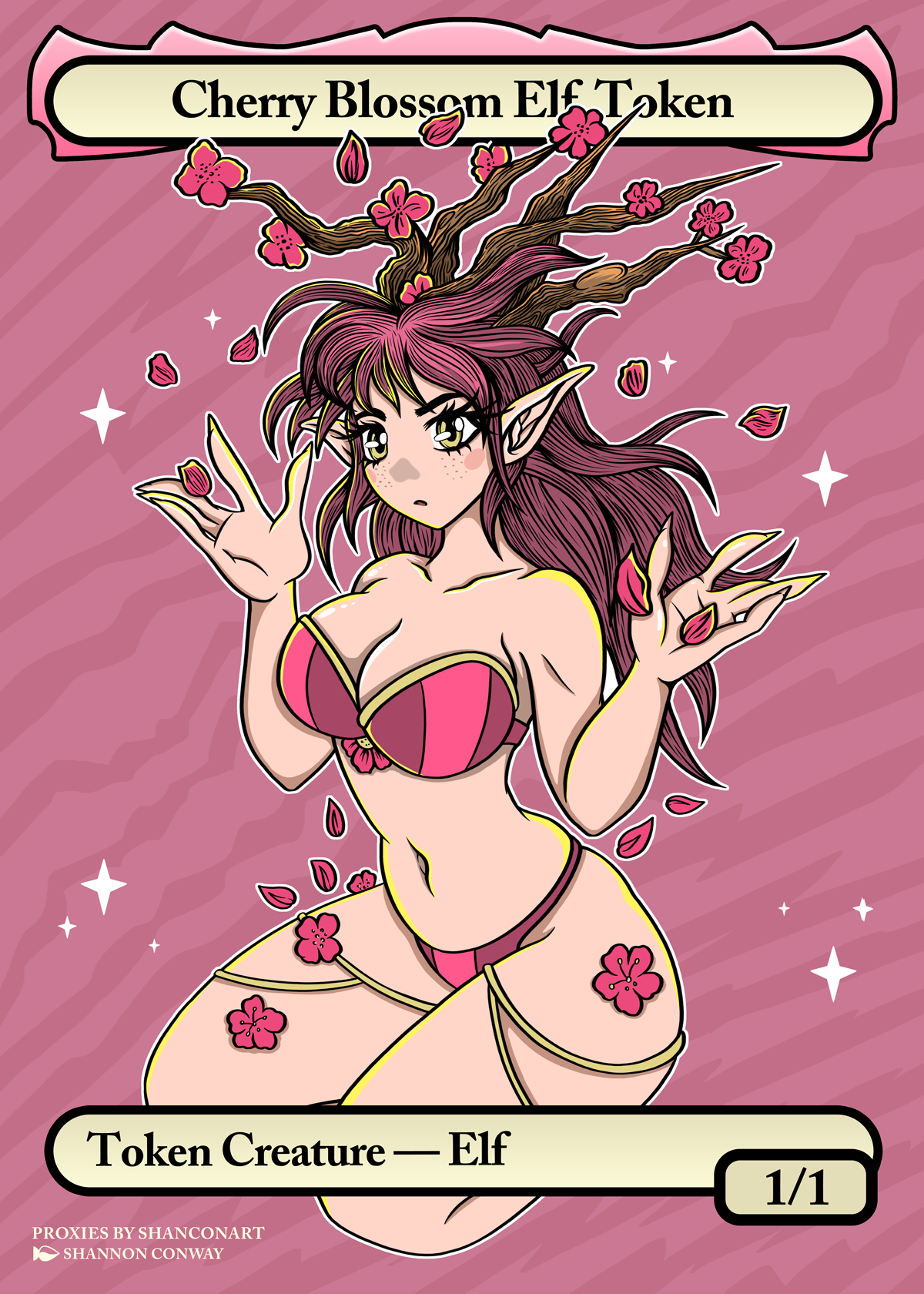
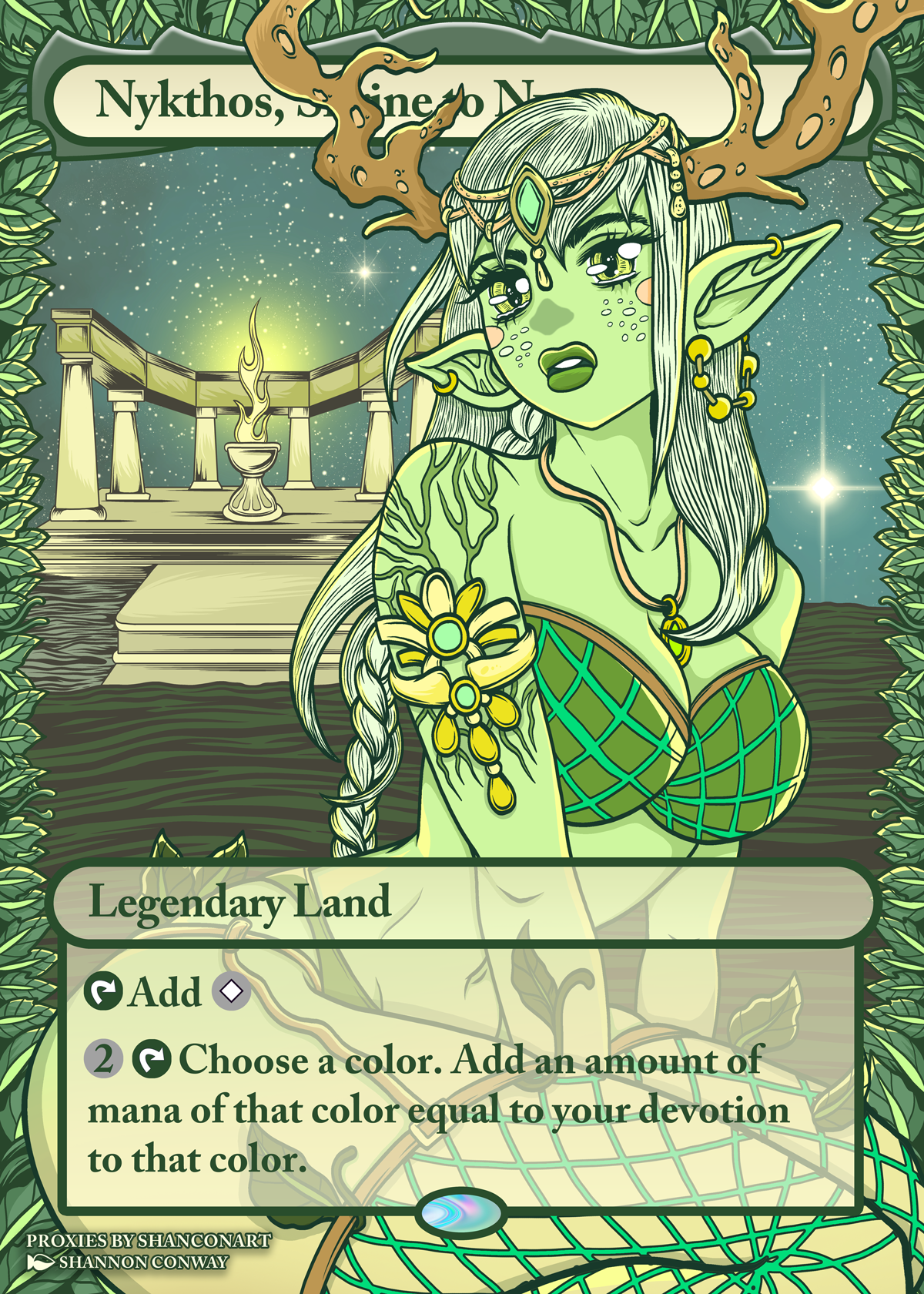
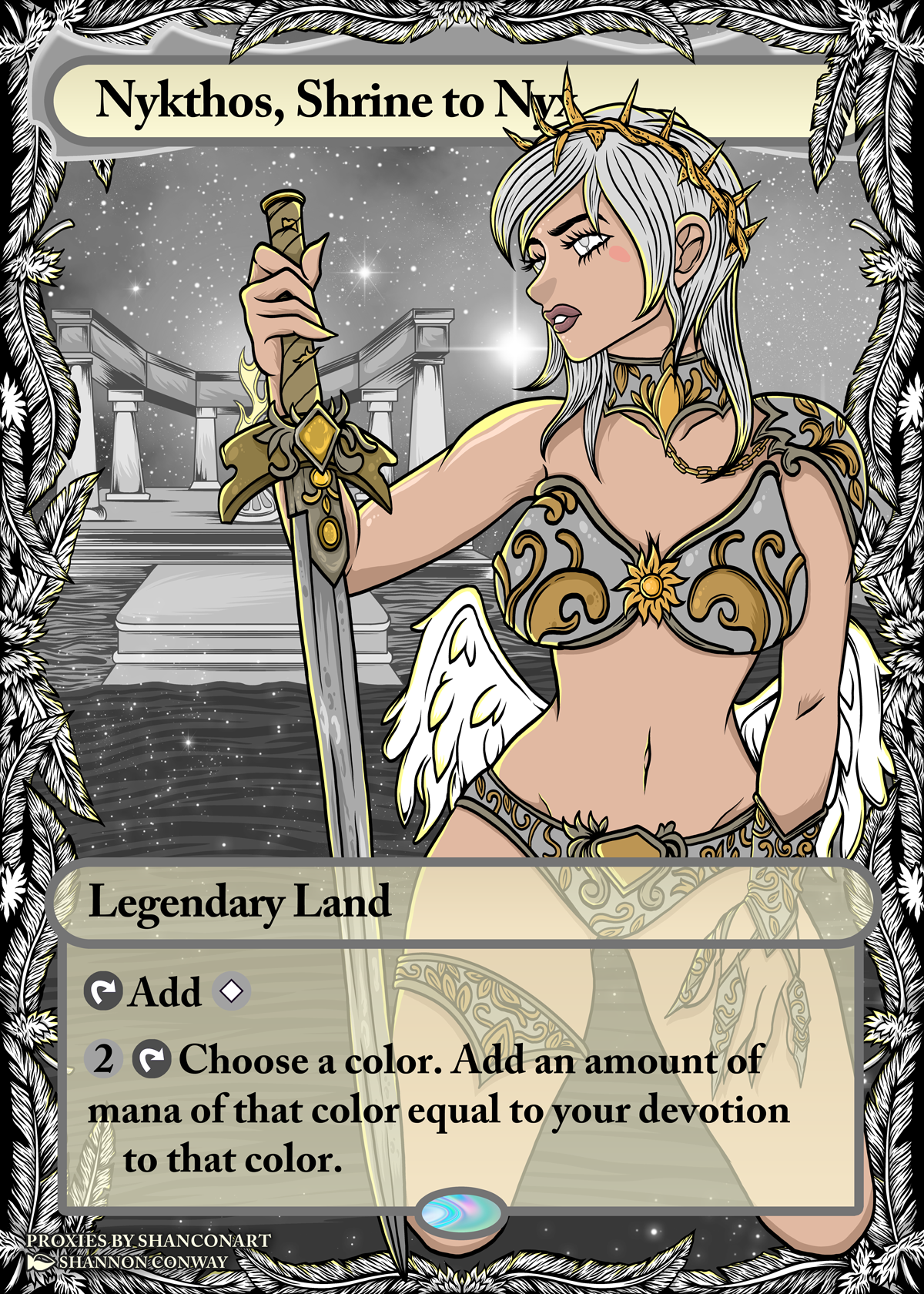
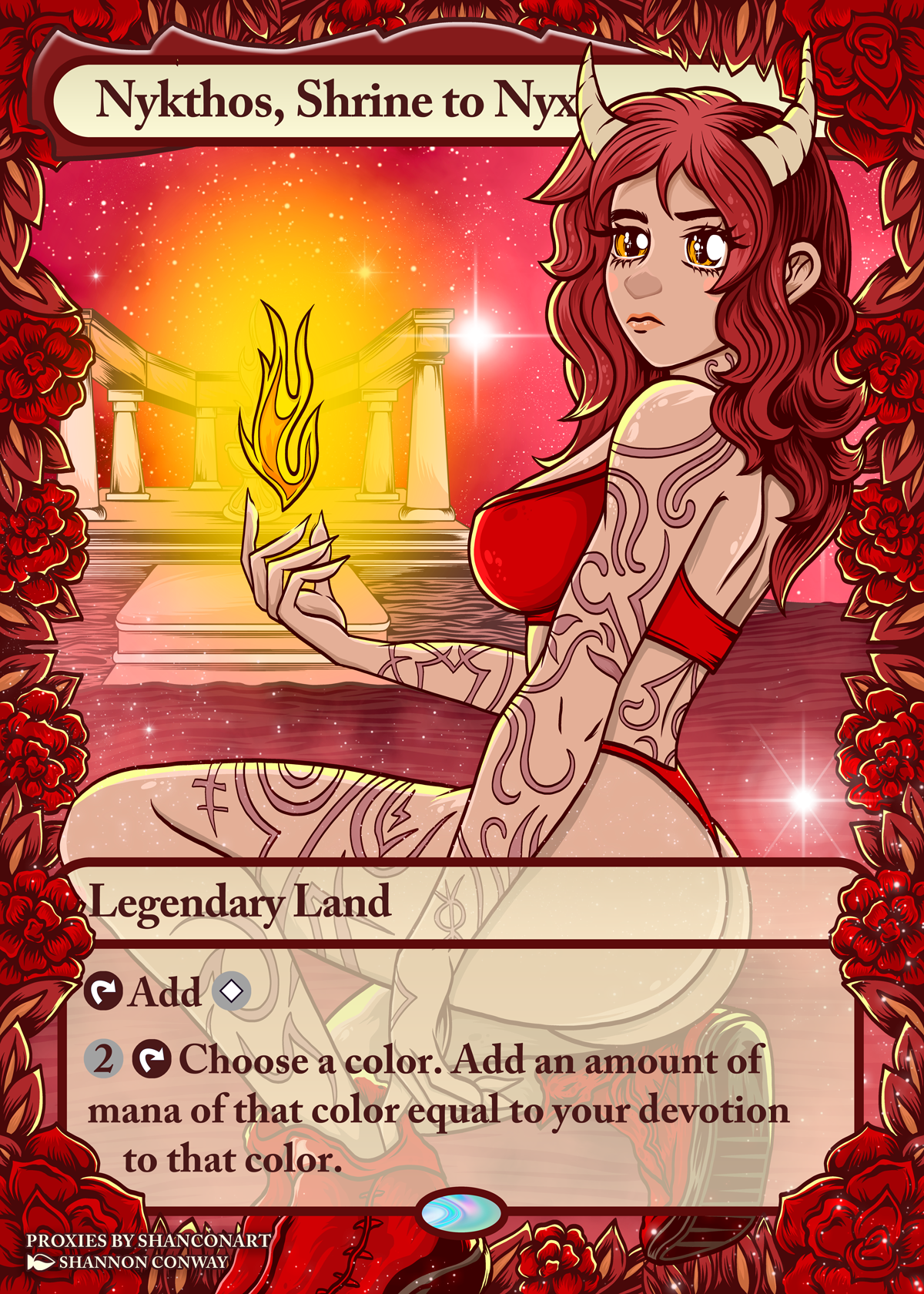
If you would like to support my artwork, please consider joining my Patreon Monthly Token & Sticker Club.
Patrons who sign up for the Group Hug tier get a 5x7 Art print, the Sticker of the Month, 5 copies of the card of the month, 20% off my Etsy shop, as well as all of the other Patreon benefits including wallpapers, behind the scenes photos, fonts, brushes, coloring pages, Discord access, and more.





FAQs
-
This is a frequent issue for many. Even with industrial presses, the front and back line up can have a tolerance of 1/16th of an inch.
This is why I choose to line it up manually for something as small as a trading card.
Check out my how-to videos on YouTube about how to line up your fronts and back using sticker paper and a pin.
-
I had this issue, too. I solved it by switching to the “premium matte” setting on my printer. This setting came standard with my printer and by switching to it, it laid down less ink and my prints were no longer tacky or sticky.
Some people have bounced back on this saying it is untrue, but it worked for me. If it doesn’t work for you, I would recommend working your way through your printers settings until you find one that works for you and your paper choice.
-
Check your print settings.
Make sure you aren’t accidentally changing the scale of the sheet. It should be at 100%.
Check your paper size, make sure you have 8.5 × 11 checked.
Check your border and margin sizes. Make sure you aren’t accidentally adding a margin that is shrinking your print size down.
Some printers offer borderless printing. When checking borderless, it will sometimes increase your print scale to above 100% to make sure there is enough print to cover the edge. Make sure you aren’t printing borderless.
If it still isn’t working, make sure your printer’s drivers are up to date. Are you printing from Adobe Acrobat? From a build in print program supplied by your printer? From Photoshop? From the browser? Try printing from another source to see if the size is accurate from there.
-
See above question about not getting prints to line up.
I got sick of the frustration of the prints not lining up exactly so I found my solution by lining it up myself after.
It seems like extra work and maybe it adds another minute but it saves me the frustration of wasted material.
The entire process from start to finish takes less than 5 minutes for 9 cards.
-
Let’s talk about color profiles…
Is your program managing the color of the print or is your printer managing the color? Do you accidentally have both turned on?
Double color management can cause very strange results like muddy prints, dark prints, or faded saturation.
Let’s talk about the difference between the program managing the color and the printer managing the color.
Photoshop Manages Color (Usually Best)
In this mode, Adobe Photoshop uses the ICC color profile for your printer/paper combo and handles the color conversion itself before sending the data to the printer.
What happens:
Photoshop reads your image color space (sRGB, Adobe RGB, ProPhoto, etc.)
Photoshop converts it using the correct ICC profile
The printer receives already-corrected color data
Printer color adjustments are turned OFF
Why professionals use this:
More accurate color
Better soft proofing
Predictable results
Better blacks/shadows
Better skin tones
Better art prints
Required:
Correct ICC profile for:
printer
paper
ink combo
Example:
Epson ET8550 + Premium Matte paper profile
IMPORTANT:
If Photoshop manages color:
Turn OFF printer color management in the printer driver
Otherwise you get double color management
Printer Manages Color
In this mode, the printer driver itself decides how to convert colors.
Photoshop just sends the image data and says: You handle it.
What happens:
Photoshop sends generic color info
Printer driver applies its own color interpretation
Printer uses internal tables/profiles
Pros:
Easier
Good for casual printing
Okay for office printing
Fine for quick proofs
Cons:
Less accurate
Can vary print-to-print
Less control
Often oversaturates artwork
Harder to match screen to print
Which Should YOU Use?
Since you:
are trying to print tiny proxies with a lot of detail and small text
care about artwork quality
likely are using the specialty sticker paper
You probably want:
→ Photoshop Manages Color
(or whatever art program you are using to print, including Adobe Acrobat)
Easy Rule
Use “Photoshop Manages Color” when:
You have ICC profiles
You want accuracy
You care about matching screen to print
Use “Printer Manages Color” when:
You’re casually printing
No ICC profile exists
You just need something fast
Common Mistake:
People often do this accidentally:
Photoshop manages color
ANDPrinter driver color correction still ON
That means:
color gets transformed TWICE
Result:
ugly colors
dark prints
neon saturation
muddy shadows
