

Logging into Your Server via Secure Shell (SSH)
If you’re comfortable using WHM and cPanel, you might be ready to use a command line interface (also called a terminal or the CLI) to access your server. The command line is a way to control your computer using only the keyboard and text-based commands. The command line was the only way people could control computers until the 1960s. Every computer still has a way to use command line commands.
You don’t need to use the command line to change basic settings on your server: WHM works well for most things you’ll want to change. Looking at terminal output can be intimidating, but a basic knowledge of command line can make some things easier.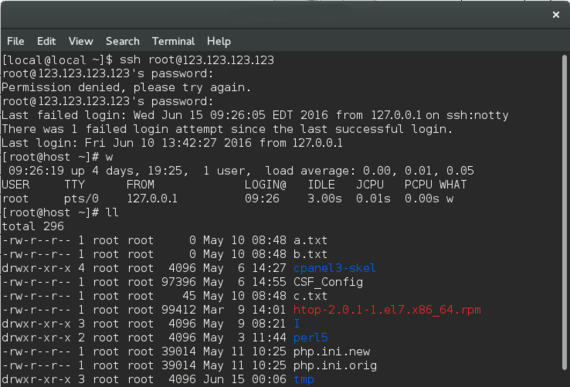
To use a terminal to make changes on your server, the first step is to log into your server using the Secure Shell protocol (SSH). If you aren’t familiar with SSH, it’s a good idea to read about basic SSH concepts first.
Sometimes you’ll hear “SSH” as a verb: “I’m going to SSH into my server.” This is the same as logging into your server via SSH. Logging into your server via SSH encrypts network traffic between your workstation and the server. This can help prevent malicious attacks but if your password or workstation is already compromised, you are still vulnerable to attack. See our article Best Practices: Securing Your Computer to see how to keep your workstation secure.
- You will see the name of your user on your terminal screen and a blinking cursor. It’s time to start using commands!

- Press Enter.
- A prompt will appear asking for your server’s root password. Type in the root password and press Enter. When typing passwords, you will not see anything change on your terminal screen. This is for security: your typing is still registering.

- Once you’ve verified your identity with your password, the screen will show any failed login attempts and the last time someone logged into your server. You’re logged into your server!

- To close your server connection, type logout and press Enter.


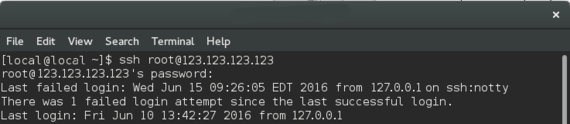
Congratulations! You’ve successfully logged into your server via SSH. But what does that mean? You can do almost anything through your terminal that you’d do via WHM. Some people prefer to use their terminal to move files around and upload files to their server.
One of the few things you cannot do via WHM is change the firewall port your SSH connection uses. Once you’re comfortable logging in and out of your server, explore Opening and Closing Firewall Ports and then change your SSH port to increase your server security.
