

Documentation Index
Fetch the complete documentation index at: https://help.decodo.com/llms.txt
Use this file to discover all available pages before exploring further.
Getting Started
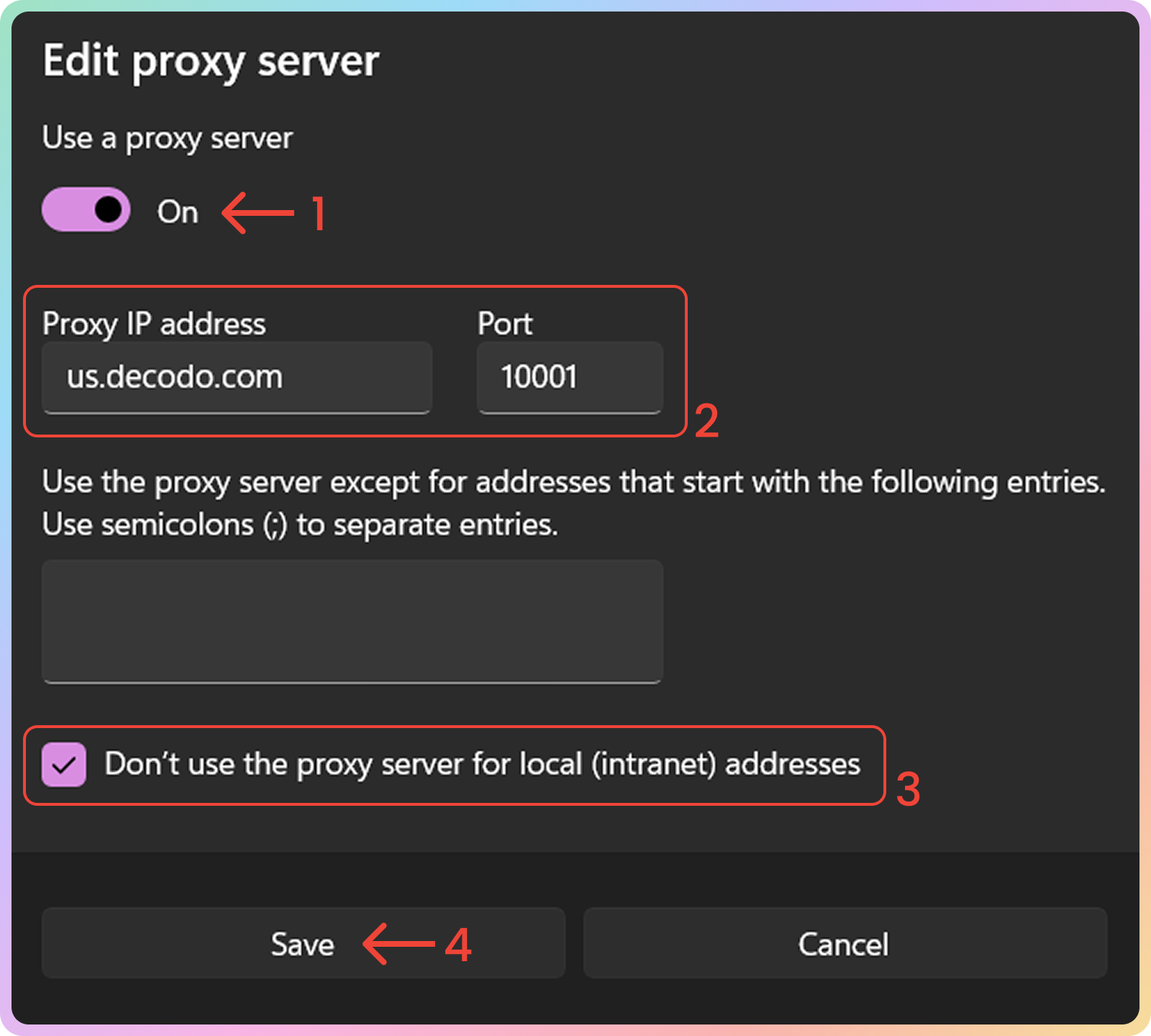
Before proceeding, ensure you have:- No other VPN or proxy active.
- The proxy endpoint and port (e.g.,
us.decodo.com:10101). - Your proxy username and password (or a whitelisted IP set).
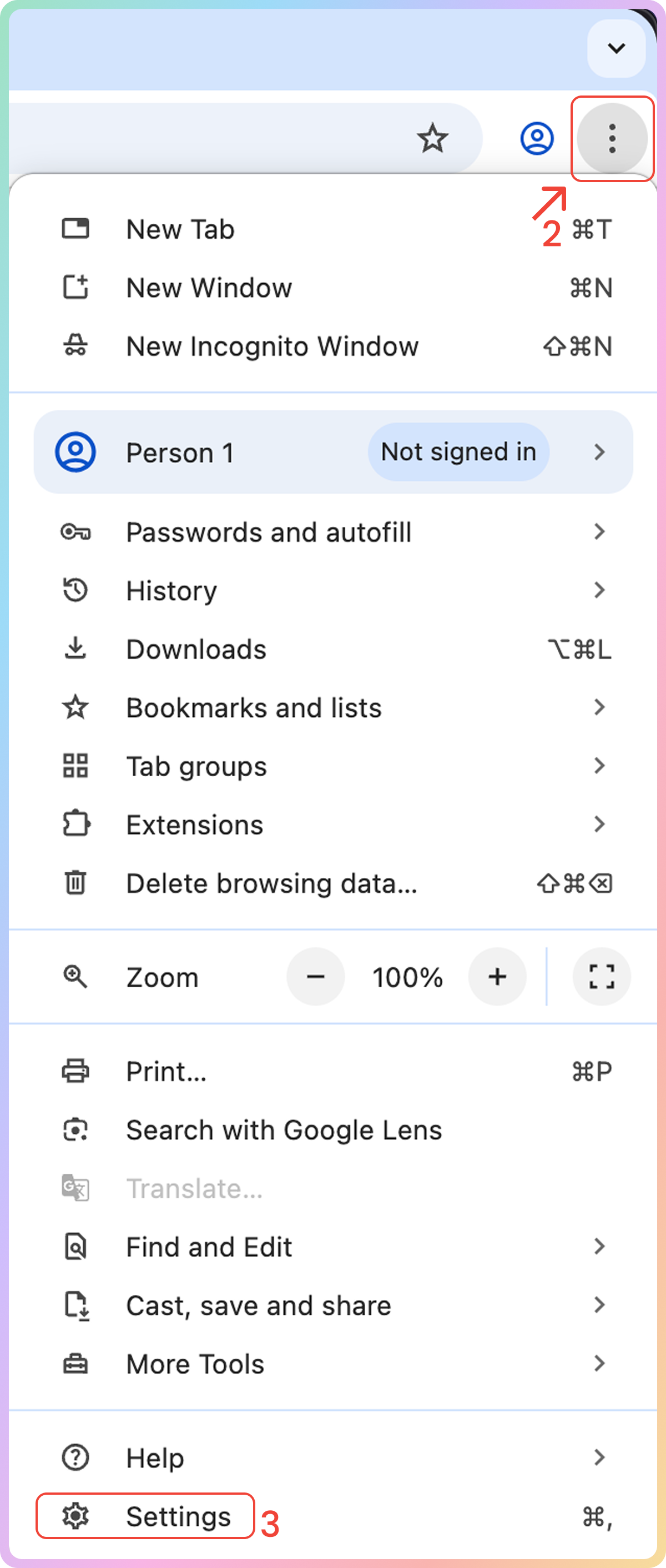
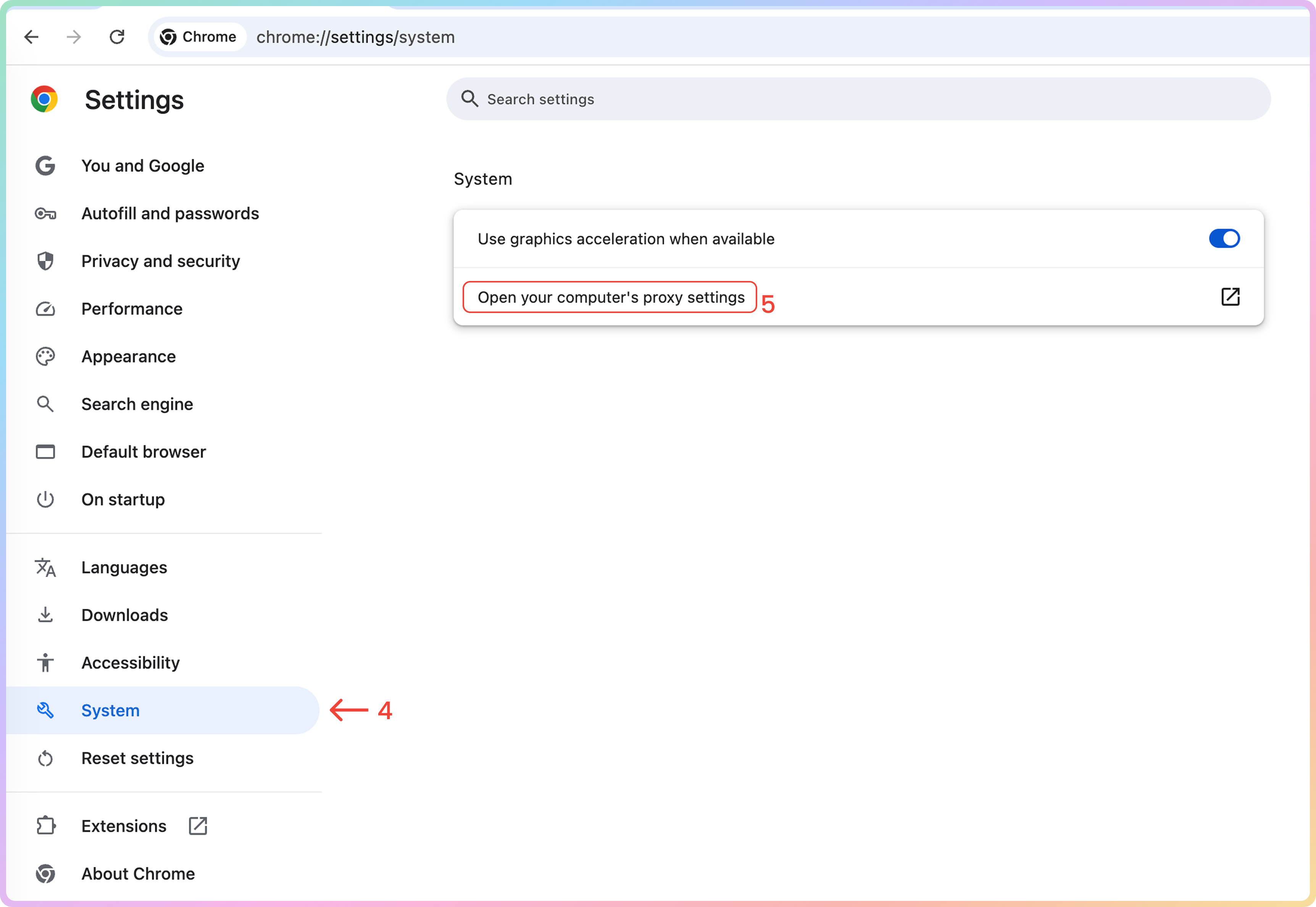
Chrome System Settings
Quickly navigate to System Settings using this link in the Chrome browser URL field:
Windows Setup
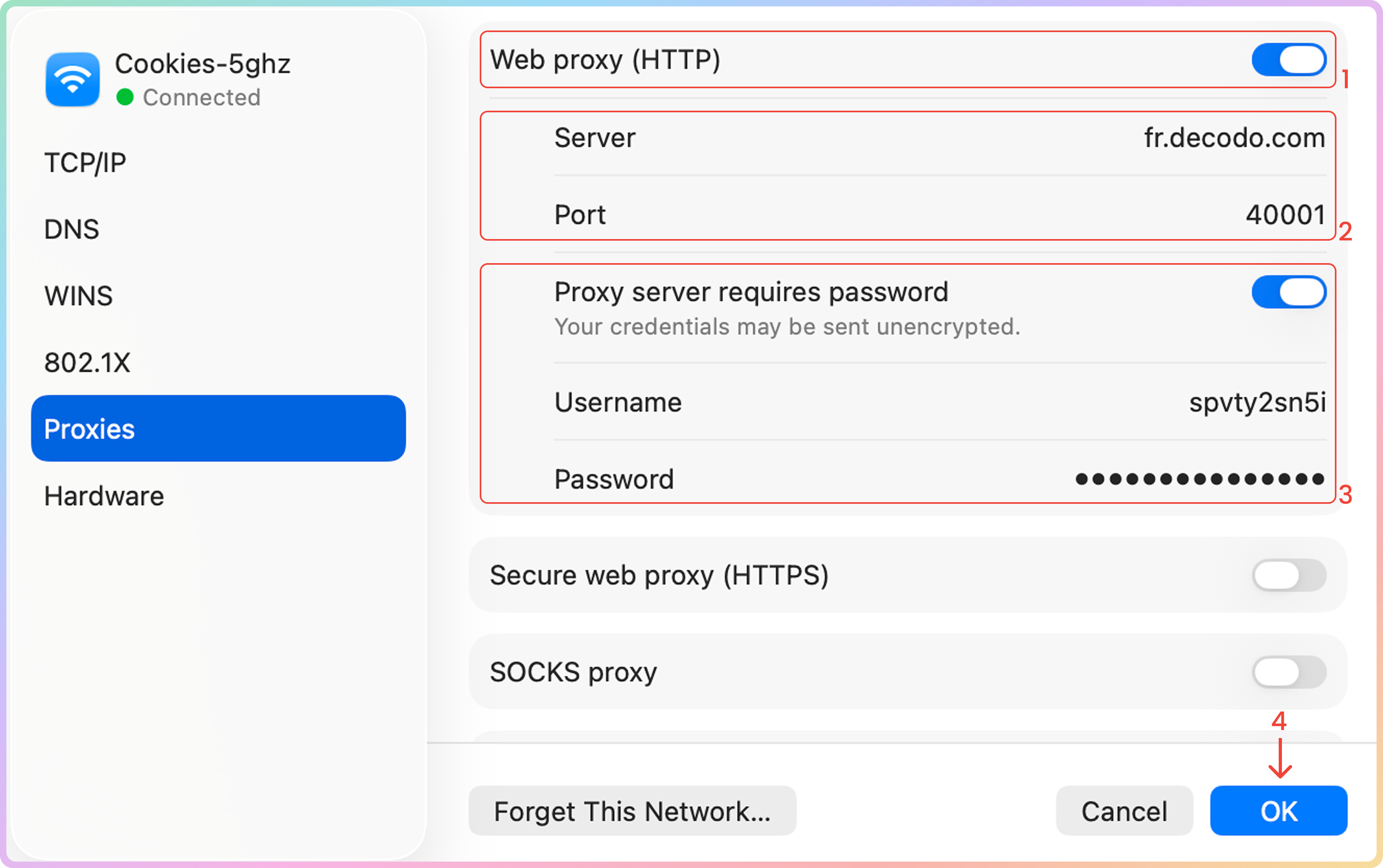
macOS Setup
Set up the authentication (optionally, you can instead use a Whitelisted IP):
- Toggle on Proxy server requires password.
- Username: Proxy username.
- Password: Proxy password.
Verify the Connection
Open the Chrome browser and visit ip.decodo.com.
You may be prompted to enter credentials if you are not using a whitelisted IP. Enter the previously specified proxy username and password.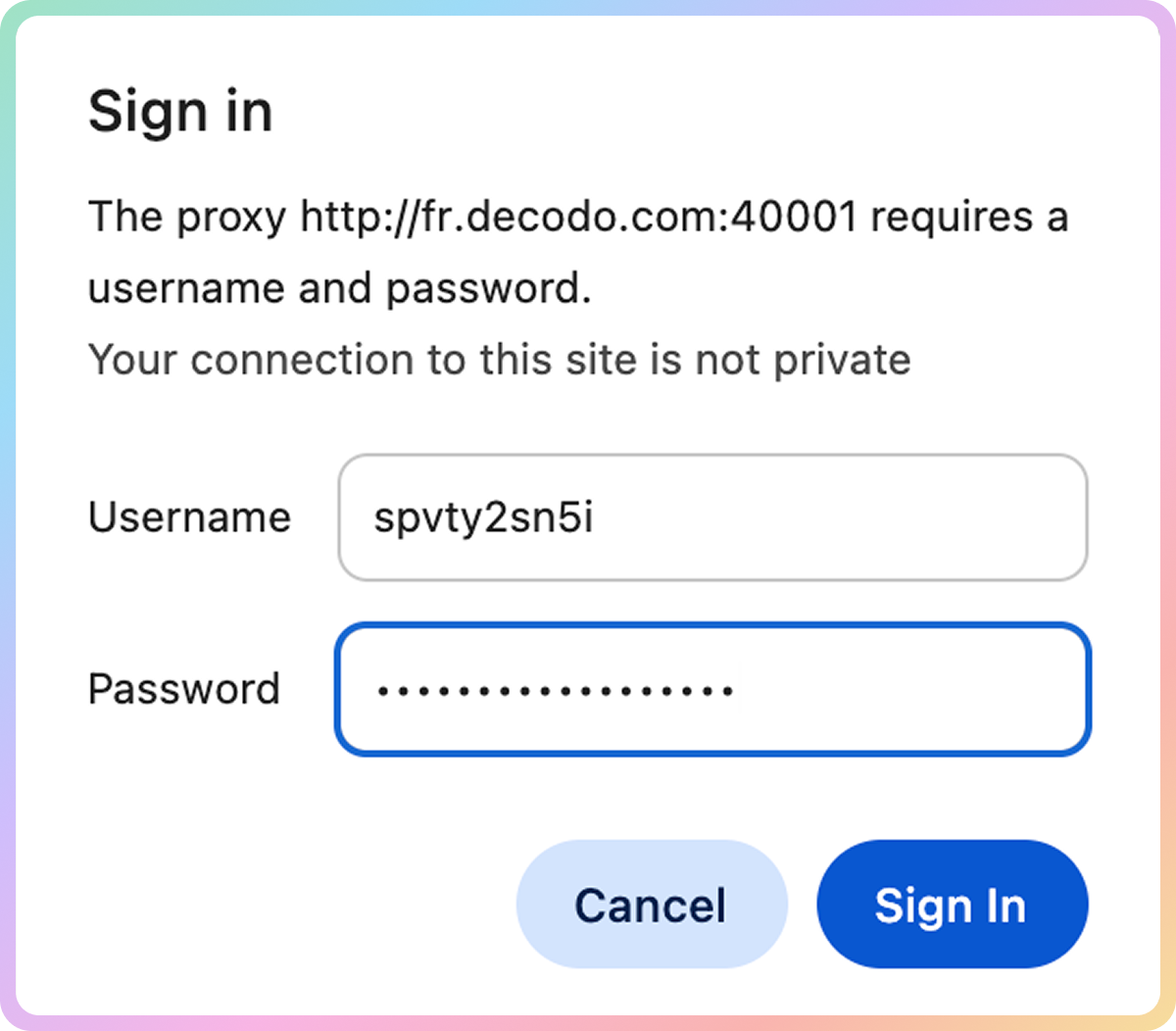
Common Issues
Blocklist
⚠️ Please be aware that we restrict access to some websites.Direct IP
Direct IP Parameter Support
Direct IP Parameter Support
If you buy an IP list, you can specify which IPs to connect to using the direct
ip parameter in the proxy username: user-username-ip-x.x.x.x- Supported products: DC Pay/IP, Dedicated DC, ISP Pay/IP, Dedicated ISP plans.
- Products that offer access to the full proxy pool, such as residential proxies, do not support this parameter.
IP:PORT Format
IP:PORT Format
- Decodo proxies don’t support an
IP:PORTformat by default. - You must use the endpoint rotator format (e.g.,
us.decodo.com:10101). - If necessary, try the workaround here, but it only works temporarily before requiring another setup update.
Troubleshooting
If you experience any other issues, check out our main troubleshooting section.Support
Need help or just want to say hello? Our support is available 24/7.
You can also reach us anytime via email at support@decodo.com.
You can also reach us anytime via email at support@decodo.com.
Feedback
Can’t find what you’re looking for? Request an article!
Have feedback? Share your thoughts on how we can improve.
Have feedback? Share your thoughts on how we can improve.
