
Webhook
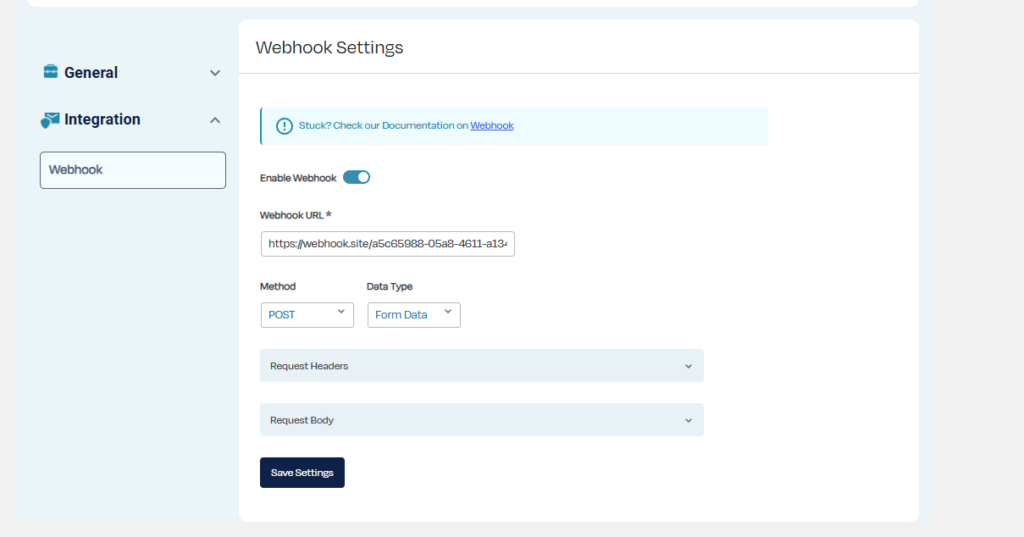
The Webhook Integration allows you to send your Contact Form 7 submission data to any external service or custom endpoint. Once enabled, the webhook will automatically send a request every time a form is submitted, making it easy to connect your forms with third-party applications.
Before enabling the app, make sure you have installed and activated CF7 Apps on your WordPress site. The Webhook feature works only when CF7 Apps is active.
Note: This integration supports global settings that apply to all forms, as well as form-specific settings when you want different webhooks for different forms and simply disabled if you don’t want it on any specific form.
Getting Started
To begin using the webhook feature:
- Go to CF7 Apps → Webhook in the WordPress admin menu.
- Enable the Webhook
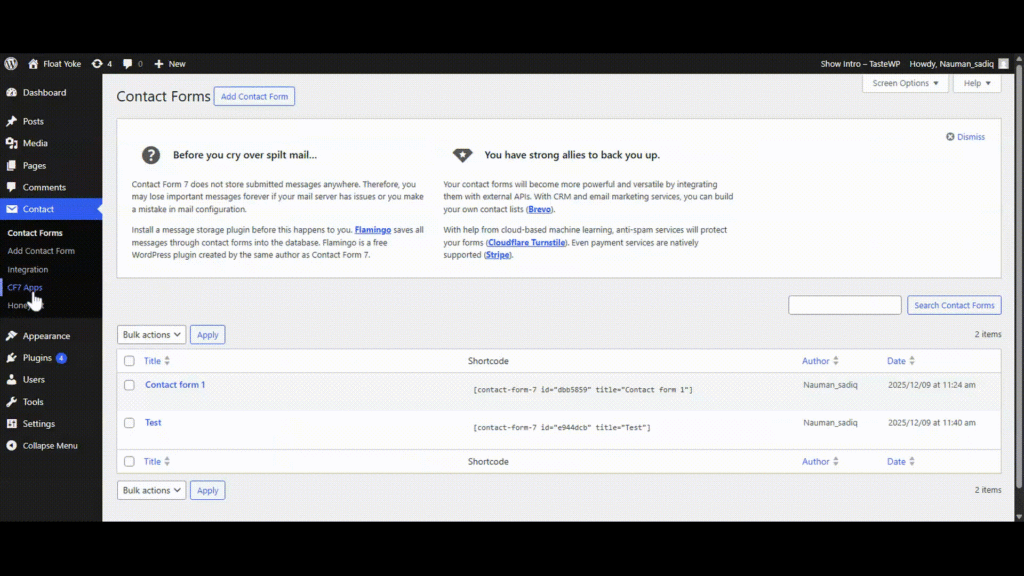
Global Webhook Settings
To begin using the Webhook feature, you must first enable the Webhook App.
Once enabled, an additional toggle will appear that allows you to activate Global Webhook Settings. When global settings are enabled, the webhook configuration will apply to all Contact Form 7 forms unless an individual form overrides them.
After enabling both toggles, the following options will appear in order:
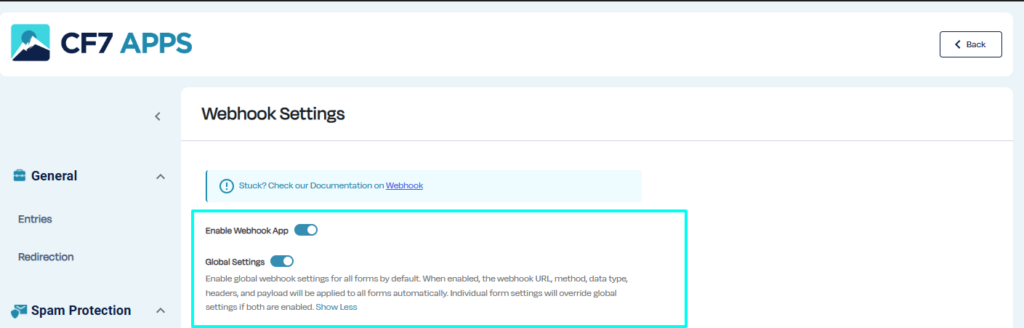
Webhook URL
Enter the endpoint where the submitted form data will be sent.
The URL must begin with http:// or https://.
This is typically the endpoint provided by a third-party service or automation workflow.
Request Method
Choose how the webhook request will be sent.
The available methods are:
- POST
- GET
Most APIs require POST when sending structured data.
Data Type
Select the format in which the submission data should be sent.
You can choose between:
- JSON
- Form Data
JSON sends the request body as a JSON object, while Form Data sends data as standard form-encoded parameters.
Request Body Mapping
Here you can map your Contact Form 7 fields to the fields that will be sent to your webhook.
For example:
- “name” → your-name
- “email” → your-email
- “message” → your-message
The mapped fields will be included in the webhook request using the selected data type.
Note: If you are using JSON, the mapped data will be sent as a JSON payload. For Form Data, the data will be sent as standard request parameters.
Save Changes
After configuring your webhook settings, click Save Changes to apply them.
Note: Webhook requests will not be sent until the settings are saved.
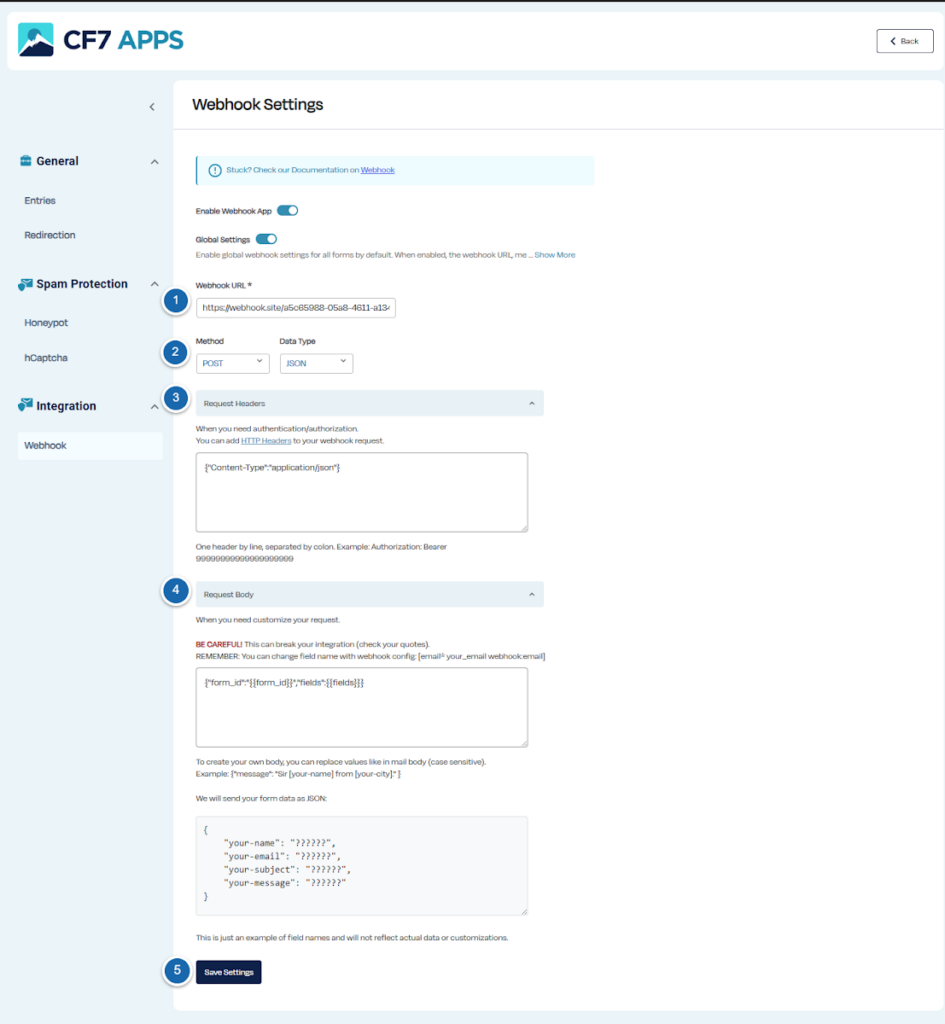
Form-Specific Webhook Settings
Webhook settings can also be controlled at the form level.
To configure webhook settings for a specific form:
- Go to Contact → Contact Forms
- Edit the form
- Locate the CF7 Apps panel on the right side
- Enable the Webhook toggle for this form
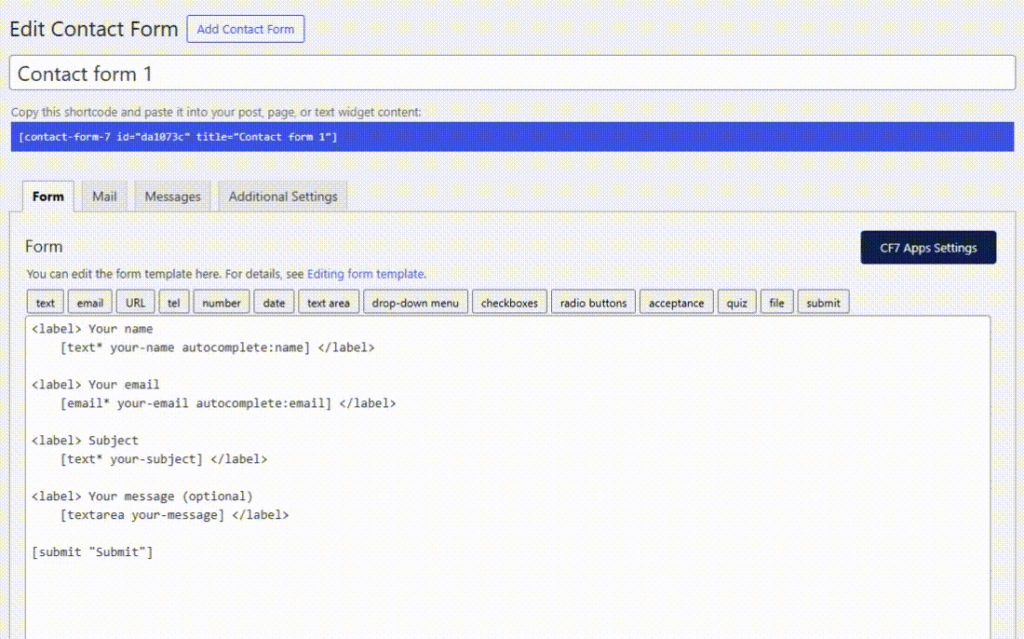
Once enabled, a new Webhook tab will appear.
This tab contains all webhook options available in the global settings, allowing you to override:
- Webhook URL
- Request Method
- Data Type
- Headers
- Body Mapping
If the form-specific webhook is enabled, the form will always use those settings instead of the global configuration.
The Webhook Integration is a simple and flexible way to connect Contact Form 7 with external services. With global and per-form settings, structured data mapping, and support for custom headers, it gives full control over how and where your submission data is delivered.
Need Help?
Please reach out to us through our Support Thread for any queries or assistance — we’re here to help!
💡 Have an idea for a new feature in CF7 Apps? Click here to submit it!

