
Rearrange keys on your keyboard!
SharpKeys is a free utility application for PC from developer RandyRants LLC. It’s a key remapping tool for customizing keyboards. They can change the function of any key to anything they want, and it does all this through the Windows Registry for system-wide changes with a simple and intuitive user interface.
Compared to Microsoft PowerToys, SharpKeys takes a simpler approach to remapping and is ideal for making changes on a per-key basis for quick function swapping and reassignment. All modifications are saved and kept in a list for quick reference and in case they want to revert to their original functions.
What is SharpKeys?
Have you ever switched your keyboard or laptop only to realize that the keyboard keys aren’t where they’re supposed to be? Or have you accidentally clicked a key multiple times only to realize that you wanted another character? If any of these things have ever happened to you, you’ll definitely like SharpKeys. The Windows program is designed to help you restructure your keyboard without needing any tech skills.
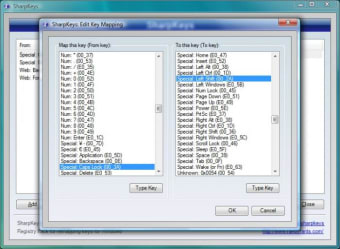
With the help of SharpKeys download, you can assign different characters to the keys on your keyboard. Doing this will let you map the keyboard as per your unique requirements. For example, you can replace the Shift key with the Enter key, so that you don’t keep hitting shift when all you want to do is change the paragraph.
Rearrange your keyboard
A great thing about SharpKeys is that you can map over a hundred combinations to any key. That said, creating that many functions will lead to obvious confusion. However, having the option is more than enough. In fact, this feature can be of great use, especially if you’re interested in pranking your coworkers or friends. To ensure you don’t get locked out completely, the program comes with handy fail-safe options.
Reverse changes easily
While you can reprogram any keyboard in one-go, changes only come into effect after your computer reboots. That said, if you end up forgetting the layout that you’ve created, you can press the function key and use all keys as per the original structure. Additionally, you can log back in and reverse all changes directly from the application.
How do you run SharpKeys?
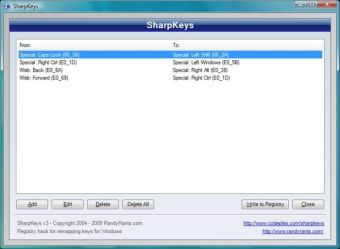
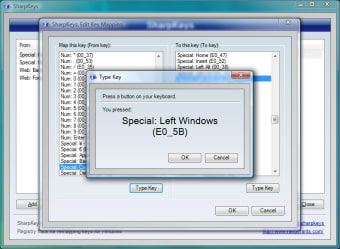
When you download SharpKeys, the installer runs and creates a shortcut on the desktop. Once launched, you’ll get access to a simple window from where you can create a new map or edit the existing one as per your unique requirements. Once you’ve assigned different functions to different keys, you need to click on the Write to Registry icon and wait for the application to save the update request.
For changes to come into effect, you will either have to log out and return or reboot your system. With SharpKeys, you can write as many keys as you want and add multiple functions to a single key. However, the program does inform you in case you try to assign multiple new keys to one key. You can also look back at all the changes using the registry monitor and reverse any changes you don’t like.
How to restore the original keys?
There are multiple ways using which you can reverse any changes you make to your keyboard. One way to do this is to remove all key mappings and clear the list. Another way to restore changes is to click on the delete option and save the selection by clicking on the Write to Registry icon. However, all changes will reverse only after you reboot your PC.
Is SharpKeys free?
Yes, you can download and use SharpKeys for free. Moreover, developers can modify the source code and distribute it for further changes. The program also doesn’t limit itself to personal or professional use and is free for individuals as well as businesses.
Is SharpKeys safe to use?
SharpKeys is an easy-to-use software that doesn’t damage your computer. You can use the program safely on Your Windows 7, Windows 8, Windows 2000, Windows 10, and Windows 11 devices. However, if you encounter any problems using the program’s different versions, you can easily reverse the keyboard mapping to the original keyboard registry.
Are there any SharpKeys alternatives?
SharpKeys is a tool that does the job of reassigning functions of different keys quite well. Nevertheless, if you’d like to check out alternatives, you should explore KeyTweak or Key Remapper. In case you wish to customize your mouse, you can download X-Mouse Button Control.
Should I download SharpKeys?
Yes, if you’re tired of hitting certain keys on your keyboard and wish to change them - you should download SharpKeys. The handy program helps you create a new keyboard layout and lets you reverse changes if you’re not happy with the output. The only drawback is that you have to reboot your computer every time you want changes to come into effect.





.png)