Plug & Play MIDI Converter for
Playstation & Xbox Controllers
Video Game Control
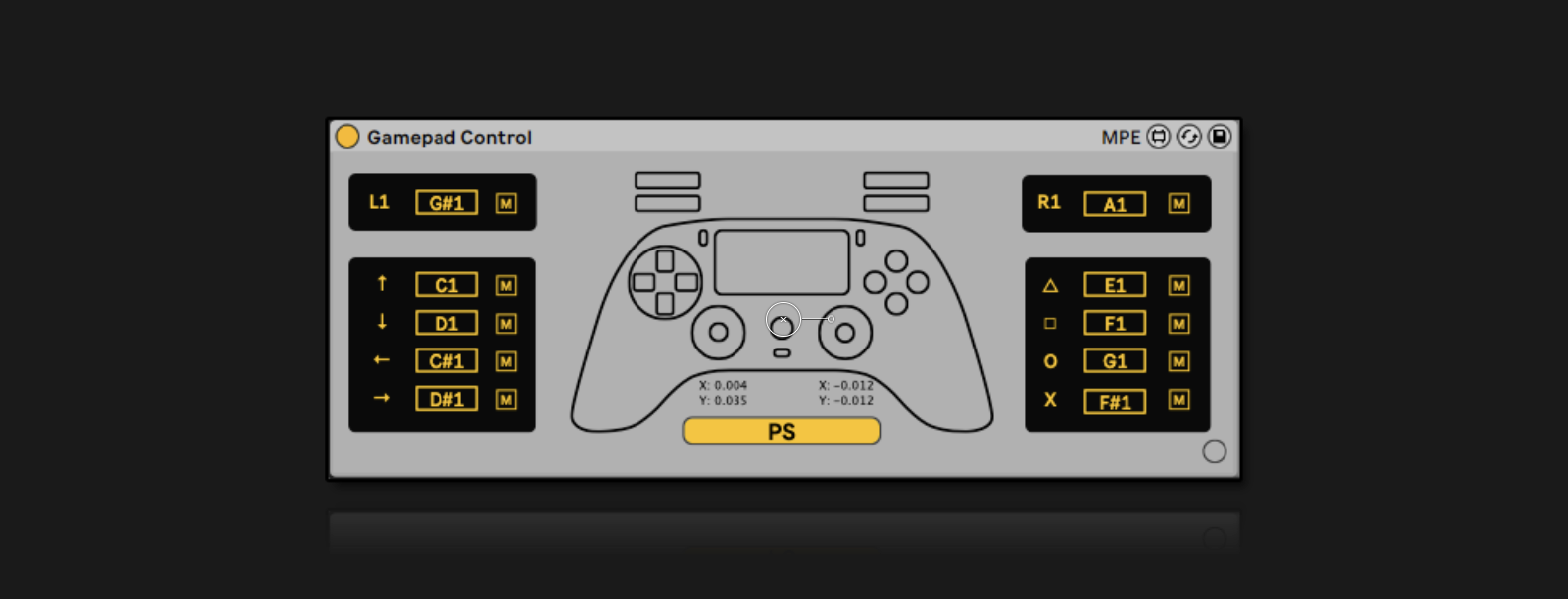
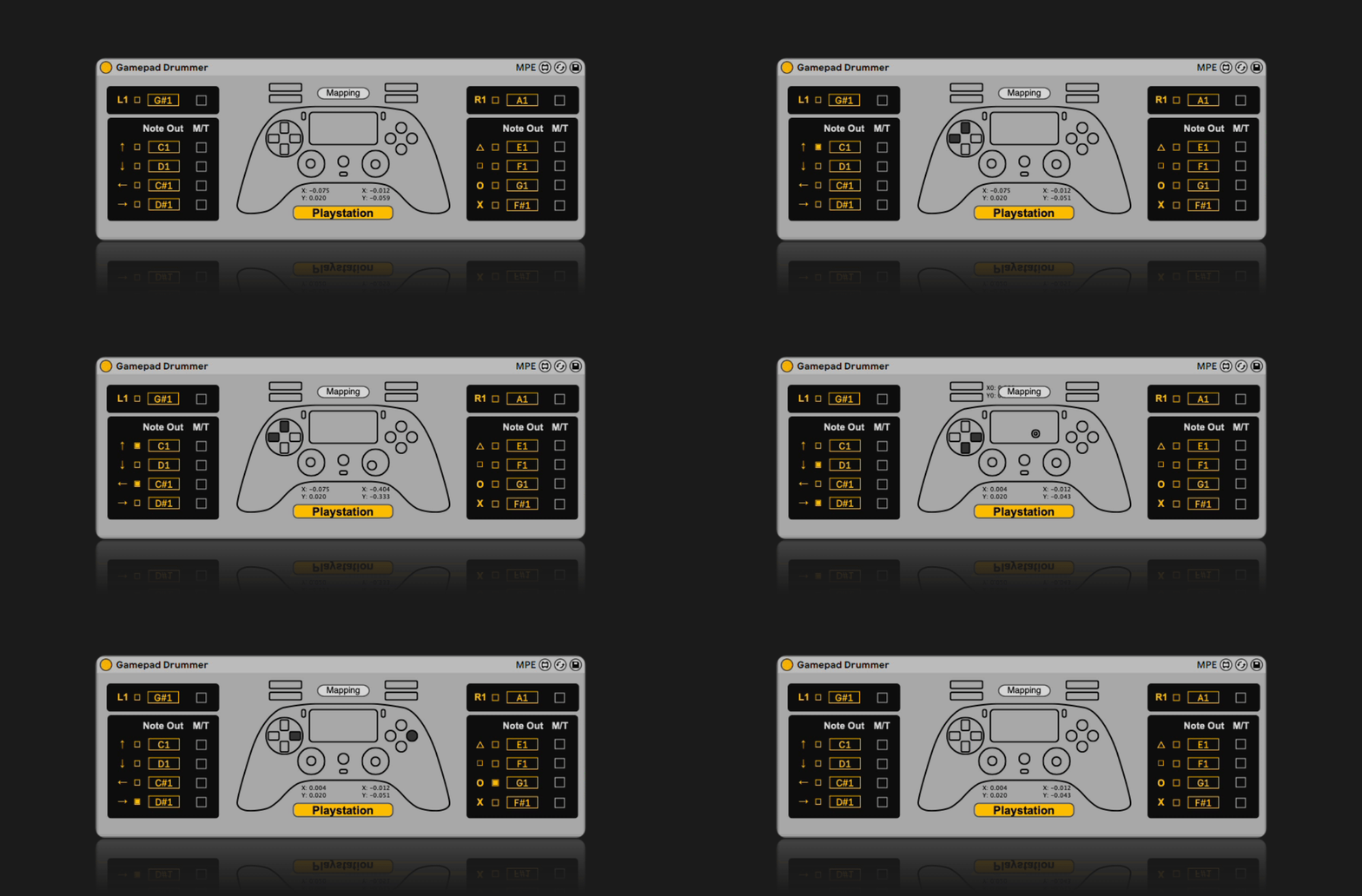
Use your PS5 or Xbox controllers as MIDI controllers. Place a Drum Rack right after for instant live beats.
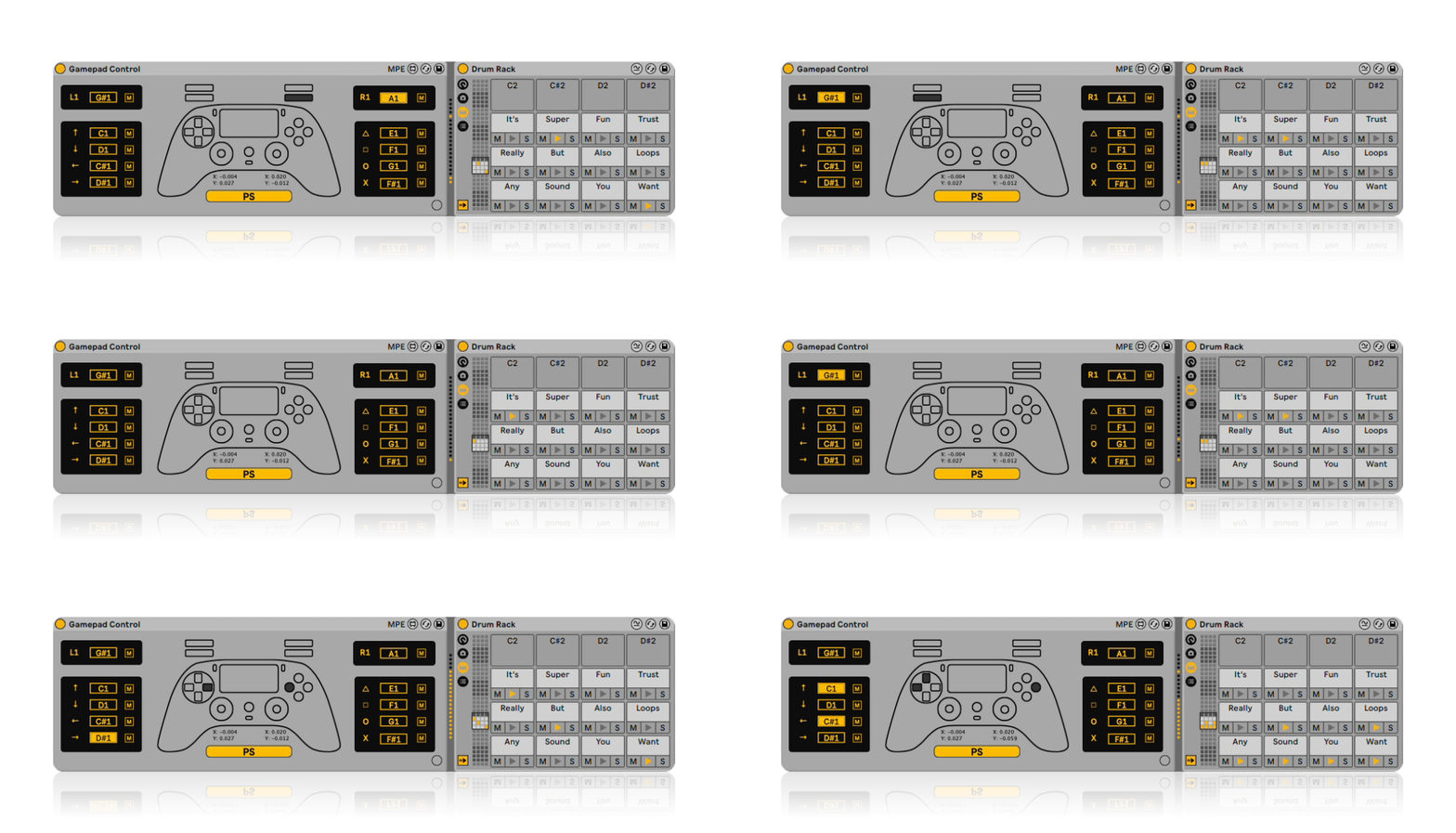
Demo + Turorial
Main Panel
Custom Note Out, Momentary/Toggle, Auto Controller Detection
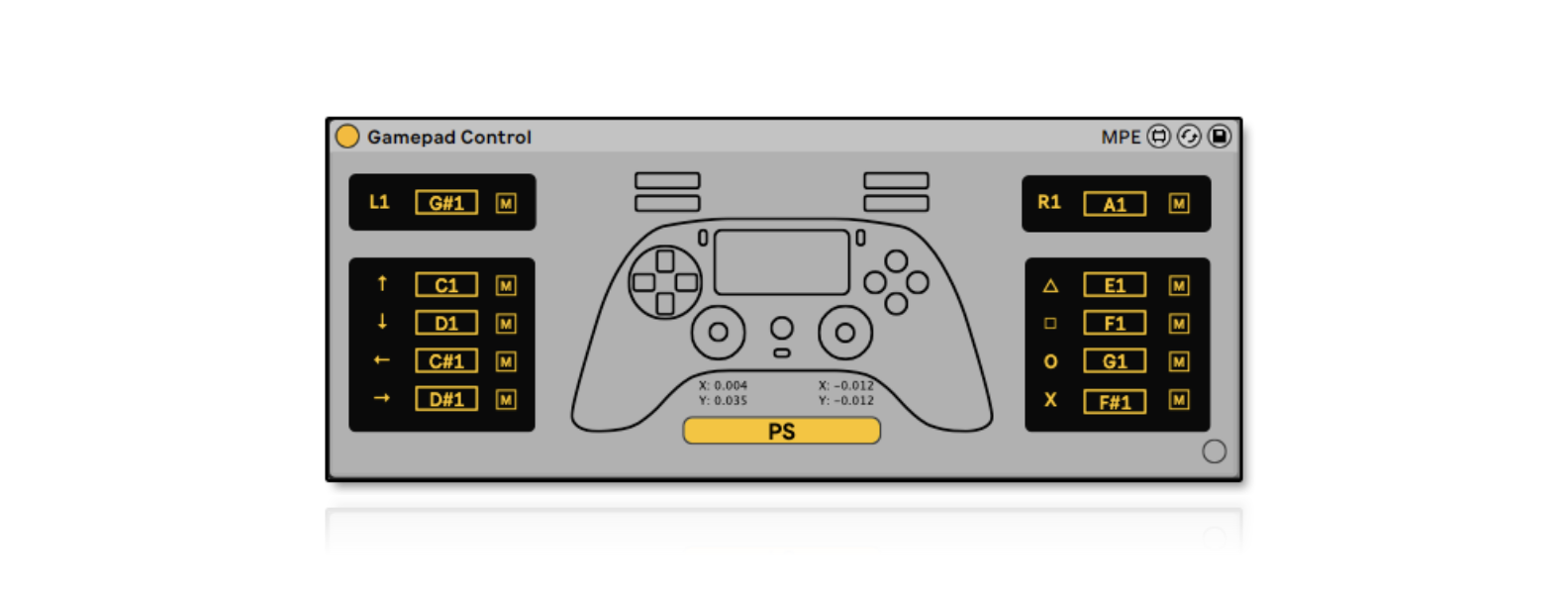
Auto-Detection
Interface will change according to the connected controller.
Custom Note Out
Create your own MIDI note configuration to trigger a Drum Rack or play an Instrument.
Momentary/Latch
M – Momentary Trigger. Good for one shot drum sounds or sending notes to an instrument.
L – Latch Mode. Hold notes on/off. Good for loops and drones.
1. Auto-Detection – Interface will change according to the connected controller.
2. Custom Note Out – Create your own MIDI note configuration to trigger a Drum Rack or play an Instrument.
3. Momentary/Latch:
-
- M – Momentary Trigger. Good for one shot drum sounds or sending notes to an instrument.
- L – Latch Mode. Hold notes on/off. Good for loops and drones.
Mapping Window
Top Back Triggers, Joystick X/Y & PUSH
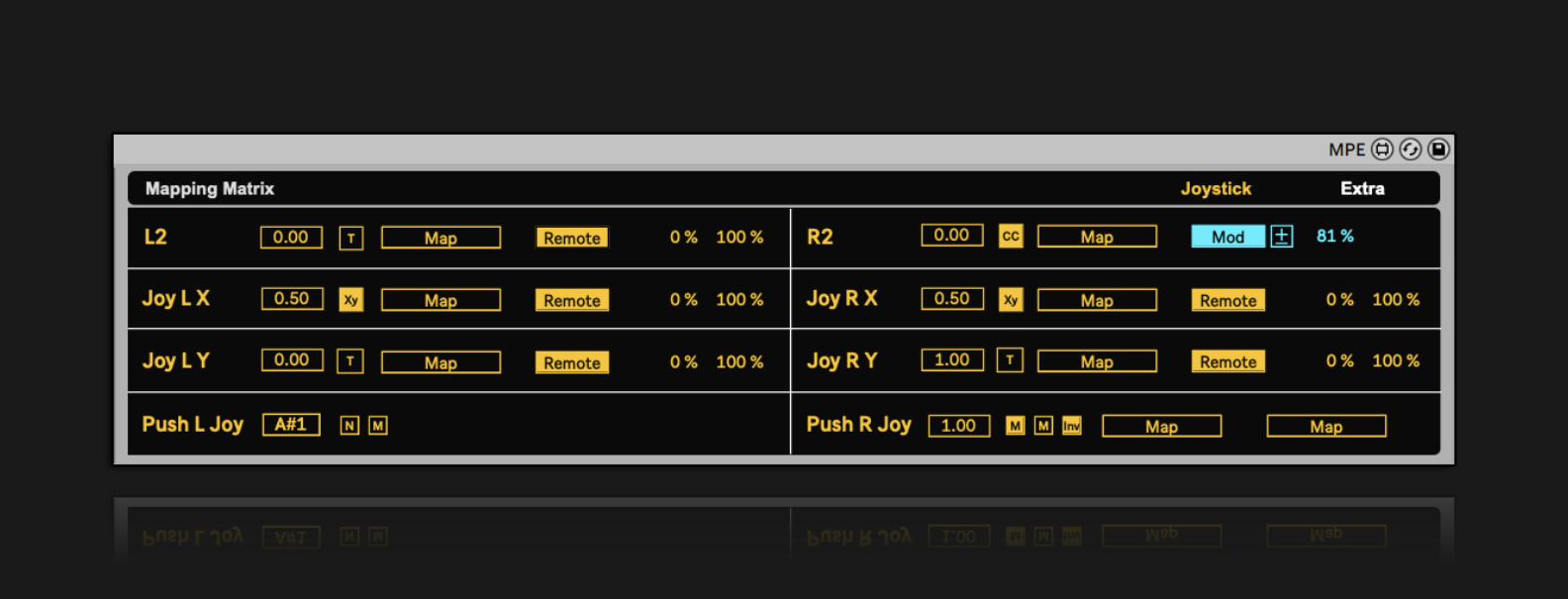
Top Back Triggers Modes
-
- Trigger: Continues Control for the X axis of the joystick (Left to Right). Good for controlling FX amount like filter cutoff.
- Contiues Control: Immediately trigger the control as you start moving the joystick in any direction. Map this to On/Off of FX.
Joystick Mapping Modes
-
- X/Y Mode: Continues Control for the X axis of the joystick (Left to Right). Good for controlling FX amount like filter cutoff.
- Trigger Mode: Immediately trigger the control as you start moving the joystick in any direction. Map this to On/Off of FX.
Joystick Push Button Modes:
-
- Note Mode: Send a MIDI note out to trigger a sample or instrument
- Map Mode: Map the Joystick Push to any destination
Momentary/Toggle
M – Momentary Trigger. Good for one shot drum sounds or sending notes to an instrument.
T – Toggle Mode. Hold notes on/off. Good for loops and drones.
Invert Range
Great for turning effects off
Modulation Mapping
Support for Ableton Live 12’s new Modulation System
4. Top Back Triggers Modes:
-
- T – Send mapping trigger. Good for on/off Momentary FX like Delay/Reverb Sends or Beat Repeat Inserts.
- CC – Continues Control. Good for controlling FX amount like filter cutoff.
5. Joystick Mapping Modes:
-
- XY – Continues Control for the X axis of the joystick (Left to Right). Good for controlling FX amount like filter cutoff.
- T – Trigger Mode, Immediately trigger the control as you start moving the joystick in any direction. Map this to On/Off of FX.
6. Joystick Push Button Modes:
-
- N – Note Mode, Send a MIDI note out to trigger a sample or instrument.
- M – Map Mode, Map the Joystick Push to any destination.
7. Momentary/Toggle:
-
- M – Momentary Trigger. Good for one shot drum sounds or sending notes to an instrument.
- T – Toggle Mode. Hold notes on/off. Good for loops and drones.
8. Invert Range – Great for turning effects off.
9. Modulation Mapping – Support for Ableton Live 12’s new Modulation System.
Extra Mappings
Trackpad X/Y & PUSH, Gyroscope, System Buttons, Color Trigger
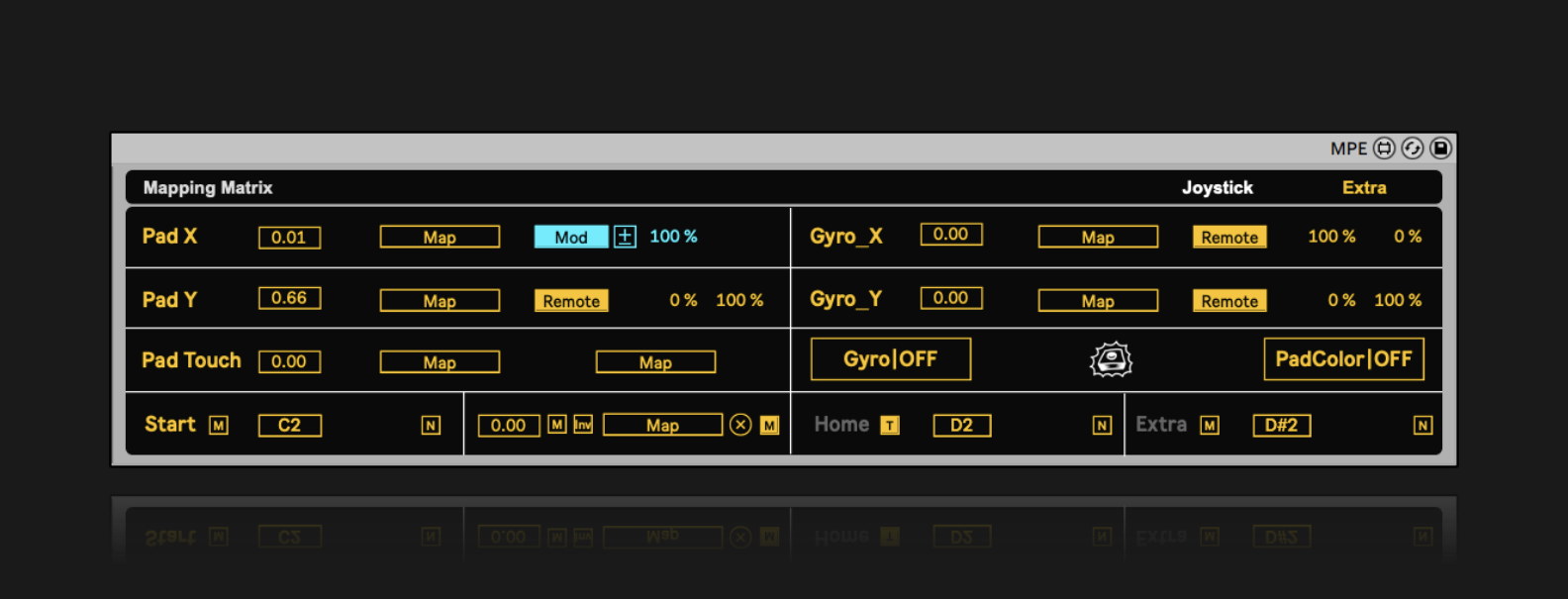
Trackpad Mapping
For Supported Controllers
Trackpad Touch Mapping
For turning on FX only when touching the trackpad. 2 destinations available.
Enable System Buttons
Click on the name of Start, Select, Home and Extra to turn on
Momntary/Toggle
-
- M – Momentary Trigger. Good for one shot drum sounds or sending notes to an instrument.
- T – Toggle Mode. Hold notes on/off. Good for loops and drones.
Invert Range
Opposite control of the mapping
System Buttons Modes
-
- N – Note Mode, Send a MIDI note out to trigger a sample or instrument.
- M – Map Mode, Map the Joystick Push to any destination.
Gyroscope X/Y Mapping
Must first be turned on.
Gyroscope On/Off
For supported controllers.
PadColor
Turn on/off the auto color trigger. For supported controllers only.
10. Trackpad X/Y Mapping – For Supported Controllers
11. Trackpad Touch Mapping – For turning on FX only when touching the trackpad. 2 destinations available.
12. Enable System Buttons – Click on the name of Start, Select, Home and Extra to turn on.
13. Momntary/Toggle:
-
- M – Momentary Trigger. Good for one shot drum sounds or sending notes to an instrument.
- T – Toggle Mode. Hold notes on/off. Good for loops and drones.
14. Invert Range – Opposite control of the mapping
15. System Buttons Modes:
-
- N – Note Mode, Send a MIDI note out to trigger a sample or instrument.
- M – Map Mode, Map the Joystick Push to any destination.
16. Gyroscope X/Y Mapping – Must first be turned on.
17. Gyroscope On/Off – For supported controllers.
18. PadColor – Turn on/off the auto color trigger. For supported controllers only.
Features
– Plug & Play
– Auto Controller Detection
– Customizable Note Mapping
– Joystick X/Y Mapping
– Back Shoulder Bumper Trigger or CC Modes
– Gyro X/Y Mapping
– Trackpad Mapping with 2 Touch Points
– Support for Live 12 New Modulation System
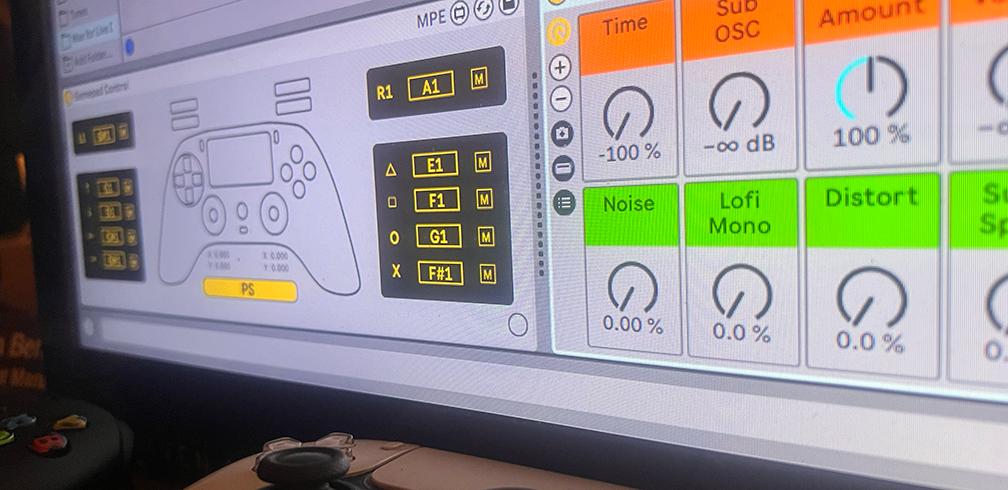
Compatibility
- Playstation
- Xbox
- Switch Pro
* Latest version of Ableton Suite 11 or 12 is required
* Will work with all other pro gamepad controllers but not officially supported – full list HERE
What's Included
– Gamepad Drummer
– Ableton Performance Template
– Custom FX Rack
more max for live
CHIPTUNE OSC
MIDI BOUNCE

Capture MIDI effects with only one mouse click
KEYBOARD MONITOR

Vizualise Your Playing
