

Getting Started with Skip
System Requirements
Skip requires a macOS 15+ development machine with Xcode 16.4 or later installed.
At least 32GB of memory is recommended for development with Skip.
Skip is installed and updated using the popular Homebrew package management tool, which can be installed from brew.sh. Once Homebrew has been setup, install Skip by running the Terminal command:
brew install skiptools/skip/skip
This will download and install the skip tool itself, along with the Android SDK and gradle build tool that is necessary for building and running the Android side of your apps. You can ensure that the basic development prerequisites are satisfied by running:
skip checkup
Successful skip checkup output will look like this…
$ skip checkup
[✓] Skip version 1.6.35 (= 1.6.35)
[✓] macOS version 15.7.2 (> 13.5.0)
[✓] macOS architecture: ARM
[✓] Swift version 6.2.3 (> 5.9.0)
[✓] Swiftly version 1.0.1 (> 1.0.0)
[✓] Xcode version 26.2 (> 15.0.0)
[✓] Xcode tools SDKs: 5
[✓] Homebrew version 5.0.9 (> 4.1.0)
[✓] Gradle version 9.2.1 (> 8.6.0)
[✓] Java version 25.0.1 (> 17.0.0)
[✓] Android Debug Bridge version 1.0.41 (> 1.0.40)
[✓] Android Studio version: 2025.1
[✓] Android tools SDKs: 3
[✓] Skip license: trial good through Jul 4, 2026
[✓] Resolve dependencies (10.43s)
[✓] Build hello-skip (56.08s)
[✓] Test Swift (15.43s)
[✓] Test Kotlin (26.19s)
[✓] Check project schemes (5.65s)
[✓] Archive iOS ipa (13.13s)
[✓] Assemble HelloSkip-debug.ipa 175 KB
[✓] Verifying HelloSkip-debug.ipa: 175 KB
[✓] Assembling Android apk (61.1s)
[✓] Verify HelloSkip-debug.apk: 80 MB
[✓] Check Skip Updates: 1.6.35
[✓] Skip checkup succeeded in 190.21s
If the installation or checkup fails, try running again with skip checkup --verbose to get more details, and check the FAQ for common solutions or reach out to the community on Slack or the Discussion Forums.
Next, create a new Skip app project with:
skip create
You will be guided through a series of questions about the app you want to create, including whether you want to use Skip Lite or Skip Fuse.
Information about the difference between Skip’s “Lite” and “Fuse” modes can be found in the Native and Transpiled Modes documentation. In this example, we create a Skip Fuse app.
An example session for creating a hello-skip/HelloSkip project (which generates a project identical to the minimal Skip Fuse sample app or Skip Lite sample app) might look like:
$ skip create

Welcome to Skip!

Select type of project to create:
  1: App: mobile application for Android and iOS
  2: Library: library project with one or more modules
Enter selection (default: App) [1..2] 1

Select the mode of the project:
  1: Skip Lite: transpiled project
  2: Skip Fuse: natively compiled project
Enter selection [1..2] 2

Enter the project-name for the App: hello-skip

Enter the CamelCase name of the App module: HelloSkip

Optionally enter additional module names:

Enter the app bundle identifier: com.example.HelloSkip

Create a free open-source project? (y/n) [n]: n
Initialize git repository for the project? (y/n) [n]: n
Initialize a Fastlane configuration for the project? (y/n) [y]: y
Pre-build the project? (y/n) [y]: y
Install the Swift Android SDK? (y/n) [y]: y
Open the Xcode project after initialization? (y/n) [y]: y

[✓] Install Swift Android SDK (48.4s)
[✓] Resolve dependencies (12.12s)
[✓] Build hello-skip (53.35s)
[✓] Check project schemes (6.12s)
[✓] Archive iOS ipa (17.18s)
[✓] Assemble HelloSkip-debug.ipa 1 MB
[✓] Verifying HelloSkip-debug.ipa: 1 MB
[✓] Assembling Android apk (78.91s)
[✓] Verify HelloSkip-debug.apk: 80 MB
[✓] Opening Xcode project (0.10s)
[✓] Skip create succeeded in 168.63s
You can alternatively create a conventional Skip project using the non-interactive skip init command, as described in the command line reference.
Once your app pre-builds and opens in Xcode, you are almost ready to go. One more step is needed, which is to create and launch an Android emulator (which is the Android equivalent of the iPhone Simulator and is used for local app development). The skip tool has a command to quickly install and configure an Android emulator for your project:
skip android emulator create
Successful skip android emulator create output will look like this…
$ skip android emulator create
  [✓] Configure Android SDK Manager (1.55s)
  [✓] Install platform-tools (0.77s)
  [✓] Install emulator (0.75s)
  [✓] Install platforms;android-34 (0.76s)
  [✓] Install system-images;android-34;google_apis;arm64-v8a (0.75s)
  [✓] Create emulator: emulator-34-medium_phone (0.76s)
  [✓] Create Android emulator succeeded in 5.35s
Once this command completes successfully, you will have an Android emulator installed, which you can launch and observe the logging output with:
skip android emulator launch
You can alternatively install and launch an emulator using a graphical user interface by downloading and running Android Studio and opening the Virtual Device Manager from the ellipsis menu of the Welcome dialog. From there, Create Device (e.g., “Pixel 6”) and then Launch the emulator.
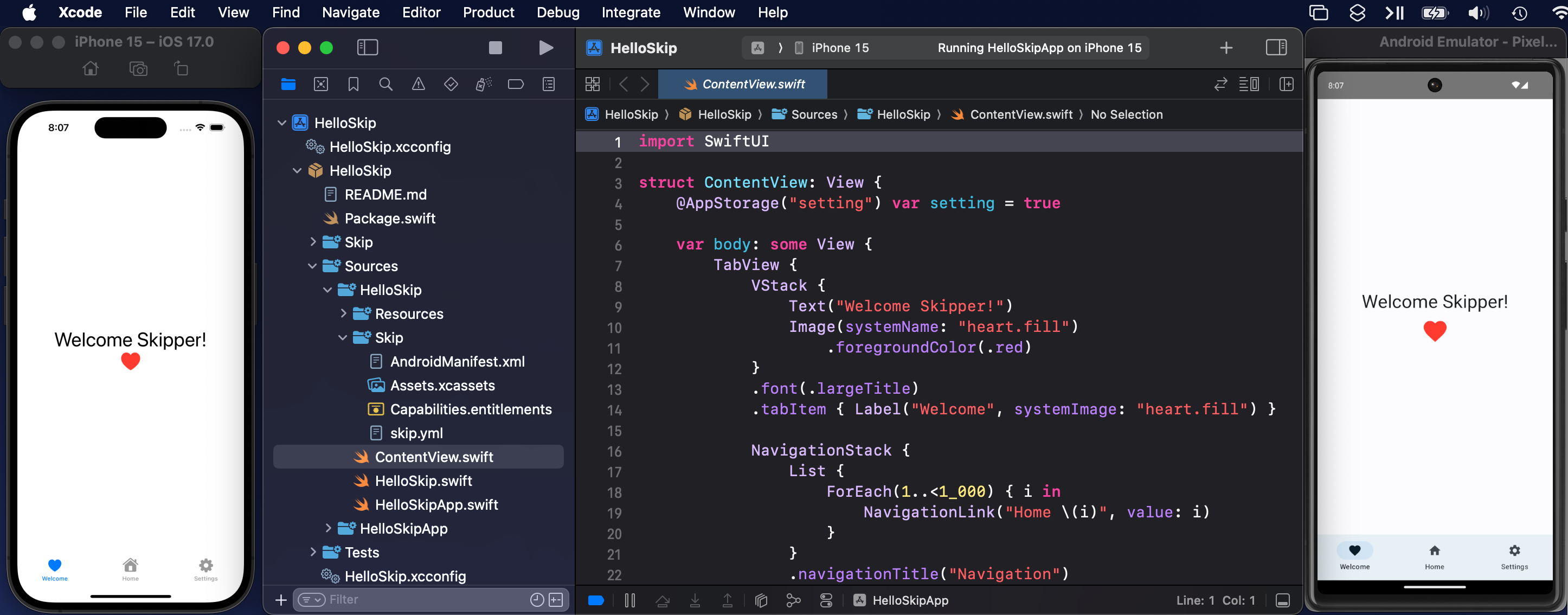
Now you should be ready to launch your new app! In Xcode, ensure the “HelloSkip App” scheme is selected along with a simulator destination (e.g., “iPhone 17”), and then Run the scheme.
You may be prompted to “Trust and Enable” the Skip plugin, and then the project will build and launch simultaneously on both the iPhone Simulator and Android Emulator:
Next Steps
Congratulations! You have created and launched you first dual-platform app. At this point, you should tinker with the project, making changes and re-launching the app to get a feel for how Skip compliments your normal edit-build-run cycle for app development.
From here you should proceed to:
- Join the Skip Slack to connect with the Skip developer community.
- Peruse the Skip Sample Apps to see common design pattern and examples of best practices for your app.
- Browse the various Skip Integration Frameworks that are available to add to your project, which unlock additional capabilities for your dual-platform app
- Read about the advantages of Skip over other cross-platform frameworks like Flutter and React Native in our Comparison Guide.
- Consider whether Skip Fuse or Skip Lite is the best fit for your project needs.
- Explore the different Skip Project Types that can be created with Skip, including multi-module, bridged, and native framework or app projects.
- Review the Glossary of Terms to familiarize yourself with some of the new and unfamiliar terminology you may encounter while using Skip for Android app development.
- If you have an existing app you want to bring into Skip, read the Migration Guide.
Updating Skip
To update the skip command line tool to the latest version:
skip upgrade
To update your Xcode project to use the latest version of the Skip plugin and libraries allowed by your Package.swift configuration, use the File -> Packages -> Update to Latest Package Versions Xcode menu option. When the Skip plugin is updated, you may be prompted to trust the new version with an Xcode warning and confirmation dialog.
Additional Resources
- Use
skip helpfor a complete list ofskiptool commands, and see the command line reference. - Check the general help page for troubleshooting and contact information.
- Continue browsing this documentation to learn more about developing with Skip.
