

Sharraxaad
Admin Bar Editor lets you visually customize the WordPress toolbar (admin bar) for both backend and frontend so you can keep what matters and hide what does not.
You can quickly disable the frontend admin bar, turn off specific toolbar items, and reorganize menus with a clean drag-and-drop interface – no code required. This makes the toolbar faster to use for you, your team, and your clients.
Why customize the WordPress admin bar?
The default admin bar often gets cluttered with links from themes, plugins, and WordPress core. This can:
- Distract non-technical users with unnecessary options.
- Slow down power users who need quick access to key tools.
- Look confusing on membership, LMS, or WooCommerce sites where many users log in.
Admin Bar Editor gives you precise control over what appears in the toolbar so each role sees a clean, focused experience.
Admin Bar Editor Pro | Try Live Demo | Documentation
Who is Admin Bar Editor for?
- Site Owners & Bloggers – Hide clutter, keep only the shortcuts you actually use.
- Agencies & Freelancers – Deliver white-labeled, role-based toolbars for client sites.
- Membership, LMS & Community Sites – Simplify the frontend admin bar for members and instructors.
- Product & Support Teams – Create focused dashboards for editors, authors, and support users.
How Admin Bar Editor works
The plugin adds an AdminBar Editor page in your dashboard with three main sections: Backend, Frontend, and Advanced.
- In Backend, you control the admin bar that appears inside wp-admin. You can toggle core items like the WordPress logo, site name, comments, updates, and the “New” menu, and adjust submenu visibility.
- In Frontend, you manage the toolbar shown on the public side of your site, including a global switch to disable the frontend admin bar.
- In Advanced, you can change the admin bar position (top or bottom) and, in Pro, style colors, gradients, and button appearance.
All changes are applied instantly when you save settings and can be adjusted at any time.
Why Admin Bar Editor is different
- Focuses specifically on toolbar usability instead of being a general admin theme.
- Uses a simple, visual layout with toggles and drag-handles so non-technical users can edit the bar safely.
- Built with role-based workflows in mind, so administrators can create different toolbar experiences for different user types (with Pro).
- Designed to be lightweight and compatible with modern WordPress sites, including popular themes and plugins.
Free Features
The free version includes everything you need to clean up and simplify the WordPress admin bar.
Backend toolbar control
- Enable/disable core admin bar items such as:
- WordPress logo menu
- Site name / visit site
- Updates
- Comments
- “New” content menu and its default sub-items (Post, Media, Page, User)
- Toggle each item with an easy on/off switch – no code editing.
- Use drag-and-drop handles to reorder items in the backend admin bar.
- Expand items to manage visibility of built-in submenu entries like Post, Media, Page, and User.
Frontend toolbar control
- Disable or enable the frontend admin bar globally with a single switch.
- Hide or show the toolbar for all logged-in users on the frontend.
- Hide or show the toolbar for all guest (non-logged-in) users where applicable.
- Manage visibility of core frontend admin bar items with switches and drag-and-drop ordering.
Basic admin bar layout
- Move the admin bar position from the top of the screen to the bottom (global option).
- Apply the position change consistently for both backend and frontend views.
Safe defaults and compatibility
- Uses native WordPress toolbar APIs to avoid touching core files.
- Works with any theme and most plugins that add their own admin bar items.
- Stores settings in the database so your configuration persists through updates and re-activations.
Pro Features
Upgrade to Pro when you need finer control over who sees the admin bar, plus advanced styling and custom menus.
Custom admin bar menus (Pro)
- Add new top-level items to the admin bar with custom titles and URLs.
- Add custom submenu items under existing or new menu entries.
- Build role-aware shortcuts to dashboards, docs, tools, or external services for your team or clients.
Role- and user-based toolbar visibility (Pro)
- Disable the frontend admin bar for specific user roles while keeping it visible for others.
- Disable the frontend admin bar for specific usernames when you need per-user control.
- Combine global, role, and user rules to design clean toolbars for each audience.
Advanced styling: background, text, dropdowns, button (Pro)
The Advanced Styles tab unlocks visual customization for the toolbar.
- Set a custom background color for the admin bar.
- Use a gradient background to match your brand.
- Customize text color across the toolbar.
- Style the dropdown appearance for menu groups.
- Change the “New” button style and color for better visual hierarchy.
These options help agencies and brand-focused sites keep the toolbar consistent with their design system.
Upgrade to Admin Bar Editor Pro for advanced role control, custom menus, and full toolbar styling.
🙌 Support
For any questions, get in touch with us via our Contact Page
How It Works
Admin Bar Editor hooks into WordPress’s built-in toolbar system and lets you manage items through an options panel instead of code.
- When you toggle or reorder an item, the plugin records that layout in the database and applies it each time the admin bar is rendered.
- Free users can control existing toolbar items and the global frontend bar, while Pro users unlock custom menu entries, per-role visibility, and advanced styling.
- Deactivating the plugin restores the default WordPress admin bar; reactivating brings back your saved configuration.
Sawir-shaashado
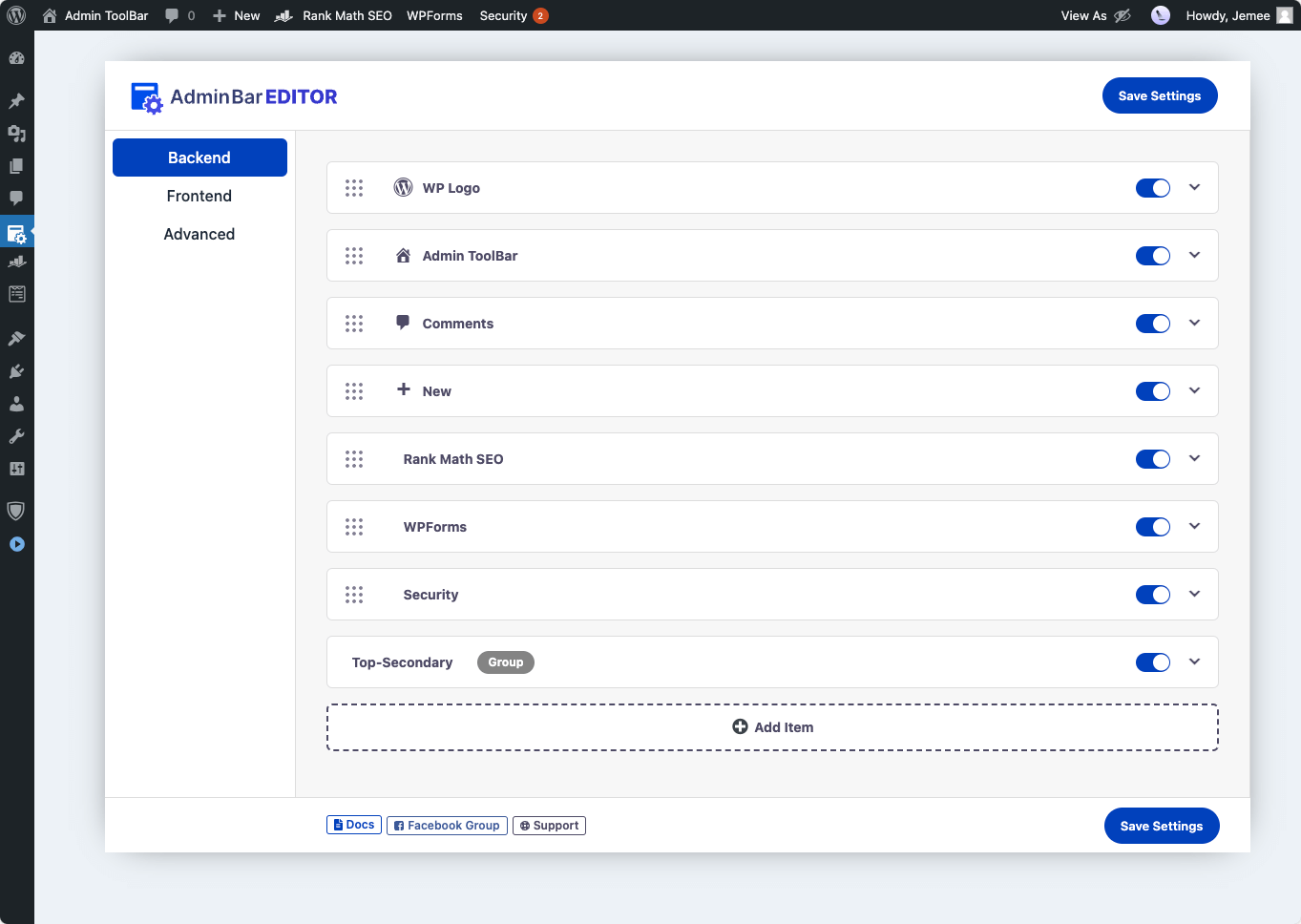
Admin Bar Editor options for WordPress Dashboard 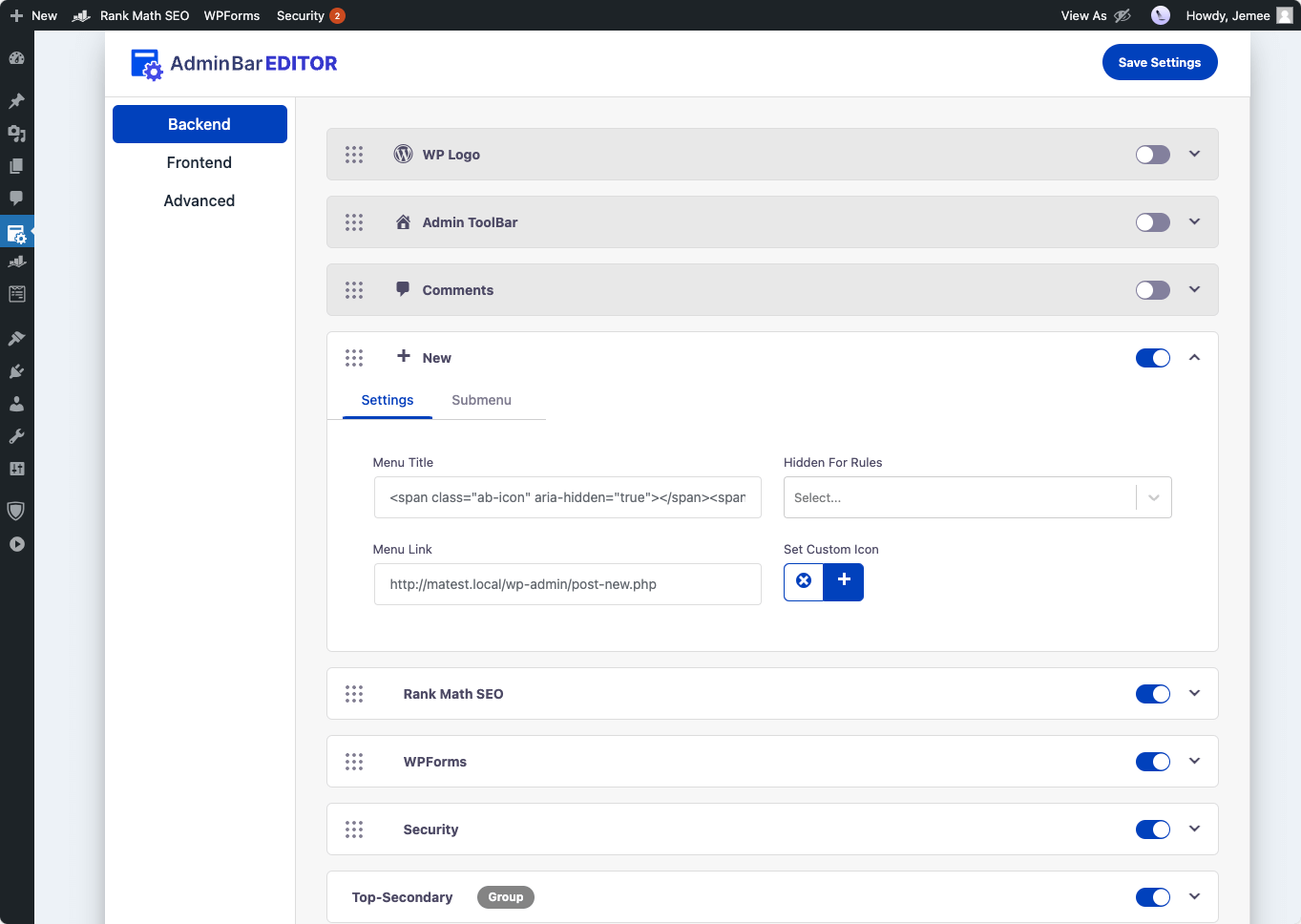
Hide specific Admin Bar Items from Dashboard toolbar like WP Logo, Site Name, Comments 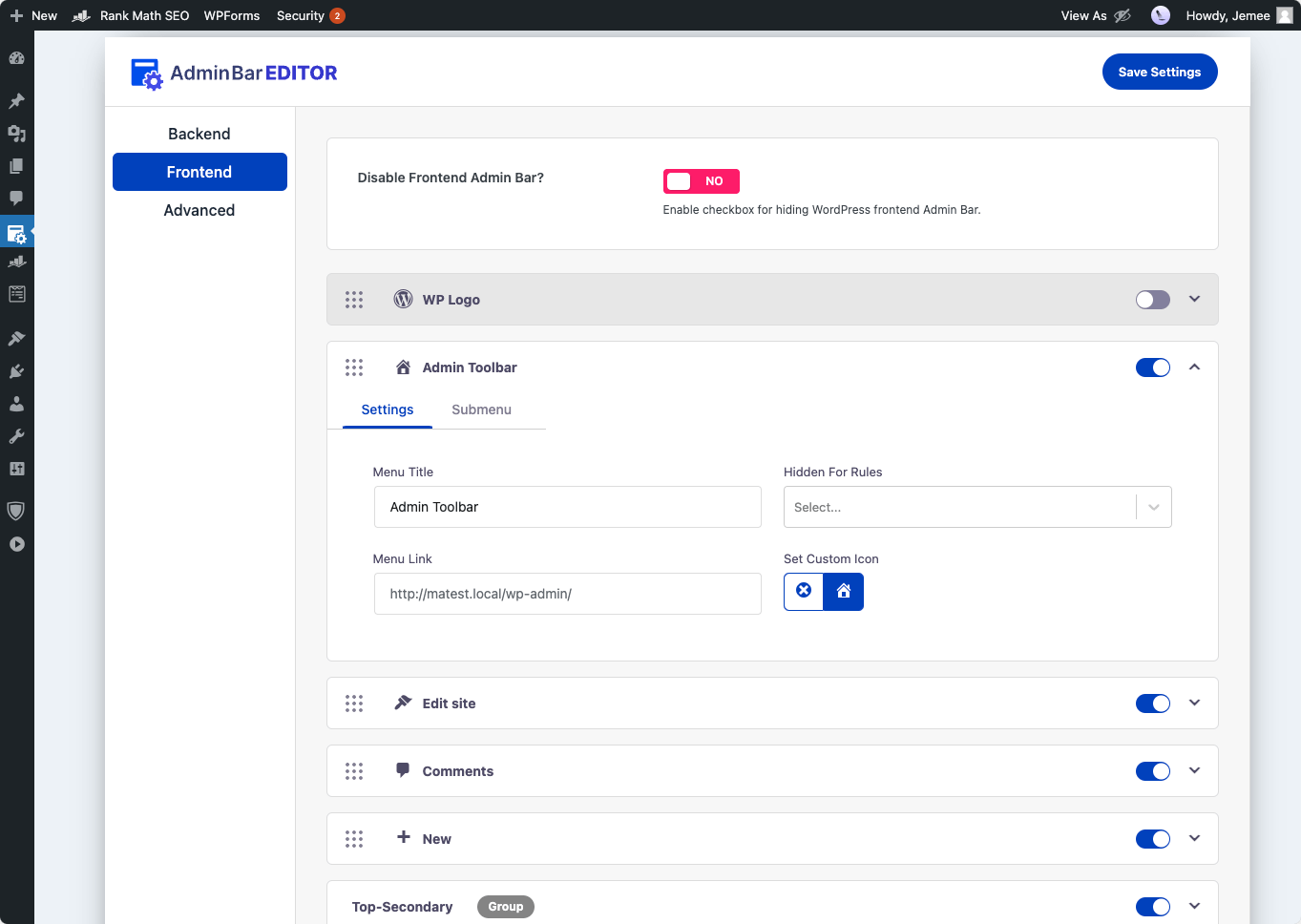
WordPress Frontend toolbar customization option 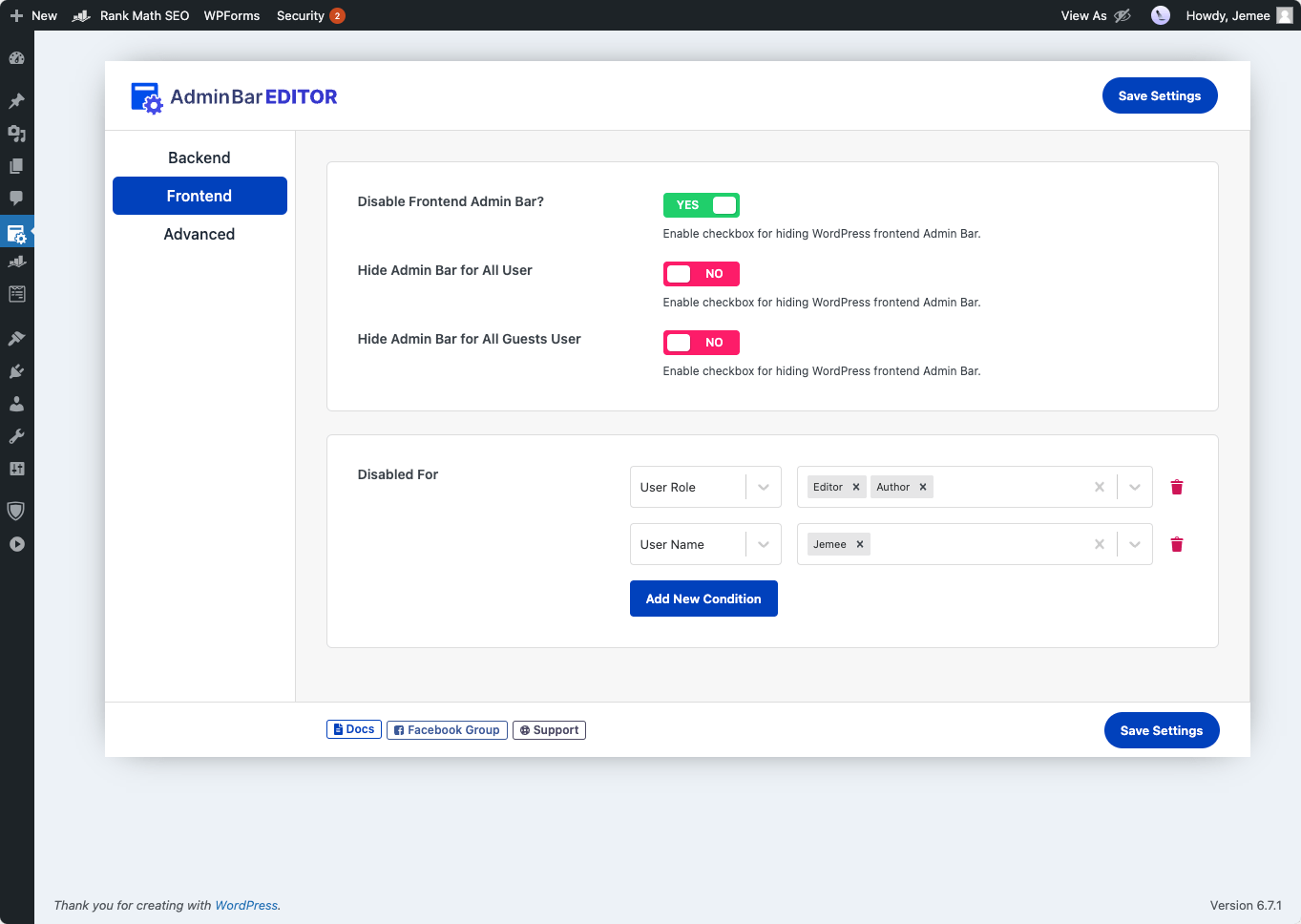
Hide WordPress Admin Bar or Toolbar for specific user role or user name 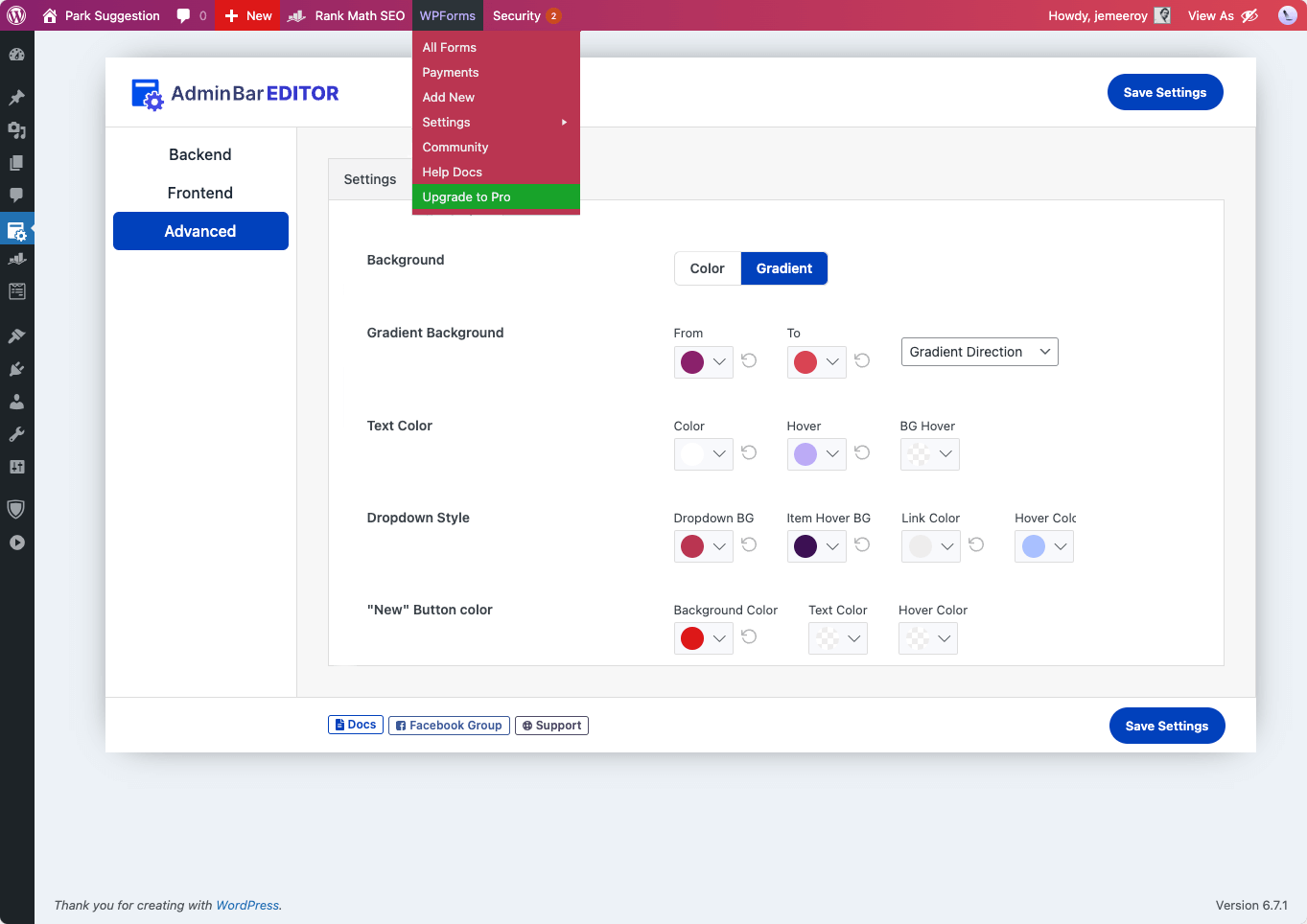
Change Admin bar background color, gradient, text color, dropdown style, new button color 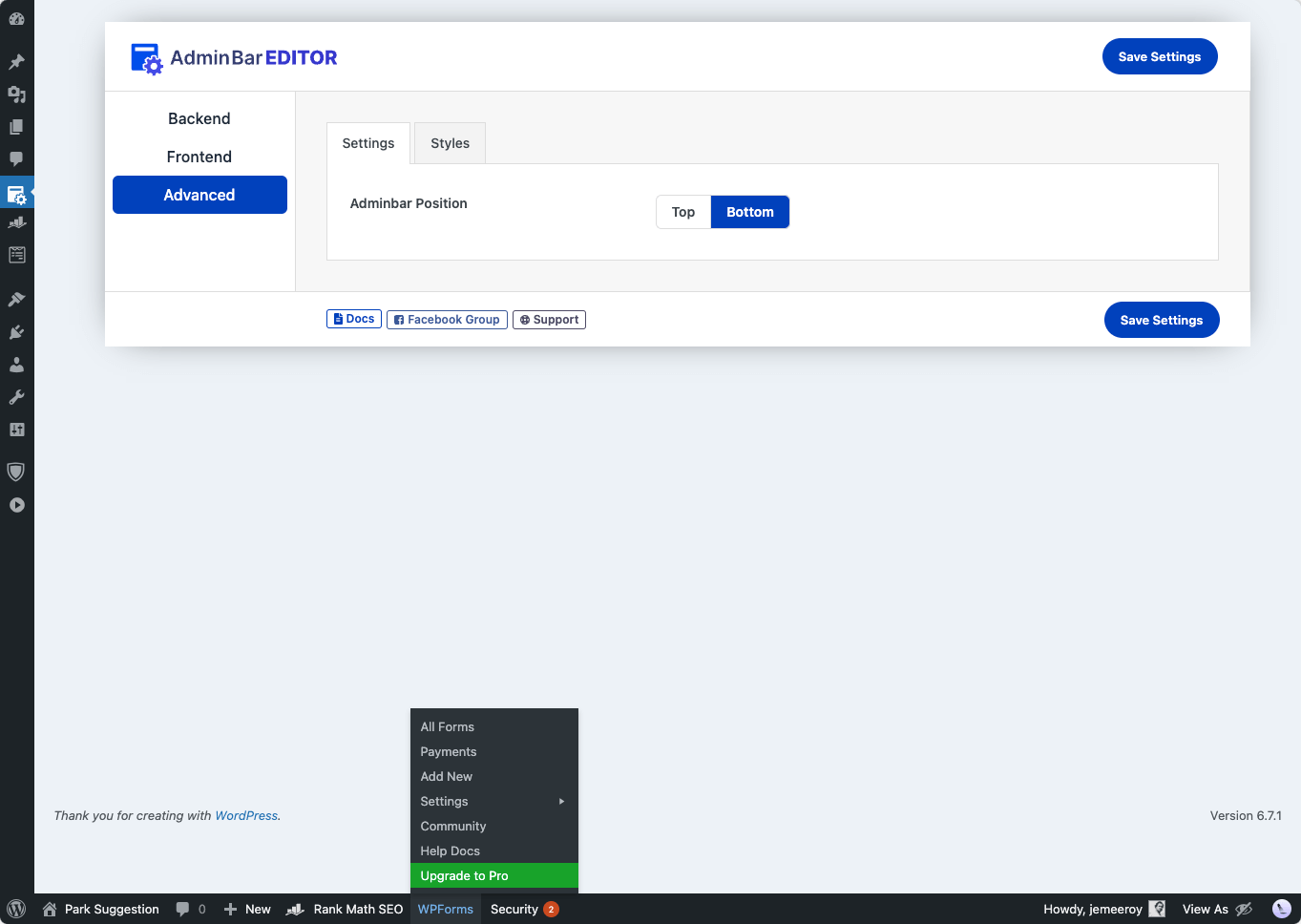
Change Admin Bar Editor position in top or bottom 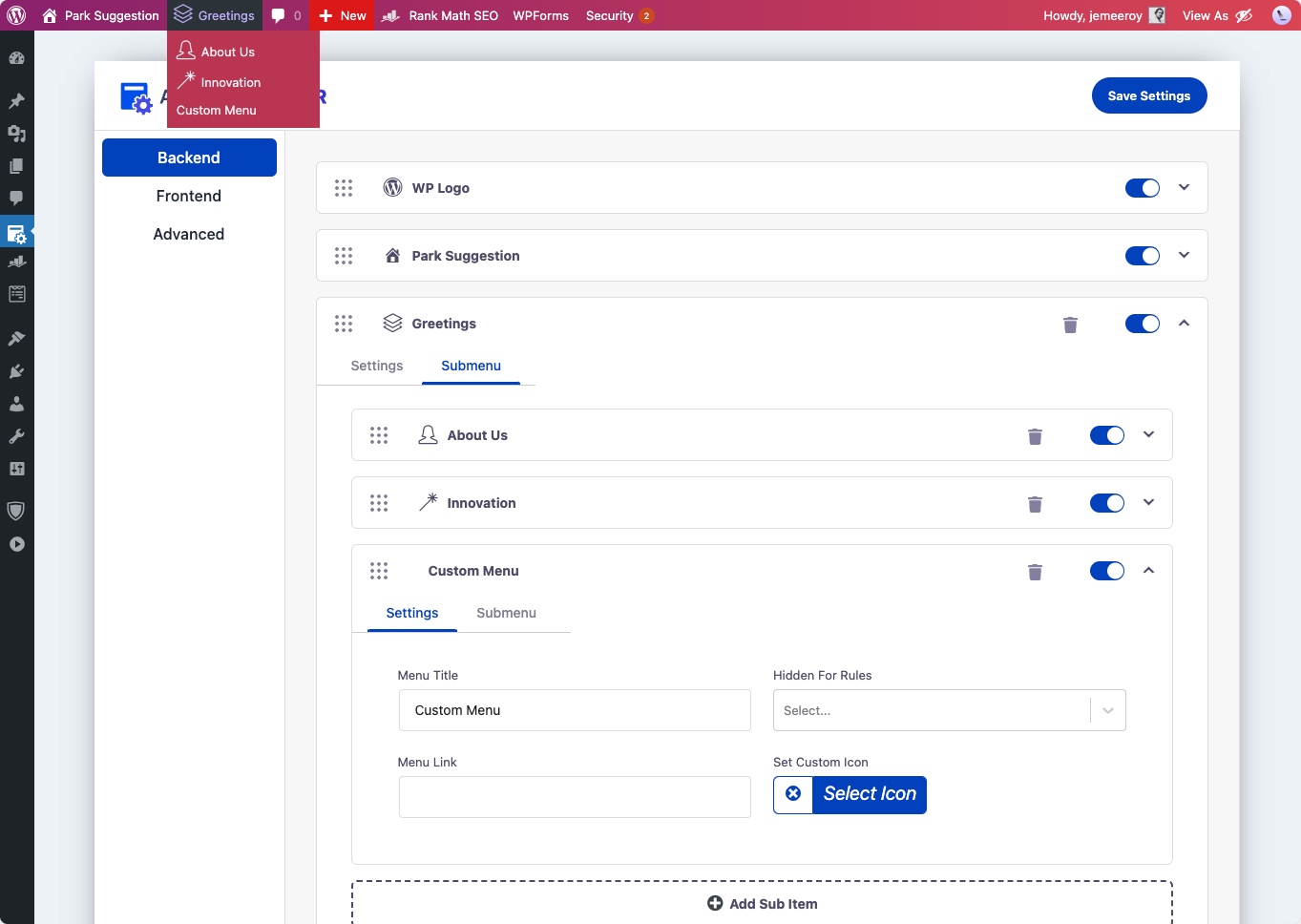
Add Custom Menu or links in the Admin Bar or Toolbar


Rakibaad
Automatic installation (recommended)
- Log in to your WordPress dashboard.
- Go to Plugins Add New.
- Search for “Admin Bar Editor”.
- Install the plugin developed by Jewel Theme.
- Click Activate.
Manual installation
- Download the
admin-barplugin ZIP from WordPress.org. - In your dashboard, go to Plugins Add New Upload Plugin.
- Upload the ZIP file and click Install Now.
- After installation, click Activate Plugin.
Getting started
- In your dashboard, go to Settings AdminBar Editor (or the Adminbar Editor menu item).
- Choose Backend or Frontend to start editing the corresponding admin bar.
- Use drag-and-drop and toggles to hide, show, and reorder toolbar items.
- Open the Advanced tab to change the admin bar position and, in Pro, adjust colors and styles.
- Click Save Settings when you are done.
SBI
-
Can I hide the WordPress admin bar on the frontend?
-
Yes. You can globally disable the frontend admin bar, or keep it visible and control which items appear.
-
Can I hide the admin bar only for certain users or roles?
-
Yes, this is available in Pro. You can hide the frontend admin bar for specific user roles or for individual usernames while leaving it enabled for others.
-
Yes, the Pro version allows you to add new menu items and submenu items with custom URLs, making it easy to add shortcuts to admin pages, external tools, or documentation.
-
Does Admin Bar Editor change core WordPress files?
-
No. The plugin uses standard WordPress hooks and filters to modify the admin bar and does not edit core files. Deactivating the plugin returns the toolbar to its default state.
-
Will this plugin slow down my site?
-
Admin Bar Editor is lightweight and only affects the toolbar markup for logged-in users. It has minimal impact on page load and does not modify front-end content for visitors.
-
Is it compatible with my theme and other plugins?
-
The plugin works with any theme that uses the standard WordPress admin bar. It also supports toolbar items added by most plugins, which you can toggle or reorder from the interface.
-
Can I style the admin bar differently on backend and frontend?
-
You can manage backend and frontend toolbars in separate tabs. Position and Pro styling options apply consistently, but you can enable or disable items independently for backend and frontend.
-
What happens to my settings if I update or deactivate the plugin?
-
Your configuration is stored in the database and kept during updates. If you deactivate the plugin, the default admin bar returns; when you reactivate it, your saved layout and options are restored.
-
How do I upgrade to Pro?
-
Purchase a Pro license from the Admin Bar Editor product page, download the Pro plugin, and install it alongside the free version. Then activate your license to unlock Pro features.
-
Where can I get support?
-
You can use the WordPress.org support forum for the free plugin or contact the Jewel Theme team from the plugin’s documentation and support links.
Dibu-eegisyo


Ka-qaybgalayaasha & Horumariyayaasha
“Admin Bar Editor – Toolbar Customization with User Role based access & Custom menus” waa softiweer il furan. Dadka soo socda ayaa wax ku biiriyay kaabahan.
Ka-qaybgalayaasha


“Admin Bar Editor – Toolbar Customization with User Role based access & Custom menus” waxaa lagu tarjumay 1 luqad. Way ku mahadsan yihiin turjumaannada ka-qaybqaadashadooda.
Ma xiisaynaysaa horumarinta?
Baadh koodka, fiiri bakhaarka SVN, ama iska qor diiwaanka horumarinta adigoo adeegsanaya RSS.
Isbeddellada
1.1.4 (02-02-2026)
- Performance: Optimized Users & Roles database queries for enhanced performance and faster loading times.
- Fixed: Custom Icons style issue fixed.
1.1.3 (27-01-2026)
- Fixed: LiteSpeed Cache plugin options not updated issue fixed.
- Added: Save Settings button loading text added.
1.1.2.2 (22-12-2025)
- Fixed: Hidden for roles not showing issue fixed.
- Fixed: Settings Panel broken loader image issue fixed.
1.1.2.1 (21-12-2025)
- Fixed: Admin Bar Menu hiding issue fixed.
- Fixed: text-domain issue fixed.
- Fixed: Adminify plugin register admin menu issue fixed.
- UI Improve: Allow separate role-based and user-based visibility controls in multi-select groups.
1.1.2.0 (04-09-2025)
- Fixed: Logout url redirecting to confirmation page issue.
- Fixed: Admin bar caching url for third party plugins menu item.
- Improve: Editor will not allow to update url for default menu items.
- UX Improvement: Editor UX is updated.
1.1.2 (10-07-2025)
- Fixed: Edit site link was unavailable on admin bar editor.
1.1.1 (10-07-2025)
- Fixed: Edit site link was unavailable on admin bar editor.
1.1.0 (31-05-2025)
- Fixed: logout action taking confirmation issue Support url: https://wordpress.org/support/topic/logout-confirmation-link/
- Fixed: Deprecation notice issue of str_getcsv() without escape value, Support URL: https://wordpress.org/support/topic/deprecated-85/
- Fixed : Duplicated user name on the top right profile tab issue, Support URL: https://wordpress.org/support/topic/duplicated-user-name-on-the-or-profile-tab/
- Fixed: The WordPress admin menu’s submenu items are positioned incorrectly, extending beyond the screen’s bottom edge. Now adjusted with a 30px gap
1.0.4.0 (05-03-2025)
- Updated: Frontend style not working issue updated
- Updated: Attachment image for icons updated
- Updated: Admin settings panel updated
- Updated: Toaster position change to top-right corner
- Updated: Loading image updated
- Updated: Screenshot & Banner image updated
- Fixed: Custom icons uploader “Select Files” color issue fixed
- Fixed: Menu item image height fixed
- Fixed: User info showing wrong name
- Fixed: Admin bar editor is not synced once new item added or deleted.
1.0.3.1 (22-12-2024)
- Update: Query optimization and security measures
1.0.3.0 (31-10-2024)
- Fixed: Free vs Pro License and Activation issue fixed
1.0.2.9 (14-10-2024)
- Updated: “Howdy” Text Change option not working issue fixed
- Fixed: Hidden For Admin Bar Item Compatibility with WP Adminify
- Fixed: Option Page not showing Compatibility with WP Adminify
Details changelog here
