
A Frame is a rectangular container used to organize and group widgets such as buttons, labels and entry boxes. It helps structure the layout of a GUI by keeping related widgets together. Frames are especially useful for building complex user interfaces with multiple sections.
Example: This example shows how a Frame looks and how it holds a widget inside it.
import tkinter as tk

root = tk.Tk()
root.title("Frame Demo")

frame = tk.Frame(root, bg="lightblue", width=200, height=100, bd=3, relief=tk.RIDGE)
frame.pack(padx=20, pady=20)

label = tk.Label(frame, text="This is a Frame", bg="lightblue")
label.pack(pady=20)

root.mainloop()
Output
This example creates a clearly visible Frame with a border and places a label inside it.
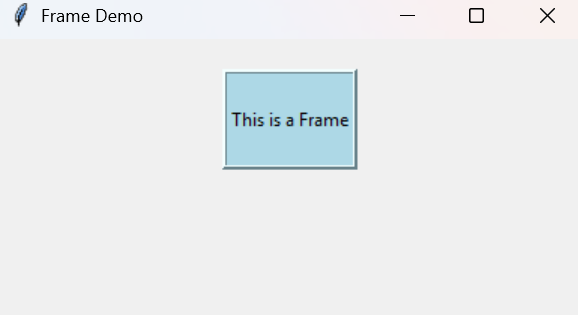
Explanation:
- tk.Frame(..., bd=3, relief=tk.RIDGE) adds a visible border to the frame.
- bg="lightblue" gives the frame a background color.
- tk.Label(frame, ...) puts text inside the frame.
- pack() displays both the frame and the label.
- root.mainloop() keeps the window open.
Syntax
w = Frame(master, options)
Parameters:
- master: The parent window or widget in which the frame is placed.
- options: A set of configuration options written as key-value pairs.
Tkinter Frame Options
Some commonly used options of the Frame widget are:
- bg: Sets the background color of the frame.
- bd: Sets the width of the border around the frame (default is 2 pixels).
- cursor: Changes the mouse cursor when it moves over the frame.
- height: Sets the height of the frame.
- width: Sets the width of the frame.
- relief: Defines the border style (FLAT, RAISED, SUNKEN, etc.).
- highlightcolor: Sets the color of the focus border when the frame has focus.
- highlightbackground: Sets the color of the focus border when the frame does not have focus.
- highlightthickness: Sets the thickness (width) of the focus highlight border.
Example
This example creates a GUI window containing a frame, a label, and several buttons. The frame is styled using background color, border, focus highlight, and cursor options to create a visually structured interface.
import tkinter as tk

def create_widget(parent, widget_type, **options):
    return widget_type(parent, **options)

window = create_widget(None, tk.Tk)
window.title("GUI Example")

frame = create_widget(
    window, tk.Frame,
    bg='lightblue', bd=3, cursor='hand2',
    height=100, width=200,
    highlightcolor='red',
    highlightbackground='black',
    highlightthickness=2,
    relief=tk.RAISED
)
frame.pack(padx=20, pady=20)

label = create_widget(
    frame, tk.Label,
    text='GeeksForGeeks',
    font='50', bg='lightblue',
    bd=3, cursor='hand2',
    highlightcolor='red',
    highlightbackground='black',
    highlightthickness=2,
    relief=tk.RAISED
)
label.pack()

button_frame = create_widget(
    window, tk.Frame,
    bg='lightblue', bd=3, cursor='hand2',
    height=50, width=200,
    highlightcolor='red',
    highlightbackground='black',
    highlightthickness=2,
    relief=tk.RAISED
)
button_frame.pack(pady=10)

def create_button(parent, text, fg):
    return create_widget(
        parent, tk.Button,
        text=text, fg=fg, bg='lightblue',
        bd=3, cursor='hand2',
        highlightcolor='red',
        highlightbackground='black',
        highlightthickness=2,
        relief=tk.RAISED
    )

buttons_info = [ ("Geeks1", "red"), ("Geeks2", "brown"), ("Geeks3", "blue"),
                 ("Geeks4", "green"), ("Geeks5", "green"), ("Geeks6", "green") ]

for text, fg in buttons_info:
    button = create_button(button_frame, text, fg)
    button.pack(side=tk.LEFT)

window.mainloop()
Output
A GUI window appears containing: A frame with the text GeeksForGeeks, a row of colored buttons and a visible border and focus highlight around frames and widgets.
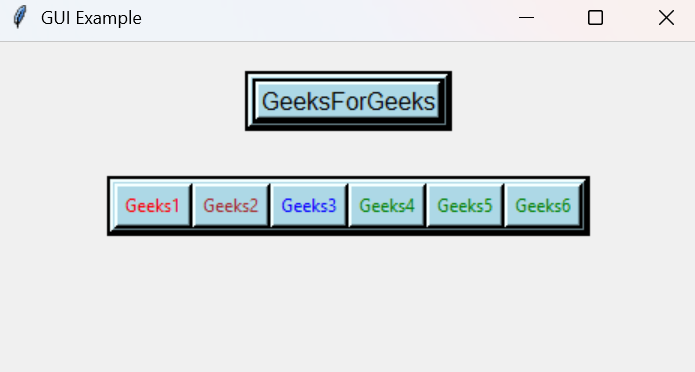
Explanation:
- tk.Tk() creates the main window stored in window.
- create_widget() is a helper function used to create all Tkinter widgets with given options.
- tk.Frame creates two containers: frame for the label and button_frame for the buttons.
- highlightcolor, highlightbackground, and highlightthickness add a colored focus border to the widgets.
- tk.Label displays "GeeksForGeeks" inside the main frame.
- create_button() creates styled tk.Button widgets using data from buttons_info.
- window.mainloop() starts the GUI and keeps it running.
