
This Qwen Edit workflow lets you AI “edit” an image to show a character in multiple angles. See samples below.


Video with multiple angles.
Table of Contents
Software
We will use ComfyUI, a free AI image and video generator. You can use it on Windows, Mac, or Google Colab.
Think Diffusion provides an online ComfyUI service. They offer an extra 20% credit to our readers.
Read the ComfyUI beginner’s guide if you are new to ComfyUI. See the Quick Start Guide if you are new to AI images and videos.
Take the ComfyUI course to learn how to use ComfyUI step by step.
Workflow overview
This ComfyUI workflow uses Qwen Image Edit, an image generation model that allows you to use a text prompt to carry out image editing, such as adding a person or changing clothes.
To speed up editing, I added Lightx2v’s 4-step LoRA, so that the image editing is four times faster.
The secret sauce of this workflow is the fal’s Qwen Image Edit Multiple Angle LoRA. It is the first multi-angle LoRA trained with 96 different view points of the same object.

Fal has provided a ComfyUI workflow to use the LoRA, but I use VNCCS‘s Visual Camera Control node so that you can define the viewing angle using a graphical dial instead of text prompt.

Qwen Image Edit Multiple Angle workflow
Step 1: Download models
- Download qwen_image_edit_2511_bf16.safetensors and put it in ComfyUI > models > diffusion_models.
- Download qwen_2.5_vl_7b_fp8_scaled.safetensors and put it in ComfyUI > models > text_encoders.
- Download qwen_image_vae.safetensors and put it in ComfyUI > models > vae.
- Download Qwen-Image-Edit-2511-Lightning-4steps-V1.0-bf16.safetensors and put it in ComfyUI > models > loras.
- Download qwen-image-edit-2511-multiple-angles-lora.safetensors and put it in ComfyUI > models > loras.
Step 2: Load the workflow
Download the JSON workflow below. Drop the file to ComfyUI to load.
Step 3: Install missing nodes
ComfyUI Manager may not install the missing nodes correctly for this workflow. You will install the ComfyUI_VNCCS_Utils custom nodes.
- Click Manager.
- Click Custom Nodes Manager.
- Search for “VNCCS”
- Install VNCCS – Collection of utility nodes.

Restart ComfyUI.
Step 4: Upload an image
Upload an image you wish to edit to the Load Image node.

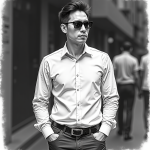
You can use the test image below.
Step 5: Set the camera angle
Set the camera angle by moving the small arrow and dot. The arrow changes lateral view angle. The dot changes the elevation of the camera.

How the node works: The node merely provides a visual dial of the camera angle. It translates the setting into the prompt.
Step 6: Generate images
Click the Run button to run the workflow.


Use cases
1. Camera movement around a character
With consistent character generation in multiple angles, you can use Wan 2.2 First Last Frame workflow to generate a video clip with camera moving around a character.
Using the following images as the first and the last frame of the video.
We can generate a video with revolving camera like this:
2. Consistent character with motions
In this second use case, you use Qwen Image Edit to change the pose of the character.

Use the Wan 2.2 First Last Frame workflow to generate a video clip connecting the two images.
You can also combine the first and the second video to create a longer video.

can we run this with the stable diffusion webui?
no
Belated thanks for this, Andrew. It works very well and it’s fun to be able to specify the camera angle and, when combined with Wan2.2, the camera movement so precisely.
Привет! Меняю положение параметров камеры но позиция на выходе неизменная. Помогите разобраться почему? Виктор
Dumb question, but I’m failing to see how the node works. Is it supposed to auto create the prompt in the format , ro should it read the prompt? When I change the node indicator, they keep following the mouse so I’m not able to fix them in a position – and it doesn’t change based on my prompt either.
Hi, all you need to do is to move the dial and run the workflow. The LoRA needs a specific version of Qwen Edit. Make sure to use the one listed in this article.