


Upgrading an old .NET app doesn’t have to mean chasing broken builds and cryptic errors. Yet for many developers, a simple version bump turns into hours of dependency conflicts and manual fixes.
Modernization isn’t just about staying current. Older frameworks can introduce security risks, slow performance, and block cloud adoption. Upgrading unlocks modern APIs, better tooling, and cloud-native features like automated scaling and secure identity management.
That’s where GitHub Copilot app modernization comes in. Think of it as your modernization assistant, guiding you through every step, automating the heavy lifting, and helping you move from “this might take weeks” to “done in hours.”
What you’ll learn
By the end of this guide, you’ll know how to:
- Analyze your .NET projects and generate a clear upgrade plan
- Apply changes automatically with GitHub Copilot
- Fix build issues and validate tests in real time
- Review a detailed summary report
- Prepare your app for Azure migration and deployment
Before you begin
To follow along, make sure you have:
- Visual Studio 2026 (or Visual Studio 2022 version 17.14.17 or newer)
- A GitHub Copilot license (Pro, Pro +, Business or Enterprise)
- .NET desktop development workload with the following optional components enabled: GitHub Copilot and GitHub Copilot app modernization
Upgrade your .NET app
Step 1: Open your project or solution
Start by launching Visual Studio and opening your .NET project or solution.
Step 2: Start an agent session
You can begin in two ways:
- Right-click your project or solution in Solution Explorer and select Modernize
- Or open GitHub Copilot Chat and type @modernize followed by your request
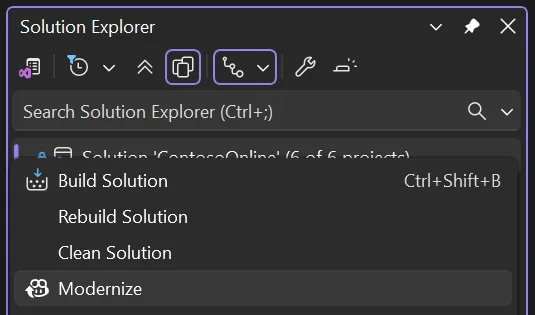
Step 3: Choose your path
Next, decide what you want to do:
- Upgrade to a newer .NET version for better performance and security
- Migrate to Azure to unlock cloud-native capabilities
- Explore more modernization options if you have additional goals
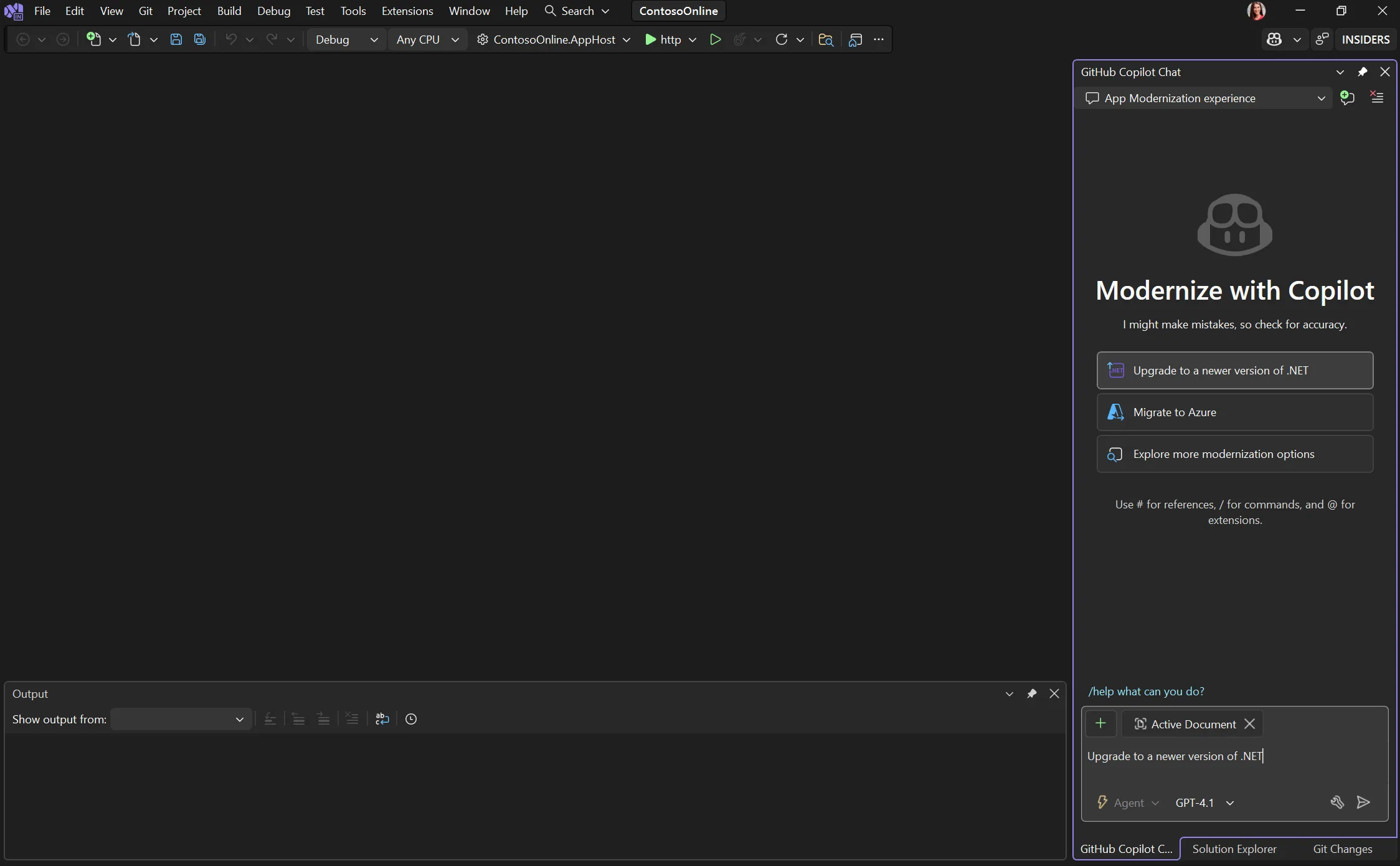
Step 4: Assess and plan
Copilot assesses your code and dependencies, then:
- Asks a few questions about your goals to tailor the plan
- Generates a Markdown upgrade plan for transparency
- Lets you review and edit the plan before moving forward
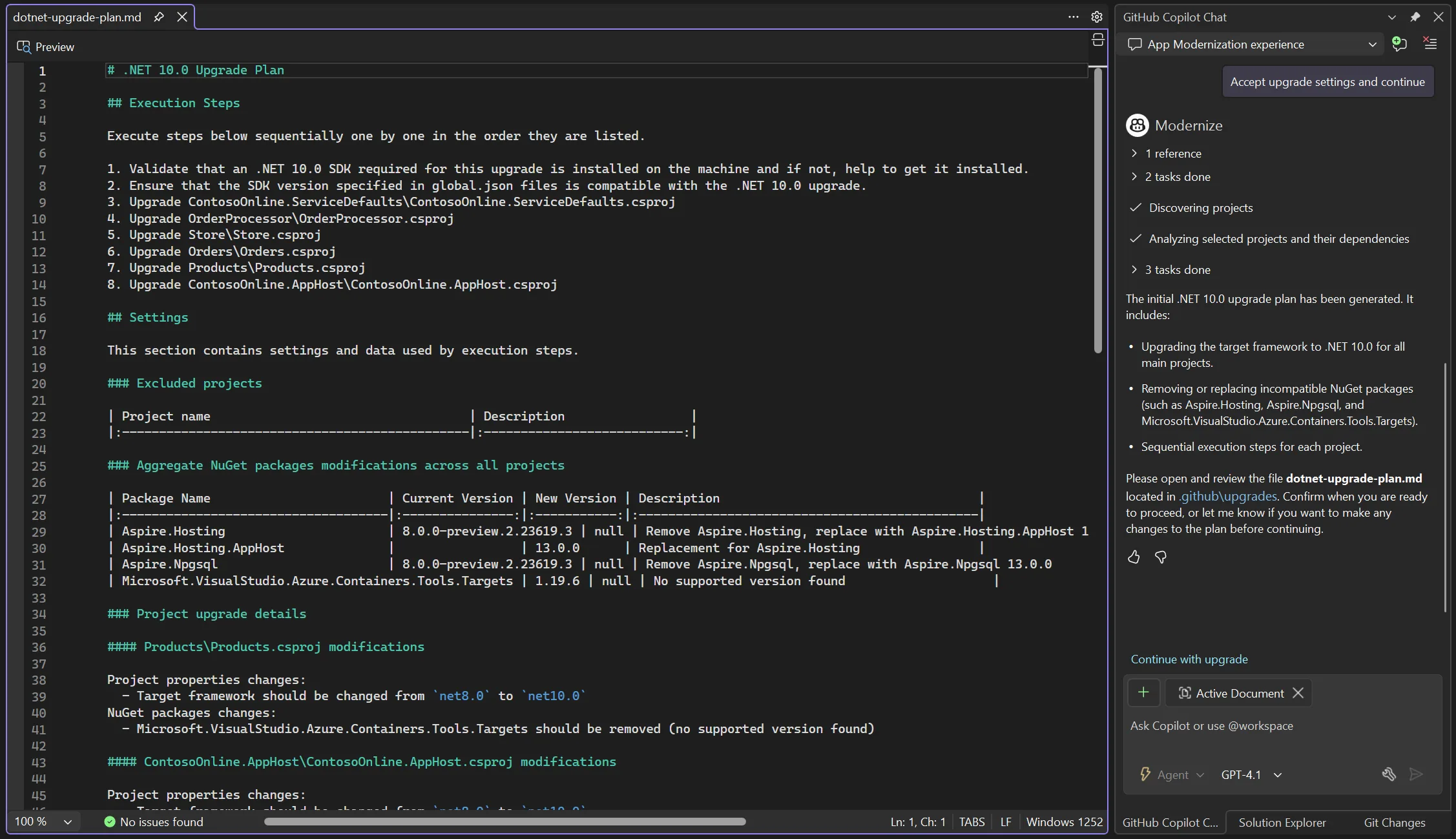
You can edit the plan to add context, reorder steps, or exclude certain projects before approving.
Step 5: Apply changes and resolve errors
Once you approve the plan, Copilot will:
- Upgrade files, adjust imports, and fix syntax issues automatically
- Handle build errors in a fix-and-test loop to ensure stability
- Track progress in the Upgrade Progress Details document for visibility
- Commit each major step to Git for easy rollback if needed
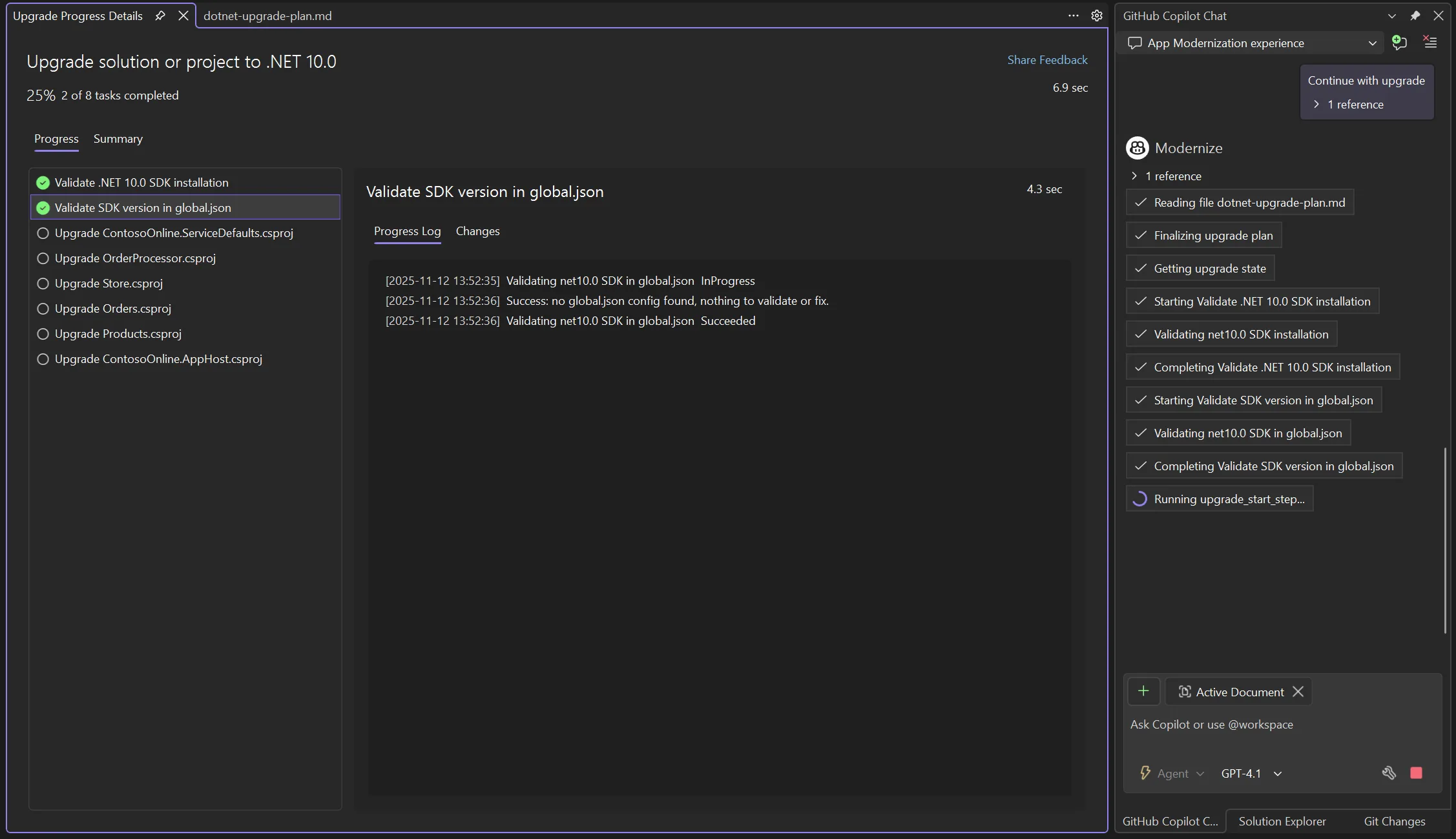
If Copilot encounters a problem it can’t fix automatically, it pauses and asks for your input, keeping you in control.
Step 6: Review the results
After completion, Copilot provides:
- A detailed report with Git commit hashes for traceability
- A Next Steps section for post-upgrade actions like updating CI/CD pipelines or running integration tests
Make your app cloud ready
Modernization doesn’t stop at upgrading your code. Making your app cloud-ready unlocks scalability, security, and operational efficiency. Here’s how Copilot helps:
Step 1: Run a cloud readiness assessment
Start by selecting Migrate to Azure from the GitHub Copilot app modernization UI.
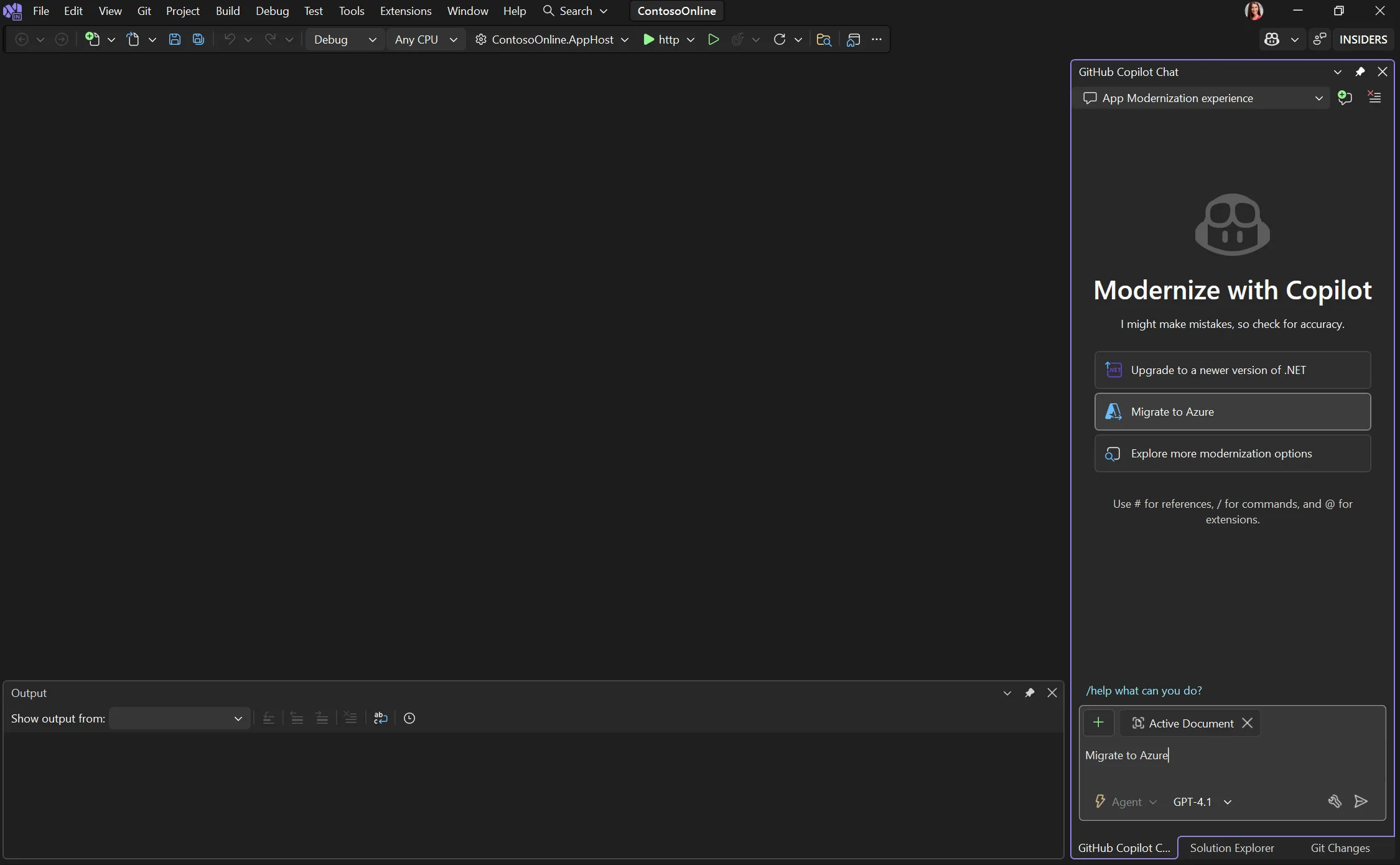
Copilot will:
- Scan your project for framework compatibility and configuration gaps
- Identify authentication and identity issues for cloud environments
- Highlight dependency vulnerabilities that need attention
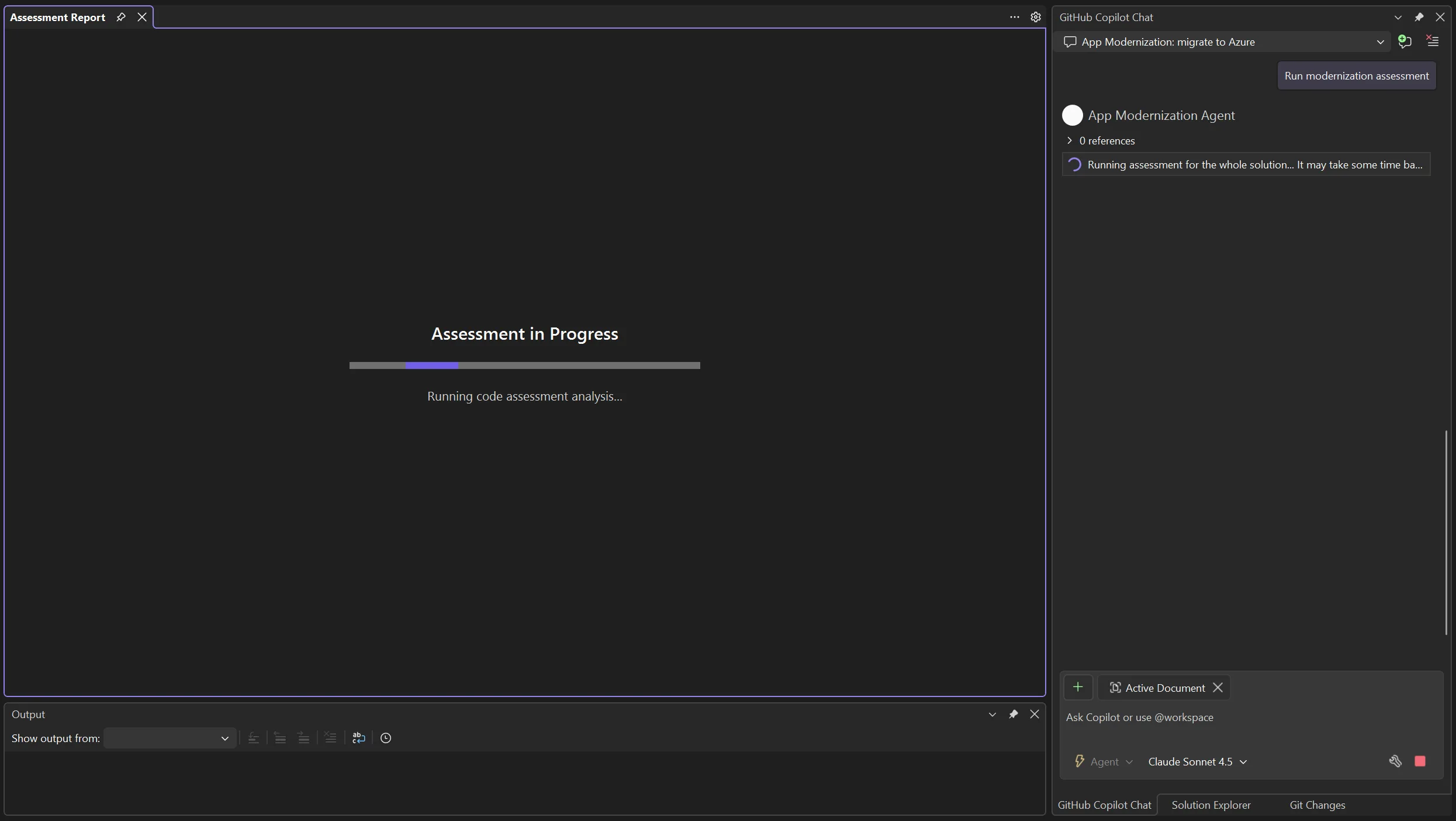
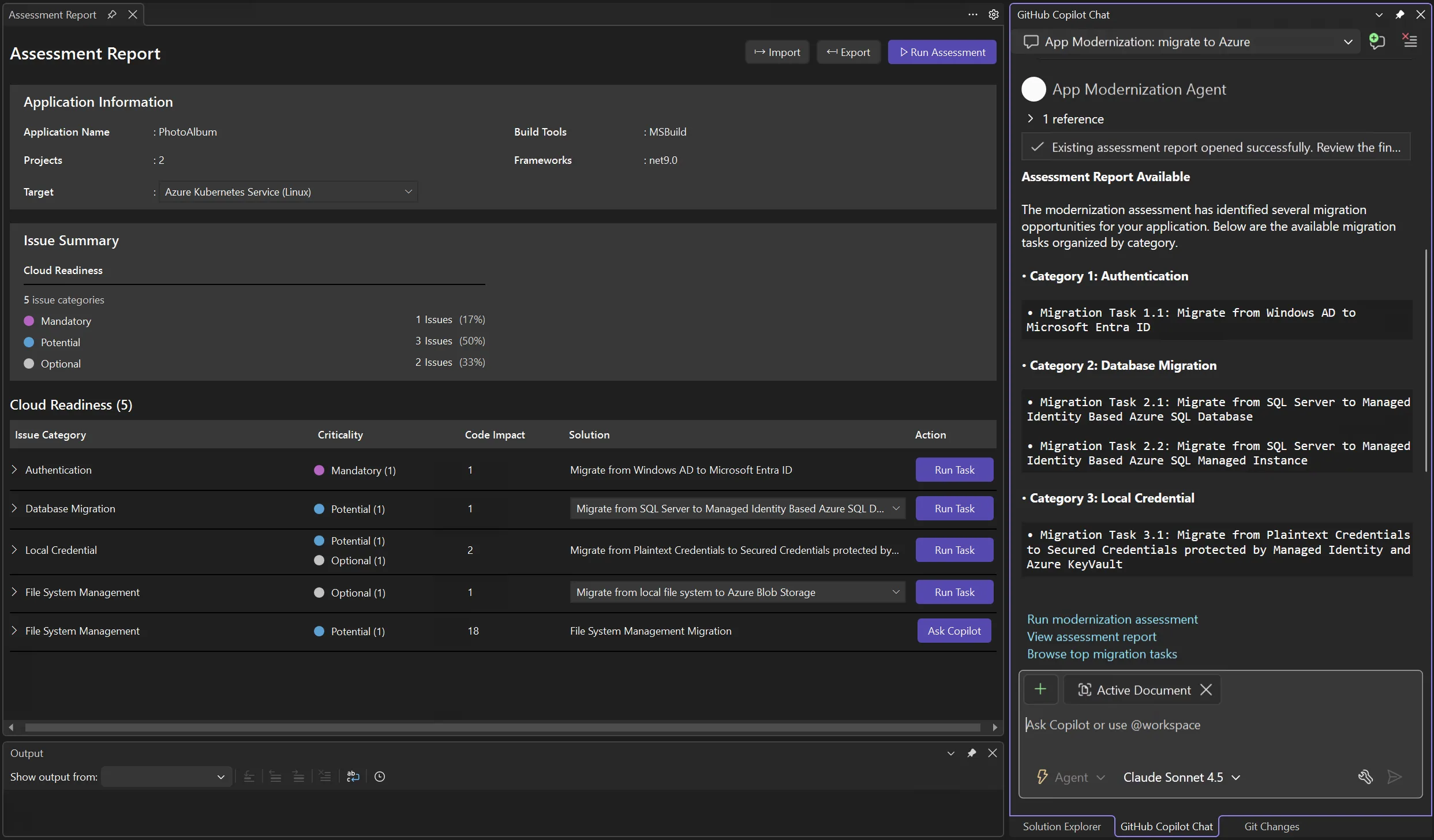
When the assessment finishes, you’ll see a detailed report along with:
- A list of migration tasks in the chat window
- Criticality ratings
- Recommended actions
Step 2: Approve and execute the migration plan
Similar to the upgrade process, Copilot creates a migration plan that will:
- Highlight dependency updates for Azure compatibility
- List configuration changes for cloud services to ensure smooth deployment
- Include security enhancements for compliance
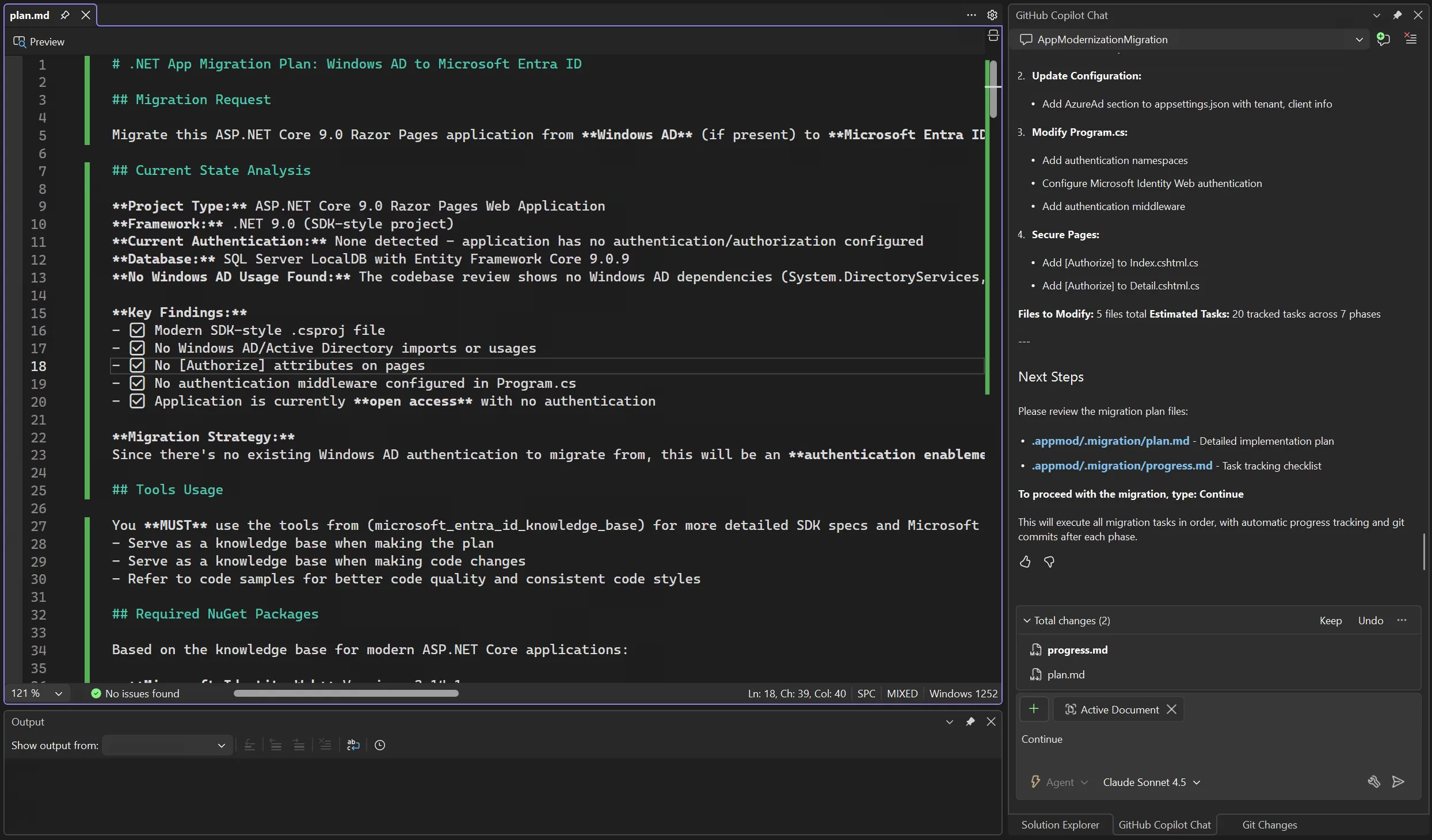
Once you approve the plan, Copilot will:
- Update your configuration and code
- Add required Azure SDKs and authentication adapters
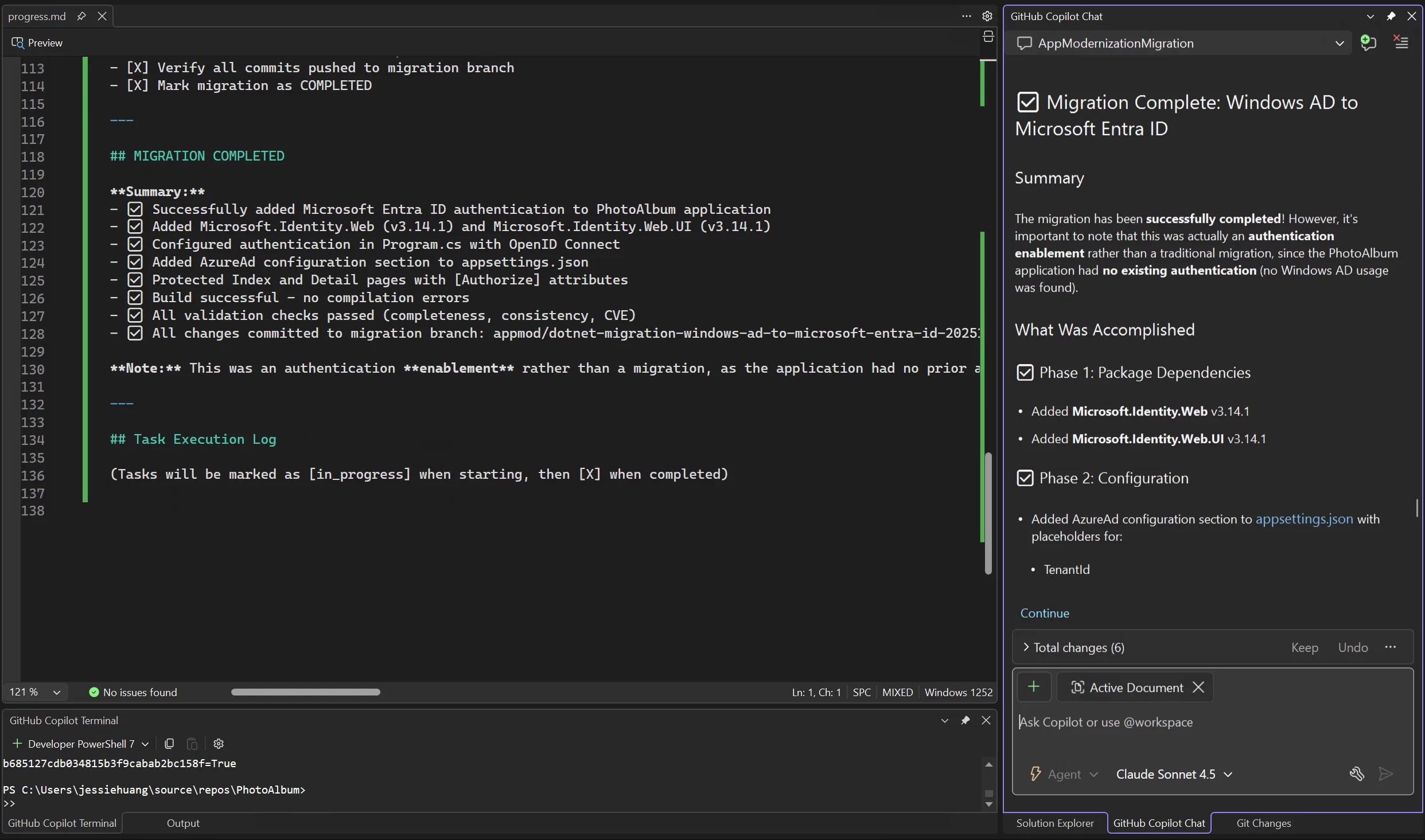
Step 3: Validate and secure
After code remediation, Copilot will:
- Run automated CVE scans on all updated dependencies
- Propose safe version replacements if vulnerabilities are found
- Confirm all tests pass and build integrity is maintained
Step 4: Deploy to Azure
Finally, deployment is fully automated. Copilot handles:
- Provisioning resources without manual scripting
- Configuring monitoring and logging for observability
- Securing identities for safe access
From code to cloud in minutes, without writing infrastructure scripts.
Try GitHub Copilot app modernization today
Ready to modernize your .NET apps faster? Whether you’re upgrading frameworks or planning a cloud migration, GitHub Copilot app modernization helps you analyze large codebases, automate fixes, and save hours of manual work. Learn more and try it out today.


I tried this tool and was very disappointed in the results. It was not even able to upgrade the first project in the solution without failing. After several attempts I have accepted the fact that it is more efficient to manually upgrade. I suppose this is a good tool for people who deploy hello world to the cloud but for mature applications that have seen many .Net version upgrades this is not a tool to use.
Thanks for sharing this feedback. If you run into issues, please file a bug using the Report a Problem tool in Visual Studio. This helps us capture logs and environment details so we can investigate and improve the experience.
👉 https://learn.microsoft.com/en-us/visualstudio/ide/how-to-report-a-problem-with-visual-studio?view=visualstudio
This article is on a great shape, the steps are well defined. Thanks.
Same response as everyone else. New feature is a huge downgrade from the free option we previously had and incredibly disappointing that it was taken away from us. It’s part of the modern technique of rather than enhancing existing to make things better, it’s start from scratch just for the sake of monetizing and using buzz words. Very sad and really pushes developers away from the platform.
Thank you for sharing your perspective. We understand the frustration and want to clarify that the Upgrade Assistant is still available in Visual Studio for those who prefer it. Starting with Visual Studio 17.14.17 or later, you can enable it under Tools → Options → Projects and Solutions → Modernization → Enable legacy Upgrade Assistant, then restart Visual Studio. Our goal with AI-assisted tooling is to support broader and more complex upgrade scenarios, but we also recognize the importance of offering flexibility for different workflows.
The legacy Upgrade Assistant is still available. If you installed VS 2026 then it shows up under the components. Haven’t tried running it in VS 2026 directly but the CLI should work as well.
We’ve always used the .NET Upgrade Assistant. It was easy, fast and free.
The new Modernize feature is slow, generates overhead and you have to pay for it.
Previously, Microsoft already published and maintained the .NET Upgrade Assistant. A formalized process with clear, guided-through steps, and clear scope.
I tried GitHub Copilot Modernize on a net9 to net10 Blazor Webassembly project and was disappointed.
Copilot, just like this post demonstrates, followed the process we had before, but now in a slower and non-deterministic way.
Now we get a generated text document as a mid-step instead of a structured form, and then a disconnect between documented upgrade steps and actions.
The real opportunity of Copilot Modernize, what I was hoping for is that Copilot would do, is following the already covered...
Thanks for sharing this detailed feedback. We hear you on the differences compared to Upgrade Assistant. We’re actively working on improvements to make the experience more structured and address these concerns in the next release.
I guess that’s the future and theorecically, it sounds like a really nice feature. But have to say, tried it to upgrade to dotnet 10 and it failed. Upgraded to 10 preview, no chance to convince the tool to upgrade to the final release, then it took forever and needed manual help multiple times to do what i did with a simple search and replace and some changes in packages.directory.props before…
We’ve made a fix that addresses issues with upgrading to .NET 10, and it’s rolling out today. If you have a chance to try it again, we’d love to hear how it works for you.
no. Seriously, this AI powered thing is a big step backward in tooling for VS and .NET. Before October 2025, previously we had a very capable, non-AI based and FREE Visual studio extension-based solution for upgrading old .NET projects. Now we need to pay for a Github Copilot subscription for something that was once free!? The previous extension was fine; it scanned your project's API deterministically and didn't hallucinate anything. I ran this copilot tool on a project and it hallucinated nuget packages that don't exist.
Such a massive disappointment to update my VS and have a message saying the...
Thanks for sharing this feedback. We understand that having the previous Upgrade Assistant available is helpful, and we don’t want to block anyone who prefers that workflow. That’s why we added a way to re-enable it in Visual Studio. Starting with Visual Studio 17.14.17 and later, you no longer need to install this extension. The Upgrade Assistant is now built into Visual Studio. To enable it: Tools → Options → Projects and Solutions → Modernization → Enable legacy Upgrade Assistant, then restart Visual Studio. If you have the Marketplace extension installed, please uninstall it to avoid conflicts.
Why is it called legacy?
While I do think the app modernization is a step up it still is nowhere near ready for real world use. I'm not sure what kind of apps you are testing this against but it took us weeks of effort to upgrade a NET 4.7.2 web app and the 20 projects it relied on to NET 8. The app modernization helped initially but really didn't save us much time. It did the following:
- Updated all the project files to NET 8. Since all but the MVC project was already in the modern SDK format it really just had to change...
Hello Michael Taylor. Your comment offered us a great insight in migrating an ASP.NET MVC projects from .NET Framework 4.x to .NET 8.0. We are struggling and based your comment, looks like is really that way, I mean, manually replacing the controllers code and things like that. Thanks alot! And by the way, if you have any link that you guys got info from and don’t mind to share, we really appreciate it, thanks again!