
In Timetics, you can export and import the data of Meetings, Staff Members, Bookings and Customers. You can export and import the data in JSON and CSV format.
Export/ Import Meetings
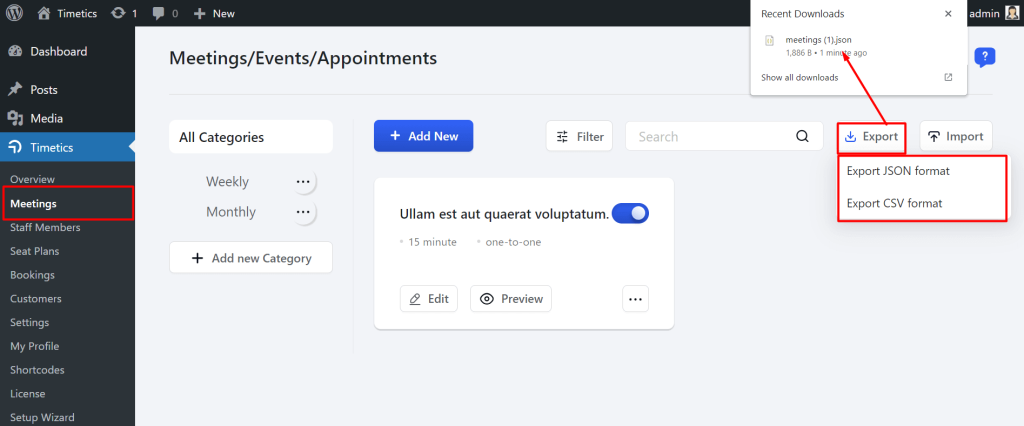
Navigate to the TimeTics -> Meetings -> Click on the export button -> Select file types “JSON or CSV format”. Then a file will be downloaded.
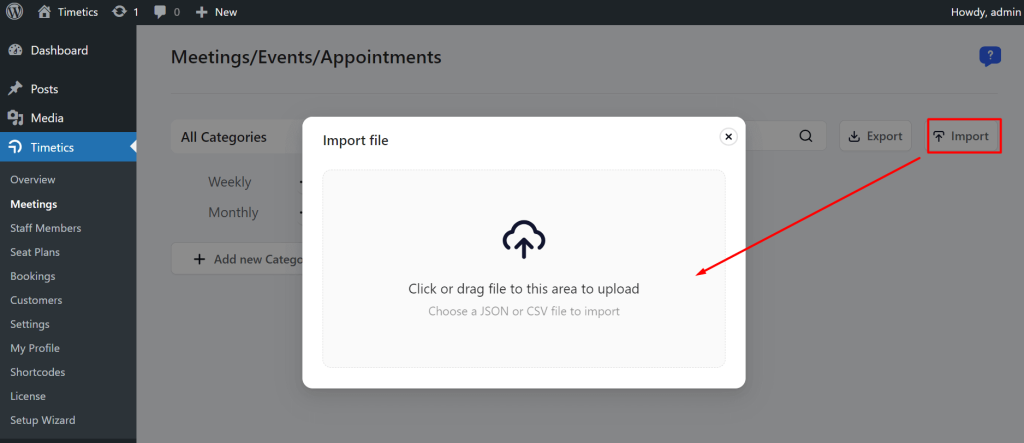
For importing the Meetings, Click on the Import button -> Select the file and import it.
Export/ Import Staff Members
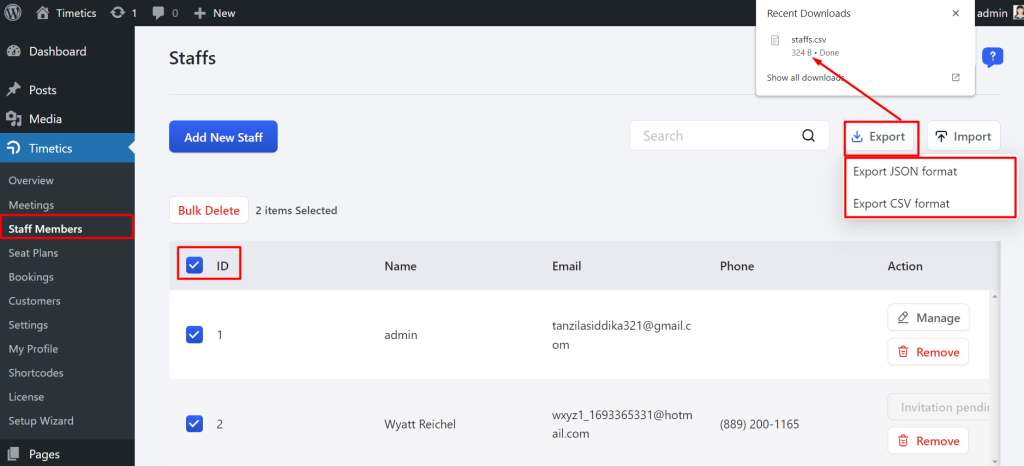
Navigate to the TimeTics -> Staff Members -> Click on the export button -> Select file types “JSON or CSV format”. Then a file will be downloaded.
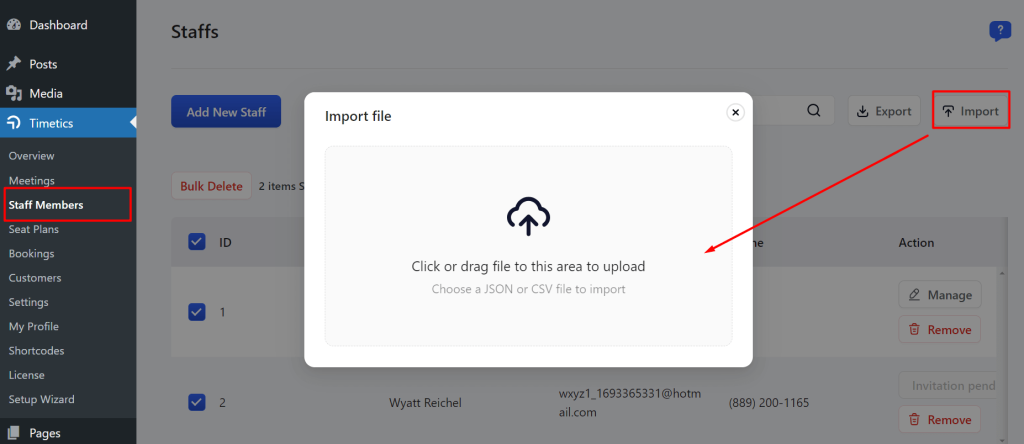
For importing the Staff members, Click on the Import button -> Select the file and import it.
Note: If the existing staff email and imported staff email is the same, then this staff will not imported for the same email address.
Export/ Import Bookings
Navigate to the TimeTics -> Bookings -> Select Event for booking -> Click on the export button -> Select file types “JSON or CSV format”. Then a file will be downloaded.
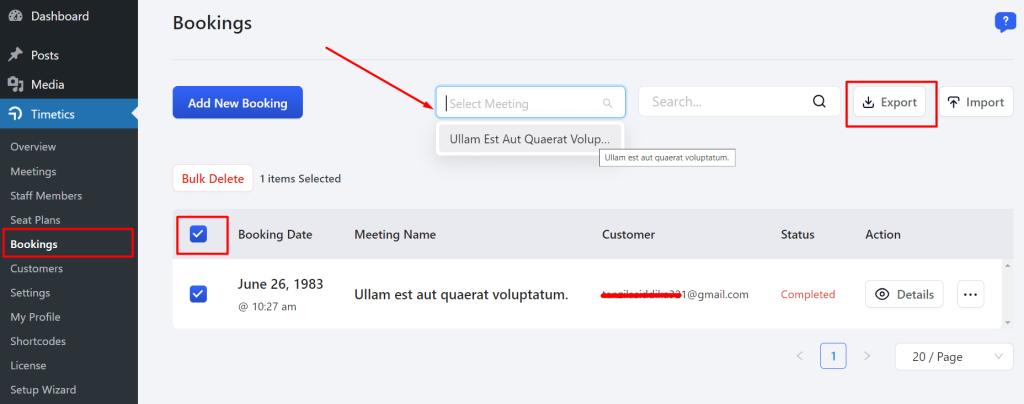
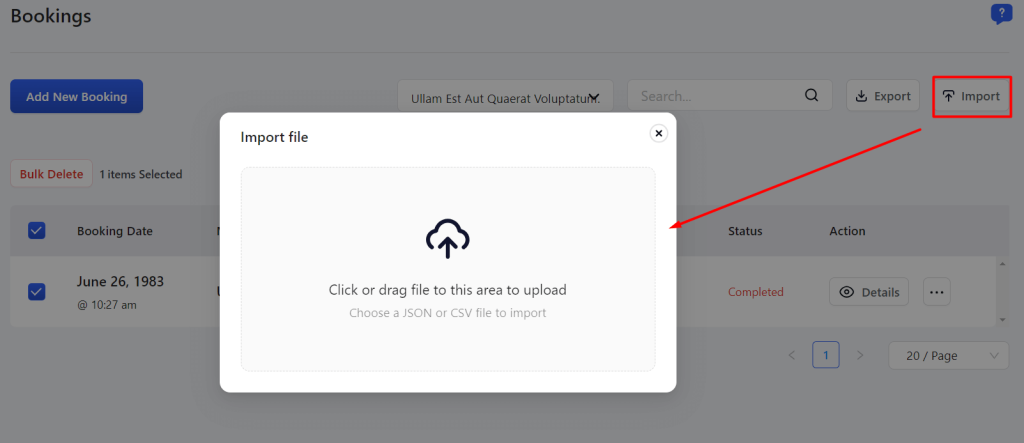
For importing the Booking, Click on the Import button -> Select the file and import it.
Export/ Import Customers
Navigate to the TimeTics -> Customers -> Click on the export button -> Select file types “JSON or CSV format”. Then a file will be downloaded.
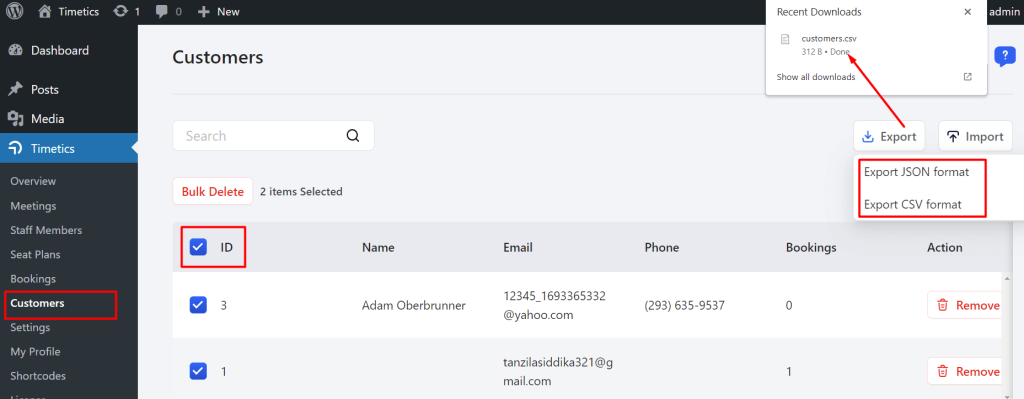
For importing the Customer, Click on the Import button -> Select the file and import it.

