Dokkio Sidebar is now available in Microsoft Edge

Previously only available as an extension for Google Chrome, we are excited to announce that Dokkio Sidebar is now available as an add-on for Microsoft Edge!

When you browse the web or use online apps, Sidebar finds the right content and knowledge from all of your important files, emails, attachments, and web history, making it instantly available to boost your productivity and effectiveness.

And when you find compelling content on the web, you can immediately clip it, bookmark it, and add it to your knowledge base.

Plus, Sidebar’s MultiSearch feature notices when you search for files in Dropbox, Gmail, Google Drive, OneDrive, GitHub, and HubSpot — or even when doing a web search in Google, Bing, or Yahoo — and runs a parallel search across all your content connected to Dokkio to display files that relate to that search.

When you are working in the browser – whether you’re writing an email, collaborating on a Google Doc or Notion page, or finding articles or information on the web, Dokkio Sidebar:

  • Automatically deduces “what this doc or page is about”
  • Shows relevant metadata and content
  • Runs a parallel search of your Dokkio content when searching Gmail, Google Drive, OneDrive, Google.com, Bing, and more
  • Conducts a full-text search of your connected Dokkio content when you simply highlight text on the page
  • Creates embeddable hyperlinks to files or data in text that you write
  • Clips and bookmarks entire pages or excerpts
  • Automatically tags clipped content
  • Adds to your knowledge base as you work

To install Sidebar for Edge, or if you haven’t tried it yet on Chrome, visit dokkio.com/sidebar to install it today. It’s free!

If you would like a demo of Sidebar in action, or Dokkio’s core product, please feel free to sign up for a Zoom call on the page linked above.

And if you try Sidebar for Microsoft Edge and enjoy it, please do us a favor and rate and review us in the Edge store!

As always, if you have any questions or feedback, please reach out to support@dokkio.com.

We’ve made major changes to Dokkio Sidebar’s Multisearch!

We are pleased to announce changes to Dokkio Sidebar that improve the way MultiSearch presents results from Google, Bing, and Yahoo web searches.

Previously, Sidebar mirrored the search term typed into a search engine and presented results from your Dokkio account – files, folders, attachments, messages, and browsed pages –  in a floating panel on the page.

Now, Sidebar presents these results in-line with the rest of your Google, Bing, or Yahoo web search results. This gives Sidebar a more intuitive look and feel, and ensures that it’s not obscuring important page content with the floating panel.

Here’s a screenshot of a search for “environment” in Google, with Dokkio Sidebar connected to our Patagonia demo account. You’ll see that, rather than expanding the side panel, the results are presented in-line with the search engine’s results:

Image

The search includes an option to “See all results”, which will take you to a search results view in your Dokkio account.

You can still uncheck the checkbox in the Sidebar toolbar drop-down if you don’t want MultiSearch results to automatically appear. The Sidebar “mini-tile” will simply “jiggle” to let you know that Sidebar has results to see, but they don’t appear unless you click the mini-tile.

To install Sidebar, you can log in to your Dokkio account, click your name in the lower left, and select “Install Sidebar”. Alternatively, you can visit dokkio.com/downloads to install Sidebar from our website.

We are eager to hear your thoughts on this change, so please share any feedback or questions you have with support@dokkio.com.

Introducing Browsed Pages

We’re pleased to announce with today’s update, Sidebar brings Dokkio’s hallmark intelligence to Chrome with our newest feature, Browsed Pages. 

With this update of Sidebar, you can now keep track of the web pages that you visit and Sidebar will recognize when a page is relevant to your Dokkio tags and will automatically tag items in your history for you. 

For example, suppose you saw a web page that mentioned a client, Acme, but you forget where you saw it. With our new Browsed Pages feature, Sidebar keeps track of the pages you’ve browsed and applies the appropriate tags, like client names, so you’d simply select your “Acme” client tag, and the page you were looking for will be there.  

The history content is private to you; other members of your organization will not have access to your browsing history. Additionally, it does not run in incognito mode and has an easy toggle.

Image
toggle for Browsed Pages on Account tab

As a part of this release, you will notice “All Saved Pages” in the left nav in Dokkio.  All Saved Pages provides you with a feed of recently visited pages that you can edit or filter.

If you already have Dokkio Sidebar installed, no action is needed — Sidebar will update automatically. If you haven’t tried it yet, you can get Sidebar from the Chrome Web Store. It’s free!

As always, if you have any questions or feedback, reach out to us at support@dokkio.com or message us through the in-product chat.

Maintenance Window: Feb 25 10pm PST / Feb 26 1am EST

Dokkio will be unavailable for a short time (expected 20 minutes) for a major database upgrade on February 25 starting at 10pm PST (1am EST on Feb 26).

Our goal is 100% uptime with no scheduled downtime, but in this case, the downtime makes our upgrade process much easier. We’ve tried to minimize any disruption by scheduling this in the middle of a weekend night (in the U.S.), but we apologize for any inconvenience that it causes.

Gmail Messages Integration and Tagging

Why: User feedback! You’ve told us that the content in the body of emails is sometimes as (or more) important than their attachments (which Dokkio already supports).

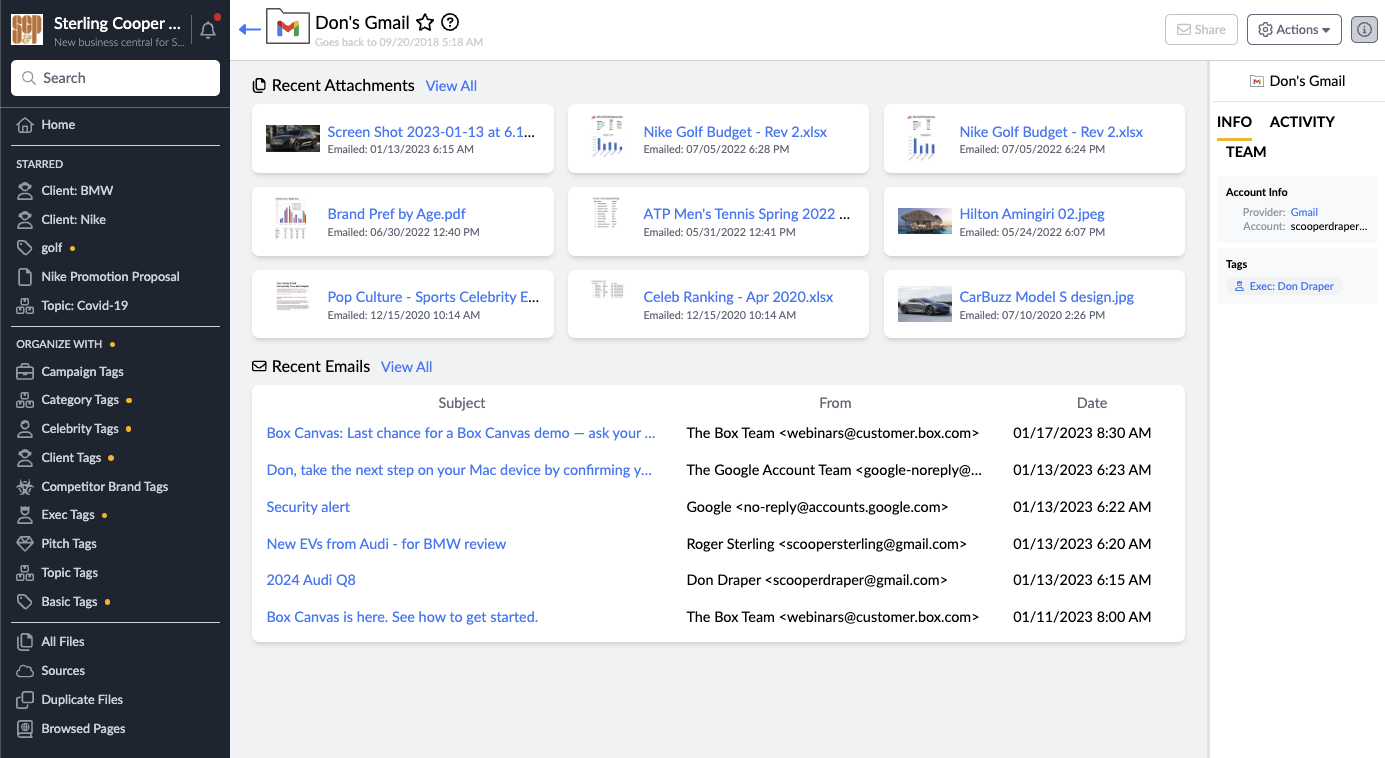
What: When you connect Dokkio to Gmail, it now shows both your email attachments and individual Gmail messages (whether they have attachments or not). Gmail messages can be tagged, searched, viewed, and more.

When: If you joined Dokkio since October, a prototype of this capability has already been active; for all other accounts, it has been activated this past weekend.

Capabilities: The new capability includes these features:

Message searching: Your Dokkio search or Sidebar MultiSearch now includes the text of gmail messages; search results include both files and email messages. Message auto-tagging:  If your account has tags like “golf” or “Contact: Mary Jones”, for example, email messages that mention those topics or people will be auto-tagged. Message tagging (manual): You can add your own tags to messages, to indicate messages to be discussed, or those requiring action Tag page – messages section: When you look at the tag page for “golf” or “Mary Jones” (from the example above), it shows you messages that mention them, along with files. Tag-based filtering:  View emails that mention a topic, then add a filter to narrow the list to messages that mention a contact or customer. 

Privacy & Security: Email messages and attachments are private to you in Dokkio. Other Dokkio users (even account administrators) do not see your email contents. If you send an email to, or receive an email from, another user on your Dokkio account roster, only the two of you see the email and attachments. Simply stated: access to email in Dokkio fully respects your email privacy, exactly as if you were logged into your Gmail account directly.

Check it out: If Gmail is connected to your Dokkio account, simply choose “Sources” from the left menu, and then “Gmail”, to see the new Gmail Source page below. Two sections show “Recent Attachments” and “Recent Emails”; “View All” for either section shows a complete list.

Dokkio Gmail Message Dashboard

If your Gmail is not currently connected to your Dokkio account, do it now! From any screen in Dokkio, click “Sources” in the left menu, and then click the “+ Content Source” button at the bottom of the page and select Gmail.
Get a Demo: If you would like a demo of this and/or other features coming soon, just use the link below to schedule it:

Schedule a Demo

As always, if you have any questions or feedback, please do not hesitate to reach out to support@dokkio.com, via the in-product chat, or simply reply to this email.


Stay tuned for the next big thing – automatic tagging and caching of browsed pages!

Featuring Starred Files and Folders

Dokkio puts everything at your fingertips – files from Box, Dropbox, Drive, and OneDrive. Even email & attachments! While it’s never been easier to find your file, edit, share it, or tag it to create associations with clients, projects, vendors, we’ve learned having everything at your fingertips isn’t quite the dream come true it sounded like.

That’s why we’ve developed the ability to star a file or a folder.

Simply click the star to have a file or folder added to your left navigation menu. Done with that project? Click the star again to remove the item from the left-hand navigation.

Here is a screenshot of a spreadsheet opened. To the right of the spreadsheet name there is a while or unfilled star. To add this to your left navigation panel, click the star.

Image

You can also star your items from the list view. Here’s a screenshot of a folder in in list view. Hover over the item you’d like to star, click the Actions button that appears when you hover, and click Star. (Notice the filled-in star next to the folder name, “My Drive.” Because it’s starred, you will see this in the navigation screenshot coming up.)

Image

Now that we’ve starred the items we need most often, lets take a look at the left hand navigation panel.

Image

It’s a simple as that. Try it out and tell us what you think. We love hearing from our users! And as always if you have any questions, suggestions, problems or family recipes, please let us know at support@dokkio.com.

Episodes 1 & 2 Are Out – Be featured on the Dokkio Podcast with best-selling author Chris Yeh

We are excited to announce that have launched the Dokkio podcast, where users like yourself have the opportunity to share their experiences with Dokkio and discuss technologies that are critical to their workflow.

The hosting the podcast, Chris Yeh, aside from being a major proponent of Dokkio, is the co-author, along with LinkedIn founder Reid Hoffman, of Blitzscaling, the book that explains how to build world-changing companies like Amazon, Alibaba, and Airbnb in record time. Chris will interview a range of people, asking them about how they work, the tools they use, the challenges they face, and how Dokkio has helped them.

Image

A writer, investor, and entrepreneur, Chris has had a ringside seat in the world of startups and scaleups since 1995. His books help founders, venture capitalists, corporate leaders, policymakers, and everyday people better understand how the internet has changed the way we work together to build amazing organizations.

Hundreds of companies, from garage-dwelling startups to Fortune 50 titans have tapped his knowledge and insights to accelerate and transform their businesses.

Image

You can checkout episodes one and two at Finding File Sanity. And if you’d like to be featured on the Dokkio podcast, please fill out our Google form with a summary of how you use Dokkio and why you would like to be featured.

Sign up for Dokkio’s Enhanced Gmail Integration beta!

Many Dokkio users have expressed that the contents (body) of an email can often be as or more important to them than attachments.

Image
Photo by Maksim Goncharenok on Pexels.com

We are nearing completion of a prototype for email messages — the body (text) of email messages — as a content source in Dokkio.

With this enhancement, you will be able to see Gmail messages in search results, searched by contents, subject, and sender.

If you are interested in providing feedback on the Enhanced Gmail Integration prototype, we would love to have you test the capability. Please email us at support@dokkio.com to get on our tester list!

Announcing Dokkio Sidebar 3.2 with Major Enhancements to Tagging

We’re very pleased to announce Sidebar 3.2, which makes tagging easier and better, with:
Tag suggestions:  See Dokkio’s tag suggestions, without leaving Sidebar.  For example if you tag files by Company, Sidebar shows you there are more suggested Company-Tags, and lets you easily accept or reject each one – all within the Sidebar pane

Page Tagging suggestions:  When you view a page, Sidebar’s “About this Page” panel now includes matches to suggested tags. You can easily tag and clip the page, and add the new tag to your actively-used tags, all with a single click.

Tag management: Within Sidebar, you can view all active tags and tagged content, drop an existing tag, or add new tags (such as new Project or Customer tags when you start a Project or win a Customer), and Dokkio will start auto-tagging.
If you have already installed Dokkio Sidebar, your extension will automatically update to version 3.2.  If you have yet to install Dokkio Sidebar, you can do so for free by visiting the Google Chrome store, linked below:
Install Dokkio Sidebar
Please note: We’re currently rolling out and testing an enhanced tagging foundation, and these new Sidebar capabilities are built on it. If you created an account after May 2022, your account already uses the new foundation; you can simply start using the new features.

If your account was created prior to May 2022 and you have not been part of our beta program and want to try these new Sidebar features, please contact support@dokkio.com; we will enable them for you. We plan to migrate the entire user base in the next couple of weeks, and will update you again when that is complete.

Be featured on the Dokkio Podcast with best-selling author Chris Yeh

We are excited to announce that we will be launching the Dokkio podcast, where users like yourself will have the opportunity to share your experience with Dokkio and discuss technologies that are critical to your workflow.

Hosting the podcast will be Chris Yeh who, aside from being a major proponent of Dokkio, is the co-author, along with LinkedIn founder Reid Hoffman, of Blitzscaling, the book that explains how to build world-changing companies like Amazon, Alibaba, and Airbnb in record time. Chris will interview a range of people, asking them about how they work, the tools they use, the challenges they face, and how Dokkio has helped them.

Image

A writer, investor, and entrepreneur, Chris has had a ringside seat in the world of startups and scaleups since 1995. His books help founders, venture capitalists, corporate leaders, policymakers, and everyday people better understand how the internet has changed the way we work together to build amazing organizations.

Hundreds of companies, from garage-dwelling startups to Fortune 50 titans have tapped his knowledge and insights to accelerate and transform their businesses.

Image

If you’d like to be featured on the Dokkio podcast, please fill out our Google form with a summary of how you use Dokkio and why you would like to be featured.