Image

Play A .WAV Instead Of Typing Line After Line Into Vintage Microcomputer

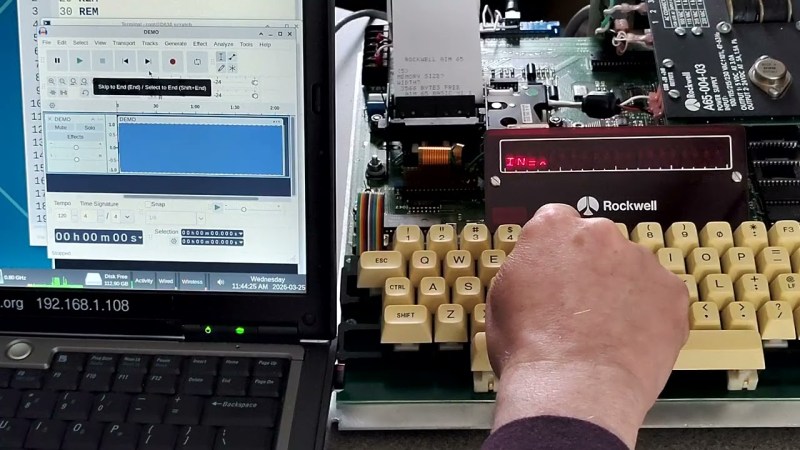
[Casey Bralla] got his hands on a Rockwell AIM 65 microcomputer, a fantastic example of vintage computing from the late 70s. It sports a full QWERTY keyboard, and a twenty character wide display complemented by a small thermal printer. The keyboard is remarkably comfortable, but doing software development on a one-line, twenty-character display is just not anyone’s idea of a good time. [Casey] made his own tools to let him write programs on his main PC, and transfer them easily to the AIM 65 instead.

Image
A one-line, twenty-character wide display was a fantastic feature, but certainly lacking for development work.

Moving data wasn’t as straightforward in 1978 as it is today. While the Rockwell AIM 65 is a great machine, it has no disk drive and no filesystem. Programs can be written in assembler or BASIC (which had ROM support) but getting them into running memory where they could execute is not as simple as it is on modern machines. One can type a program in by hand, but no one wants to do that twice.

Fortunately the AIM 65 had a tape interface (two, actually) and could read and store data in an audio-encoded format. Rather than typing a program by hand, one could play an audio tape instead.

This is the angle [Casey]’s tools take, in the form of two Python programs: one for encoding into audio, and one for decoding. He can write a program on his main desktop, and encode it into a .wav file. To load the program, he sets up the AIM 65 then hits play on that same .wav file, sending the audio to the AIM 65 and essentially automating the process of typing it in. We’ve seen people emulate vintage tape drive hardware, but the approach of simply encoding text to and from .wav files is much more fitting in this case.

The audio encoding format Rockwell used for the AIM is very well-documented but no tools existed that [Casey] could find, so he made his own with the help of Anthropic’s Claude AI. The results were great, as Claude was able to read the documentation and, with [Casey]’s direction, generate working encoding and decoding tools that implemented the spec perfectly. It went so swimmingly he even went on to also make a two-pass assembler and source code formatter for the AIM, as well. With them, development is far friendlier.

Watch a demonstration in the video [Casey] made (embedded under the page break) that shows the encoded data being transferred at a screaming 300 baud, before being run on the AIM 65.

Continue reading “Play A .WAV Instead Of Typing Line After Line Into Vintage Microcomputer”
Image

Playful ‘Space Dice’ Kit Shows Off Clever Design

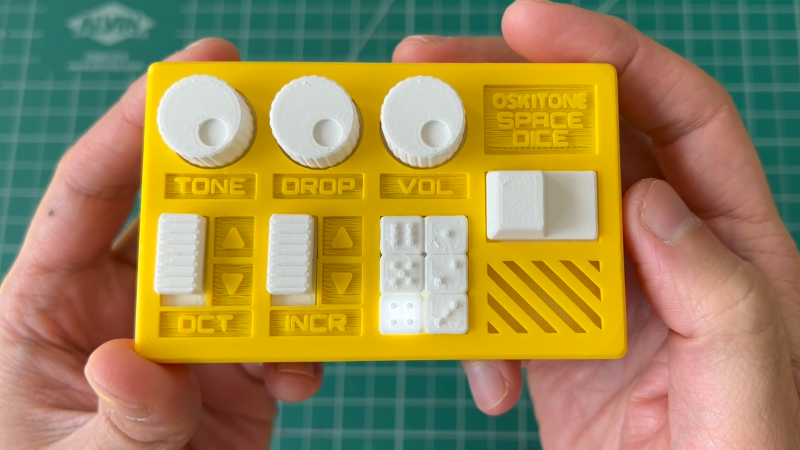
[Tommy] at Oskitone has been making hardware synth kits for years, and his designs are always worth checking out. His newest offering Space Dice is an educational kit that is a combination vintage sci-fi space laser sound generator, and six-sided die roller. What’s more, as a kit it represents an effort to be genuinely educational, rather than just using it as a meaningless marketing term.

There are several elements we find pretty interesting in Space Dice. One is the fact that, like most of [Tommy]’s designs, there isn’t a microcontroller in sight. Synthesizers based mostly on CMOS logic chips have been a mainstay of DIY electronics for years, as have “electronic dice” circuits. This device mashes both together in an accessible way that uses a minimum of components.

ImageThere are only three chips inside: a CD4093 quad NAND with Schmitt-trigger inputs used as a relaxation oscillator, a CD4040 binary counter used as a prescaler, and a CD4017 decade counter responsible for spinning a signal around six LEDs while sound is generated, to represent an electronic die. Sound emerges from a speaker on the backside of the PCB, which we’re delighted to see is driven not by a separate amplifier chip, but by unused gates on the CD4093 acting as a simple but effective square wave booster.

In addition, [Tommy] puts effort into minimizing part count and complexity, ensuring that physical assembly does not depend on separate fasteners or adhesives. We also like the way he uses a lever assembly to make the big activation button — mounted squarely above the 9 V battery — interface with a button on the PCB that is physically off to the side. The result is an enclosure that is compact and tidy.

We recommend checking out [Tommy]’s concise writeup on the design details of Space Dice for some great design insights, and take a look at the assembly guide to see for yourself the attention paid to making the process an educational one. We love the concept of presenting an evolving schematic diagram, which changes and fills out as each assembly step is performed and tested.

Watch it in action in a demo video, embedded just below. Space Dice is available for purchase but if you prefer to roll your own, all the design files and documentation are available online from the project’s GitHub repository.

Continue reading “Playful ‘Space Dice’ Kit Shows Off Clever Design”

Image

Use A Gap-Cap To Embed Hardware In Your Next 3D Print

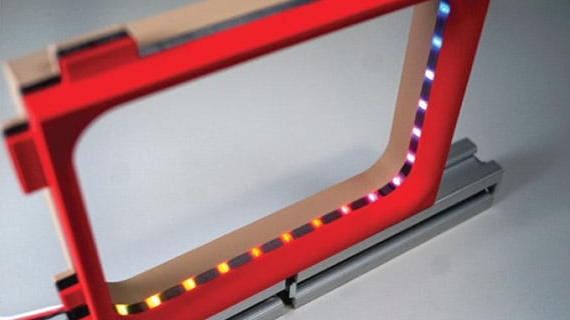
Embedding fasteners or other hardware into 3D prints is a useful technique, but it can bring challenges when applied to large or non-flat objects. The solution? Use a gap-cap.

ImageThe gap-cap technique is essentially a 3D printed lid. One pauses a print, inserts hardware, then covers it with a lid before resuming the print. The lid — or gap-cap — does three things. It seals in the part, it fills in empty space left above the component, and it provides a nice flat surface for subsequent layers which makes the whole process much cleaner and more reliable.

This whole technique is a bit reminiscent of the idea of manual supports, except that the inserted piece is intended to be sealed into the print along with the embedded hardware under it.

If you have never inserted anything larger than a nut or small magnet into a 3D print, you may wonder why one needs to bother with a gap-cap at all. The short version is that what works for printing over small bits doesn’t reliably carry over to big, odd-shaped bits.

For one thing, filament generally doesn’t like to stick to embedded hardware. As the size of the inserted object increases, especially if it isn’t flat, it increasingly complicates the printer’s ability to seal it in cleanly. Because most nuts are small, even if the printer gets a little messy it probably doesn’t matter much. But what works for small nuts won’t work for something like an LED strip mounted on its side, as shown here.

Image
Cross-section of a print with an embedded LED strip. The print pauses (A), LED strip is inserted and capped with a gap-cap (B, C), then printing resumes and completes (D).

In cases like these a gap-cap is ideal. By pre-printing a form-fitting cap that covers the inserted hardware, one provides a smooth and flat surface that both seals the component in snugly while providing an ideal surface upon which to resume printing.

If needed, a bit of glue can help ensure a gap-cap doesn’t shift and cause trouble when printing resumes, but we can’t help but recall the pause-and-attach technique of embedding printed elements with the help of a LEGO-like connection. Perhaps a gap-cap designed in such a way would avoid needing any kind of adhesive at all.

Image

3D Printed Wire Stripper Uses PLA Blades

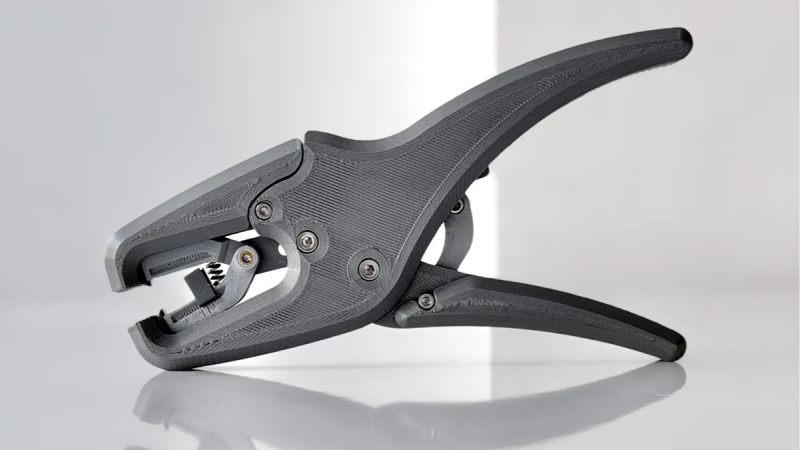
One might think that [Da_Rius]’s mostly 3D printed wire stripper would count its insulation-shearing blades among the small number of metal parts required, but that turns out to not be the case. The blades are actually printed in PLA, and seem to work just fine for this purpose. (We imagine they need somewhat frequent replacement, but still.)

ImageProper wire strippers are one of the most useful tools for a budding electronics enthusiast, because stripping hookup wire is a common task and purpose-built strippers make for quick and consistent results.

As far as tools go they are neither particularly expensive nor difficult to source, but making one’s own has a certain appeal to it. The process of assembling the tool is doubtless a rewarding one, and it looks like it results in a pretty good conversation starter if nothing else.

As mentioned, the tool is mostly 3D printed and does require some metal parts: fasteners, heat-set inserts, and a couple springs. Metal nuts and heat-set inserts are easy enough to obtain, but springs of particular size and shape are a bit trickier.

It is perfectly possible to make custom springs, and as it happens [Da_Rius] already has that covered with a separate project for using a hex key and printed jig to make exactly the right shapes and sizes from pre-tempered spring wire.

Image

Every Ham Shack Needs A Ham Clock

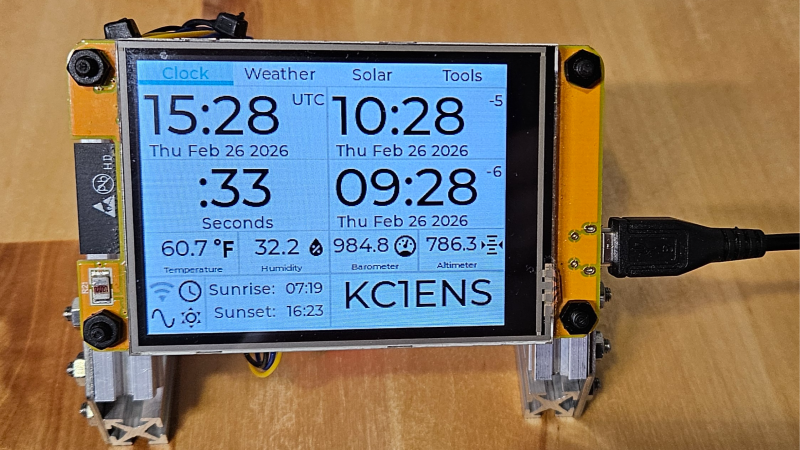
Every ham radio shack needs a clock; ideally one with operator-friendly features like multiple time zones and more. [cburns42] found that most solutions relied too much on an internet connection for his liking, so in true hacker fashion he decided to make his own: the operator-oriented Ham Clock CYD.

Image
A tabbed interface goes well with the touchscreen LCD.

The Ham Clock CYD is so named for being based on the Cheap Yellow Display (CYD), an economical ESP32-based color touchscreen LCD which provides most of the core functionality. The only extra hardware is a BME280 temperature and humidity sensor, and a battery-backed DS3231 RTC module, ensuring that accurate time is kept even when the device is otherwise powered off.

It displays a load of useful operator-oriented data on the touchscreen LCD, and even has a web-based configuration page for ease of use. While the Ham Clock is a standalone device that does not depend on internet access in order to function, it does have the ability to make the most of it if available. When it has internet access over the built-in WiFi, the display incorporates specialized amateur radio data including N0NBH solar forecasts and calculated VHF/HF band conditions alongside standard meteorological data.

The CYD, sensor, and RTC are very affordable pieces of hardware which makes this clock an extremely economical build. Check out the GitHub repository for everything you’ll need to make your own, and maybe even put your own spin on it with a custom enclosure. On the other hand, if you prefer your radio-themed clocks more on the minimalist side, this Morse code clock might be right up your alley.

Image

This Printed Zipper Repair Requires No Unsewing

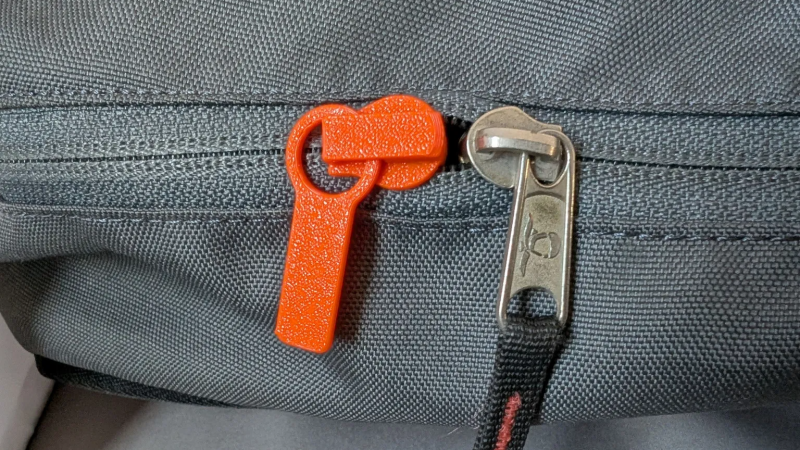
If a zipper breaks, a 3D printer might not be the first tool one reaches for — but it’s more feasible than one might think. [MisterJ]’s zipper slider replacement is the kind of 3D print that used to be the domain of well-tuned printers only, but most hobbyist printers should be able to handle it nowadays.

Image
The two-part design allows installation without unsewing the zipper ends. Note the print orientation of the green part, which maximizes the strength of the peg by making the layer lines perpendicular to the load.

What really sets this design apart from other printed versions is its split construction. Putting a new slider onto a zipper usually requires one to free the ends of the zipper by unsewing them. [MisterJ]’s two-part design instead allows the slider to be assembled directly onto the zipper, without the hassle of unsewing and re-sewing anything. That’s a pretty significant improvement in accessibility.

Want to make some adjustments? Good news, because the files are in STEP format which any CAD program will readily understand. We remember when PrusaSlicer first gained native STEP support and we’re delighted that it’s now a common feature in 3D printer software.

[MisterJ]’s zipper slider design is available in a variety of common sizes, in both standard (zipper teeth face outward) and reverse (zipper teeth face inward) configurations. Naturally a metal slider is more durable than a plastic one, but being able to replace broken parts of a zipper with a 3D printer is a pretty handy thing. Speaking of which, you can also 3D print a zipper box replacement should the squarish bit on the bottom get somehow wrecked or lost.

Image

Selective Ironing Adds Designs To 3D Prints

While working on a project that involved super-thin prints, [Julius Curt] came up with selective ironing, a way to put designs on the top surface of a print without adding any height.

For those unfamiliar, ironing is a technique in filament-based 3D printing that uses the extruder to smooth out top surfaces after printing them. The hot nozzle makes additional passes across a top surface, extruding a tiny amount in the process, which smooths out imperfections and leaves a much cleaner surface. Selective ironing is nearly the same process, but applied only in a certain pattern instead of across an entire surface.

Image
Selective Ironing can create patterns by defining the design in CAD, and using a post-processing script.

While conceptually simple, actually making it work was harder than expected. [Julius] settled on using a mixture of computer-aided design (CAD) work to define the pattern, combined with a post-processing script. More specifically, one models the desired pattern into the object in CAD as a one-layer-tall feature. The script then removes that layer from the model while applying the modified ironing pattern in its place. In this way, one can define the pattern in CAD without actually adding any height to the printed object. You can see it in action in the video, embedded below.

We’ve seen some interesting experiments in ironing 3D prints, including non-planar ironing and doing away with the ironing setting altogether by carefully tuning slicer settings so it is not needed. Selective Ironing is another creative angle, and we can imagine it being used to embed a logo or part number as easily as a pattern.

Selective Ironing is still experimental, but if you find yourself intrigued and would like to give it a try head over to the GitHub repository where you’ll find the script as well as examples to try out.

Continue reading “Selective Ironing Adds Designs To 3D Prints”