
Polylang & Email Automation Integration: How It Works
Polylang is a WordPress Multilingual Plugin that translates posts, pages, media, categories, tags, but you can also translate custom post types, custom taxonomies, widgets, navigation menus into different languages.
MailOptin integrates with Polylang so you can send newly published posts and email digest automated emails based on the post language.
Before you continue with this tutorial, ensure you have the Polylang Plugin installed, activated, and configured on your WordPress website.
New Post Notification Integration.
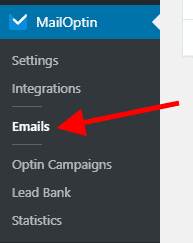
First; Click on MailOptin > Emails in your WordPress admin dashboard to open MailOptin’s email overview page.
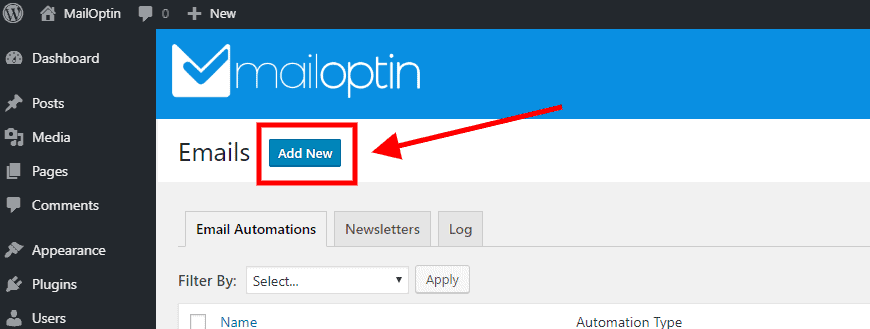
Next, click on the Add New button to open the email creation page.
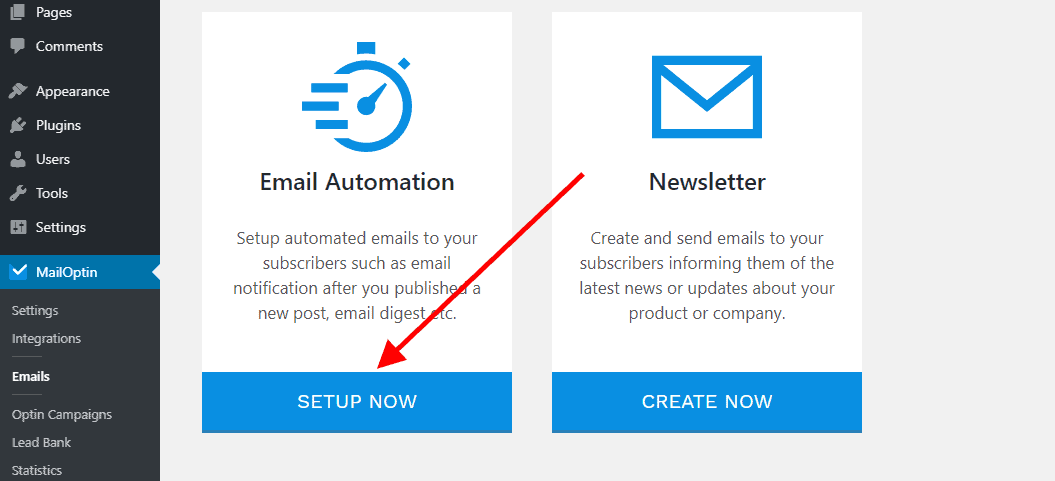
Locate the card titled Email Automation and click on the Setup Now button found below it.
Next, enter a title that describes your automation…

… then select the New Post Notification (as the email automation type) you want to set up.

Next, select a template for this automation. This tells MailOptin how your email should look like.
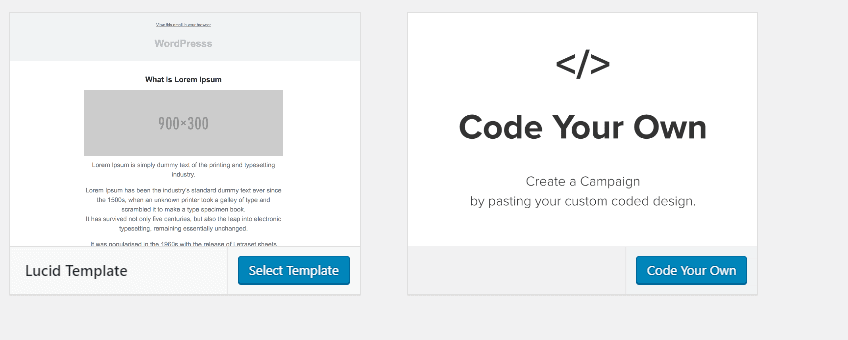
Here’s how to use your own custom email template.
After selecting your template, you will be taken to the email customizer page where you can configure the automation settings (such as selecting the post type, categories, and tags the post have to belong to), template header, content, and footer.
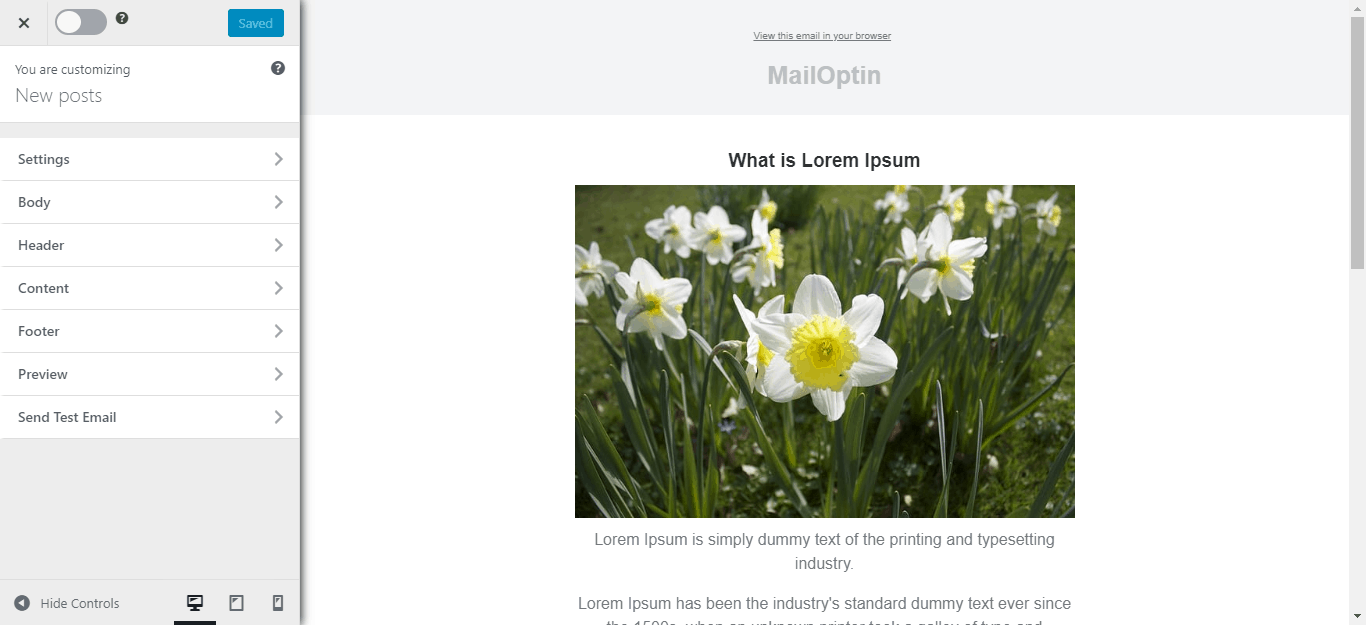
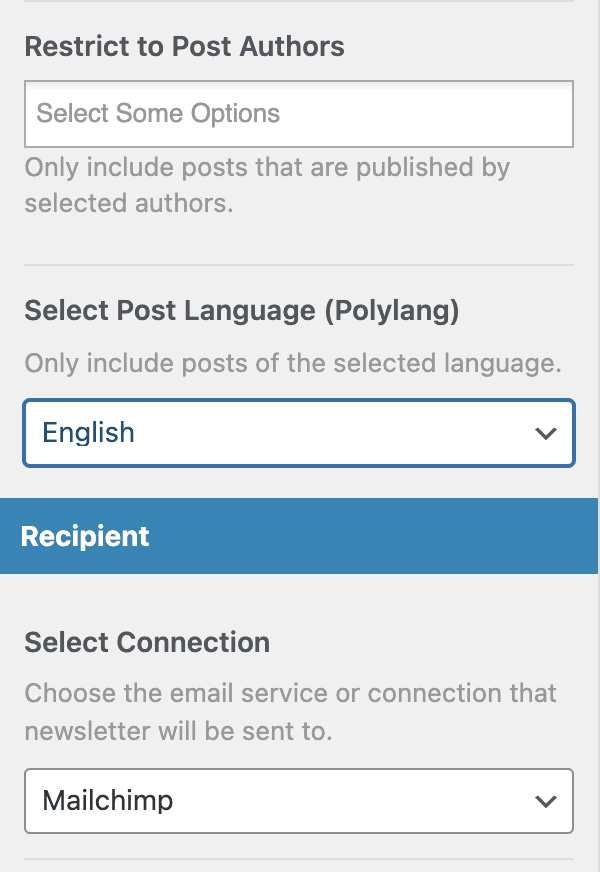
We need to select the language that a post must belong to in Settings for this automation to send out the new post email.
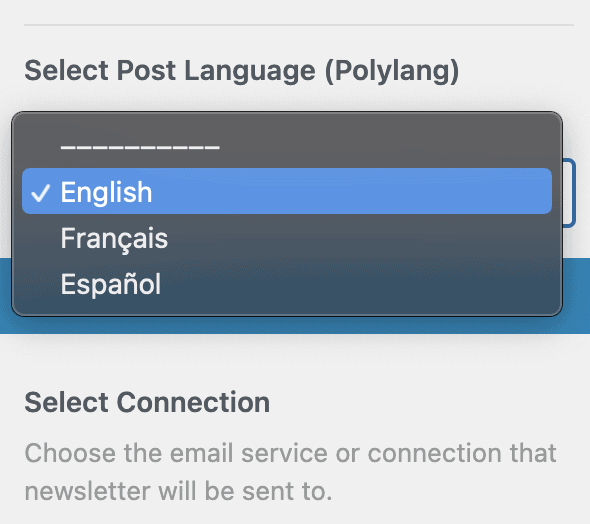
Note that all the languages you created using Polylang would appear as a dropdown under the Select Post Language (Polylang) section as seen below:
If no language is selected, the automation will send out emails for all posts published regardless of their language.
Remember to select a Connection and then you are done setting up your new automation campaign. Also, remember to activate it by clicking on the activation switch at the top of the page.
Finally, click on the Save Changes button to save your new automation campaign.

When you select a specific language for email automation and a new post is published in the same language, MailOptin will detect the post language and send out the emails to your subscribers.
Email Digest Integration
Posts Email Digest lets you automatically email your published contents, articles, or posts to your WordPress users or email list subscriber on a daily, weekly, or monthly basis.
First; Click on MailOptin > Emails in your WordPress admin dashboard to open MailOptin’s email overview page.
Next, click on the Add New button to open the email creation page.
Locate the card titled Email Automation and click on the Setup Now button found below it.
Next, enter a title that describes your automation…
… then select the Post Email Digest (as the email automation type) you want to set up.

Next, select a template for this automation. This tells MailOptin how your email should look like.
Here’s how to use your own custom email template.
After selecting your template, you will be taken to the email customizer page where you can configure the automation settings.
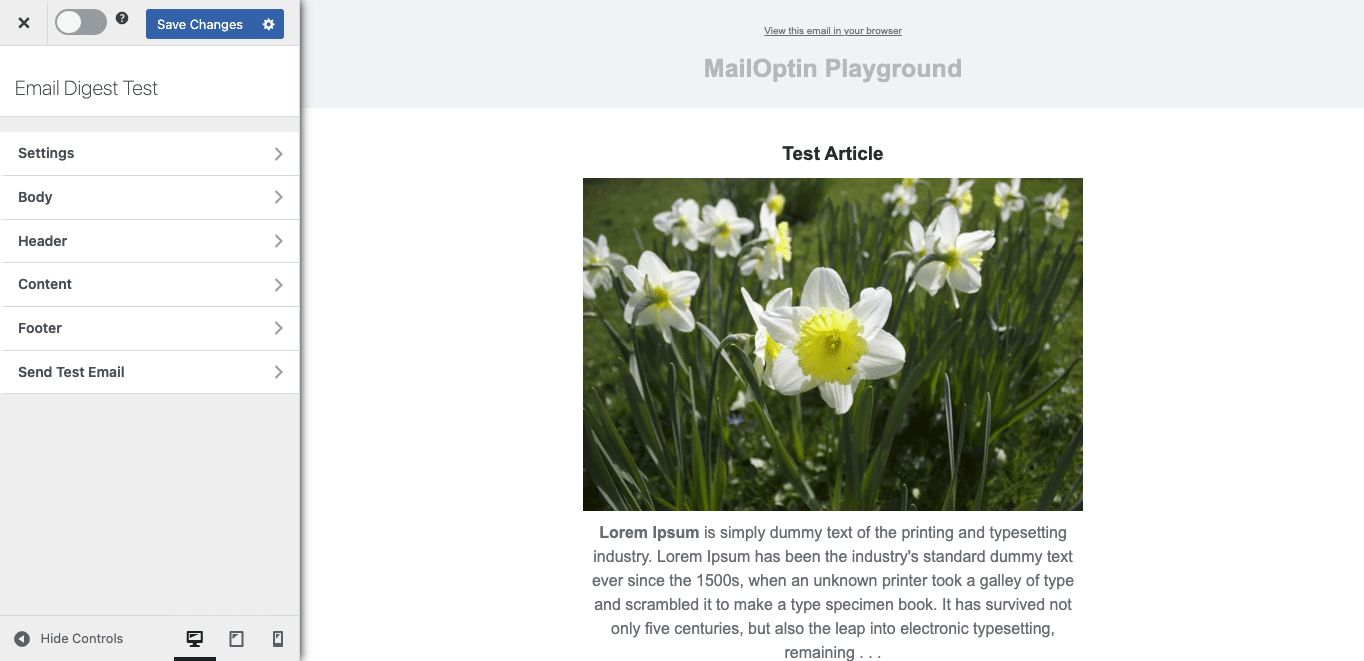
We need to select the language that posts must belong to for them to be included in the email digest email. If no language is selected, the automation will send out emails for all posts regardless of their language.
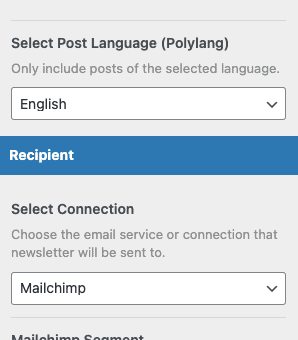
Remember to set up the recipient.
Finally, click on the Save Changes button to save your new automation campaign.
When you are done selecting a specific language for the post email digests, MailOptin will detect and ensure that only posts published using this same language will be sent out as emails to your subscribers.
