
Qwen Image is a new open-source text-to-image model developed by Alibaba’s Qwen team. It’s quickly gaining thumbs-up from AI creators. Unlike many closed models, Qwen Image is both flexible and accessible, making it a strong alternative to Stable Diffusion and Flux models. You can run it locally in ComfyUI with customization.
In this article, I will cover:
- An overview of the Qwen Image model.
- Sample images
- Qwen Image on Google Colab
- Qwen Image on ComfyUI (Standard)
- Qwen Image on ComfyUI (Fast)
Table of Contents
The Qwen Image model
So why should you consider using Qwen Image for your creative projects?
Qwen-Image has 20 billion parameters and uses a MMDiT (Multimodal Diffusion Transformer) architecture. The design goals are (1) Complex, multilangual text rendering, and (2) Strong alignment between the prompts and the generated images.
Pros of Qwen Image
- Open-source: Freely available with transparent weights.
- High image quality: Sharp, consistent, and diverse images.
- Good at following prompts: Strong alignment between text input and images with multilingual support.
Cons of Qwen Image
- Large model size – You’d better have a large hard drive and a good GPU card.
- Smaller ecosystem – Unlike Stable Diffusion and Flux, many essential tools, like ControlNet, are not as mature.
Qwen Image also supports image editing and LoRA, but I will cover these features in the upcoming tutorials.
Software
We will use ComfyUI, a free AI image and video generator. You can use it on Windows, Mac, or Google Colab.
Think Diffusion provides an online ComfyUI service. They offer an extra 20% credit to our readers.
Read the ComfyUI beginner’s guide if you are new to ComfyUI. See the Quick Start Guide if you are new to AI images and videos.
Take the ComfyUI course to learn how to use ComfyUI step by step.
Sample images
Here are some images generated by the Qwen Image 8-step Lightning workflow. (15 secs on an RTX 4090). I used the same prompt in the Wan 2.2 model post so that you can compare.




ComfyUI Colab Notebook
If you don’t have a powerful GPU card, you can still run the Qwen Image model on Google Colab, Google’s cloud computing platform, with my ComfyUI notebook.
You don’t need to download the model as instructed below. Select the Qwen_Image model before running the notebook.

Qwen Image workflow (Fast)
This workflow uses Qwen Image Lightning LoRA to speed up the workflow. The LoRA converts the model to the distilled version.
Step 0: Update ComfyUI
Before loading the workflow, make sure your ComfyUI is up-to-date. The easiest way to do this is to use ComfyUI Manager.
Click the Manager button on the top toolbar.

Select Update ComfyUI.
Restart ComfyUI.
Step 1: Load the workflow
Download the workflow below. Drop it into ComfyUI to load.
Step 2: Install models
After loading the workflow JSON file, ComfyUI should prompt you to download the missing model files.
Here are the models you need to download:
- Download qwen_image_fp8_e4m3fn.safetensors and put it in ComfyUI > models > diffusion_models.
- Download qwen_2.5_vl_7b_fp8_scaled.safetensors and put it in ComfyUI > models > text_encoders.
- Download qwen_image_vae.safetensors and put it in ComfyUI > models > vae.
- Download Qwen-Image-Lightning-8steps-V2.0.safetensors and put it in ComfyUI > models > loras.
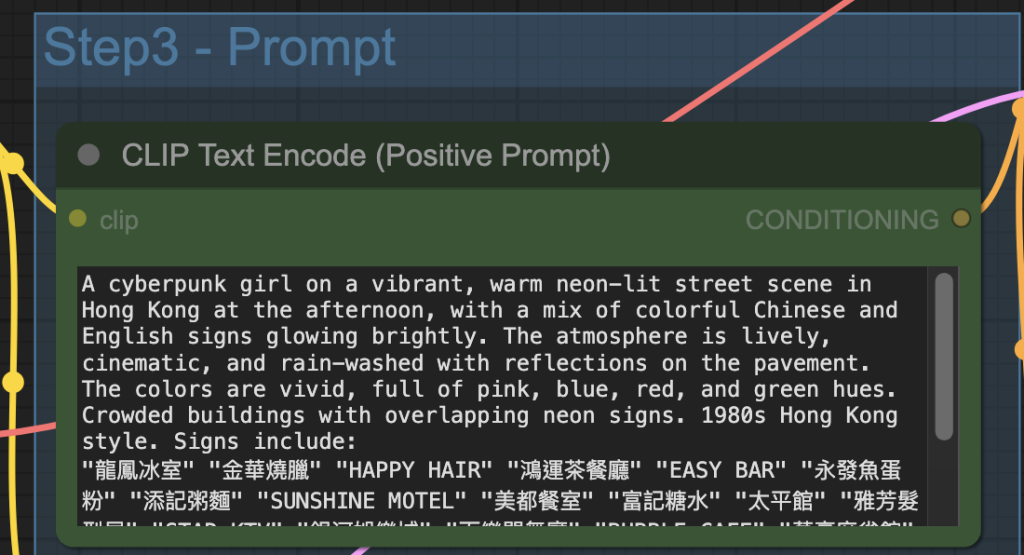
Step 3: Revise the prompt
Revise the prompt to match what you want to generate.
Step 4: Generate an image
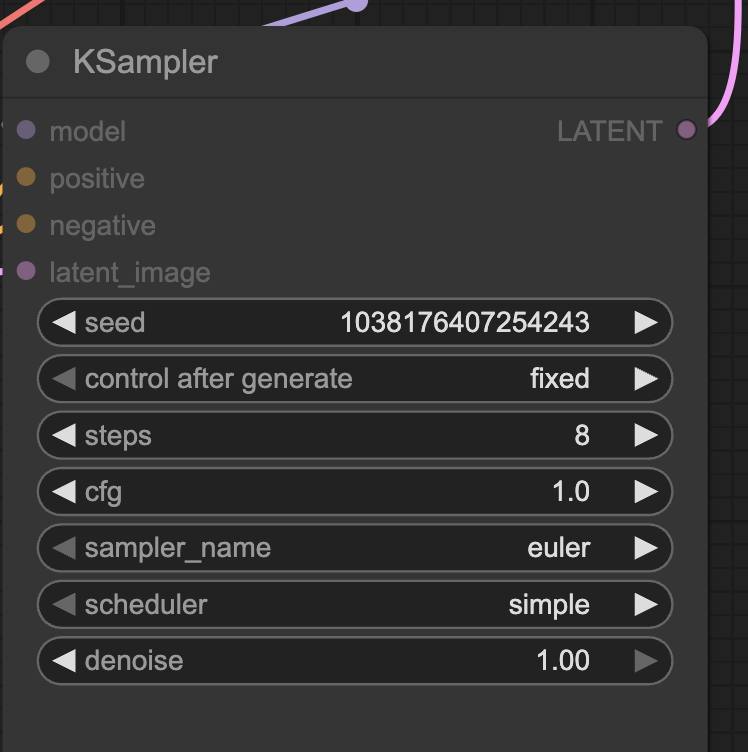
Click the Run button to run the workflow.


Change the seed value of the KSampler node to generate a new image.
Qwen Image workflow (Standard)
This standard Qwen Image workflow does not use any speed-ups, so the image generation is a bit slower, but the image quality is slightly higher.
You can use the workflow the same way as described in the last section. Download the workflow below.

Thanks for another excellent article Andrew.
QI’s party pieces for me are:
1. its ability to correctly render more than one character, providing you relentlessly use names or labels rather than pronouns to refer to them.
2. its understanding of actions and human body with simple; “girlA threw the ball” actually appears as if she has indeed just thrown the ball rather then the subject and object not being aware of each other.
3. its speed on a 4060Ti 16GB. Distilled or Lighning Lora: ~90s, otherwise its ~240s.
Last note: If you sit back, think hard, then prompt QI like a similarly sized parameter model (gpt-oss:20B in my case) it can do some really amazing stuff.
Hi Andrew.
I have used your courses to great satisfaction and they are completely worth the membership. I am a visual artist who uses AI for poses and inspiration about colour palettes, much as I once did with photography but with less hassle. I am not tech savvy in coding matters, although I understand the general structure of generative AI models.
Now I find myself with a problem. I use ComfyUI with Stability Matrix on Mac Silicon, and have been happy with every model, including FluxDev (I have a lot of RAM/VRAM and a nice graphic card). But I am trying to test Qwen, and I hit a wall.
Every image I try to generate takes up to 30 minutes to finish and ends up black. There is no trace of visible denoising process like with all the other models.
I have searched the internet and found that black images are often a problem with ComfyUI and Qwen, but the possible fixes are beyond my understanding, as most refer to ComfyUI installed on its own and not through a manager, and the main environment is Windows.
Do you have suggestions?
Not sure if Qwen on ComfyUI is well supported on Mac. 30 mins is definitely way too long. You can try the colab notebook if you are ok with using it on google.
Thanks, Andrew. I agree Qwen is a great model and is particularly good at following the prompt and at text. There seems to be a big difference with or without the lightning lora (with your settings) – the style and level of detail changes a lot. I found the sampler and scheduler combinations also made a big difference with euler and res-multistep with sgm-uniform and beta working well. Some schedulers don’t work at all like ddim and kl-optimal, I guess because of the way Qwen works. So there’s a lot to experiment with. It’s quite fast on Colab L4 – the normal version takes 2.5 mins and the lightning version just over a minute. I used aspect ratios based on 1344×1344 as that seems to be recommended. My only criticism so far is that with a particular prompt, characters look very similar which is fine if you want consistency but it’s not easy to get variety.
Thanks for sharing your experience!
An update to this. DDIM is in fact a very good sampler for Qwen but I hadn’t realised to pair it with the ddim-uniform scheduler – doh. I find this combination gives very good results with or without the lightning lora. Without the lora, I’ve found increasing the cfg to 4-5 gives better prompt adherence, though going above 5 causes increased contrast and/or artefacts.
Thanks for sharing. DDIM is not that different from Euler/Euler a. I am curious if they work as well.