This guide is intended for users who would like to start using the Hypothesis web app. If you are looking to get started with the Hypothesis LMS app, click here.
1. Sign up for a Hypothesis account
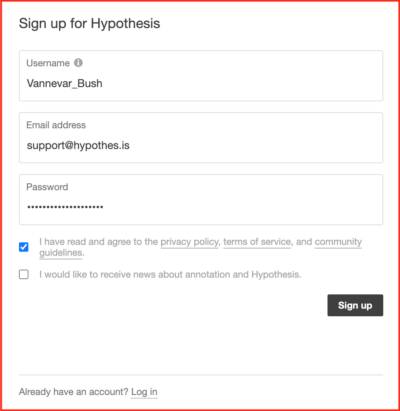
- Visit hypothes.is/signup.
- Choose from several sign-up options. You can sign up using your email address, Google, Facebook, or ORCID.
- If you choose Email Address in step 2, enter your username, a valid email address, and create a password. For other sign-up options, select your account (or log in if you’re not already signed in), then enter a username. For more details about signing up, click here.
- Read the linked policy and guidelines, and check the box to indicate that you agree.
- Optionally, check the box to sign up for Hypothesis news and information at your email address. You may unsubscribe at any time.
- Click Sign Up.
- If you signed up using the Email Address option, you’ll receive a confirmation email shortly. If you don’t see it, check your spam folder. Click the link in the confirmation email to activate your Hypothesis account.
2. Install the Hypothesis browser extension or bookmarklet
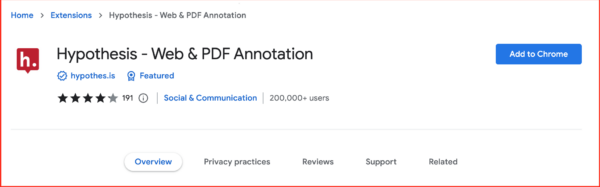
Users of Chrome (or other Chromium browsers such as Edge or Brave) can install the Hypothesis extension from the Chrome Web Store.
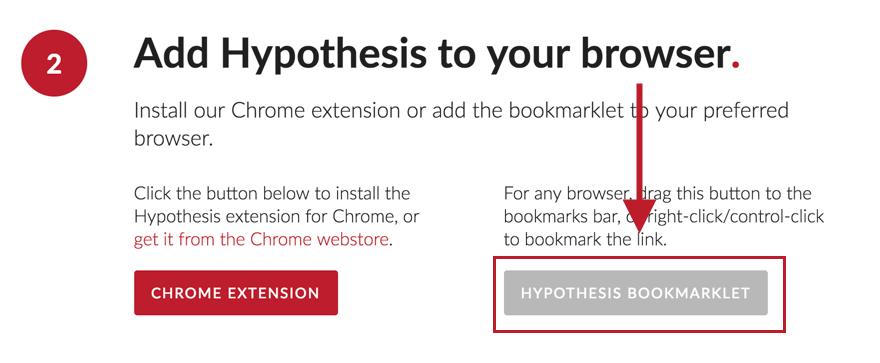
Users of other browsers such as Firefox or Safari can install the Hypothesis bookmarklet by visiting our Get Started page and following the instructions in step 2.
3. Go Forth and Annotate!
- Create a Private Group in Hypothesis for your personal thoughts, or use our Public group to invite others to see and reply to your Annotations.
- Navigate to a webpage that you would like to annotate
- Activate the Chrome extension or click the Hypothesis bookmarklet
- Select text on the page
- Choose to either annotate (attach a note to the text) or highlight (mark the selected text without adding a note)

For detailed instructions and more information on using Hypothesis, a great place to start is our Annotation Basics page.
