Most of my plugins, including Contextual Related Posts, Top 10 and Better Search, run SQL queries to fetch information from the WordPress database.
I usually tell many users who request support in the forums to install Query Monitor and check the SQL generated by the plugin. It also helps to run the queries in phpMyAdmin or a similar software to see the outputs.
In this post, I’ll explain how you can use Query Monitor to find the relevant SQL query generated by each plugin.
Step 1: Install Query Monitor
If you don’t have Query Monitor installed, navigate to Plugins > Add New, search for “Query Monitor” to install it. Hit Install and then Activate.
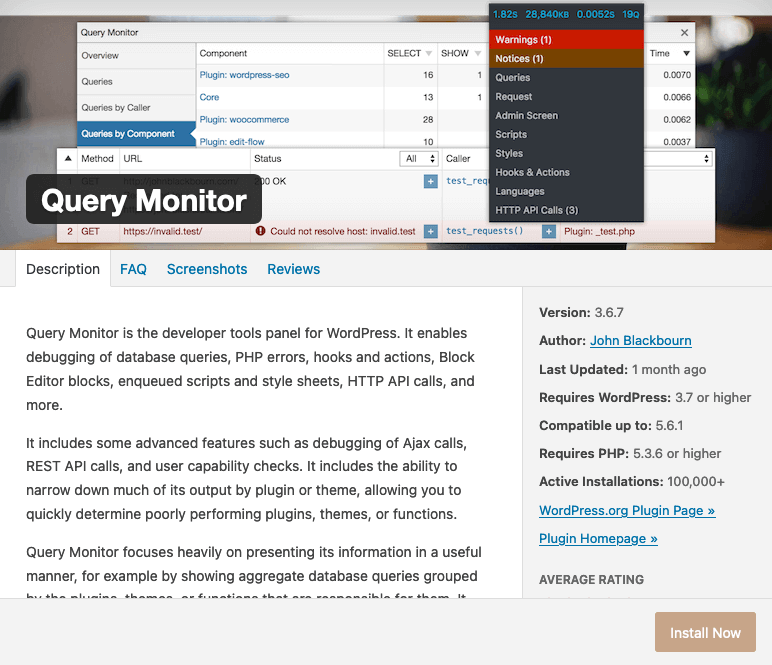
Once you install Query Monitor, you will notice a new menu item added to the admin bar at the top of your page. This item has several menu items, as shown in the screenshot at the top right.
Step 2: Turn off caching
Uncheck the relevant setting in the corresponding plugin’s settings page to turn off the plugin’s cache. If you don’t see the below queries, you might also have another cache running that is hiding them.
Step 3: Locate the Query
Navigate to the post where you noticed the problem, hit the new menu item, and select Queries. This will split your screen horizontally (or vertically), and you’ll see a set of menus to the left along with a complete set of queries.
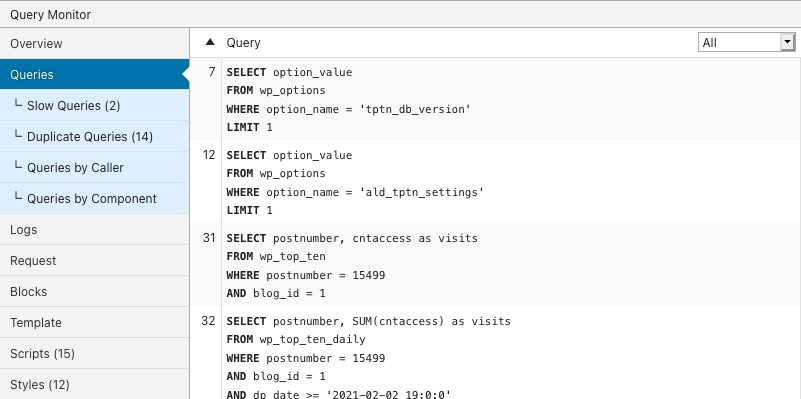
Next,, select Queries by Component. This screen gives you a list of queries based on the “component” that generated them. These will be plugins, the theme, and the WordPress Core.
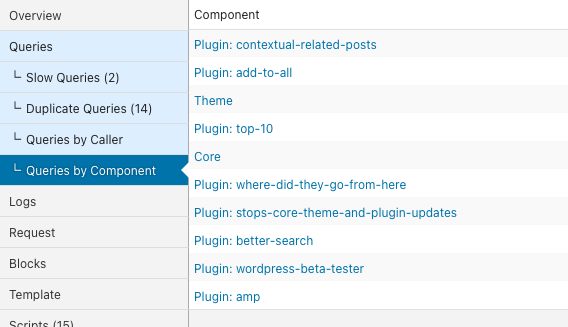
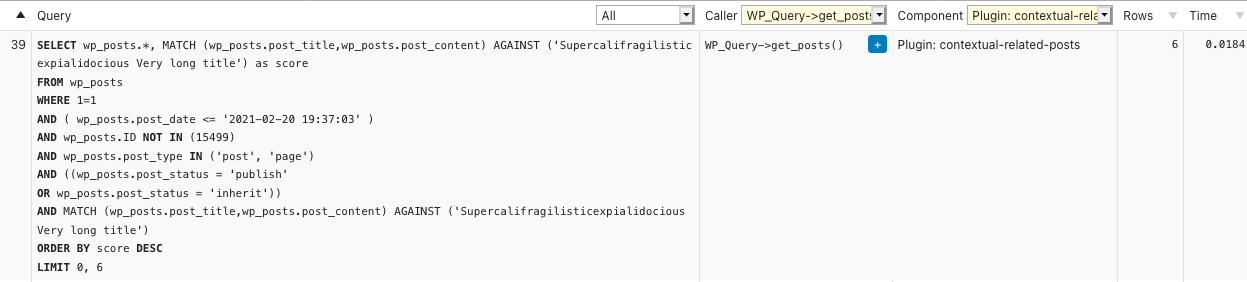
Contextual Related Posts query
In the above screen, you can select Plugin: contextual-related-posts to find the queries generated by Contextual Related Posts. To see the main query, select WP_Query->get_posts in the Caller dropdown, as shown in the screenshot below.
Better Search query
The query for Better Search will change depending on whether you have Seamless Mode on or off. If you have Seamless Mode on, the plugin directly taps into the WordPress Core to find the search results. In that case, you will first need to select the Core Component. Note that we need to look at the Main Query as

If you have Seamless mode off, the query will be under Better Search, as per the screenshot below. You will also have a Main Query that continues to be generated by WordPress Core.

Top 10 query
Similar to Contextual Related Posts, the query for Top 10 can be found under the Component as per the screenshot below.

 Caching in Top 10
 Customising the output of Contextual Related Posts
 Styling Top 10 Popular Posts
 WooCommerce Related Products with Contextual Related Posts Pro
 Installing Top 10