Learn about Canva's upload formats and requirements. See how we use your content in our Privacy Policy.
Transform static PDF documents into versatile vector files that you can scale without quality loss. Enhance your interactive content for greater clarity and aesthetic appeal with our PDF to SVG converter.
Try these document editing tools
Edit and convert PDFs and more. All the PDF editing tools you need!
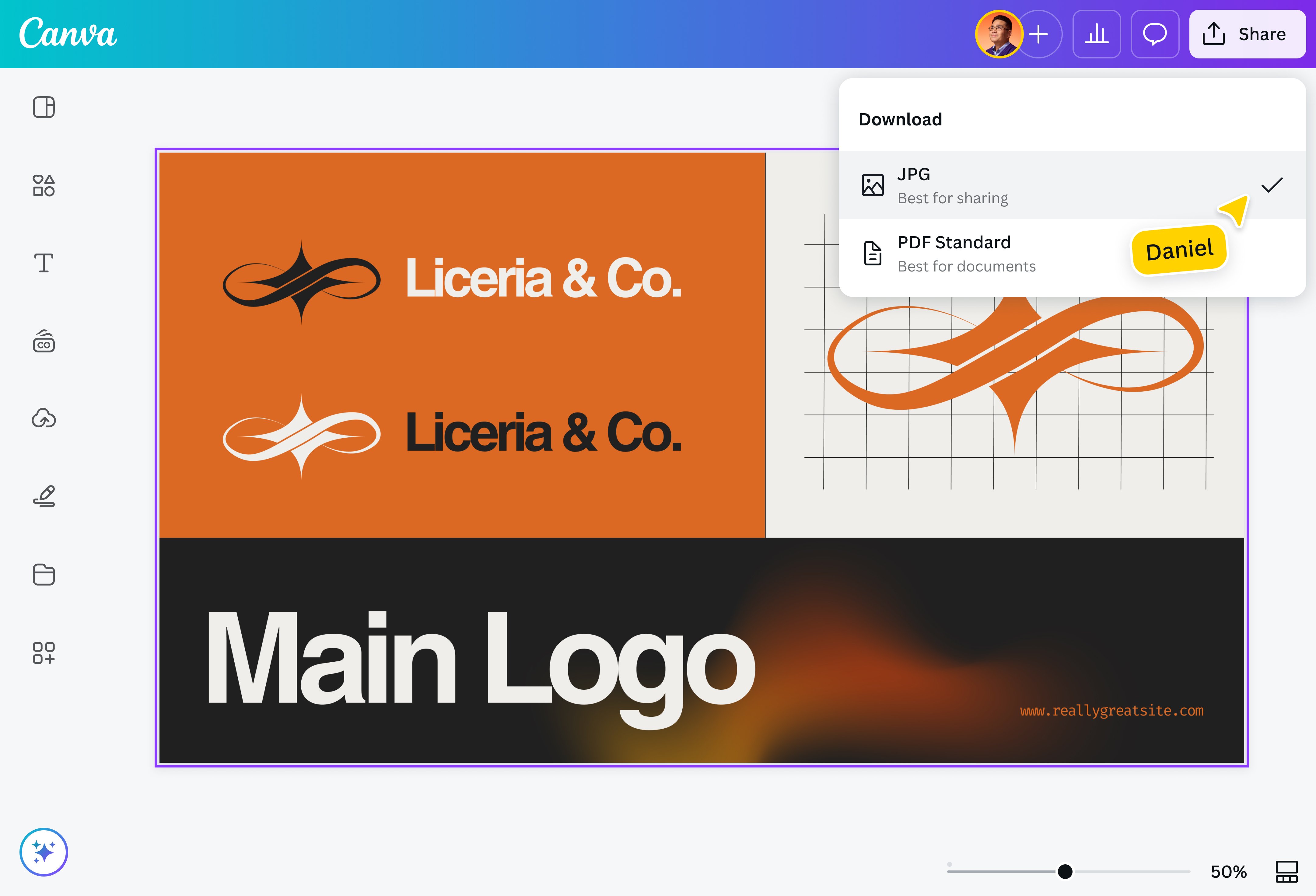
With Canva Pro, you can quickly convert an SVG file into a PDF document(opens in a new tab or window) or vice versa, even without expensive software or design experience. All you need to do is export the PDF as a high-quality SVG file—in seconds, you’ll have responsive web graphics and scalable icons that maintain their quality across devices.
Coordinate and collaborate seamlessly on a single platform
Collaborate with your team members and personalize your design without leaving the platform. Then, invite your team via link to assign tasks, leave comments, and simultaneously edit to make your design even better.
Yes, you can. You can do it on vector graphics software or online converters such as our PDF to SVG converter. Our converter will vectorize your uploaded image in seconds and give you elements that you can add to your projects.
It depends on your design purpose and project. SVG is better for scaling, especially when it comes to web design elements like icons and logos. It is also better to use this file type if you're prioritizing SEO and website accessibility since it can be indexed by search engines, turned into interactive elements responsive to user actions, and optimized to load faster on a webpage.
On the other hand, when it comes to sharing and printing, PDF is better because it’s designed to maintain consistency in layout, graphics, and fonts—no matter what device, system, or printer is used. Furthermore, it's ideal for sharing online since it can be secured with passwords to prevent unauthorized access to sensitive information.
There are numerous advantages of using SVG files. There are numerous advantages of using SVG files, such as being scalable without quality loss, responsive to design, easily customizable, and supportive of accessibility elements. These capabilities of SVG, among others, make it highly adaptable to web design.
Despite these benefits, SVG files still have limitations. Among these are incompatibility with older browsers, difficulty for beginners due to its XML-based code, and being less ideal for photorealistic or highly complex images.
@canva is simply outstanding as a tool to create designs. Using Canva is such a seamless experience that once you sit down to design, you don't feel like getting up. It's addictive and useful. Keep going Canva. I use Canva every day – I couldn’t do my job without it. The ability to style logos is my favorite
@navneet4
@canva is such a life changing tool! One of the most well thought out websites I've ever seen. I use it to showcase my work with the community and it never ceases to amaze me! Kudos for all the love and effort you've put into its development! #canvadesigns
@mahimagirdhar
@canva is an incredible app for designing pretty much anything you need! A huge selection of templates, fonts and colours; endless choices at the tip of your fingers; easy editing and sending/sharing. Best app I’ve used for a long time. If you haven’t tried it... try it!
@SpotOnDomain
Omg I love you guys! Thanks for making it so easy for me to use your templates. There’s so many selections and your site and app are very easy to use and navigate !!! 🥇💓💓💓💓💓💓
@curlyfrosista
I don’t know where I was without @canva They have absolutely great graphics for any social media platform. Whether it be a YouTube thumbnail, an Instagram Post or whatever you want to create. Let @canva make the design process easier for you.