Get creative with Canva’s free PDF editor
Transform PDF documents to make them more visual and compelling with Canva’s free online PDF editor and filler, designed for seamless collaboration. Or simply make that last minute tweak!





+75M customers trust Canva Worldwide
All the PDF editing tools you need
Convert, edit, translate, or compress PDFs — all in one platform.
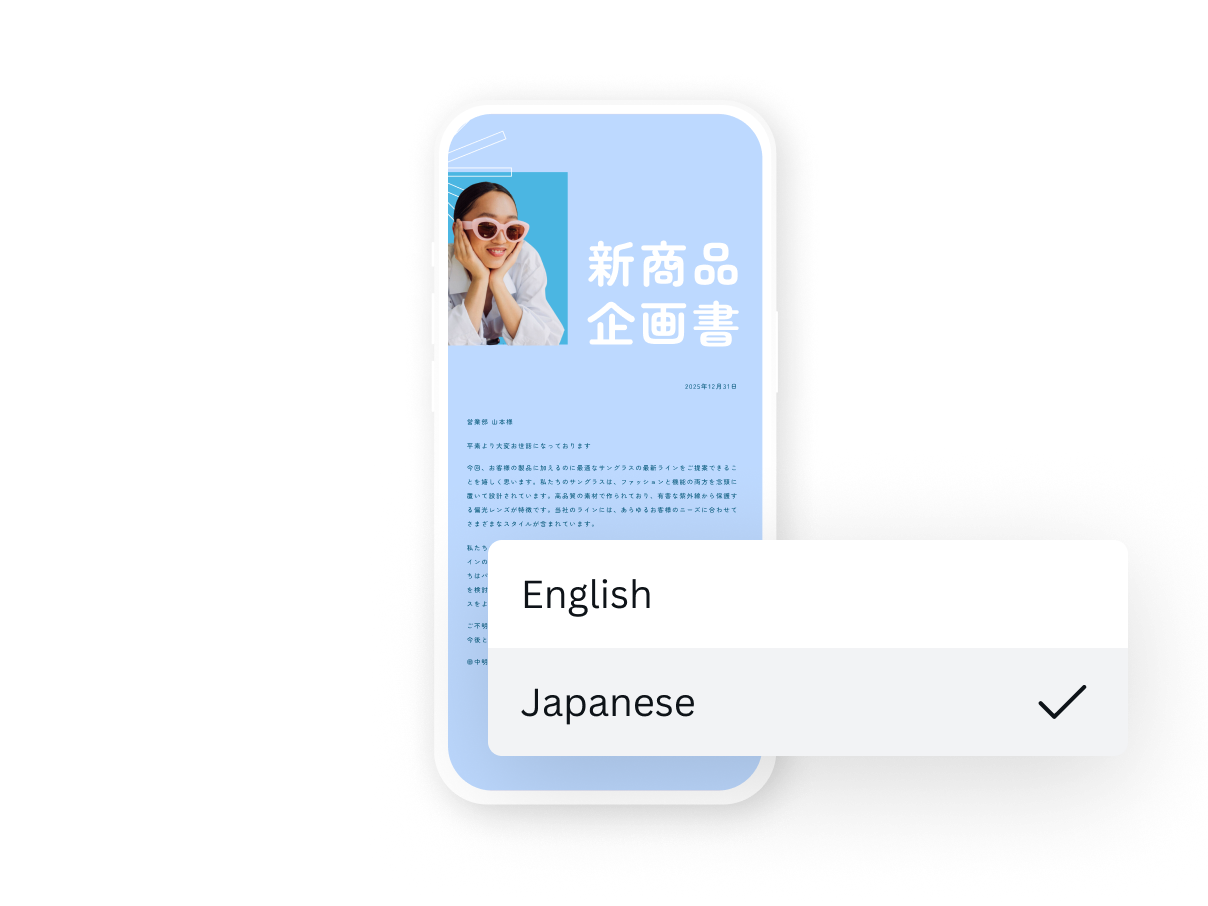
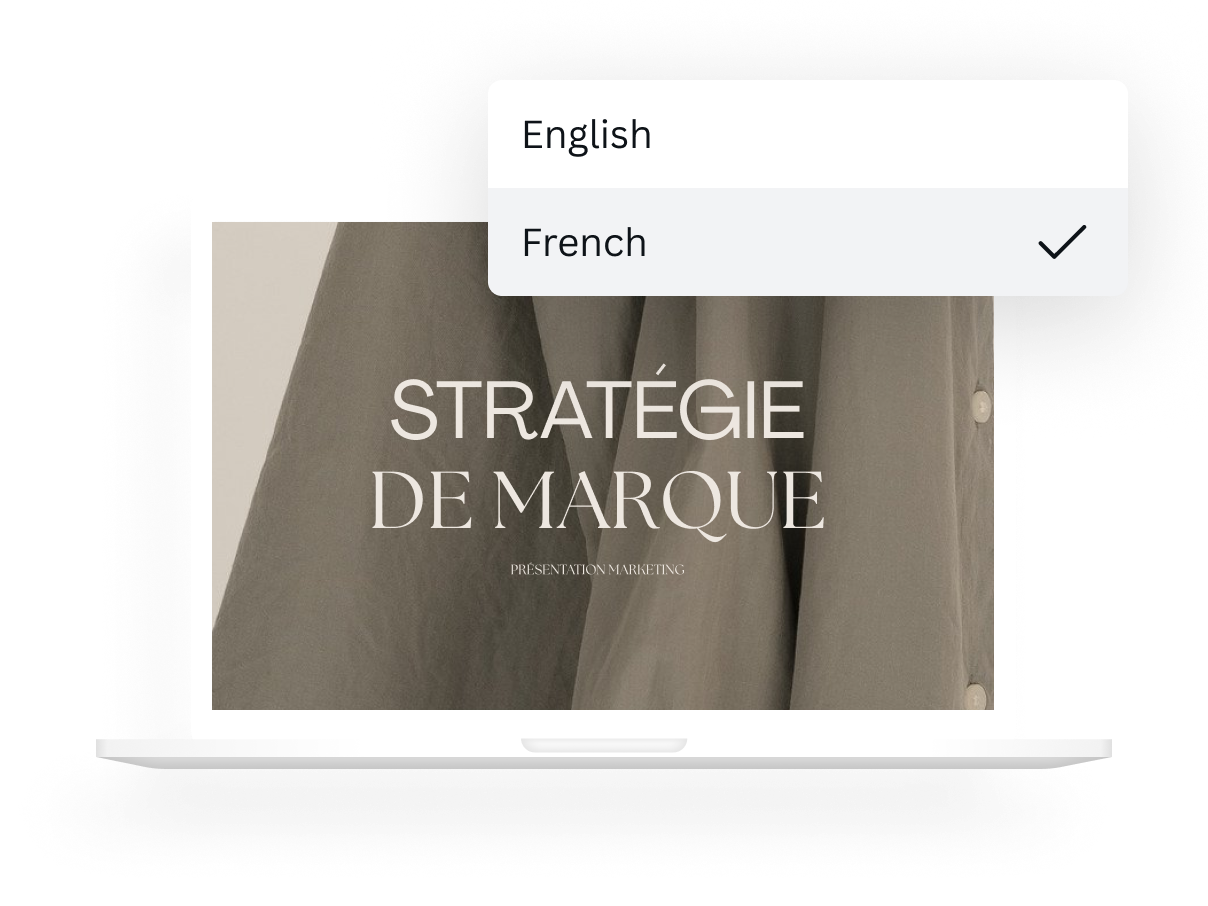
Introducing Canva’s free PDF editor
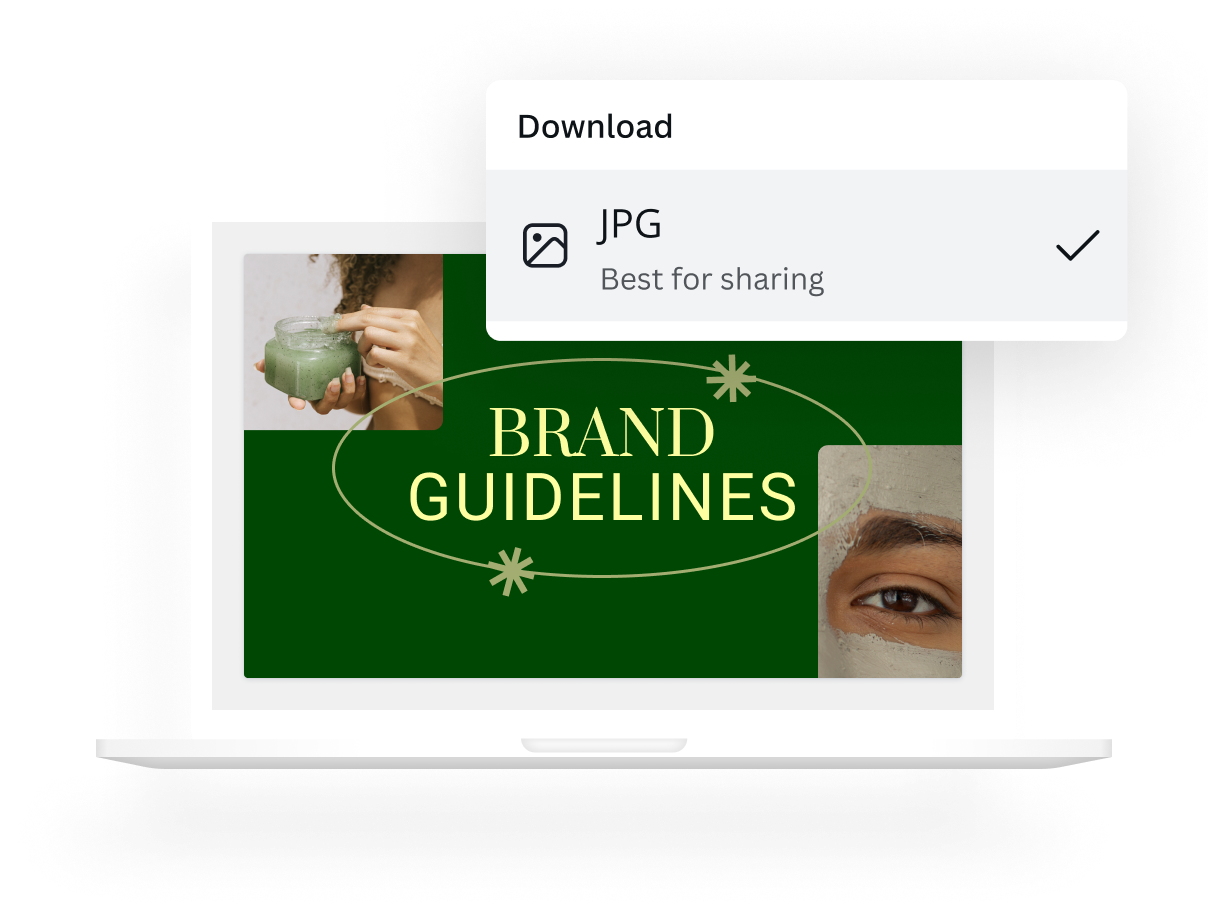
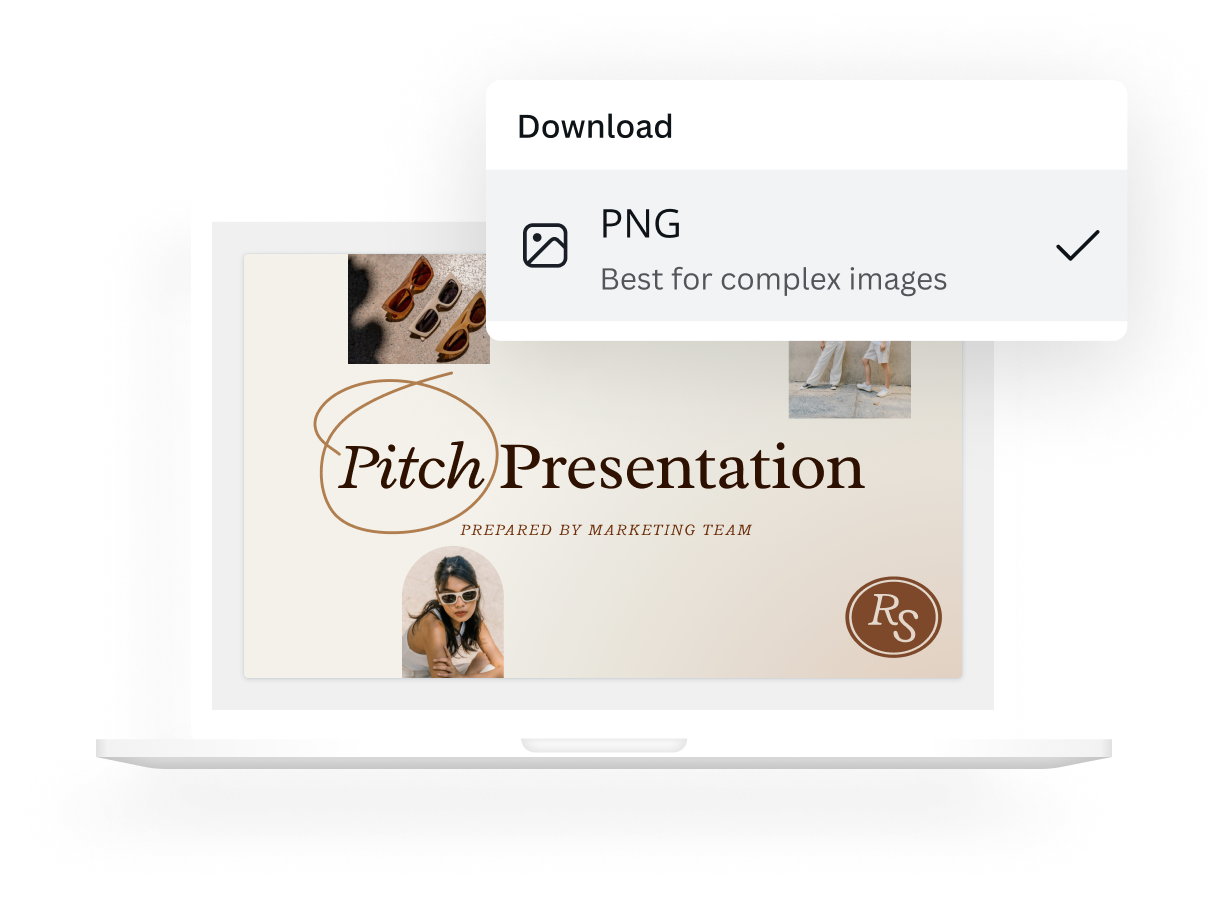
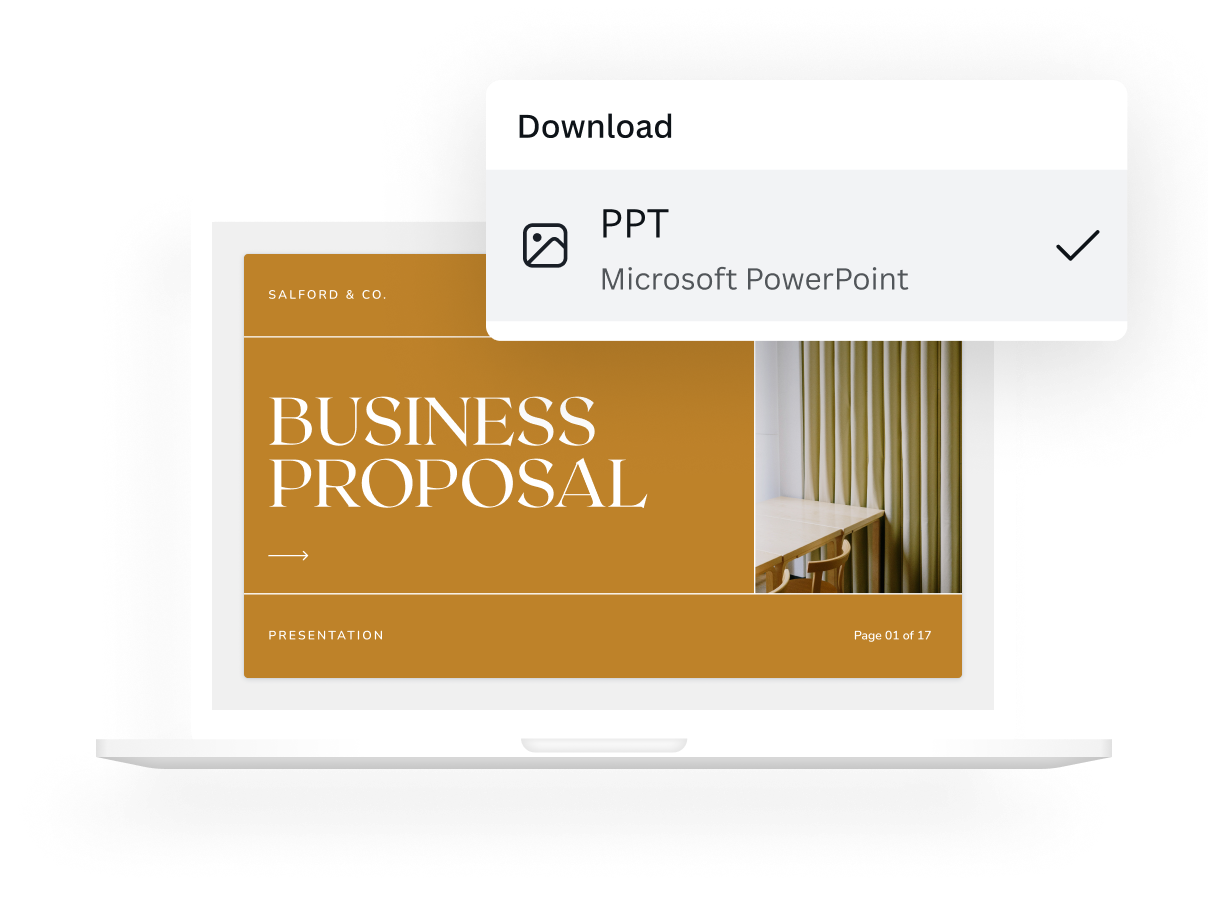
The easiest online PDF editor and filler you’ll ever use, import right into Canva and edit for free. We’ll work our magic and break your PDF into editable elements so you can convert and customize like any design asset. Then simply share as a link, or compress into JPG, PNG, PPT, or back to PDF files. You can even download as print-ready files — all shareable online from the same dashboard.
Easy-to-use PDF editing tools

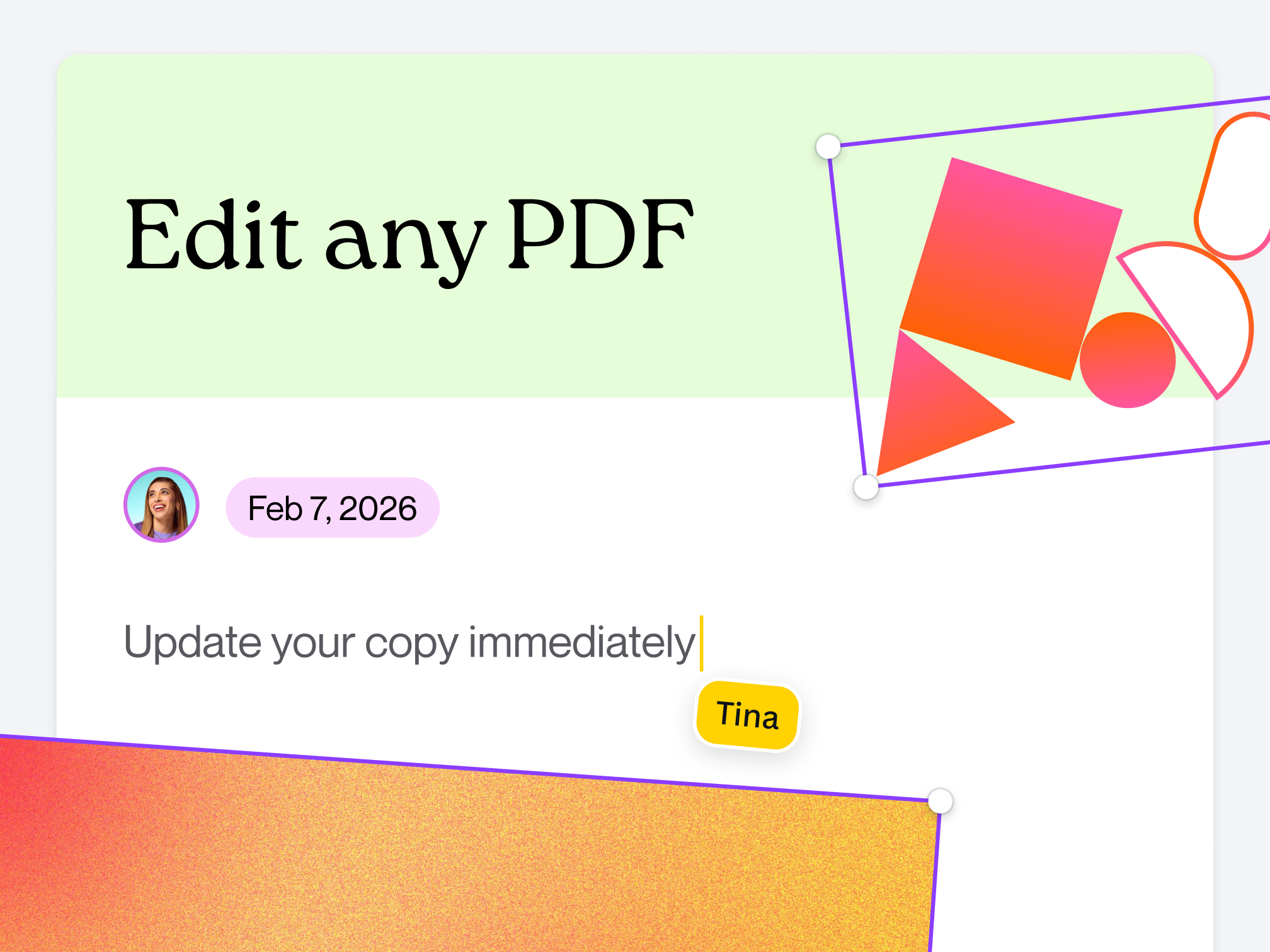
Edit PDF content fast
Take control of your edits by easily correcting typos; changing, adding or deleting text and images; or drawing lines, shapes, and signatures, without needing to switch between different PDF filler tools.


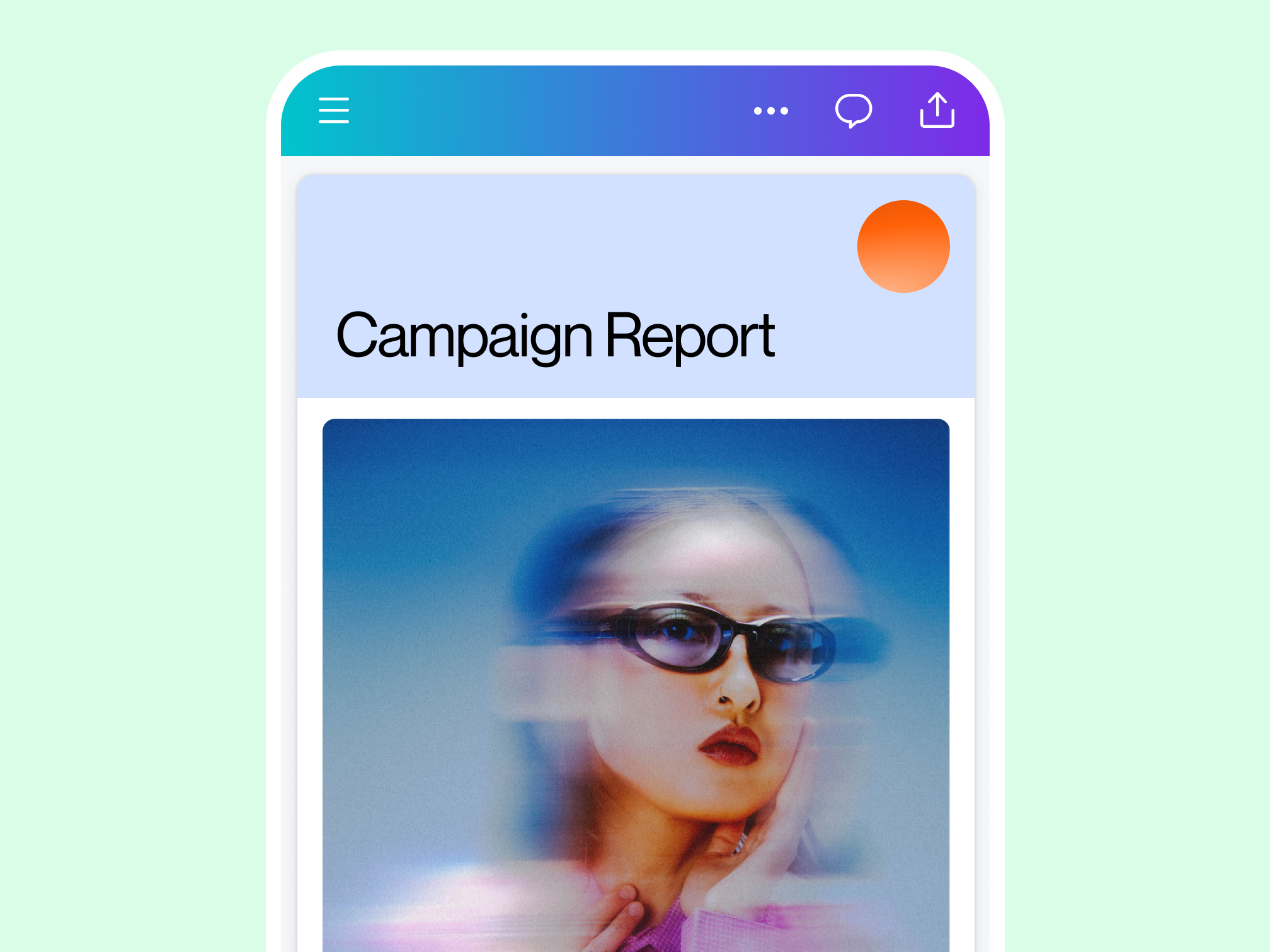
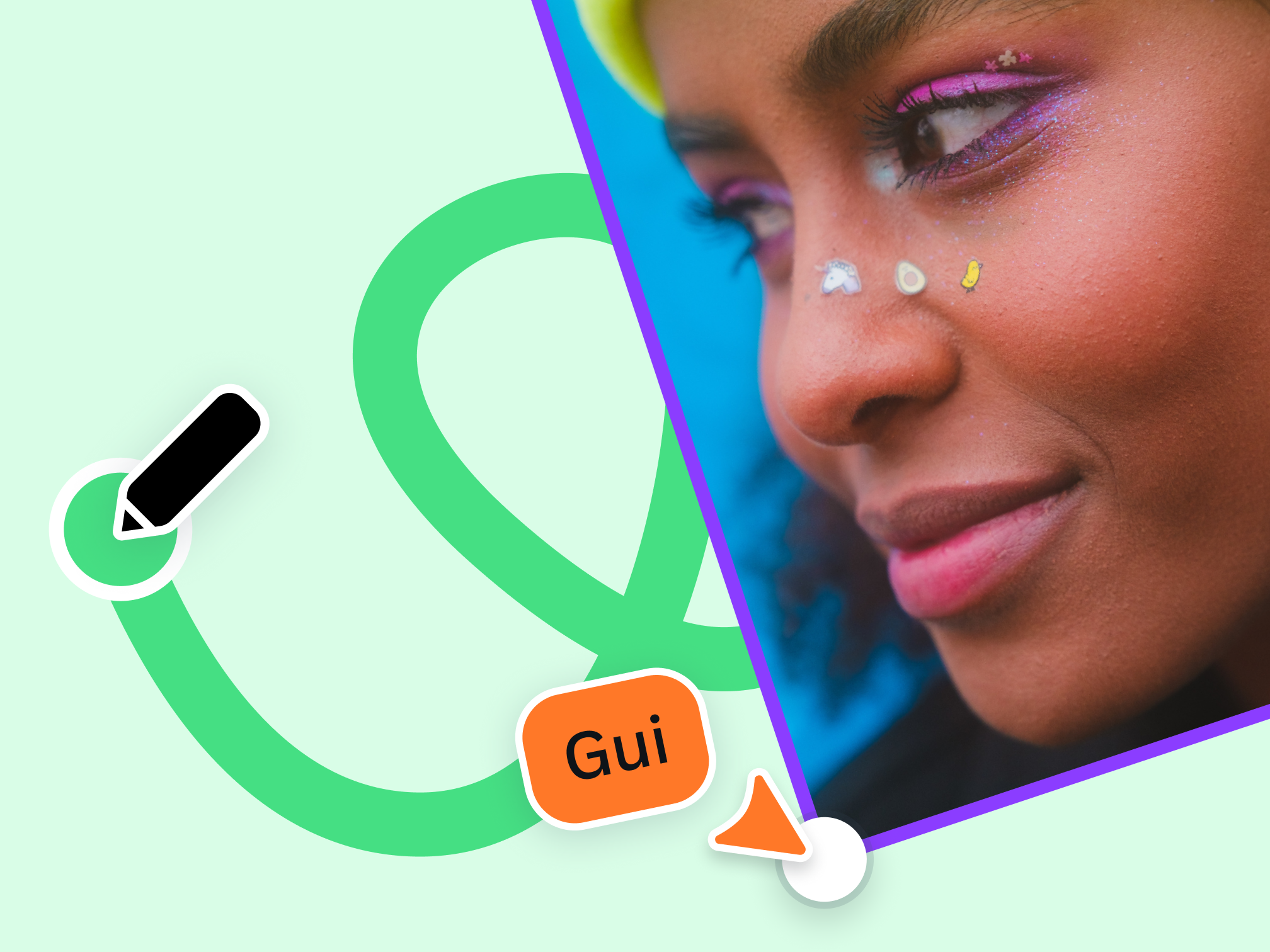
Share and collaborate anytime

Edit PDFs from any device
Once your PDF is imported to Canva, conveniently edit and fill PDFs, leave comments, and add annotations from any device.

Keep your team on track
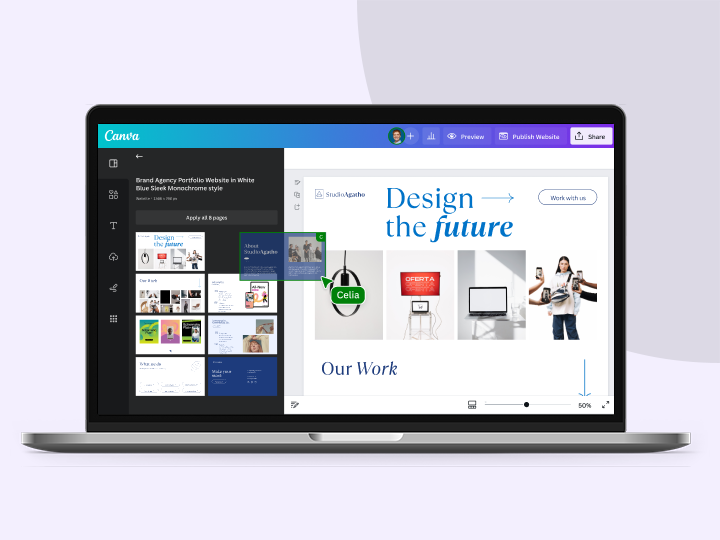
Working with a team? Send links effortlessly to your PDF design or grant others editing access to collaborate more efficiently.

Send and share PDFs securely
Transform your PDFs into reports, presentations, videos, or printable collateral and readily share them externally or with business partners, all via Canva. Protect your files with a password to keep info safe, no matter where you send it.
PDF editing for everyone
Education
Create and share lesson plans and learning resources with fast and easy PDF creation.

Business
Streamline file sharing and creation with custom PDF contracts, manuals, and assets.

Marketing
Organize and transform everyday PDFs into on-brand promotional materials and docs.
All the features you need
Canva's free drag-and-drop design tools make it easy to create any design, fast!

Millions of free images, icons, and graphics
Get access to our entire library of millions of photos, icons, graphics, media elements, audio, sound effects, and more.

Font library
Upload your own or access 3,000+ free and premium fonts.
Access on any device
Jump from mobile to desktop—design how you work best!

Invite your team
Invite unlimited members to your class space or NFP team and easily share and manage work together. Pro teams are part of Canva Pro.

Brand Kit (Pro)
Store your logo, brand colors, and fonts to stay effortlessly on-brand.

One-click magic switch (Pro)
Design once, resize to anything.
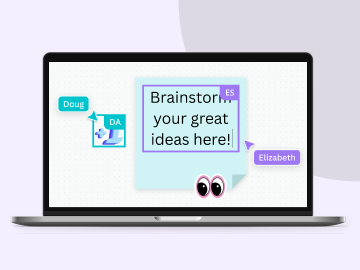
Real-time collaboration
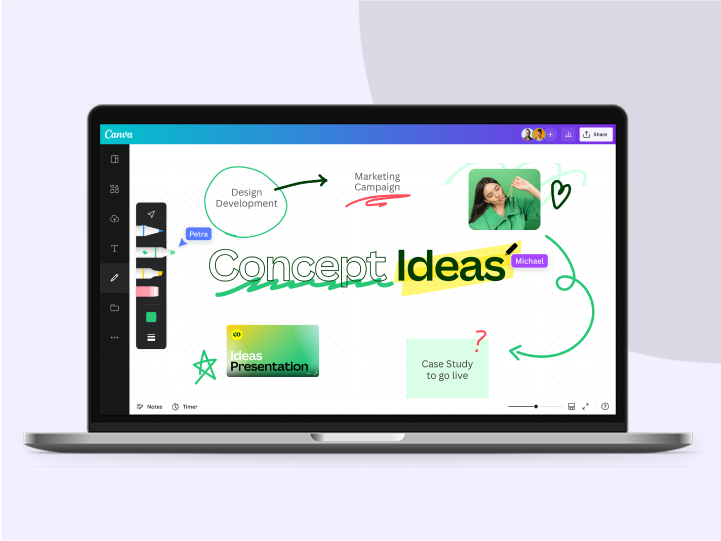
Create, collaborate, comment on designs, and get everyone on the same page, at the same time, from anywhere.

Easily get everyone’s comments
Revise with ease. Get your teammates’ and clients’ feedback directly on your design.
Easy sharing and exporting tools
Share and export designs as a JPG, PNG, PDF, and PPTX. And when you embed a doc, you can customize which page will be displayed.
Cloud storage
Get free 5GB storage or upgrade to Canva Pro and get unlimited folders with up to 1TB storage for all your designs.

Color palette generator
Generate a color palette from any image that inspires you.
Autosave
Canva autosaves your progress so you can update anything, anytime.
How to edit PDFs online
- Click "Upload your PDF". Or, log into your Canva account, then click Create or (+) to import a PDF from your device or favorite cloud storage platform.
- Find your file in the “Projects” section of your account, then click the thumbnail to begin editing.
- Get creative and update elements already present or add in animations, GIFs, or music to transform it into a presentation. You can even transform your PDF into cards, brochures, and more.
- Share your work straight from Canva to get feedback by granting access to view or edit through the share button.
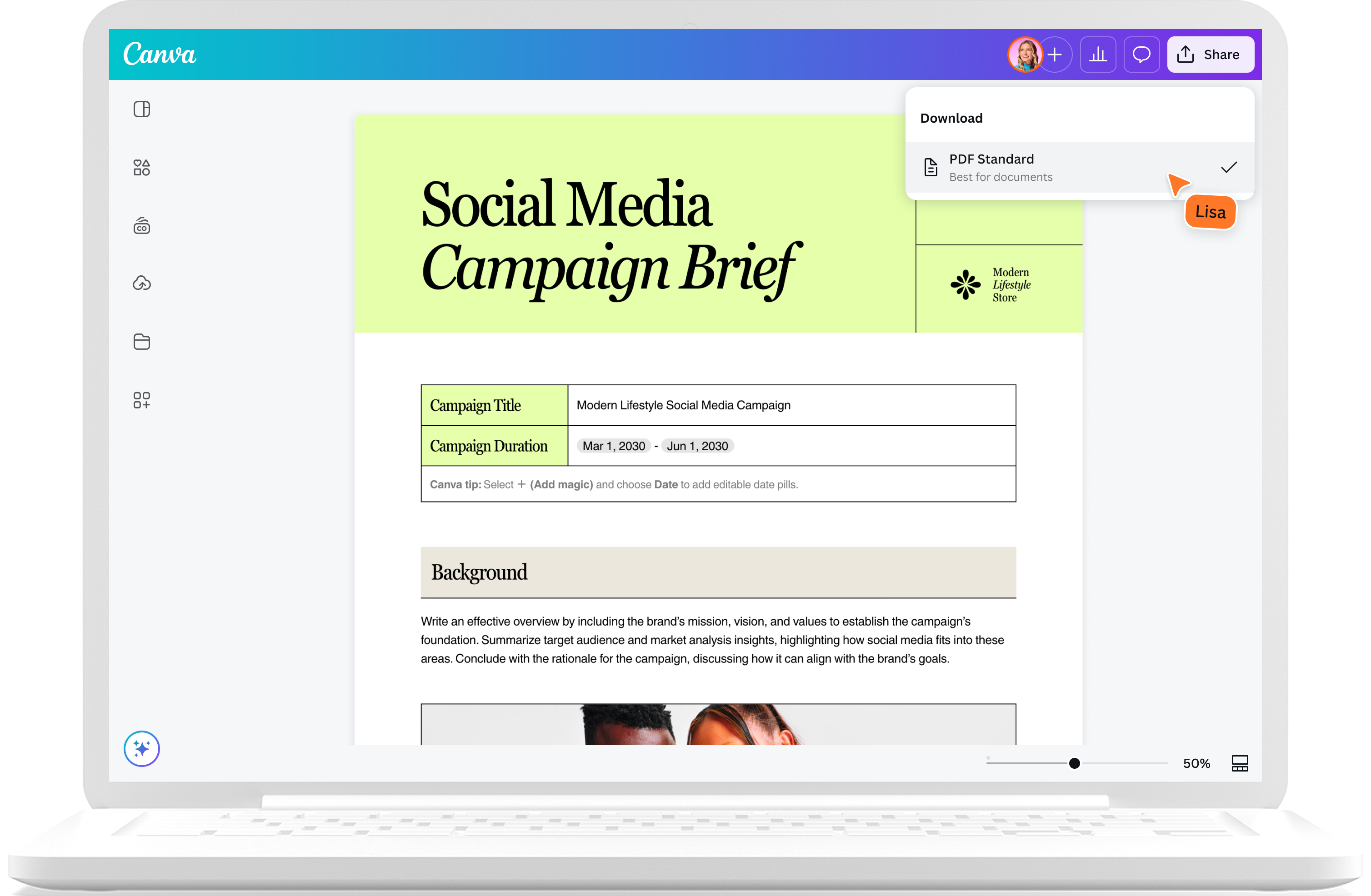
- Compress your PDF to download when you’re happy, by clicking “Share” in the top right corner and then selecting “Download.” You can also transform it into JPG, PNG, SVG, PPT, and back to a PDF file, or share it as a link.
Your questions, answered
Absolutely! All users can upload, customize, and share their PDF documents for free using our PDF editor.
Mobile app
- Open your Canva app.
- Add a PDF file to your Canva account. You can (a) click Create > Upload, then browse your device for the PDF file; (b) select the Projects tab, then scroll down and click on your Uploads folder. Click on the three dots in the upper righthand corner, and select Upload files to add a PDF from your device; or, alternatively, (c) click Import, then select from Google Drive, OneDrive and Dropbox. Pick your desired app, then login to connect and import your PDF.
- In the Projects tab or in your Uploads folder, find and click on the PDF to open it.
- Each element will now be customizable and you can create the PDF you need with added elements, graphics, colors, and text.
Desktop browser
- Open the browser window of your choice.
- Login to your Canva account.
- Upload or import a PDF file in one of a few ways: (a) click Create on the sidebar, then scroll down and select Upload. Drag-and-drop or click to browse your device for the PDF file; (b) select Projects on the left sidebar. Then, click the plus sign (+) on the right-most side of the screen. From here, you can upload a PDF file; or, (c) click Import, then select between Google Drive, OneDrive and Dropbox to add your PDF from another cloud storage solution.
- Check your Projects tab > Recents for the newly uploaded PDF file. Click to open and start editing.
- Each element will now be customizable and you can create the PDF you need with added elements, graphics, colors, and text.
Once you’ve opened a PDF in the drag-and-drop editor, you can add as many (and whatever kind of) images you want. Click on the Elements tab to browse the Canva library for free images you can use in any design, or click on the Uploads tab to add your own. Canva accepts images in JPEG, PNG, HEIC/HEIF, and WebP format up to 50MB in size.
We try to identify and match every element during the conversion process. With many font options available, it’s not always possible to find an exact match. When it comes to having editable image colors, there’s a higher chance of success if the original type is a vector. Flat images can’t be broken down, making them uneditable.
You can do a lot with our PDF filler and editor. Easily import, customize, convert, compress, then download your PDF files. Access our library and tools to help you create your best design yet. But, you might want to consider a few limitations while you’re working on it:
- You can import PDF files with up to 500 pages and 300 MB in size.
- We don’t have support (yet) for soft masks, shading, tiled patterns, JPEG 2000 or JBIG images, and color filters.
- PDFs are imported as individual images in an A4 document. Unlike in Docs, not all text may be editable.
Yes, you can import your very own drawings and illustrations using our drag-and-drop upload feature. If you’re feeling creative, you can also start drawing freehand using the Draw tool on Canva.
Our online PDF editor has been designed for every use you might need, from classroom projects to impressing clients in the boardroom. All completely free. Simply import your PDF right into Canva and we’ll break it into elements you can easily edit — no special skills required. Once you’ve customized it, we’ll compress your PDF into JPEG and PNG files or resave into PDF format that are all downloadable and shareable.
Absolutely! The Canva online PDF editor is available through the Canva desktop app, which works on Windows and Mac computers. You can also download it directly from your browser.
More resources
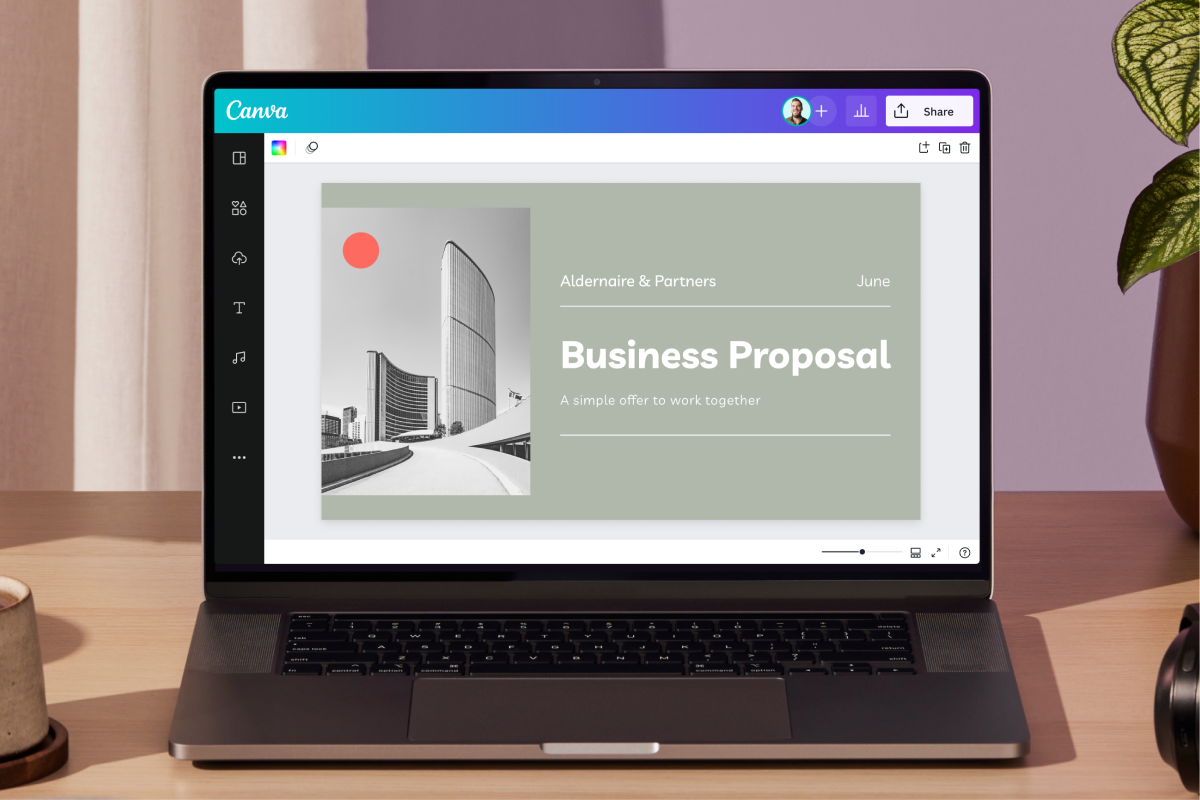
An easy how-to guide on making PDFs.
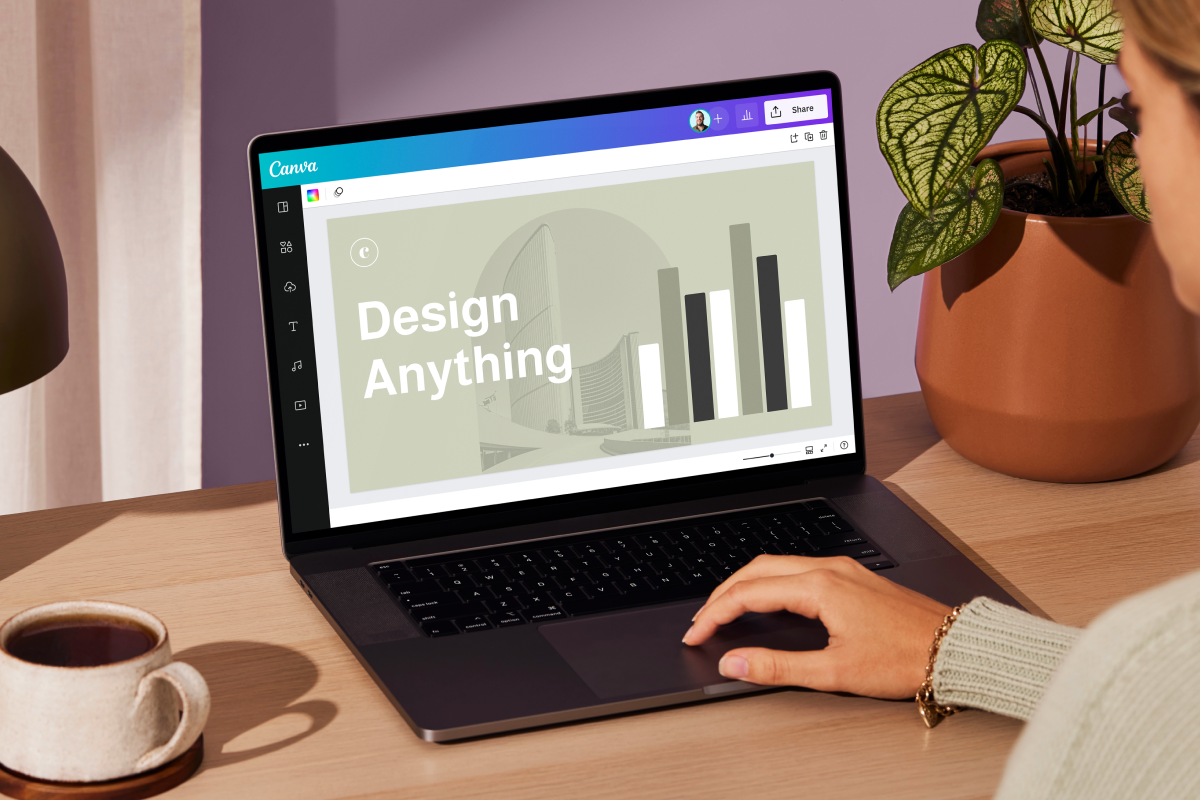
How to save your design as a PDF
Watch a quick tutorial on how to edit and save a PDF on Canva.

Collaborate on your designs in Canva
Learn how to use our dashboard to facilitate a fruitful collaboration.

7 Ways to improve your internal communications
A handy guide on improving your company's team communication.
Discover more products
Get creative with Canva’s free PDF editor
Transform PDF documents to make them more visual and compelling with Canva’s free online PDF filler and editor, designed for seamless collaboration. Or simply make that last minute tweak!
