Presentations to engage and inspire
Design and deliver slides that are anything but boring, with Canva.
Reimagine presentations with cinematic visuals that captivate audiences. Collaborate smarter, visualize data beautifully, and present with confidence.
Smart slides in seconds, powered by AI
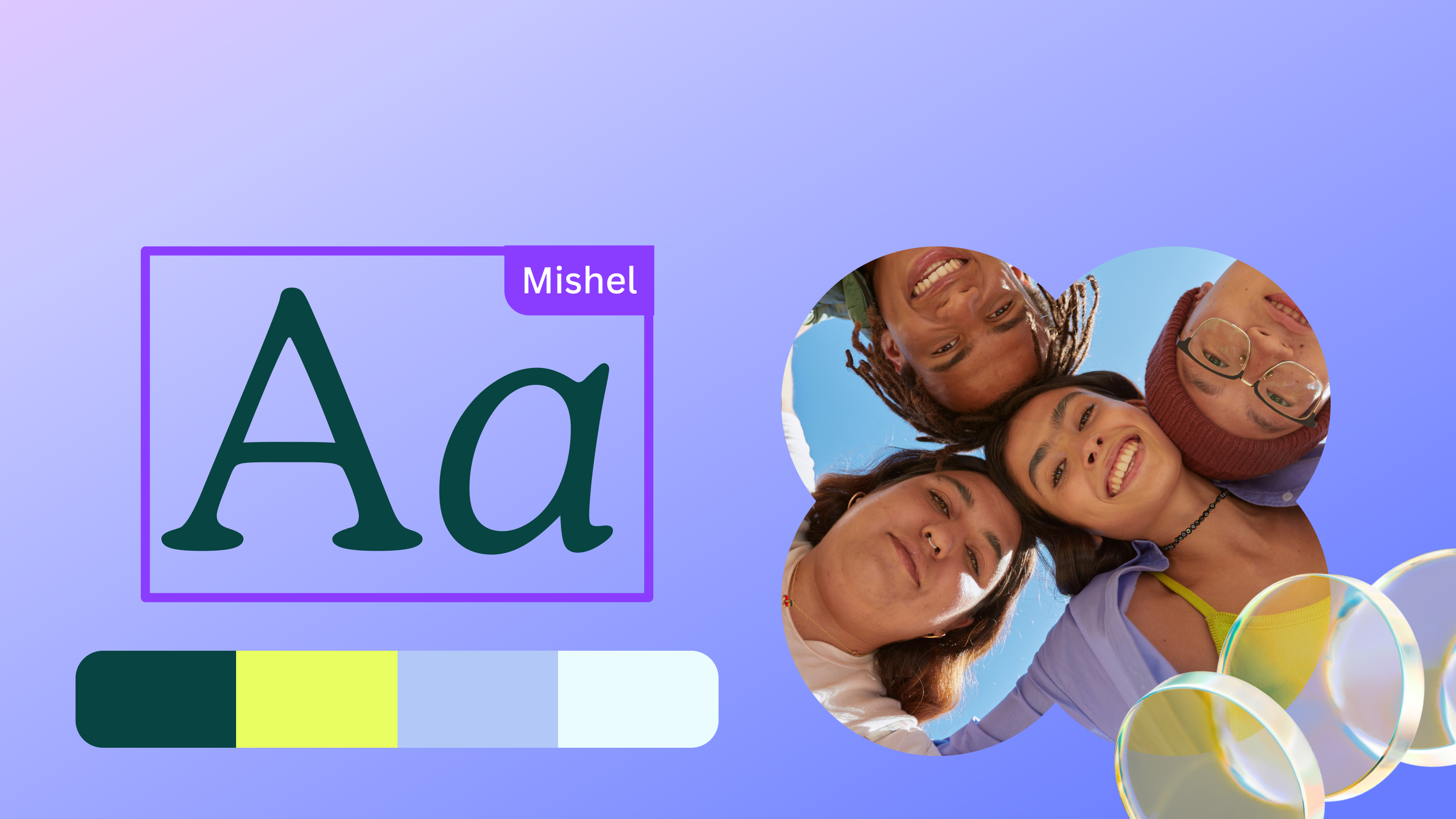
Start with a trending template
Pro

Pro



Pro

Pro


Pro
Pro
Pro
Pro
Create and collaborate seamlessly

Edit and present on the go
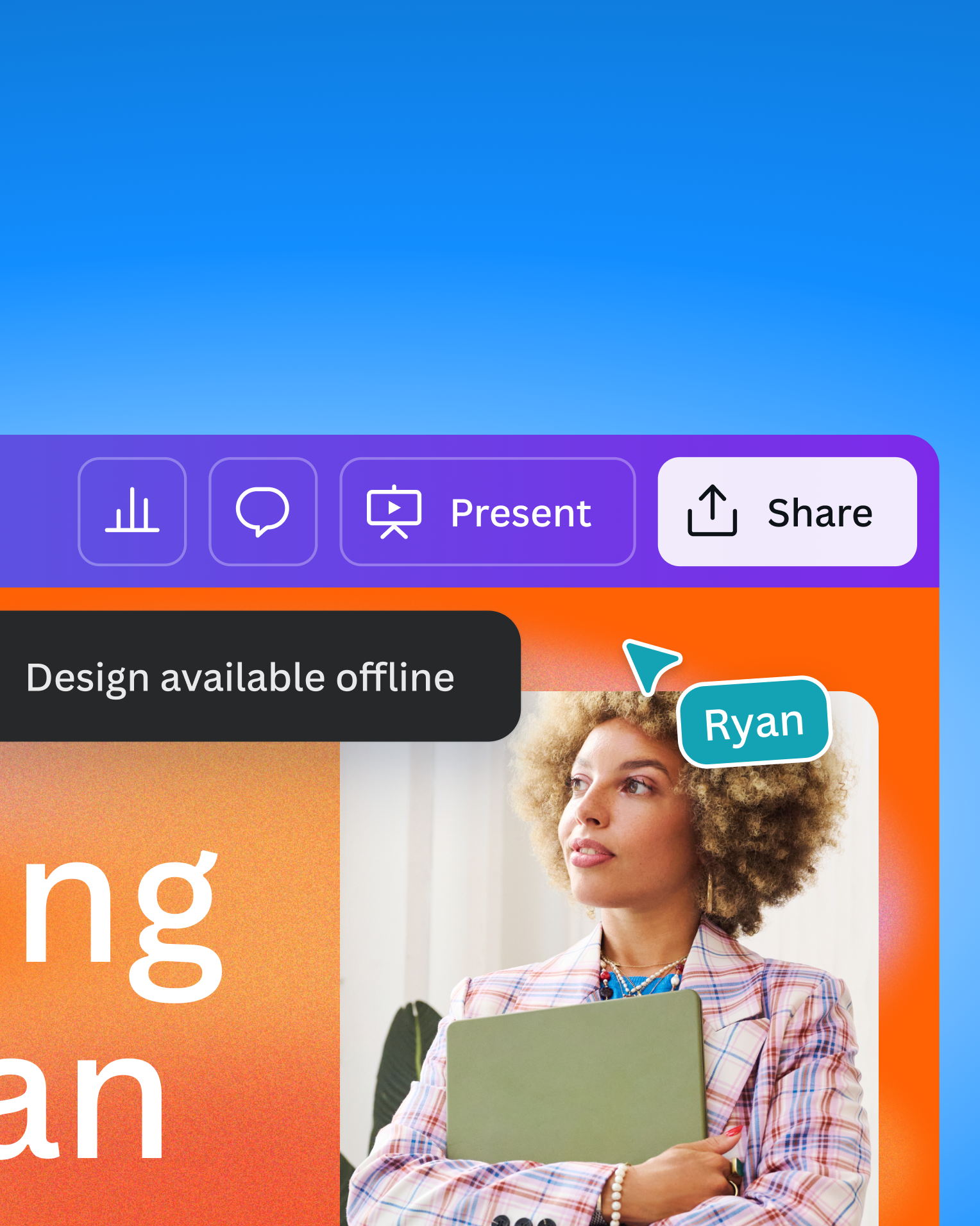
Edit slides and present from anywhere in the world, on any browser or mobile device.
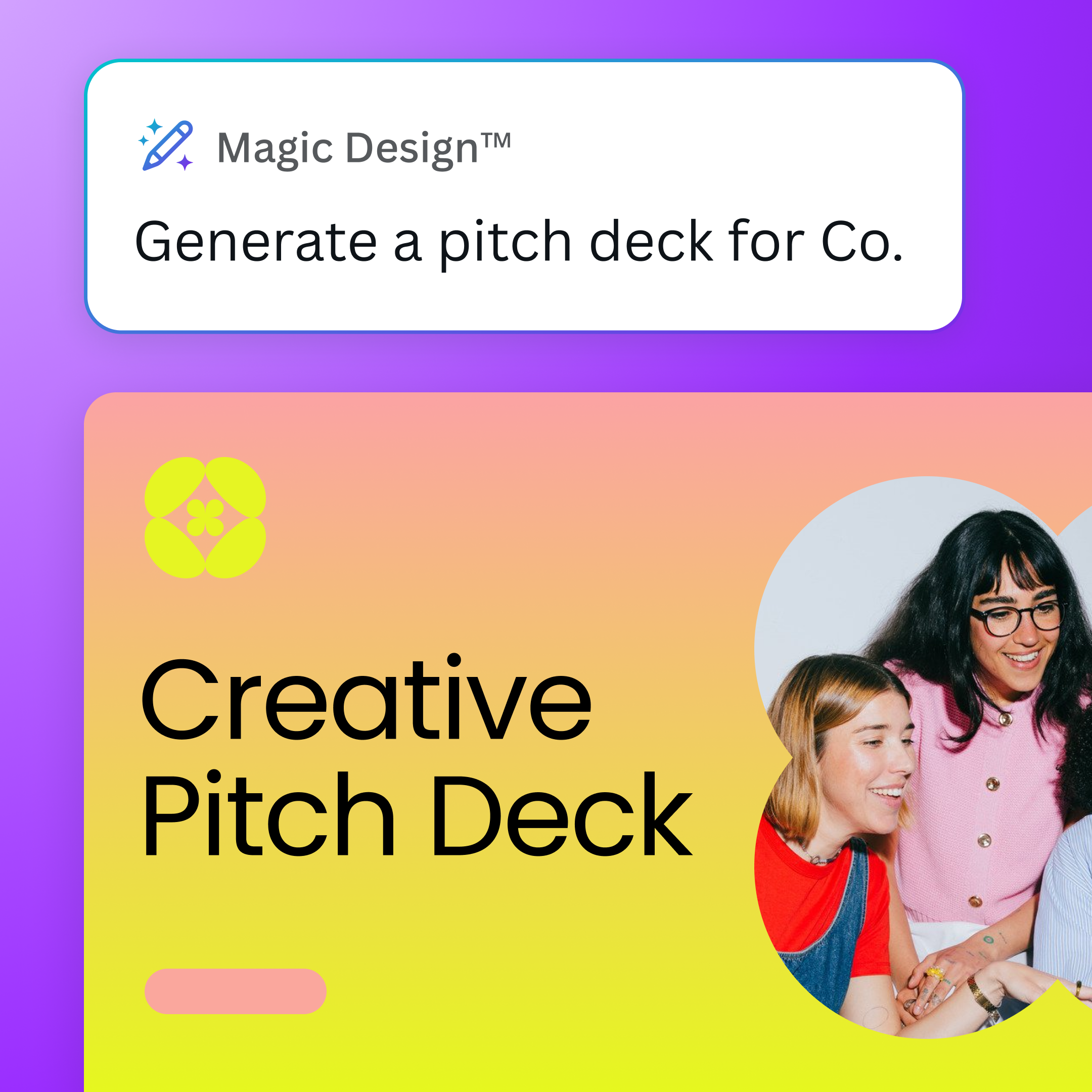
Build impactful decks in less time
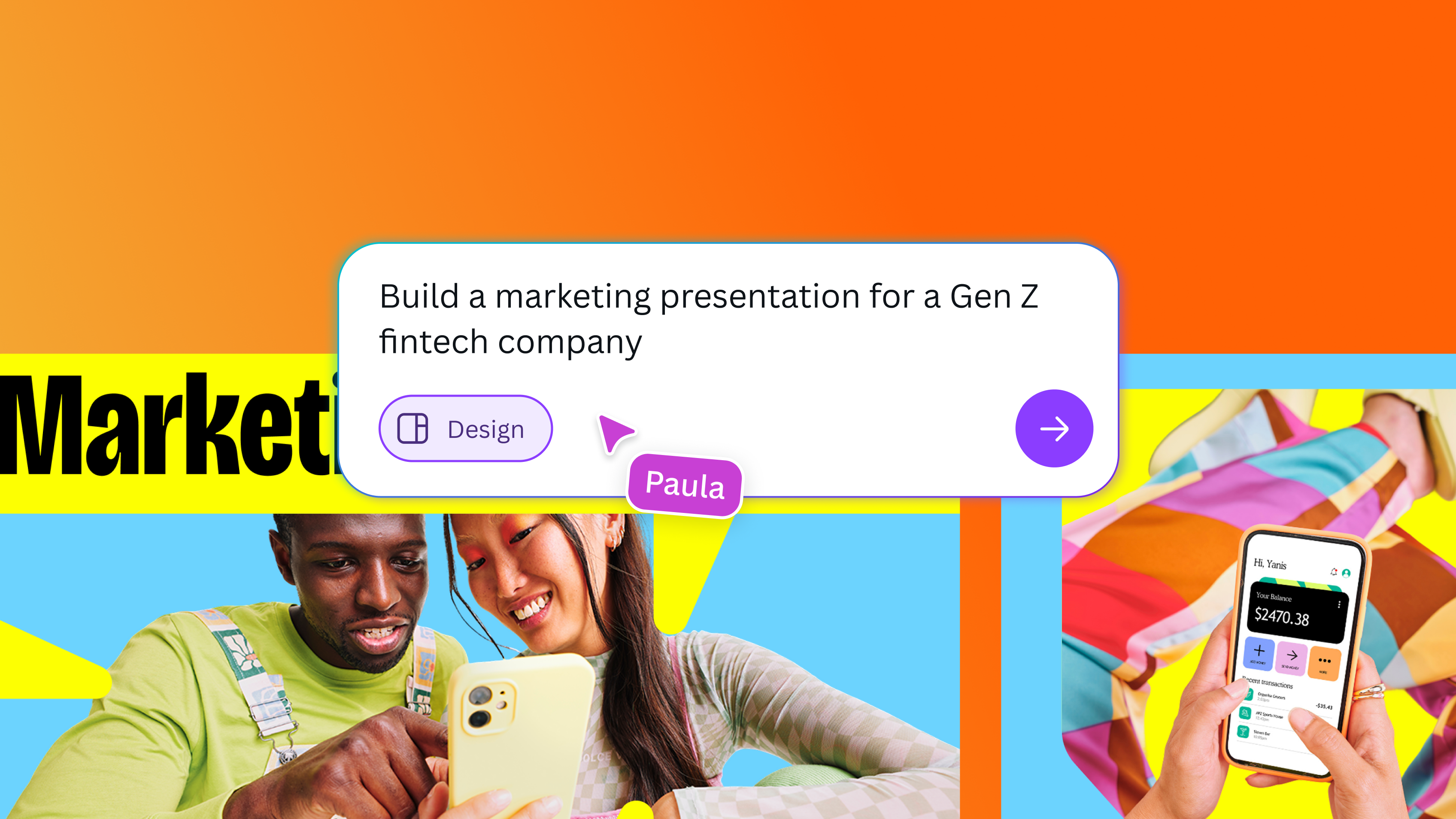
Turn a prompt into a personalized, ready-to-edit deck with Canva AI’s Guided Presentations.
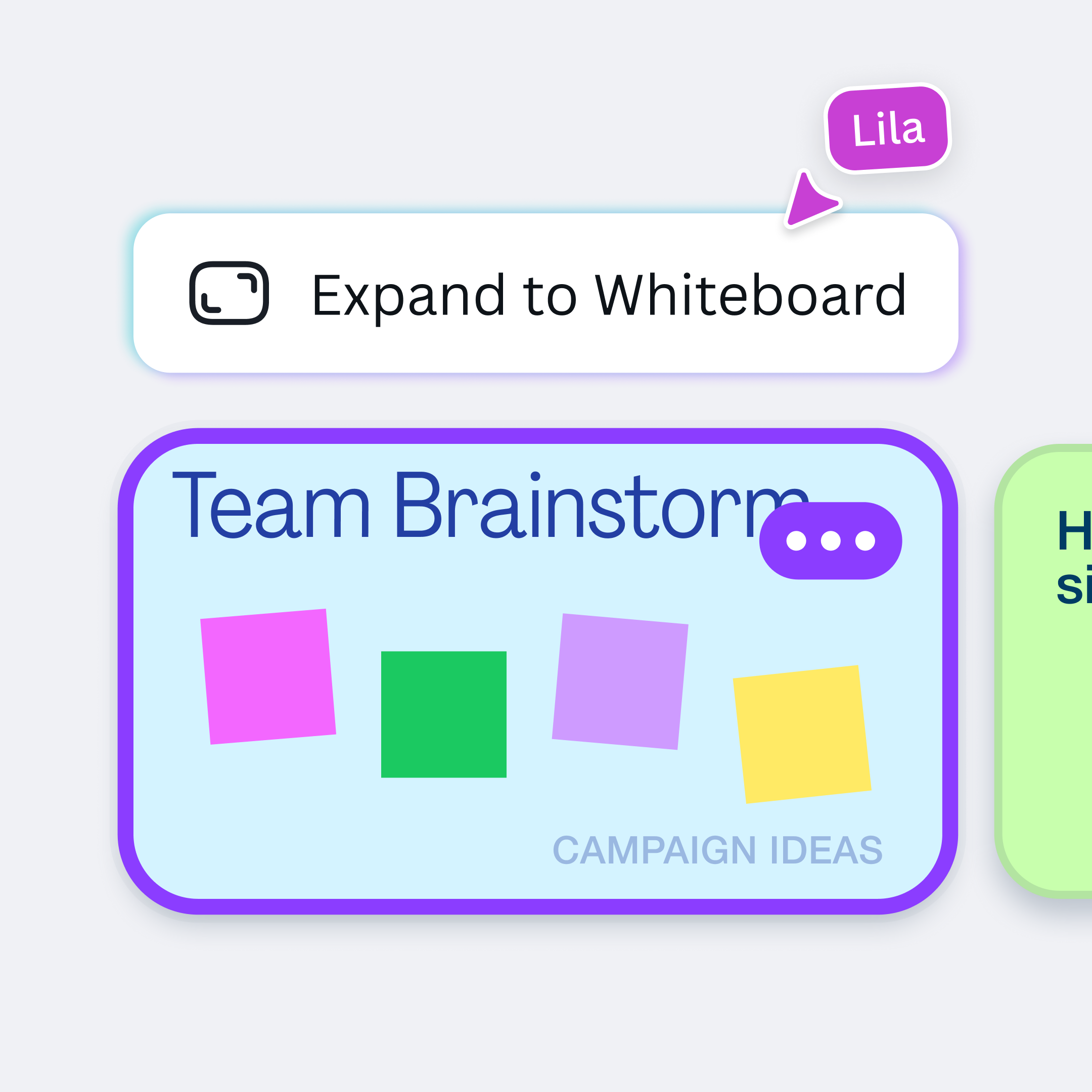
Workshop your ideas
Expand a presentation slide into an infinite whiteboard and bring together your best ideas.
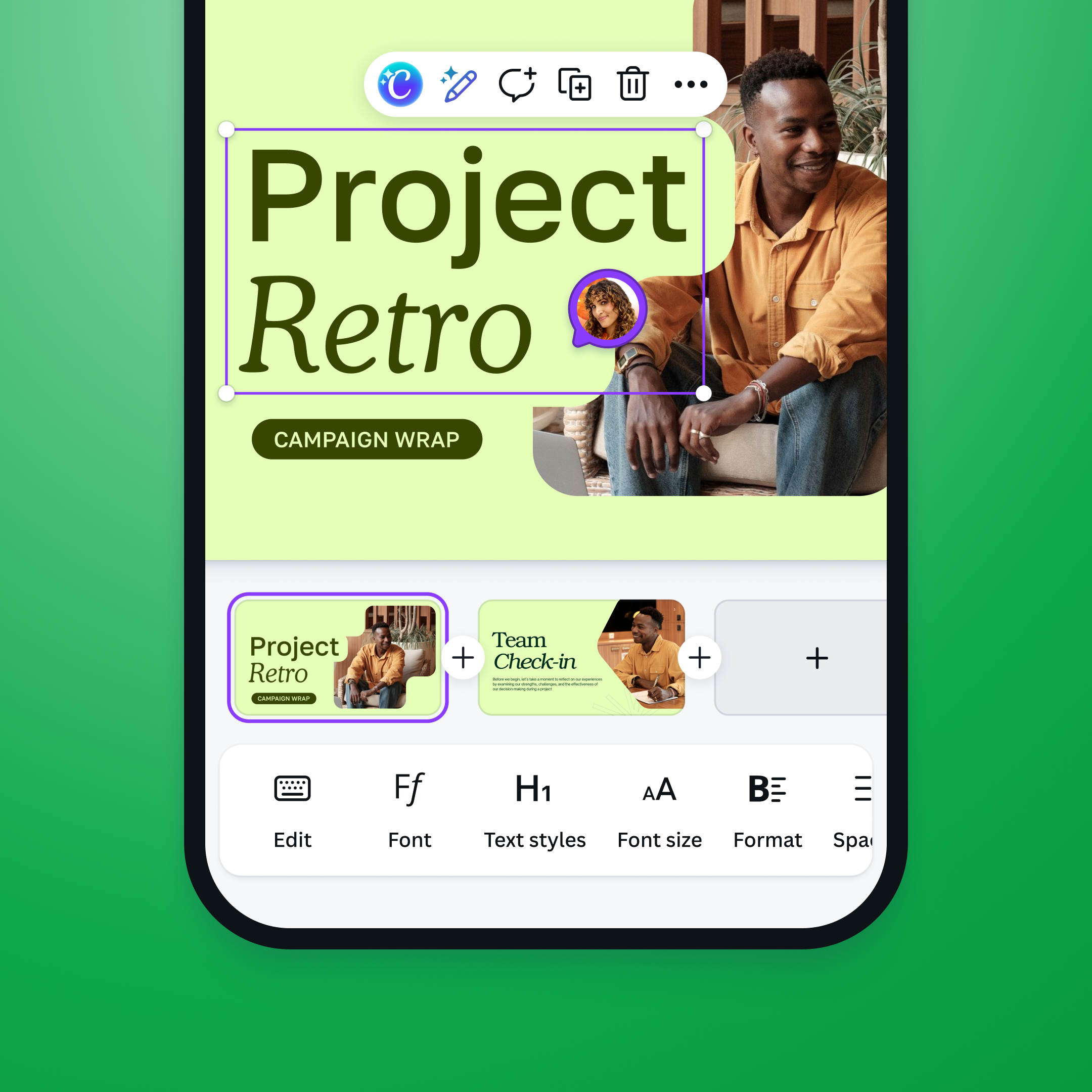
Collaborate from anywhere
Bring your team together with comments, assigned tasks, and real-time editing.
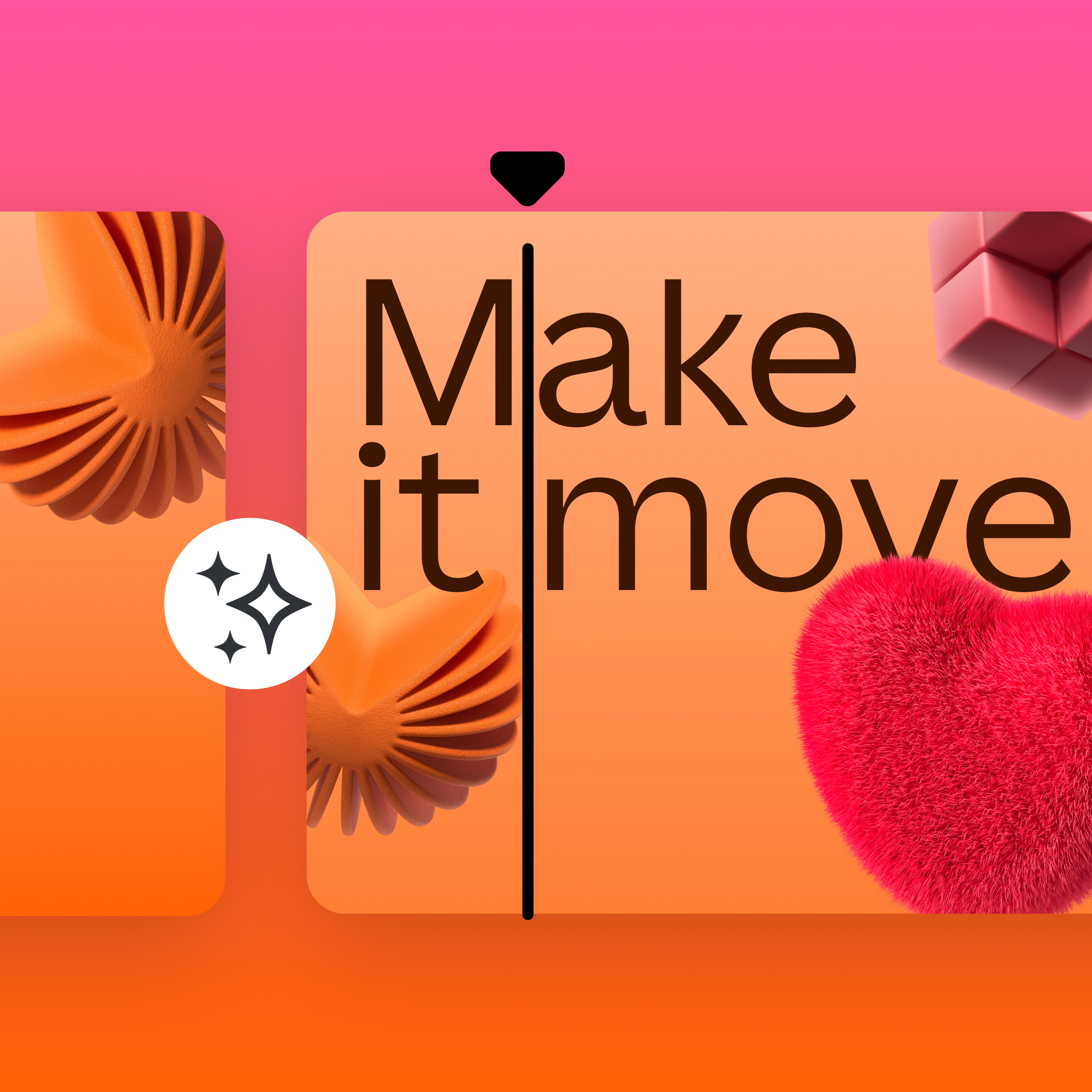
Captivate with cinematic effects
Add smooth transitions, apply animations, and animate presentations in one click.
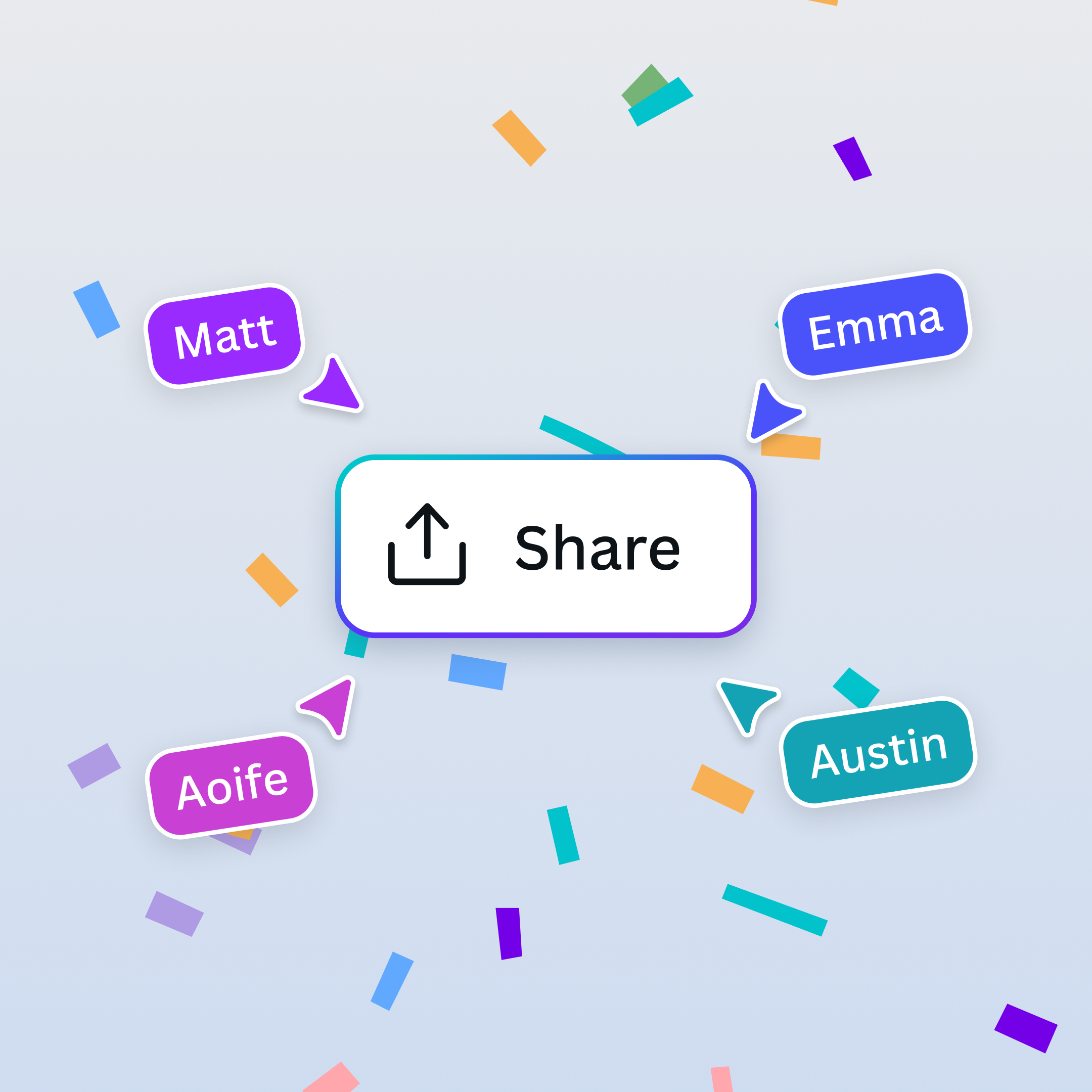
Share with pride
Export your slides as a PowerPoint presentation, PDF, video slideshow, or Canva website.
Edit and present on the go
Edit slides and present from anywhere in the world, on any browser or mobile device.
Build impactful decks in less time
Turn a prompt into a personalized, ready-to-edit deck with Canva AI’s Guided Presentations.
Workshop your ideas
Expand a presentation slide into an infinite whiteboard and bring together your best ideas.
Collaborate from anywhere
Bring your team together with comments, assigned tasks, and real-time editing.
Captivate with cinematic effects
Add smooth transitions, apply animations, and animate presentations in one click.
Share with pride
Export your slides as a PowerPoint presentation, PDF, video slideshow, or Canva website.
Edit and present on the go
Edit slides and present from anywhere in the world, on any browser or mobile device.
Build impactful decks in less time
Turn a prompt into a personalized, ready-to-edit deck with Canva AI’s Guided Presentations.
Workshop your ideas
Expand a presentation slide into an infinite whiteboard and bring together your best ideas.
Collaborate from anywhere
Bring your team together with comments, assigned tasks, and real-time editing.
Captivate with cinematic effects
Add smooth transitions, apply animations, and animate presentations in one click.
Share with pride
Export your slides as a PowerPoint presentation, PDF, video slideshow, or Canva website.
Edit and present on the go
Edit slides and present from anywhere in the world, on any browser or mobile device.
Build impactful decks in less time
Turn a prompt into a personalized, ready-to-edit deck with Canva AI’s Guided Presentations.
Workshop your ideas
Expand a presentation slide into an infinite whiteboard and bring together your best ideas.
Collaborate from anywhere
Bring your team together with comments, assigned tasks, and real-time editing.
Captivate with cinematic effects
Add smooth transitions, apply animations, and animate presentations in one click.
Share with pride
Export your slides as a PowerPoint presentation, PDF, video slideshow, or Canva website.
Edit and present on the go
Edit slides and present from anywhere in the world, on any browser or mobile device.
Build impactful decks in less time
Turn a prompt into a personalized, ready-to-edit deck with Canva AI’s Guided Presentations.
Workshop your ideas
Expand a presentation slide into an infinite whiteboard and bring together your best ideas.
Collaborate from anywhere
Bring your team together with comments, assigned tasks, and real-time editing.
Captivate with cinematic effects
Add smooth transitions, apply animations, and animate presentations in one click.
Share with pride
Export your slides as a PowerPoint presentation, PDF, video slideshow, or Canva website.
Everything in one place
Visual Suite, in one design
Create all Canva formats in a single design and unlock endless possibilities for every project.
Connect decks to data sources
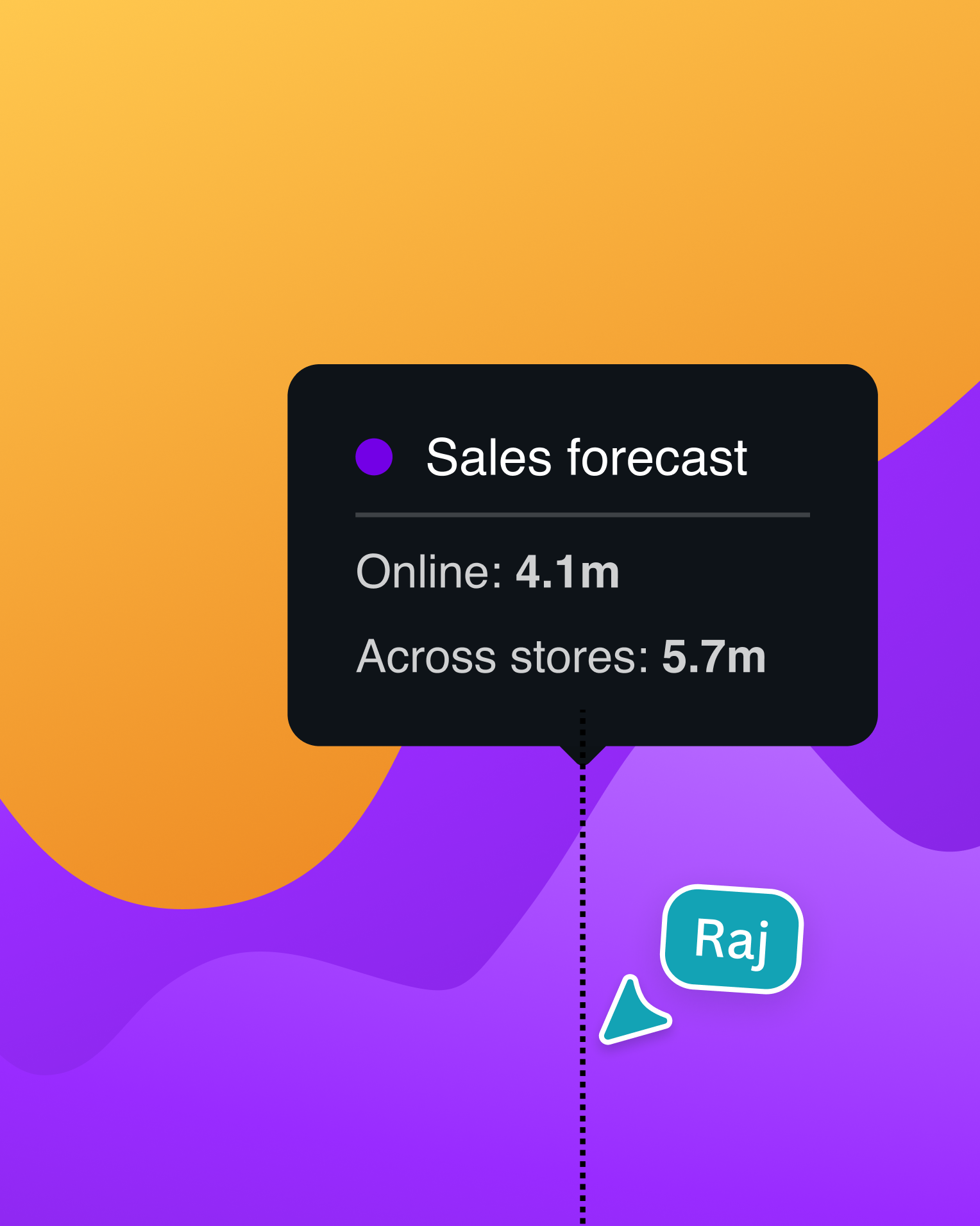
Bring data stories and visualizations from Canva Sheets to your presentations.
Powerful app integrations
Power up your creative process with AI-powered design and productivity tools.
Features that inspire creativity
Free
Pro
Thousands of free templates
Included
Included
Real-time collaboration
Included
Included
Mobile-first presentations
Included
Included
Magic Write™
Included
Included
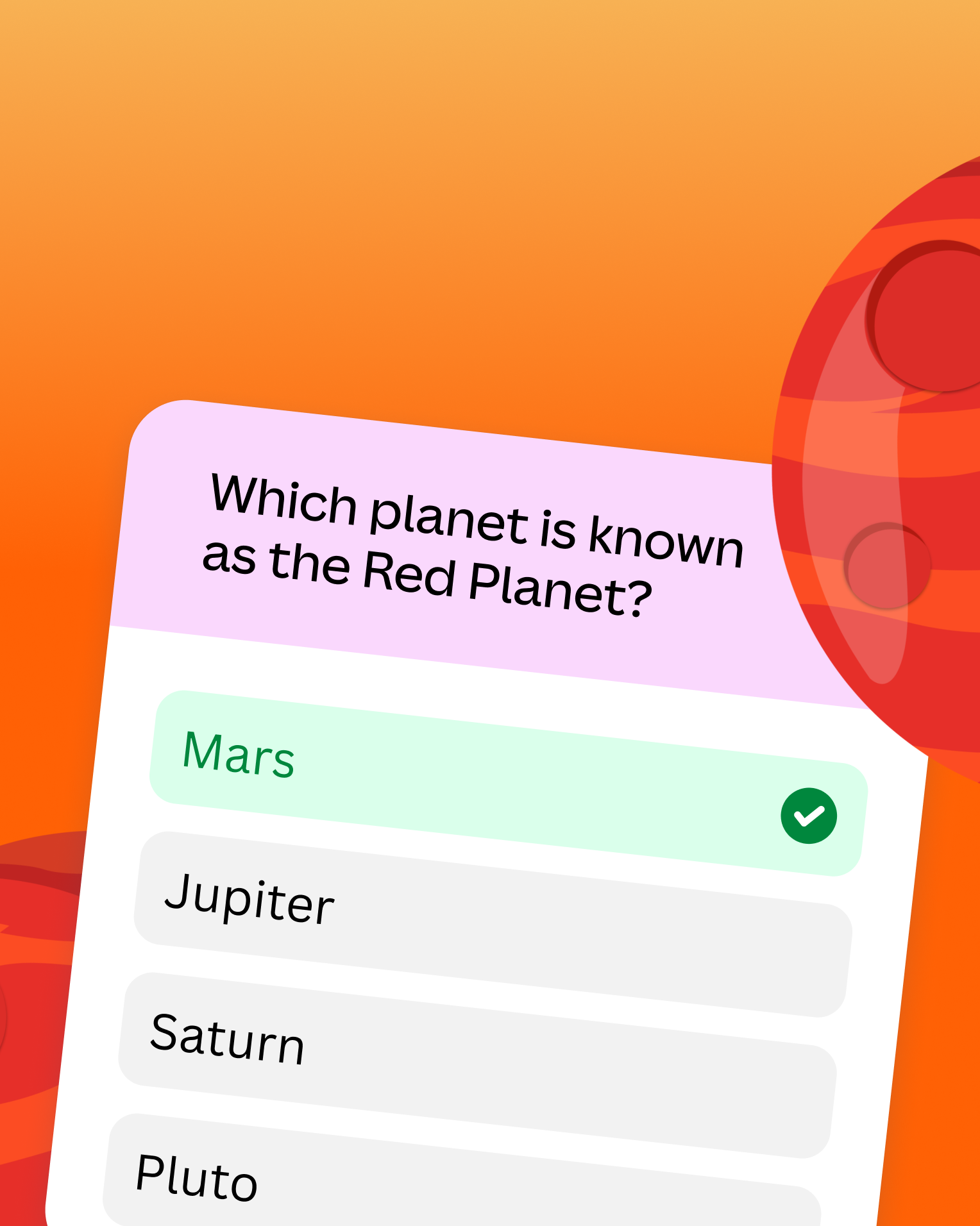
Polls and quizzes
Included
Included
Frequently asked questions
Canva AI for Presentations is a guided presentation builder that works with you to build impactful decks in less time. Through a simple conversation, Canva AI helps you outline your goals, refine your story, and organize your ideas — all before shaping slides that bring your message to life. From that first spark of an idea to the final pitch, you’ll work faster, think clearer, and create presentations that make an impact.
It’s easy to use Canva AI to generate presentations. On the homepage, click Canva AI and select Design for me > Presentation. Choose your Audience, Style, and Length options, then enter a short prompt that describes the presentation you want to generate.
Let Canva AI do its magic. It will generate an outline first, which you can review by clicking View outline. You can reorder or add more sections. Once you’re happy with the presentation outline, click Generate design and watch your slides come to life. You can now edit, add, and share your deck.
Canva AI is available with a Free account, but you only get a limited number of uses. To unlock more, you can upgrade to Canva Pro.
The law is currently unclear on who owns the copyright in AI-generated content.
At present, Canva makes no copyright claim over any content you generate using Canva AI. Between you and Canva, you own the designs you generate with Canva AI, which is subject to you following our Terms. In turn, you give Canva the right to host your AI output on our platform.
A professional presentation has two key components: captivating visuals and easy-to-digest information.
To give you a head start on captivating visuals, Canva is full of eye-catching presentation templates that match various topics, as well as free stock images and illustrations to elevate each slide. You can use data visualization tools to report your data in a meaningful and impactful way.
Another tip: simplify the information you’re presenting. Being selective about the keywords you put on your slides will make your presentation easy to read and understand. You can follow the 6 × 6 rule, which suggests having no more than six bullet points and no more than six words on each bullet per slide.
It’s easy! Simply open the Uploads tab on the dashboard and drag your desired image or video file from your device. Once it’s uploaded, drag it into your presentation or click on it to add it to your design.
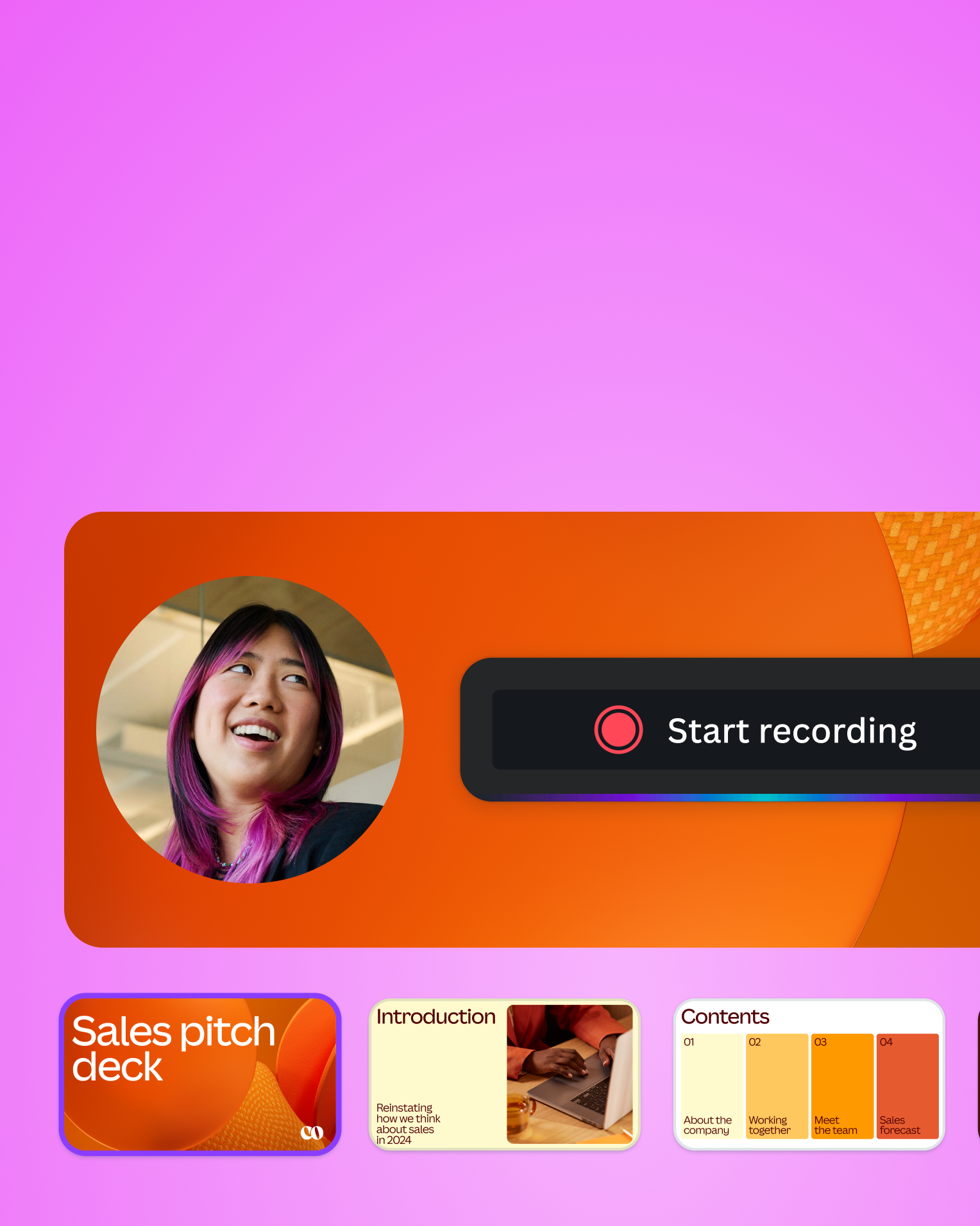
You can easily achieve this with Canva’s free online video recorder. Using your webcam, you can record yourself narrating or explaining a topic. Your webcam recording is automatically saved in the Uploads tab and added to your design as an editable video element. With video narrations, your pitches, lectures, reports, and presentations are even more engaging.
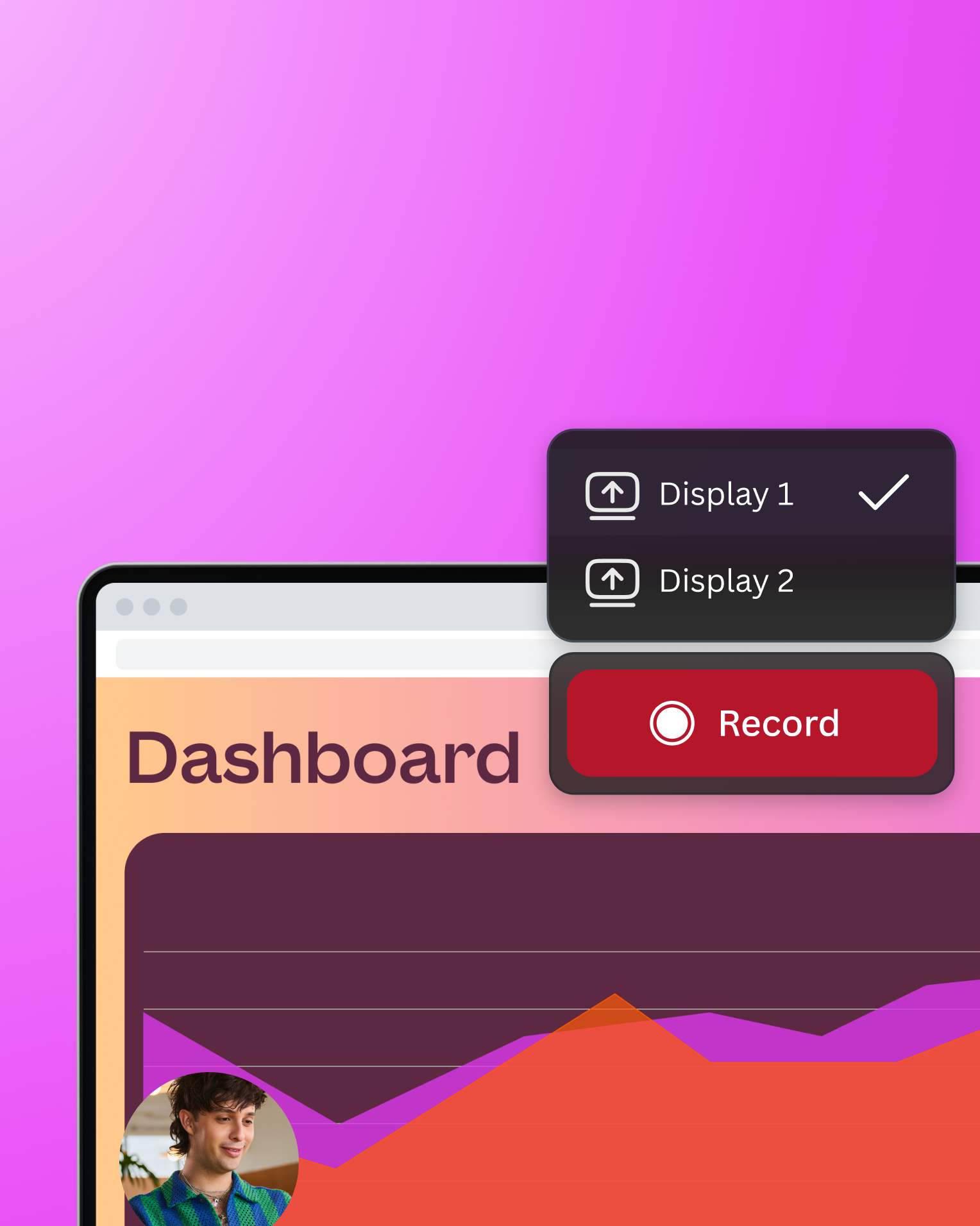
Need to record your screen? Use Canva’s Desktop Screen Recorder, available on the Canva desktop app. You can record your screen (even outside Canva) without switching apps. All screen recordings are automatically converted into a new Canva video design, which you can share or download as an MP4. In addition, all screen recordings are kept in your Uploads tab, so you can add them to other Canva designs. Use the screen recorder to create videos of screen demos, product walkthroughs, tutorials, and more.
Canva Live enables you to crowdsource questions and comments from your audience in real time while presenting through Canva. Your audience can join directly from their mobile, tablet, or desktop device. No app installation required.
To start a Canva Live session, open your presentation design, click on Present and go into presentation mode (full screen). Click on the Canva Live button (it looks like a dot with two curved lines on either side) and click the Start new session button. This will generate a code that you can share with your audience. Ask them to visit https://canva.live on their web browser and use the code to join your live session. Now your audience can send in their questions or answers and see them on screen.
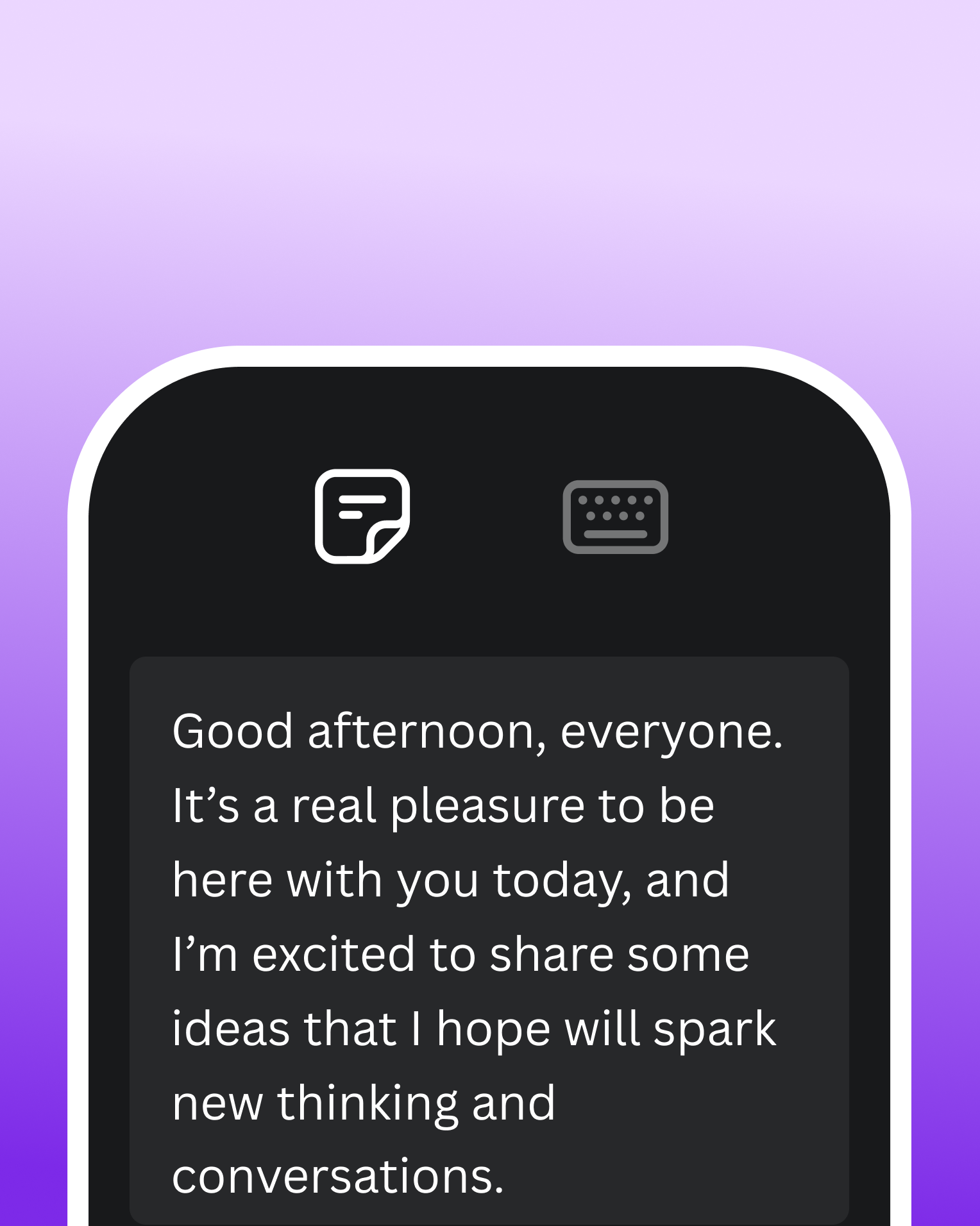
Presenter notes will give you that extra level of confidence knowing that you've got a script or key phrases as a cue right on your screen (no more messy cue cards!). To add notes to your slides, click Notes on the lower left part of the editor. A blank space will open up where you can type your notes for each slide.
You can view your notes when you present your slides via Canva. Click Present > Presenter view. Two windows will pop up: one for your audience with the standard presentation view and one for you. Your Presenter window will show your notes, along with a timer and a preview of the upcoming slides.
You can also view your presenter notes when you use Remote Control on Canva. With your talking points always close at hand, you can deliver every presentation with clarity and confidence.
Add some magic and boost audience interaction with the following keyboard shortcuts:
- Press Q - Quiet your audience with the shush emoji, 🤫, which appears with a quick “shh” sound
- Press B - Blur the screen to focus your audience’s attention or make a big reveal
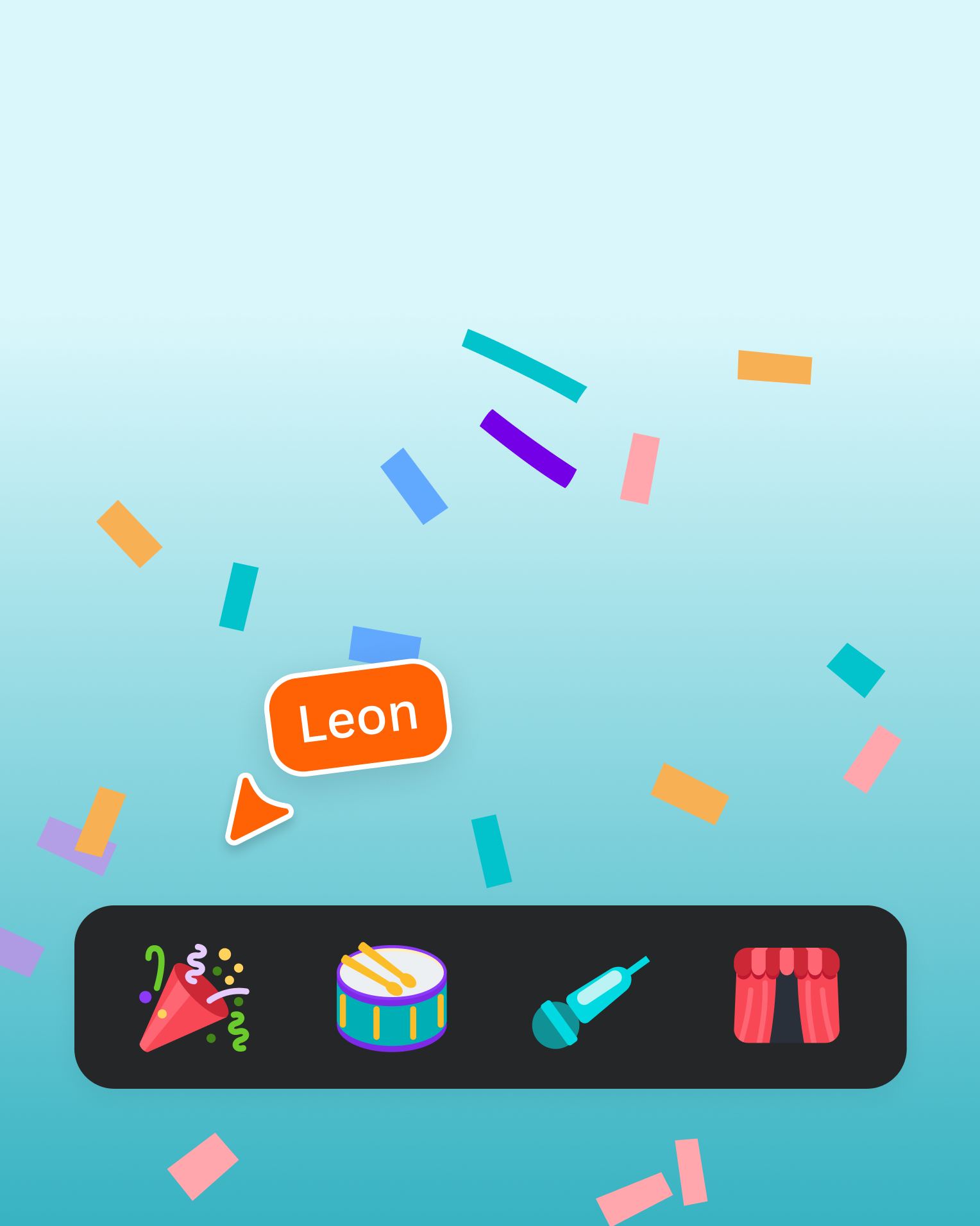
- Press D - Build anticipation with a drumroll 🥁
- Press C - Wow your audience by sending confetti streaming across the screen
- Press O - Make bubbles appear and float across your slide
- Press any number from 1 to 9 - To start a countdown timer for that amount of minutes you clicked
- Press the shortcut key again to remove or stop the effect.
Yes, you can. With the offline presenting mode, you can present confidently despite possible connectivity issues.
To activate offline presentation, navigate to your presentation on the homepage, click the three dots, and select “Enable offline presenting.” Offline presenting has two modes: Present full screen, which allows you to present your entire screen, and the Presenter view, which gives you access to presenter notes and controls. Magic Shortcuts is also be available offline, so you can still highlight special moments and engage audiences with fun animations.
Start designing with