Free Online Screen Recorder
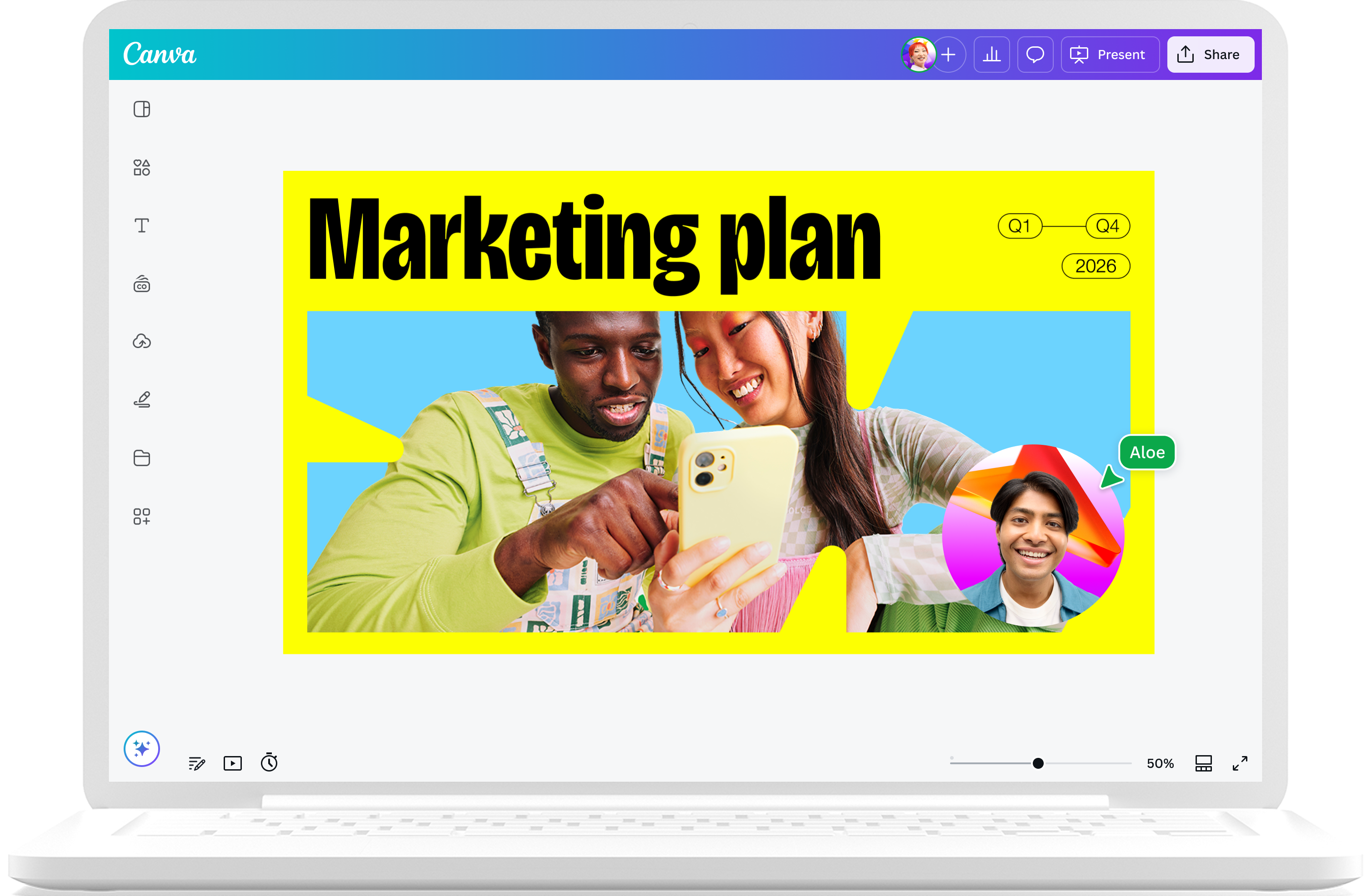
Capture all the action on your screen with Canva’s Desktop Screen Recorder. From workflow demos to tutorials, you can record in a click, edit, and drop the video straight into a design—all in one platform.





+75M customers trust Canva Worldwide
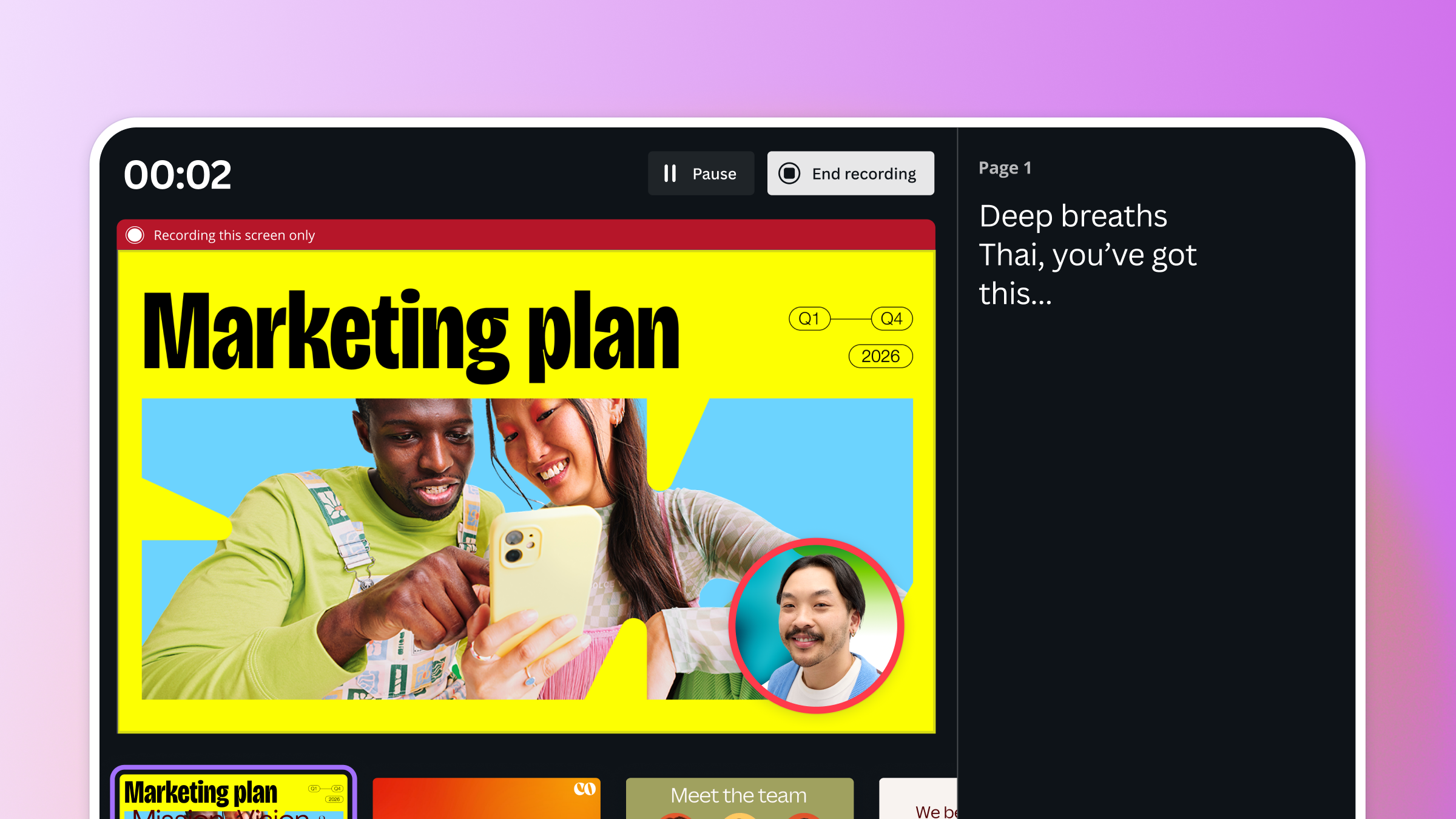
Say it with your screen
Introducing Canva's Desktop Screen Recorder, the recording tool that captures all the action on your screen. Record your screen—even outside Canva—then edit, add it to designs, and share it everywhere, without leaving Canva. No app-switching, no fiddly downloads.

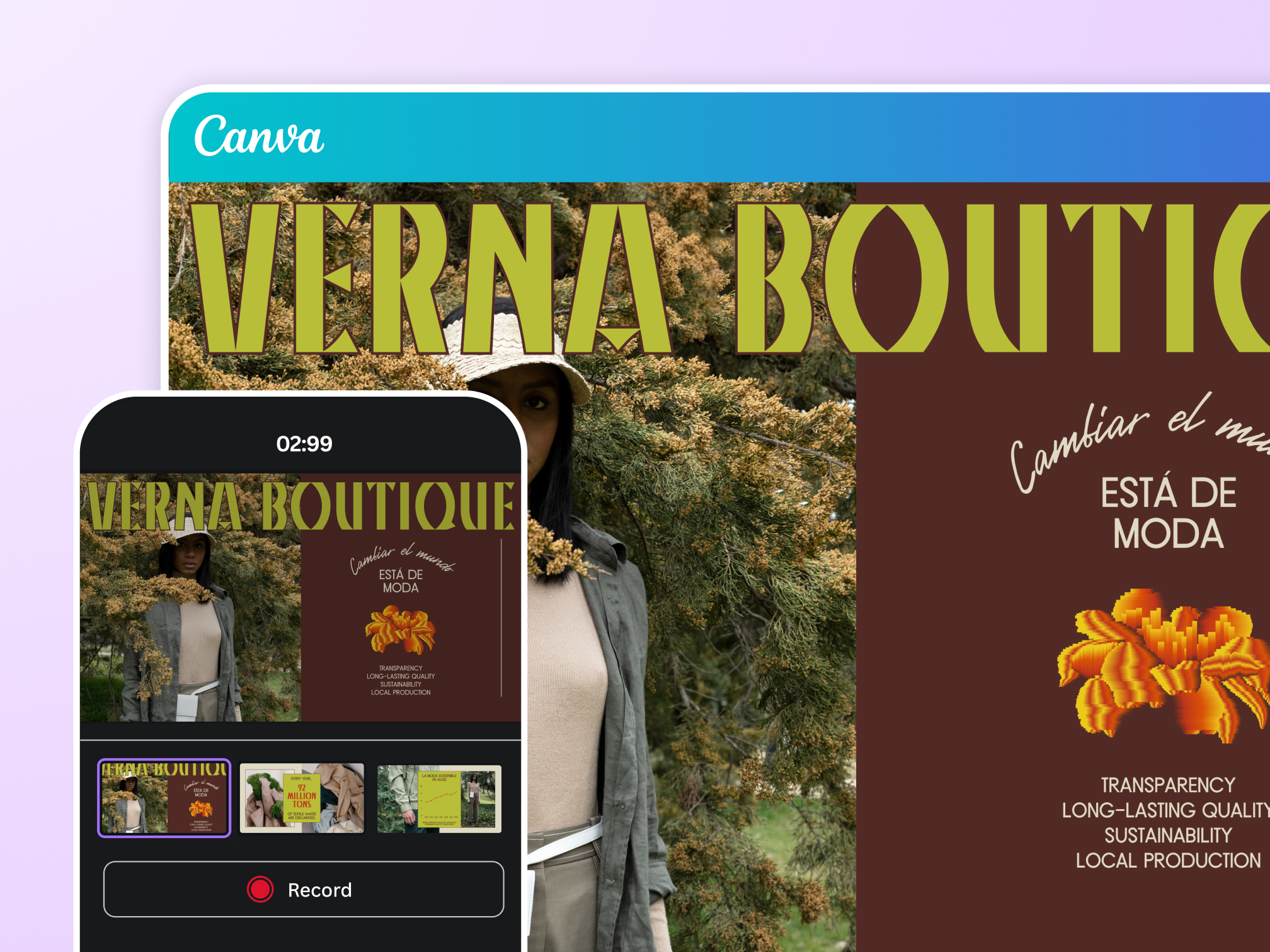
Record your way
Create tutorials, record lectures, or demo a workflow on your screen. Whatever your screen recording is, your audience can follow along at their own pace. Plus, you can add a webcam recording of yourself to make your video even more informative and engaging.
More ways to personalize your recordings

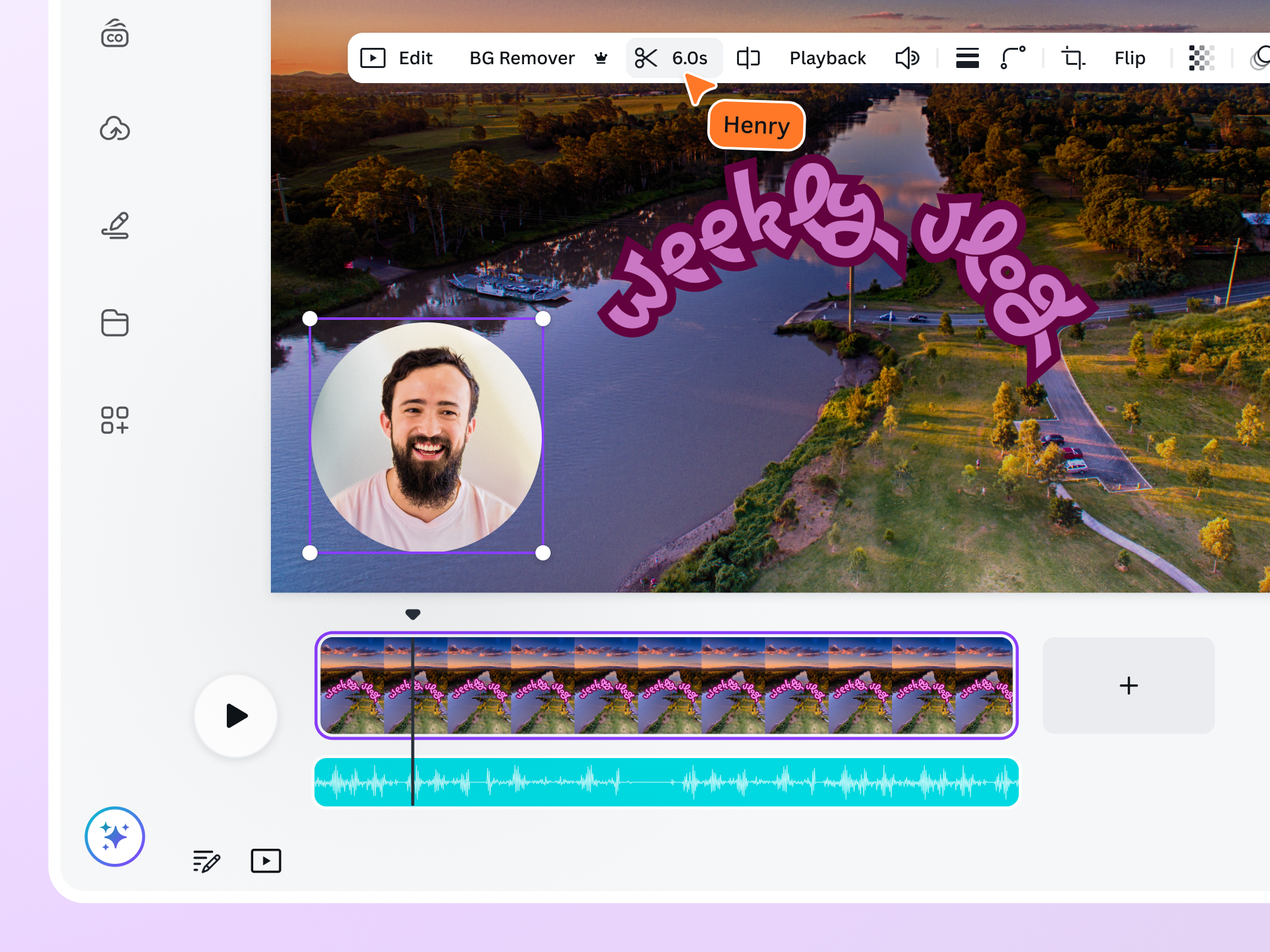
Refine your recording
Cut out the pauses, remove slip-ups, and adjust the playback speed with Canva's video editor, so every second of your screen recording is precise and professional.

Polish your videos with AI
Effortlessly create captivating content with Magic Studio. With just a few clicks, you can generate video captions, remove unwanted backgrounds, enhance audio, grab the highlights from your video, and more.

Add motion and match your brand
Create compelling presentations and explainer videos in more ways than one. Insert a powerful self-recorded video narration and match it with Magic Animate (Pro)’s instant animation and transition, all while keeping everything true to your brand with Brand Kit (Pro).
Multiple possibilities for your recorded designs

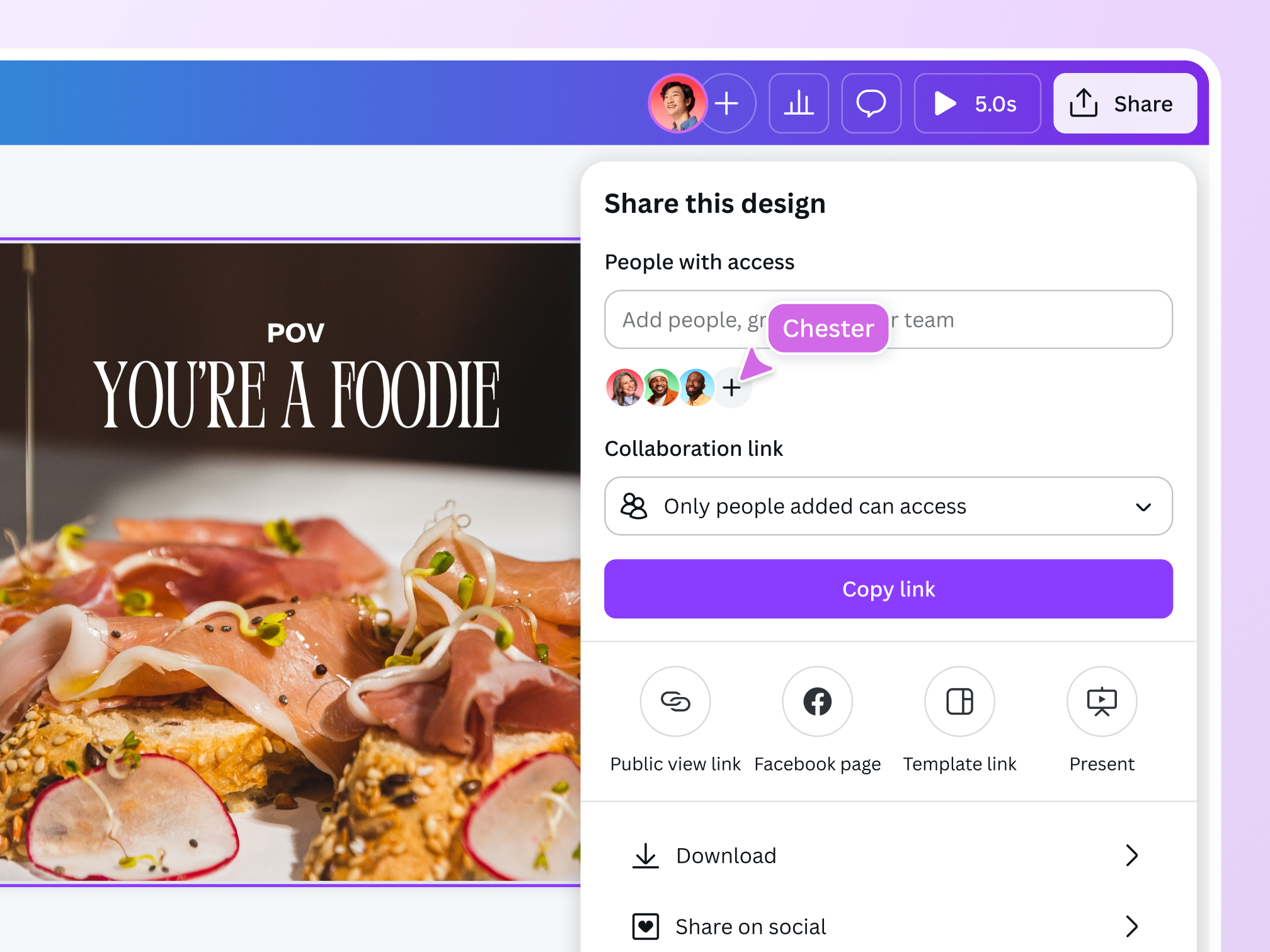
Delight on demand
Done recording your screen? Control who can view, comment, or edit it through the Share button. Or create a shareable view link so your audience can watch, pause, and revisit key moments of your screen recording.

Maximize your recorded content
Explore the unlimited potential of your screen recording. It’s in your Uploads tab, so you can add it to Canva designs like demo decks, planning whiteboards, handover documents, and more.
Download in high-definition
Download your screen recording as a high-definition MP4 you can confidently add to tutorial videos, reports, training materials, and more.
Create and collaborate on Canva
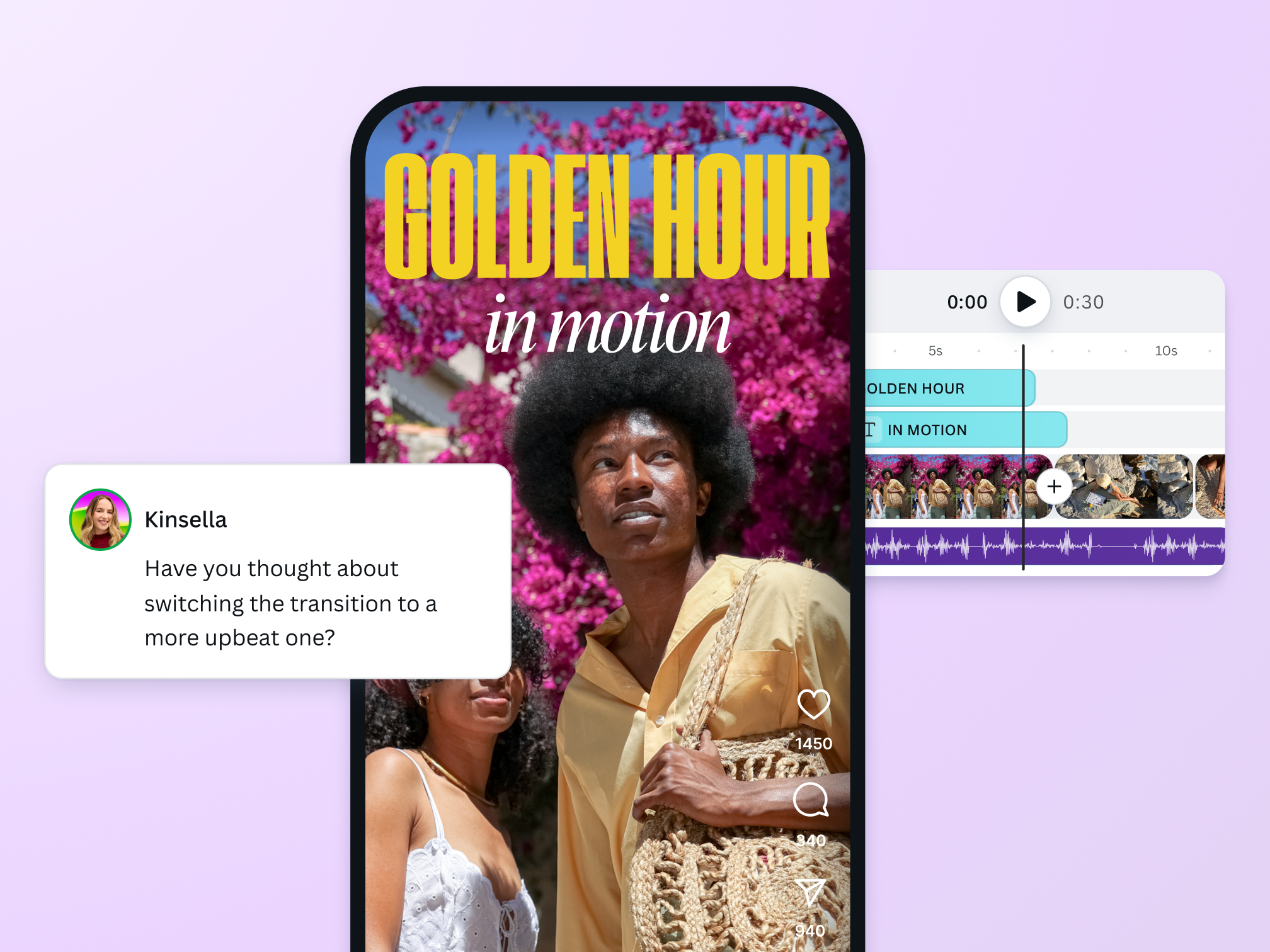
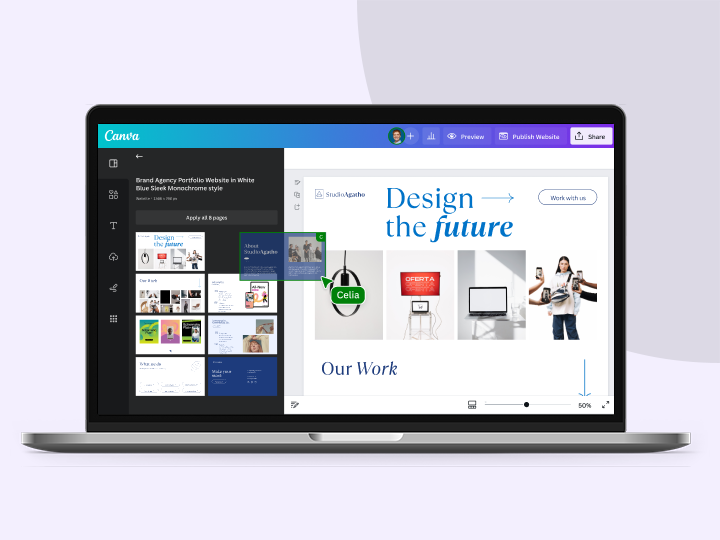
Once you’ve added a screen recording to a Canva design, you can polish it with your team. Edit the video, leave comments, and suggest changes without switching tools. Assign tasks and exchange feedback directly on the design. On Canva, everyone can create, review, and finalize the project all in one place.
The best screen recorder for all users

For entrepreneurs
Create cost-efficient yet impactful product demos, instructional videos, and more.

For pros
Easily record project updates, onboarding, and client presentations with your team.
For educators
Produce your own asynchronous video lessons to make learning more engaging.
All the features you need
Canva’s free drag-and-drop presentation software makes it easy to create any design, fast!

Flexible recording options
Capture and record your screen, record from your webcam, or record both with the screen recorder.

Record voiceovers
Capture your screen and add your audio narration with the screen recorder.

Split and splice
Split your video into multiple sections to quickly remove unnecessary footage or reorder your story.
AI video editing apps
Make pro video editing easier with Enhance Voice, Auto-trim, and Highlights, all powered by AI.

Video speed controls
Speed up or slow down video elements in a Canva design. You can choose to make your videos faster for a time-lapse effect or slow down for slow motion.

Audio for every moment
Choose from over half a million popular music tracks, 25k licensed tracks, and 89k sound effects. Add music to your video and layer multiple tracks to set the mood or narrate your story.
Embed screen recordings with ease
Get your screen recorder video instantly saved as a separate video clip and easily insert it into any Canva design.

Captions
Auto-generate Captions to make your videos more engaging and accessible. Edit, brand, animate, and export all within Canva. No additional software needed.

Trim and cut your recordings
Trim or cut your screen recordings, split and splice to remove dead air and other unnecessary sections with the built-in video editor.

Pre-record a Presentation
Perfect, screen record, and share your presentation so it can be watched from any place, at any time.
Download or store
Download your Videos as MP4s, SVG, or GIF files. If you need more time, Canva stores all your content safely in the Cloud.

Magic shortcuts
Create anticipation or celebrate big moments with Magic Shortcuts. Press ‘D’ for a drumroll or ‘C’ to drop confetti while presenting!
Presenter view
Present confidently with a private screen with notes and presenter controls. Use Draw in Present mode to highlight key points on the slide.
Millions of free images, icons, and graphics
Get access to our entire library of millions of photos, icons, graphics, media elements, audio, sound effects, and more.

Add cinematic effects
Captivate the crowd with cinematic videos and royalty-free audio from Artlist. Add motion graphics, animations, and transitions that make your ideas move.
Draft a slide deck with AI
Harness the power of Magic Design, an AI design tool, to generate multi-slide presentations with an outline and content on each slide—all from a single idea.

Real-time collaboration
Create, collaborate, comment on designs, and get everyone on the same page, at the same time, from anywhere.
Remote Control
Present together, seamlessly. Multiple presenters can navigate slides from any device, no more “next slide, please!”
How to use the screen recorder
- Open the Canva desktop appOn the Canva desktop app, click "Create", navigate to Quick Actions, and select Screen Recorder.
- Set up your camera, mic, and screenIf you’re using multiple screens, select the one you want to record. You can also turn the camera and microphone off and record only your screen.
- Record your screenClick "Record" to begin. You’ll see a short countdown before the recording starts.
- Finish the screen recordingHit Pause as needed. You can even Cancel the recording and start over. Click “Finish” when you’re done.
- Save and continue editingOnce you click “Finish,” the screen recording is automatically uploaded to Canva. Edit and add it to any design. Download as an MP4 or generate a shareable view link.
Your questions, answered
Yes, it’s free to use. You can access the free screen recorder on the Canva desktop app.
It’s very easy to share recordings because all screen recordings automatically become a new Canva video design, which you can share or download as an MP4 File. In addition, all screen recordings are automatically uploaded to Canva, which you can then add to your Canva designs.
Canva’s screen recorder is only available on the Canva desktop app. Learn more about the screen recorder in this guide.
Yes. Canva’s screen recorder will only capture audio and video that you give your permission to.
You can record with Canva’s free screen recorder for 25 minutes.
The free screen recorder is available in most countries, except India at the moment.
Currently, Canva’s screen recorder is only available on the Canva desktop app. Download the desktop app, so you can get your favorite video editing software. along with the entire Canva design suite, in one powerful desktop app.
We recommend updating your desktop app to the latest version to ensure a smooth screen recording process.
No, videos recorded with the Canva screen recorder do not have a watermark. For presentations and other design elements, if you’re a free user, any free elements, videos, photos, and footage will not come with a watermark. If you’re a Canva Pro user, you can use all free and paid elements without a watermark.
To sum up, Pro and paid elements will only have watermarks on your video if you’re a Canva Free user.
More resources
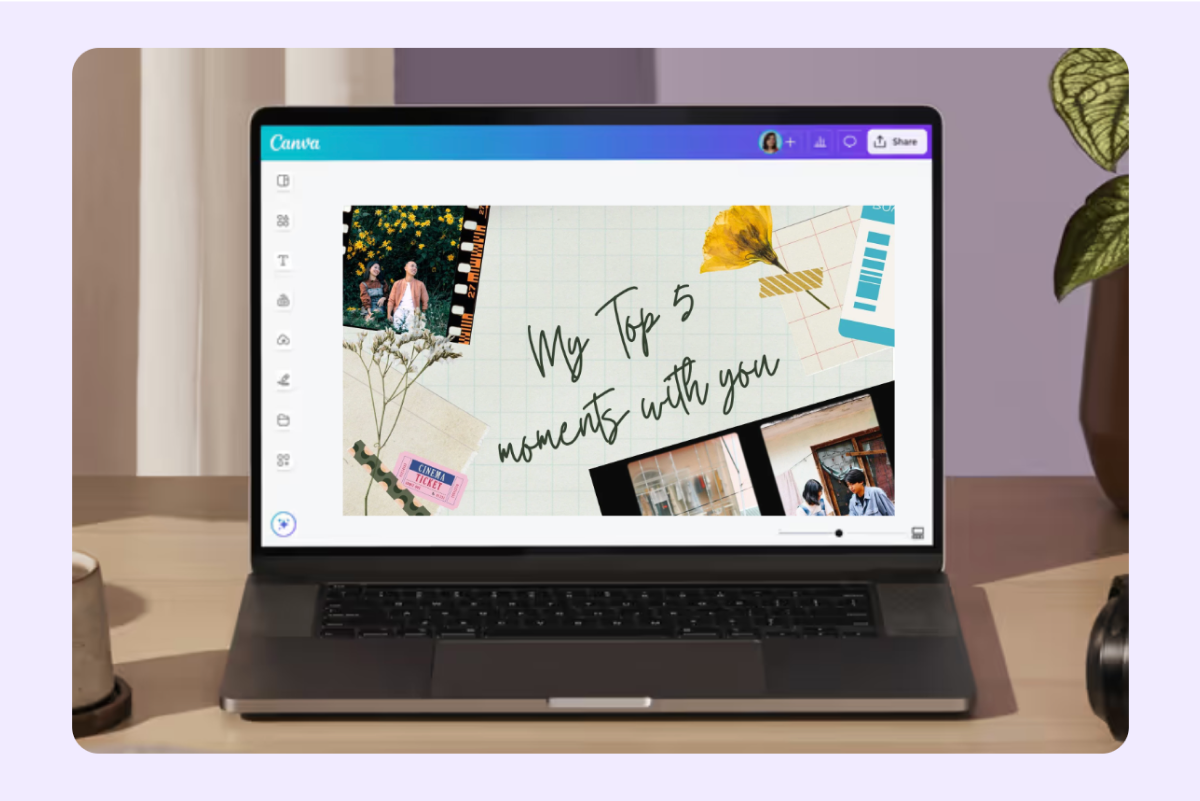
Showcase your photos and videos with the slideshow maker.

Record powerful video presentations
Create an engaging talking heads presentation with Canva.
Perfect the art of presenting with Canva Presentations.
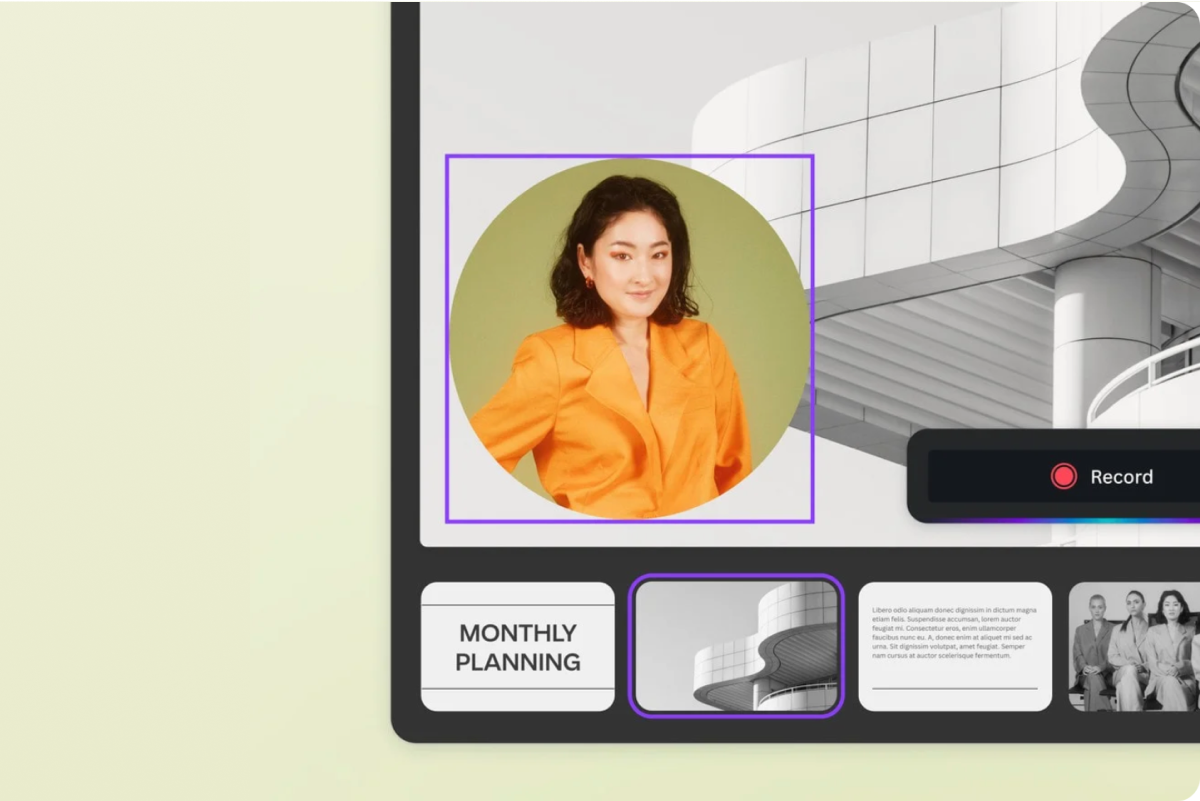
Record yourself and insert your video in your Canva designs.
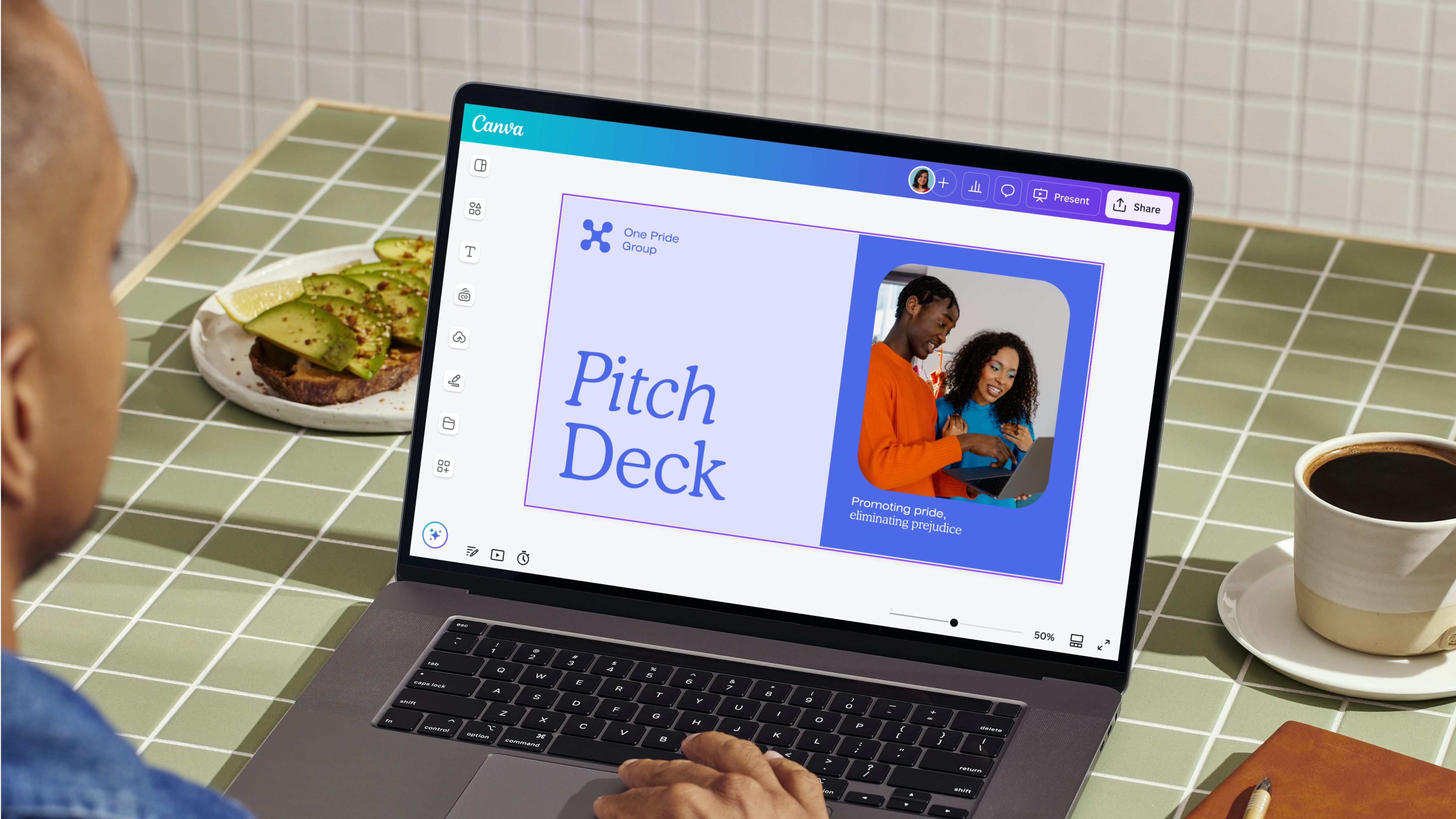
Making a pitch deck: How-tos, templates, and tips
The art of pitching an idea is invaluable in a competitive business landscape.
Discover more products
Free Online Screen Recorder
Capture all the action on your screen with Canva’s Desktop Screen Recorder. From workflow demos to tutorials, you can record in a click, edit, and drop the video straight into a design—all in one platform.
