How to Invisibly Block Spam on Your Site with Google reCAPTCHA v3
To learn more about the reCAPTCHA Add-On, check out our docs site.
Hey there and welcome back to another video, Dustin here from the Gravity team.
The Gravity Forms reCAPCHA Add-On offers integrated support for the reCAPTCHA Enterprise API, giving you the power to block spam on your WordPress site without requiring any input from your users.
In this video, we’re going to show you how to integrate your forms with reCAPTCHA v3 Enterprise. Let’s get started.
First, be sure you’ve installed and activated the Gravity Forms reCAPTCHA Add-On. Then, head to the Gravity Forms Settings page and select reCAPTCHA.
Gravity Forms supports reCAPTCHA v2 and v3 Classic, but in this video we’re going to focus on setting up v3 Enterprise, which offers the most up-to-date and advanced spam-prevention techniques.
Select reCAPTCHA v3 Enterprise, then select Continue. If prompted, log into your Google account and allow Gravity Forms to access this account.
Next, you’ll need to create a new project from within your Google Cloud dashboard. Follow the link below to open your dashboard and then select “Create Project”. Fill out the on-screen information for your project, then click create.
You’ll next need to create your Enterprise reCAPTCHA key by heading to the recaptcha page located in the Google Cloud Console, linked below. If prompted, be sure to enable the reCAPTCHA Enterprise API within your Google Cloud dashboard.
Then, click “Create key” and give it a descriptive name. Under “Domain list” add your web domain, then click “Create key” once again.
Now, head back to your WordPress dashboard. You should now find your newly created project in the “reCAPTCHA Project ID” dropdown and your API key in the “Enterprise Site Key” dropdown.
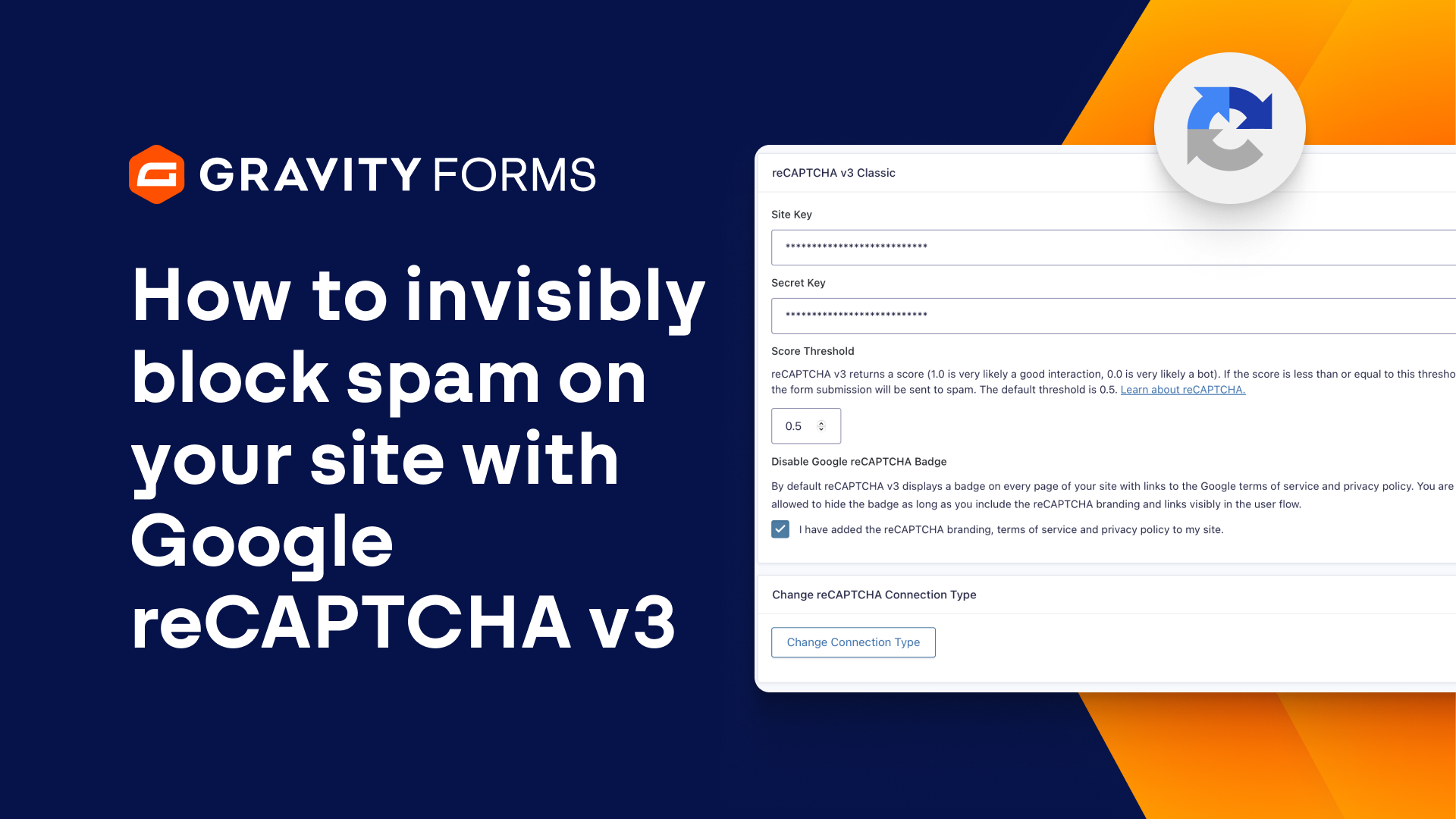
You can then set the Score Threshold that you want to use with reCAPTCHA v3. reCAPTCHA v3 will score form submissions, with 1.0 indicating a high likelihood of being a human interaction, and 0.0 indicating a high likelihood of being a bot.
If reCAPTCHA v3 returns a score equal to or lower than the threshold, that submission will be marked as spam.
Finally, by default, reCAPTCHA v3 displays a badge on every page on your site that links to Google’s terms of service and privacy policy. You can disable this badge if you have manually added the reCAPTCHA branding, terms of service, and privacy policy to your site.
Save your settings, and you’re all set.
Thanks as always for watching, I’ll see you in the next one!
Summary
The Gravity Forms reCAPCHA Add-On offers integrated support for the reCAPTCHA Enterprise API, giving you the power to block spam on your WordPress site without requiring any input from your users.
In this video, we’re going to show you how to integrate your forms with reCAPTCHA v3 Enterprise.