
Getting Started with SaaS MCP Servers for AI Agents
This document provides a comprehensive overview of setting up and operating SaaS MCP servers managed by Knit. The process involves logging into the platform, creating a server, and selecting the necessary tools and applications to facilitate your workflow.
Step 1
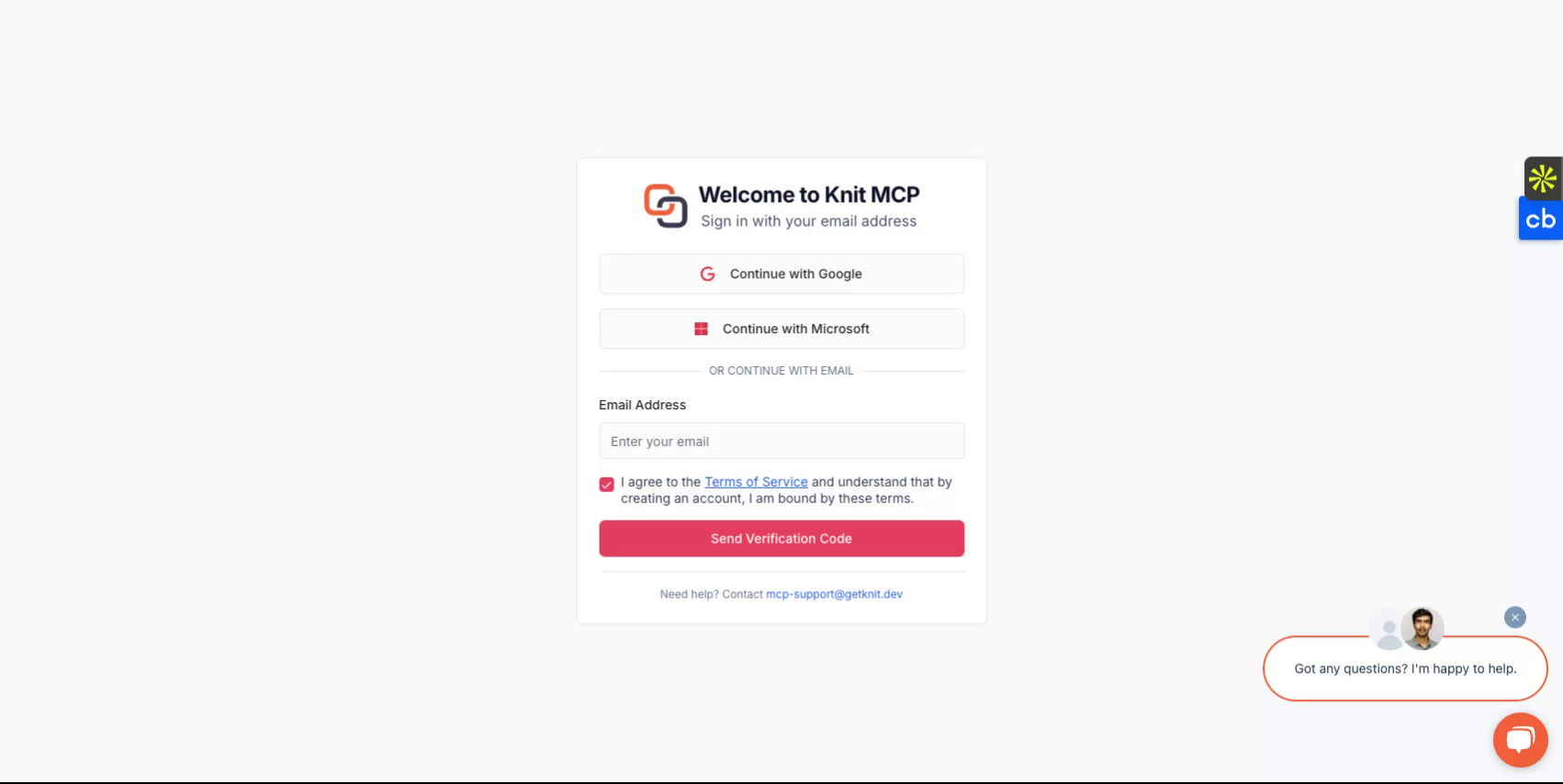
Begin by visiting https://mcphub.getknit.dev. Log in using your Google or Microsoft account, or create an account using your email address. This will allow you to access the platform's features.
Step 2
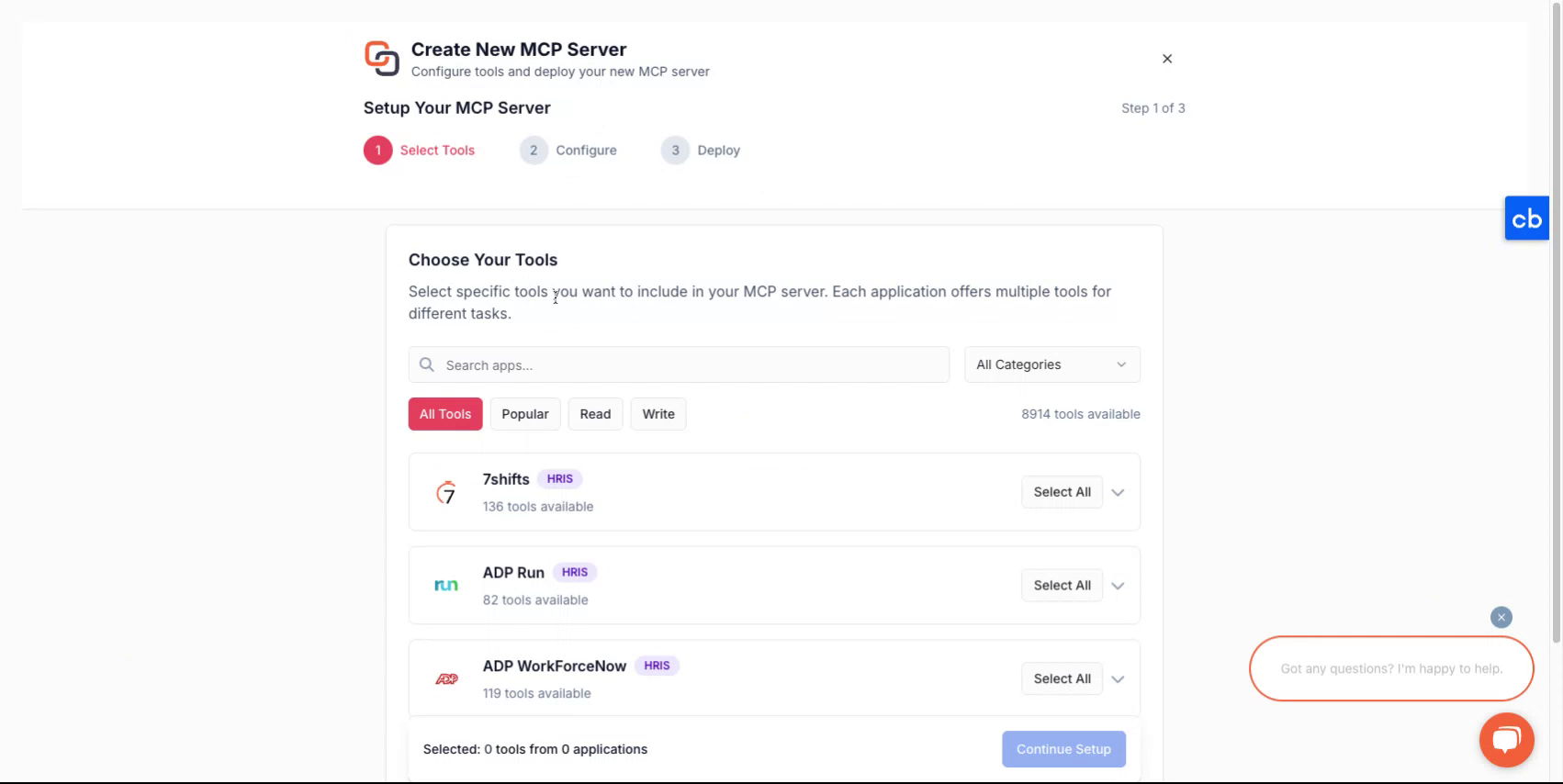
After logging into your account, you will be guided through the process of creating a new server.
Step 3
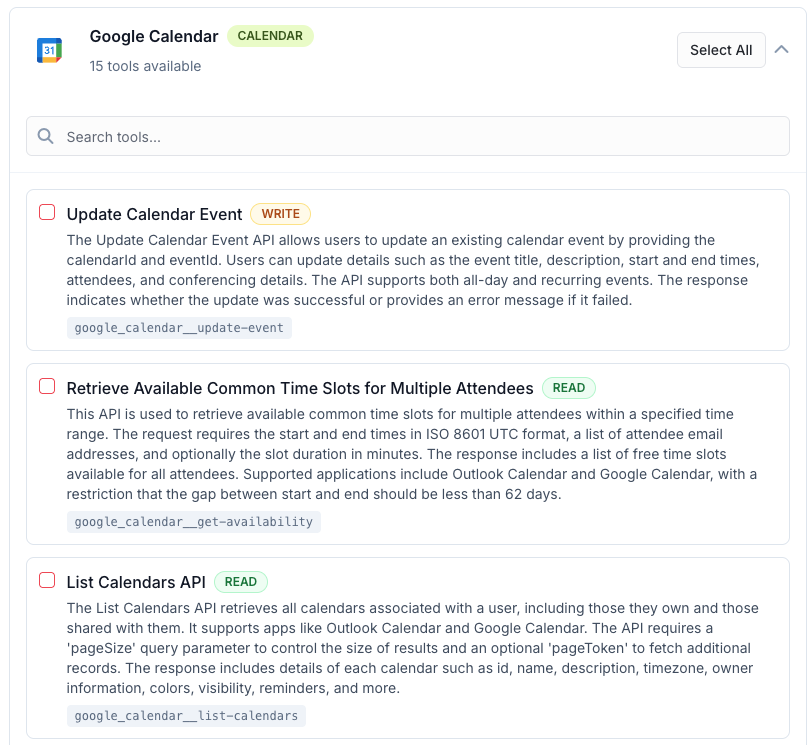
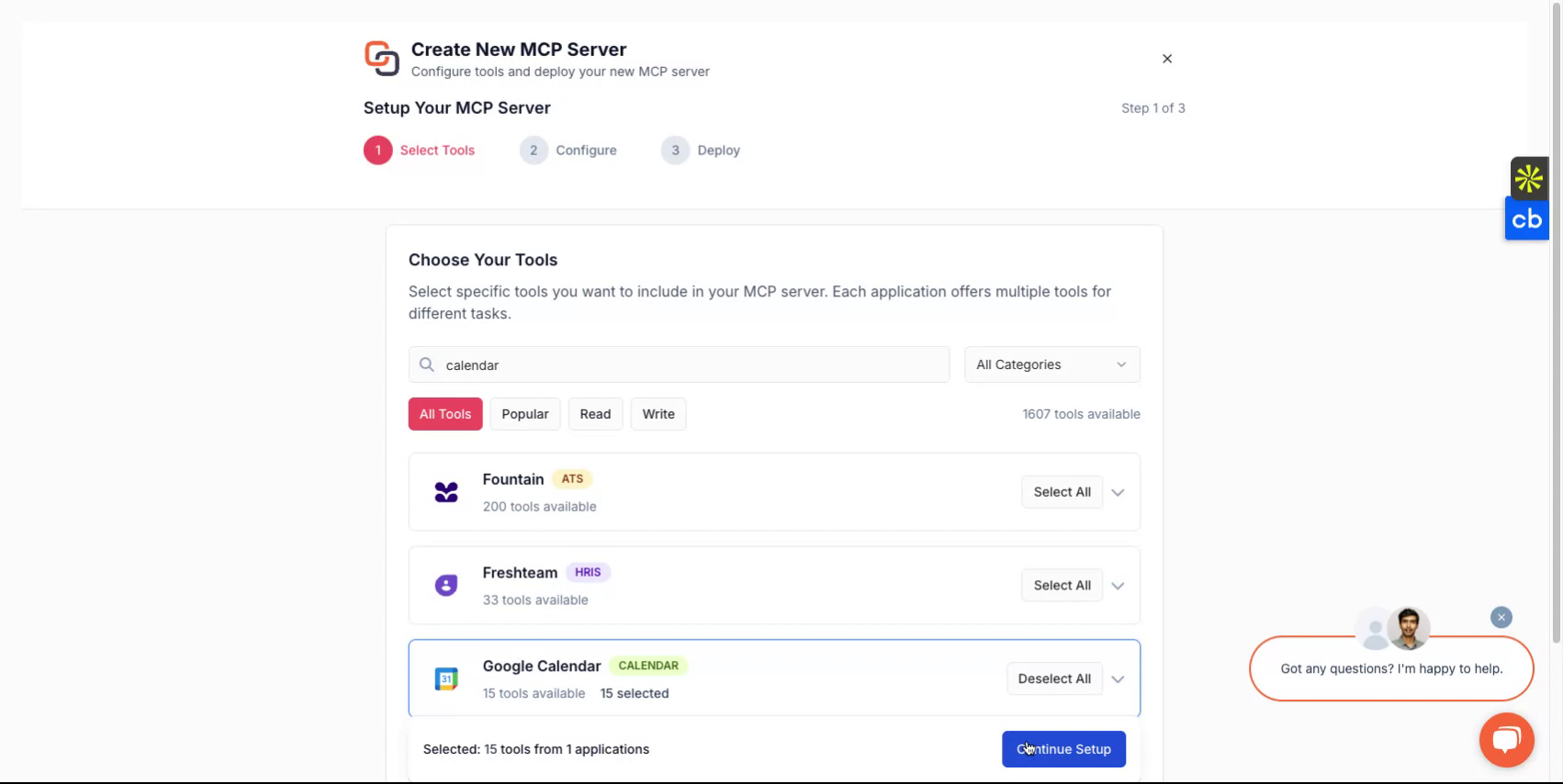
To create a new MCP server, first select the tools that you'd like to package in the mcp server. These could be from one or more applications. You can find the list of all the supported applications here - All MCP Servers
Step 4
After making a selection, assign a name to your server give it a description and then continue to select how you'd like to deploy it
Step 5
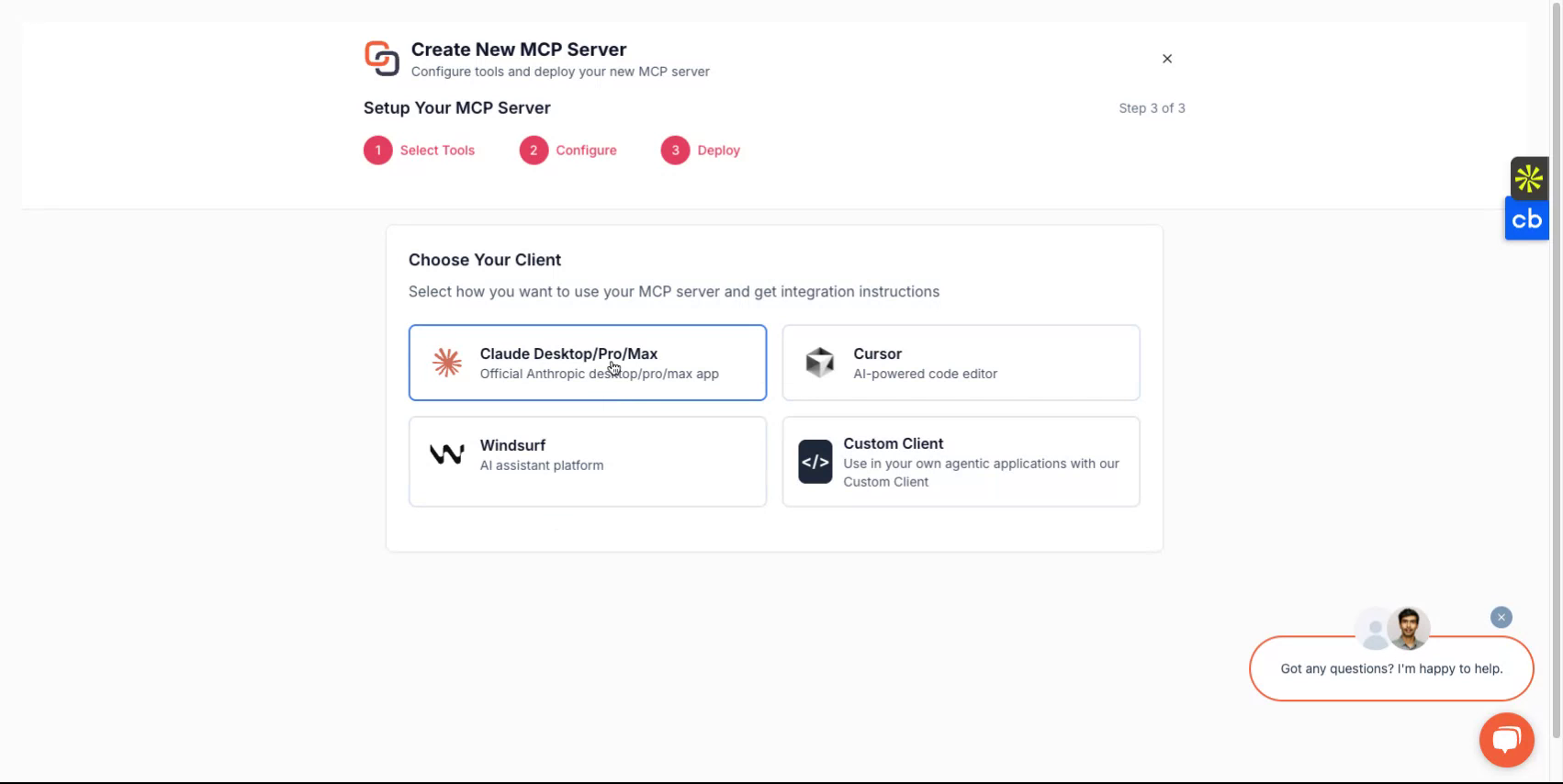
Depending on the client you wish to use, you can choose from options such as Claude, Cursor, Windsurf or chose to implement if with a custom client you are building. The platform will guide you through the setup flow.
Step 6
Upon completion, you will receive a server URL and an MCP server token. These credentials are essential for accessing your server.
If you plan to develop custom clients, select the custom client option and follow the corresponding instructions.
All Done
You have now successfully set up your Knit-MCP server. For any questions reach out to us on [email protected]
Updated 6 days ago
