

Securing a WordPress site goes beyond using a strong password and hoping for the best. Many guides offer a simple checklist, but fail to explain the strategic layers of a truly hardened website. As security professionals at Jetpack, we’ve analyzed thousands of attacks.
In this guide, we’re not just giving you a list; we’re sharing our field-tested framework for building a secure WordPress site, from adding brute force protection to deploying advanced threat detection.
The importance of WordPress security
Your website tells your visitors who you are, what kind of content and services you offer, and what they can expect from your brand. It’s a place to make a great first impression and build trust and loyalty with existing fans.
That’s why it’s so important to make sure that your website is up and running at all times. If it suddenly includes links to malware, starts running very slowly after a hack, or goes offline altogether, it will impact your reputation.
If your site is hacked, you could lose money due to decreased views, sales, or ad impressions. There may be costs involved in restoring it to good working order. You might also lose rankings on search engines — sometimes permanently. So, to save money (and save face!) make sure your website is locked down and secure.
The main causes of WordPress security issues
Google recently released a list of the top ways hackers access websites. Let’s look at a few of those in detail:
Compromised passwords
Brute force attacks are one of the most common ways hackers sneak into a site. They use bots to try different usernames and passwords — thousands of combinations per second — until they find the right one.
Insecure plugins and themes
Vulnerabilities found in plugins and themes are a relatively easy way for bad actors to get in. Developers of high-quality themes release patches for those vulnerabilities in regular updates, but not all WordPress users update their site frequently. And nulled, free versions of premium plugins and themes often have backdoors embedded in their code — access points for hackers to remotely log into your site and do whatever they’d like.
Weak security policies
Poor security practices like giving site access to people who don’t need it or allowing vulnerable and weak passwords make it easier for people to get into your website.
WordPress security guide: 11 steps to secure your site from hackers
1. Choose a secure host
Your hosting company is your security partner and it’s important to choose one with a good reputation. You get what you pay for, and many discount hosts don’t implement solid security practices.
But how do you know which one to choose? Here are some indications of a secure hosting provider:
- Regular backups, included with your plan or for an additional fee.
- Free SSL certificates, which protect your site visitors’ data.
- 24/7 support, in case your site is ever hacked.
- A built-in firewall, which protects the files and database on your server.
- Security scans that will alert you to suspicious code and activity on your site.
- A good reputation. Reviews and recommendations are often the best way to determine a host’s quality.
And remember, a company with good knowledge and strong security is well worth any additional costs. Here’s a list of recommended WordPress hosts to get you started.
2. Keep WordPress core, themes, and plugins up to date
The number one way to keep your website secure is to regularly update your software: WordPress, themes, and plugins. New releases often patch WordPress security vulnerabilities, so the sooner you update, the better.
You can also minimize WordPress security risks by choosing trusted plugins that are stable and meet more than one need at a time. For example, Jetpack Security offers an entire suite of WordPress security tools built to help harden your WordPress site. So you can also benefit from additional functionality without installing dozens of plugins and increasing the risk of an attack on your site.
3. Create secure WordPress usernames and passwords
Keep hackers guessing by choosing a unique username and secure password. Use at least 20 characters, an uppercase letter, lowercase letter, number, and symbol.
If you’re building a site with additional users, make sure you set the correct permissions for each one. You may not want your new intern to have access to core files or other important data, for example. Here’s a great article about user permissions for WooCommerce, but much of it applies to any kind of site.
And if you create an account for a third party — like a developer, marketing agency, or support person — make sure to remove access once they’ve completed their work.
4. Set up off‑site backups
Backups are critical for protecting your content, hard work, and customer or visitor data. No matter the issue with your site, having a full backup on hand means that you can quickly get up and running again.
But it’s important to choose the right kind of backups. For example, make sure your backups are stored off-site, in the cloud rather than on your server. This means that, even if you lose access to your site or your server is compromised, you can still restore a clean version.
That’s where Jetpack Backup shines. Not only do they store all backups on the same, secure servers they use for their own site, they also keep multiple, encrypted backups for an extra layer of protection.
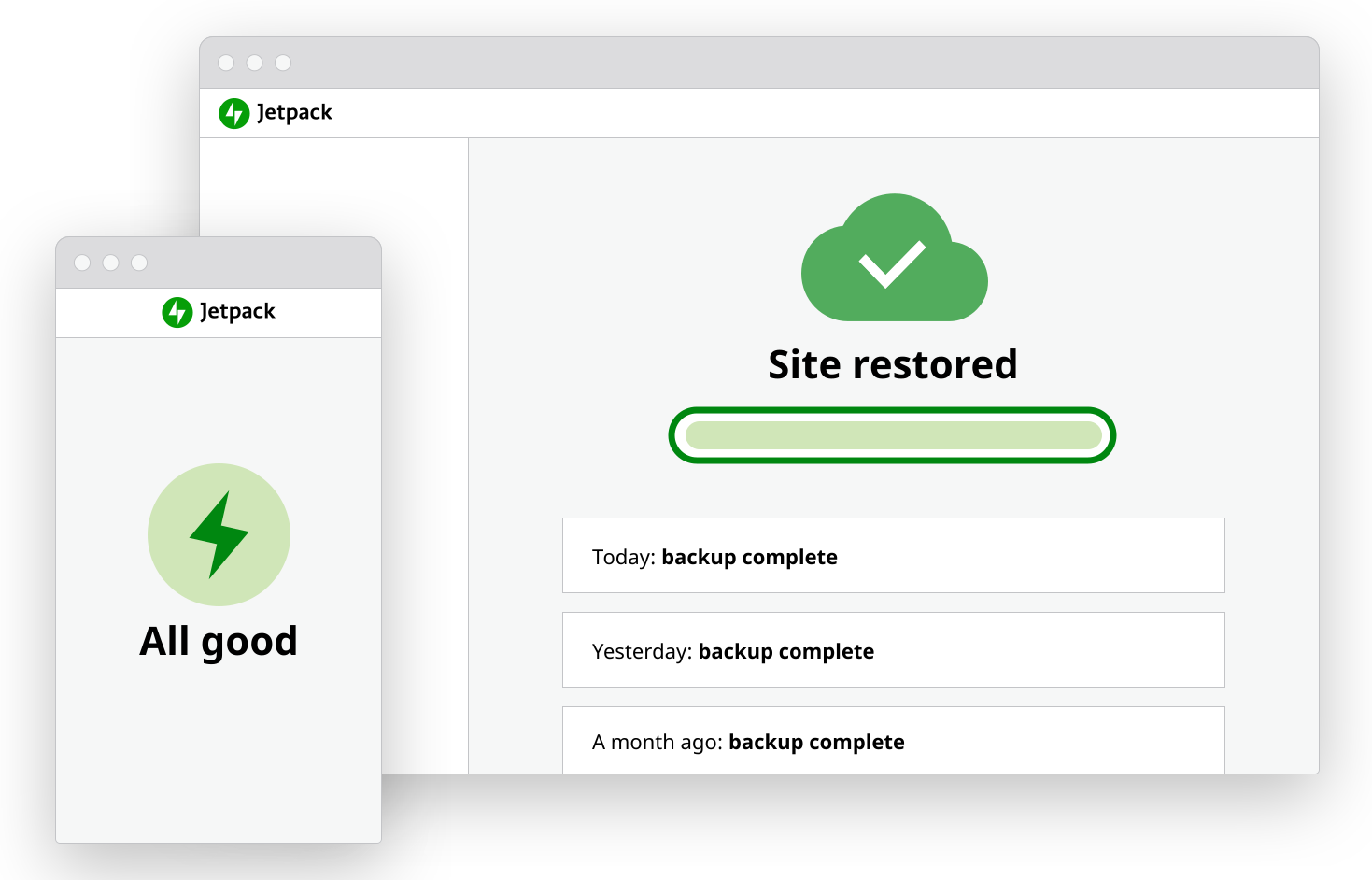
Plus, Jetpack Backup is the only backup plugin that provides real-time backups in all plans by default.
Real-time backups are the best choice for all sites, in particular for online stores, membership forums, or websites that are regularly updated. Jetpack saves a copy of your site each time something changes: a sale is made, a page is updated, or a comment is added. This means that you won’t lose a single sale or piece of information, no matter what happens.
The best part? It’s super easy to set up — there’s no need for complicated server configuration. Just walk through a few simple steps, and reach out to Jetpack’s unrivaled customer support team if you need any help.
You can use the best WordPress backup plugin as a stand-alone tool or as part of the full security suite.
5. Add brute force attack protection
Brute force attacks occur when hackers use bots to guess thousands of username/password combinations per second until they finally gain access to your site. Not only do these attacks put your site information at risk, they can also slow things down by overloading your server.
While secure login information will definitely help, the best prevention is a tool that will stop them in their tracks. Jetpack’s free brute force attack protection feature blocks suspicious IP addresses before they even get to your site!
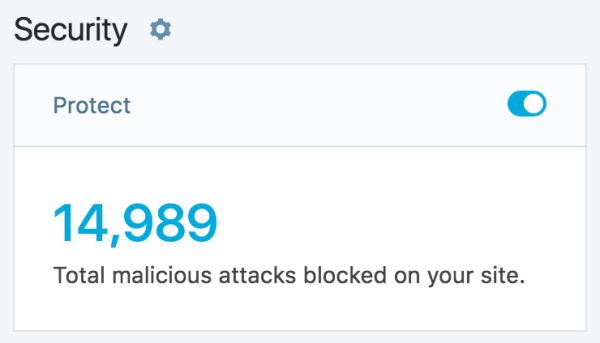
Setup couldn’t be easier — all you have to do is toggle the feature on — and you can view the number of attacks blocked right from your dashboard. Hint: the average is 5,193!
6. Scan for malware and security issues
If a hacker does manage to get in, you want to know right away so you can troubleshoot. After all, the longer your site is down or insecure, the greater the damage to your reputation and data.
But Jetpack Scan automatically searches your site for malware, bad actors, and suspicious activity, alerting you immediately if anything is found. You can even fix the majority of known hacks with just one click, saving you both time and money.
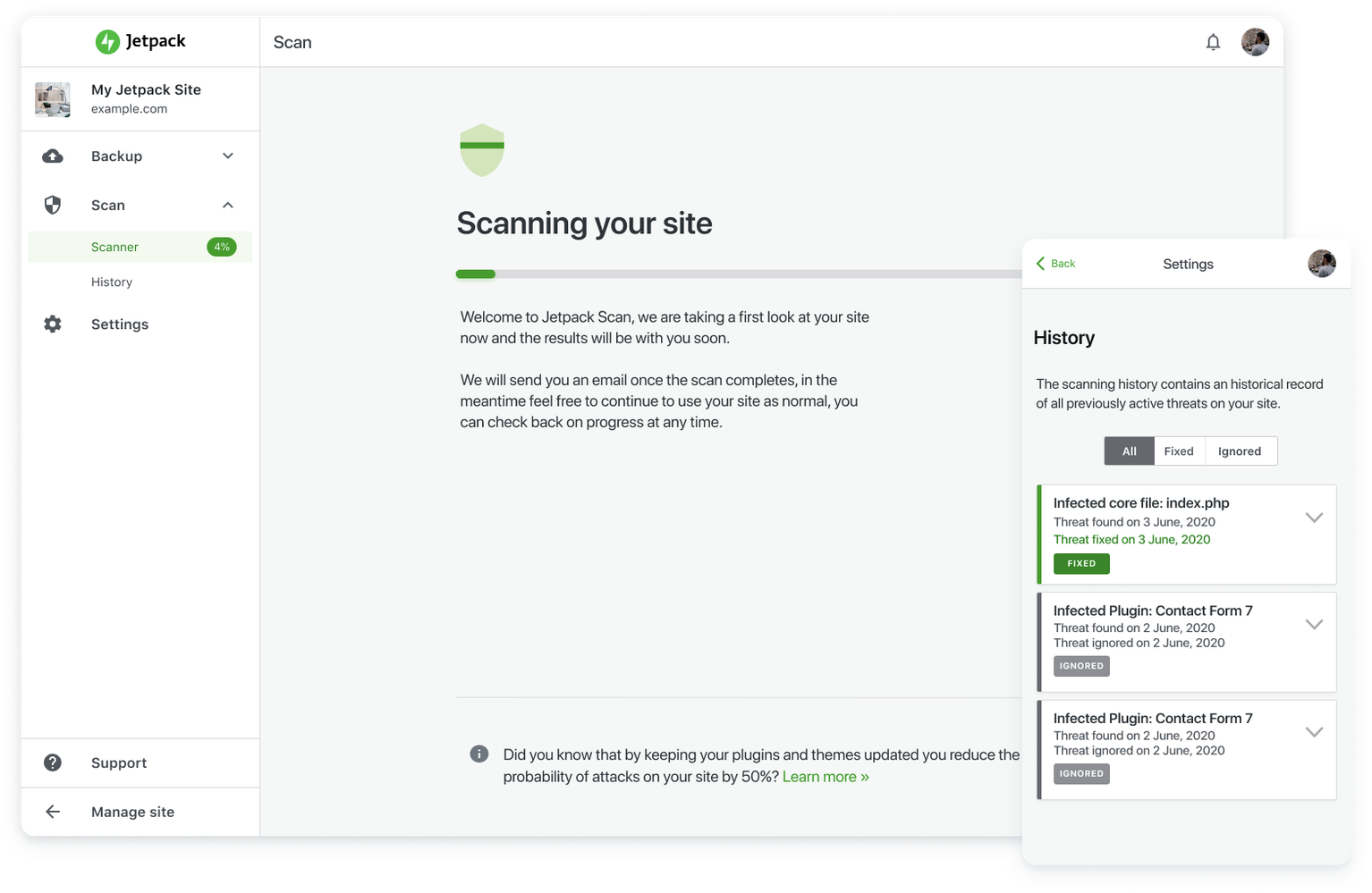
And you won’t have to spend any time deciphering complicated technical language — the Jetpack Scan dashboard explains everything in layman’s terms and walks you through every step you need to take. You can just set it and forget it, resting easy knowing that your website is monitored 24/7.
Learn more about our WordPress malware scanning tool.
7. Implement downtime monitoring
Whether it’s the result of a malicious attack or a simple mistake, if your website goes down, you need to take immediate action. But you don’t have time to reload your site all day long to make sure it’s working!

Jetpack’s WordPress downtime monitoring tool watches over your site 24/7 and notifies you if it stops responding. You can then use the activity log to determine exactly what went wrong and when, so you can respond appropriately and get back up and running within minutes, not hours or days.
8. Delete unused plugins and themes
The more themes and plugins you have installed on your site, the more opportunities there are for a hacker to take advantage of them. While plugins are a great way to add additional functionality, do a little housekeeping and remove ones you’re no longer using.
And, other than a default theme you can fall back on when troubleshooting site errors, there’s no need to store additional themes.
Bonus: deleting these can also improve your site speed!
9. Turn on two-factor authentication (2FA) for administrators
Two-factor authentication is an extremely effective way to protect your login page because it requires a hacker to have both your password and a physical item — an unlikely combination. When an administrator logs into your site, they’ll have to input a one-time-use code that’s sent to their phone.
Jetpack offers this feature for free, making it an easy way to go one step further than strong passwords. Do you have multiple users? Easily require two-factor authentication for all of them.
We guard your site. You run your business.
Jetpack Security provides easy‑to‑use, comprehensive WordPress site security, including real‑time backups, a web application firewall, malware scanning, and spam protection.
Secure your site10. Set up a WordPress firewall
A WordPress firewall monitors all of the traffic coming to your site, acting as a barricade against hackers. While a good hosting plan includes a firewall that protects your server, you’ll also want to install one specifically for WordPress.
A good firewall plugin has a database of information about bad actors — suspicious IP addresses, malicious bots, and traffic that just seems “off” — and blocks them before they can attack your website. Jetpack Security, which includes Jetpack Scan, adds a web application firewall (WAF) to your site to provide around-the-clock protection from bad actors. You can also purchase Jetpack Scan individually.
11. Keep an eye on your site activity
When you have a log of everything that happens on your website, you can easily go through it and identify anything suspicious. And if your site is hacked, you can also identify the time when it occurred, know what actions were taken, and find out which accounts were compromised much more easily.

Jetpack’s activity log for WordPress keeps track of all major changes that occur, from login attempts and published pages to deleted plugins, updated themes, and changed settings. For each event, you can see a timestamp, the user that made the change, and a description of what they did. You can then use this information to troubleshoot or restore a backup from immediately before a problem occurred.
What happens if my WordPress site isn’t secure?
Most attackers aren’t targeting you specifically, they’re just looking for the easiest site to access. So, if your WordPress site isn’t properly secured, it’s more likely to fall victim to a hack. Ultimately, this could lead to:
- A damaged reputation. If your site has security warnings, goes down, or redirects to a suspicious website, it won’t look good to site visitors. They may lose trust in your blog or business, losing you sales or ad revenue.
- Stolen customer data. If a hacker accesses your eCommerce store, they might gather personal information they can use themselves or sell to third parties.
- Damaged website files. You could lose part or all of your website, potentially years of hard work!
- Removal from search results. If your site is hacked, it may be blocklisted by Google and removed from search results entirely.
- Lost site traffic. Between lower (or nonexistent) search engine rankings and people who won’t want to visit a site with a security warning, your site traffic may decrease significantly.
- Reduced advertising revenue. Ad networks don’t want their clients’ advertisements running on insecure sites. So, if your site is hacked, it could be removed from ad networks and you could be banned completely, reducing or eliminating your income from ads. Even if it’s not removed, the reduced traffic will negatively affect ad clicks.
Frequently Asked Questions
What is the most common way WordPress websites get hacked?
The most common entry point for hackers is outdated software.
When you don’t update WordPress core, themes, or plugins, you leave known vulnerabilities open. Hackers scan for these openings using automated tools. Once they find an unpatched site, they try to exploit it.
Other common causes include:
- Weak passwords
- Reused usernames like “admin”
- Plugins from unknown or unreliable sources
- Poor hosting security
- Lack of a firewall or malware scanning
You reduce the risk of hacking by keeping everything updated and using only plugins and themes from trusted developers.
Why would someone hack a WordPress website?
- They want to steal money. They may want to gather customer credit card information or direct visitors to malicious websites designed to con people.
- They want to capture information. They might sell personal data to third parties or hold information hostage in exchange for money.
- They want to take down your site. This usually has a personal motive and is rarely a threat for the common website owner.
- They want to vandalize your site. Again, this is usually personal. The hacker might deface the website of someone they disagree with to make a statement.
- They want to attack someone else. Attackers can use your website to spread malware or ransomware across the internet or use your web server to maliciously attack someone else.
- They want to learn. Hackers have to practice somehow, right? They may use your website as a training ground for bigger, more lucrative targets in the future.
How do I know if my WordPress site has been hacked?
It can sometimes be difficult to tell if your website has been hacked or if it’s experiencing some other type of problem. However, here are a few indications of a site hack:
- Your website has a security warning when you load your URL.
- Your security plugin reports an issue.
- Your host emails you about a problem.
- Your website redirects somewhere else entirely and you haven’t made that redirect.
- You see odd lines of code on pages of your site.
- Your site is completely down, though this could also be due to other causes.
- Ads on your site redirect to suspicious websites.
- Your site suddenly loads very slowly or is acting oddly in other ways.
What do I do if my WordPress site is hacked?
If your WordPress site is hacked, there are a few steps you can take to fix the issue and recover your files and database:
- Determine what happened. If you’re using Jetpack, take a look at the activity log to see who logged in, when, and what they changed. This can help you identify compromised accounts and figure out which files are affected.
- Run a malware scan. Use a tool like Jetpack Scan to search your website files for malware or other indications of a hack. If you use Jetpack’s malware scanning tool for WordPress, you can also fix the majority of issues with one click.
- Restore a backup. If you take regular backups of your website, restore one from before the hack occurred. If you’re using Jetpack Backup, your files are stored separately from your server, so they shouldn’t be compromised.
- Reset all passwords and delete suspicious users. Reset all the passwords for your WordPress site and hosting provider. If you see any suspicious user accounts that you didn’t create, delete them.
- Hire a website security expert. If you aren’t able to remove malware on your own or just want to be sure that your site is secure, consider hiring a security expert from a service like Codeable.
- Update your plugins, themes, and WordPress version. This will help secure any vulnerabilities that the hacker could have taken advantage of.
- Resubmit your site to Google. If your site was blocklisted, use Google Search Console to request a review and get it removed from the list.
For more details, read our guide that covers what to do if your WordPress site has been hacked.
How can I secure my WordPress login page from brute force attacks?
Brute force attacks happen when someone tries many username and password combinations until they break in. The default WordPress login page, located at /wp-login.php, is often targeted.
Here’s how you can protect it:
- Use a custom login URL: Change the default login page to something unique.
- Limit login attempts: Block users after a certain number of failed logins.
- Enable two-factor authentication (2FA): This requires a second code in addition to your password.
- Use a strong password manager: Avoid using passwords you can memorize.
- Install a security plugin that includes brute force protection: Choose one that’s trusted and frequently updated, like Jetpack Security.
These simple changes can help prevent brute force attacks, stop automated bots, and reduce login page threats.
Do I really need a WordPress security plugin?
Yes, most site owners do.
A security plugin gives you protection without needing to manage complex server settings. It scans for malware, blocks bad traffic, monitors your site files, and alerts you if something changes.
Without a plugin, you would need to handle:
- Malware scanning
- File integrity checks
- Login protection
- Blacklist monitoring
- Spam protection
- Brute force prevention
- And more
If you’re not a developer or security expert, a plugin helps you cover all of this with one tool.
Is a paid WordPress security plugin worth the investment?
In many cases, yes. Free plugins cover the basics, but they often lack advanced tools like:
- Real-time firewall rules
- Full malware removal
- Priority support
- Scheduled scanning and backup
- Server-side malware detection
If your site collects customer data, accepts payments, or depends on organic traffic for revenue, a paid security solution can prevent costly downtime and reputation damage.
The cost of recovery from a hack is usually higher than the cost of prevention.
Is two-factor authentication (2FA) necessary for WordPress security?
Yes, 2FA is one of the most effective ways to stop unauthorized access. Even if your password is leaked or cracked, the second factor blocks the login attempt.
Many security plugins offer 2FA as a built-in feature. You should apply it to all admin-level users at a minimum.
Even one compromised account can open your entire site to a hacker.
Does WordPress security affect SEO rankings and Google visibility?
Yes. If your site is hacked, it can hurt your rankings in several ways:
- Blacklisting: Google may remove your site from search results.
- Spam content injection: Hackers can add links or pages that damage your SEO.
- Server downtime: If your site goes offline or slows down, your Core Web Vitals score drops.
- Loss of trust: Visitors who see “This site may be hacked” will not click.
- Manual penalties: Google may apply penalties if your site hosts malware or spam.
Google wants secure sites that protect user data. Keeping your site safe helps protect your rankings and user trust.
What are the top WordPress security mistakes website owners should avoid?
Many security issues start with small oversights. Here are the most common ones to avoid:
- Using “admin” as a username
- Skipping WordPress, theme, or plugin updates
- Using nulled or pirated plugins
- No daily or real-time backups
- Weak passwords
- No SSL certificate
- Not removing unused plugins or themes
- Ignoring user roles and giving admin access too freely
- No activity logging or monitoring
- Not setting file permissions properly
- Not installing a WordPress security plugin
Avoiding these mistakes can prevent most security issues before they even start.
WordPress security: it all starts with best practices
Putting the work into proper WordPress security from the beginning sets your site up for success and helps it run safely and efficiently for years to come. Remember, preventing site hacks is much easier than fixing them after they occur.
With the Jetpack Security package, you can check off the majority of items on this list in just a few minutes — no need for a developer or complicated setup.
Get started with the best WordPress security plugin.

We guard your site. You run your business.
Jetpack Security provides easy‑to‑use, comprehensive WordPress site security, including real‑time backups, a web application firewall, malware scanning, and spam protection.
Secure your site Jetpack
